












The Nexter Extension plugin comes with a host of powerful features to enhance the functionality of a WordPress website for free. The best part of the Nexter Extension plugin is that you can use it with any classic WordPress theme.
With the Nexter Extension plugins, you’ll get so many features that you can easily replace multiple plugins.
Nexter Extension
To use the free Nexter Extension plugin with any classic theme, simply search and install the Nexter Extension plugin from the Plugin section.
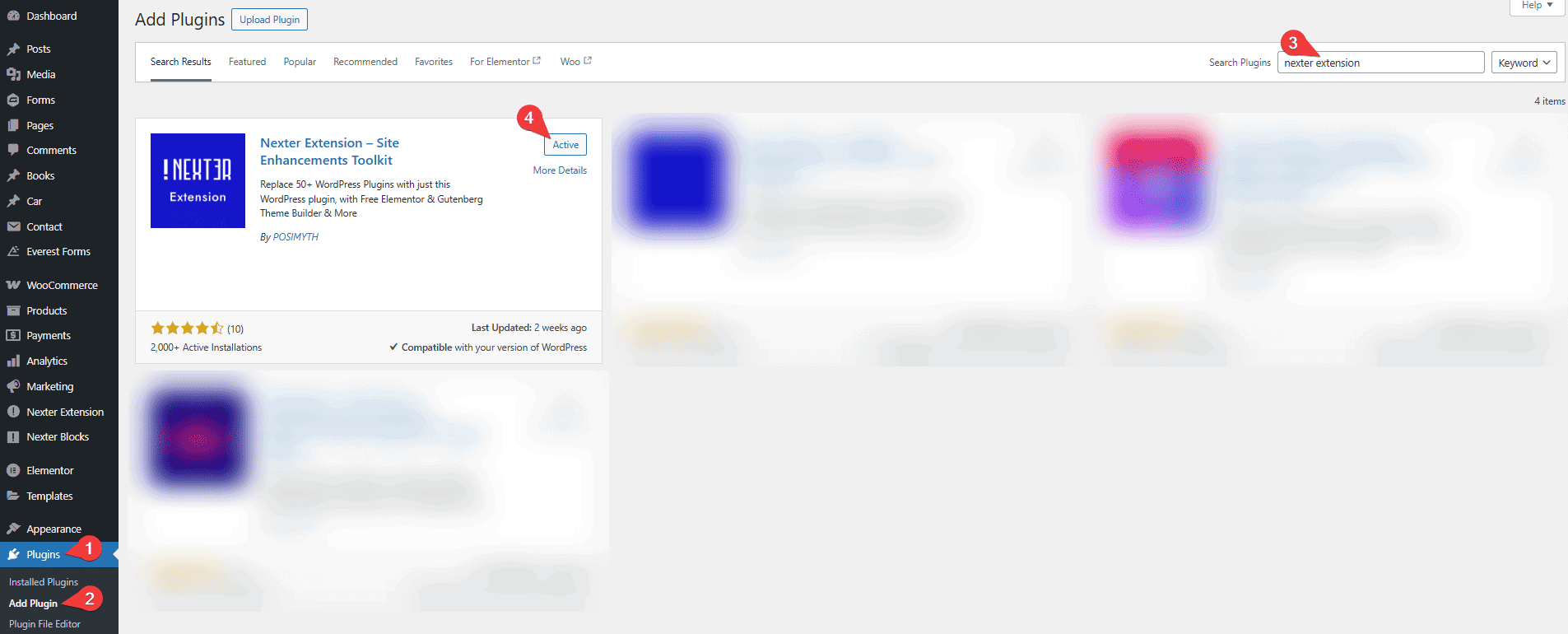
Then go to Nexter > Extensions here, you’ll see all the options.
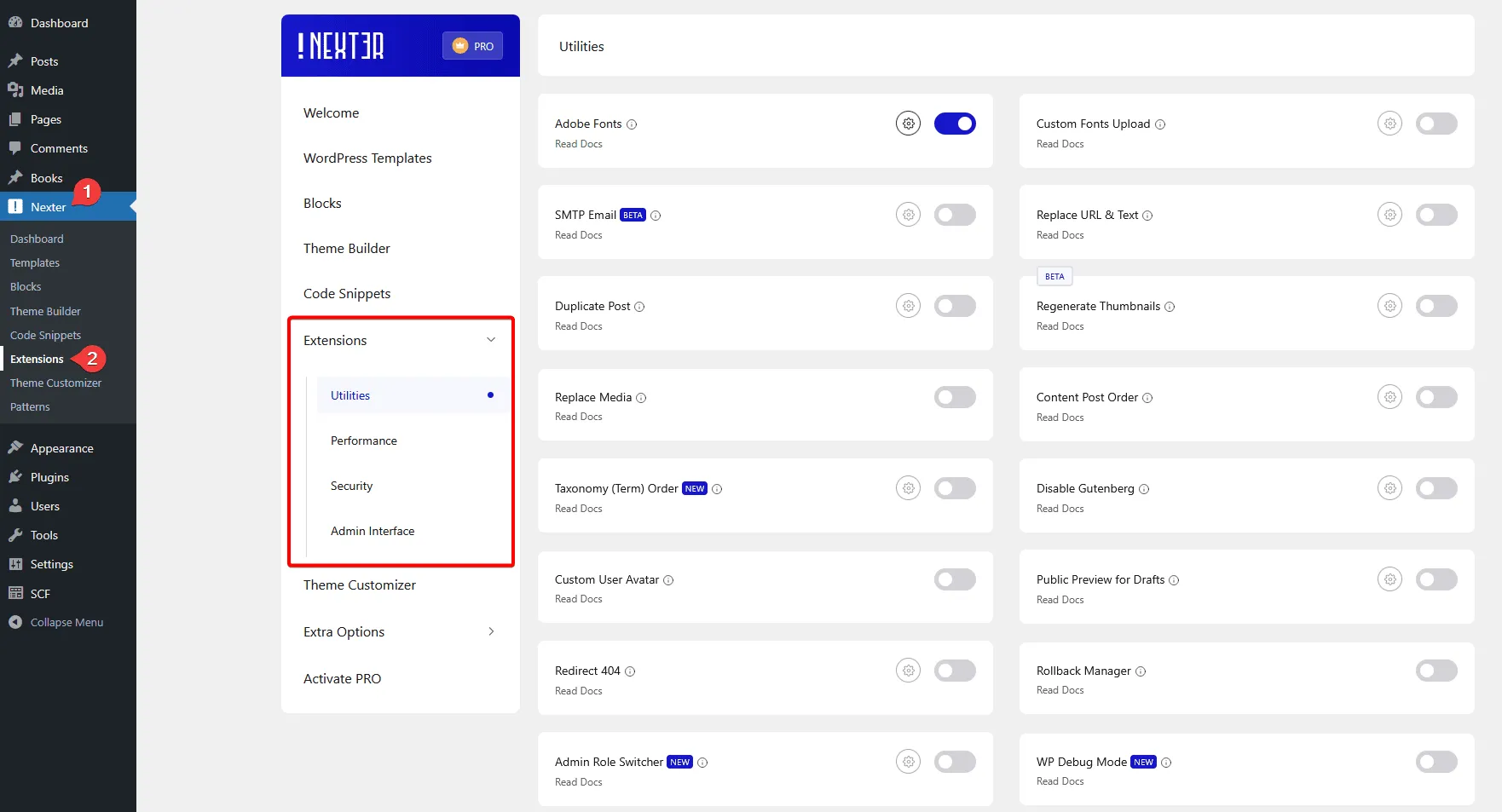
In the Utilities tab, you’ll find a bunch of options –
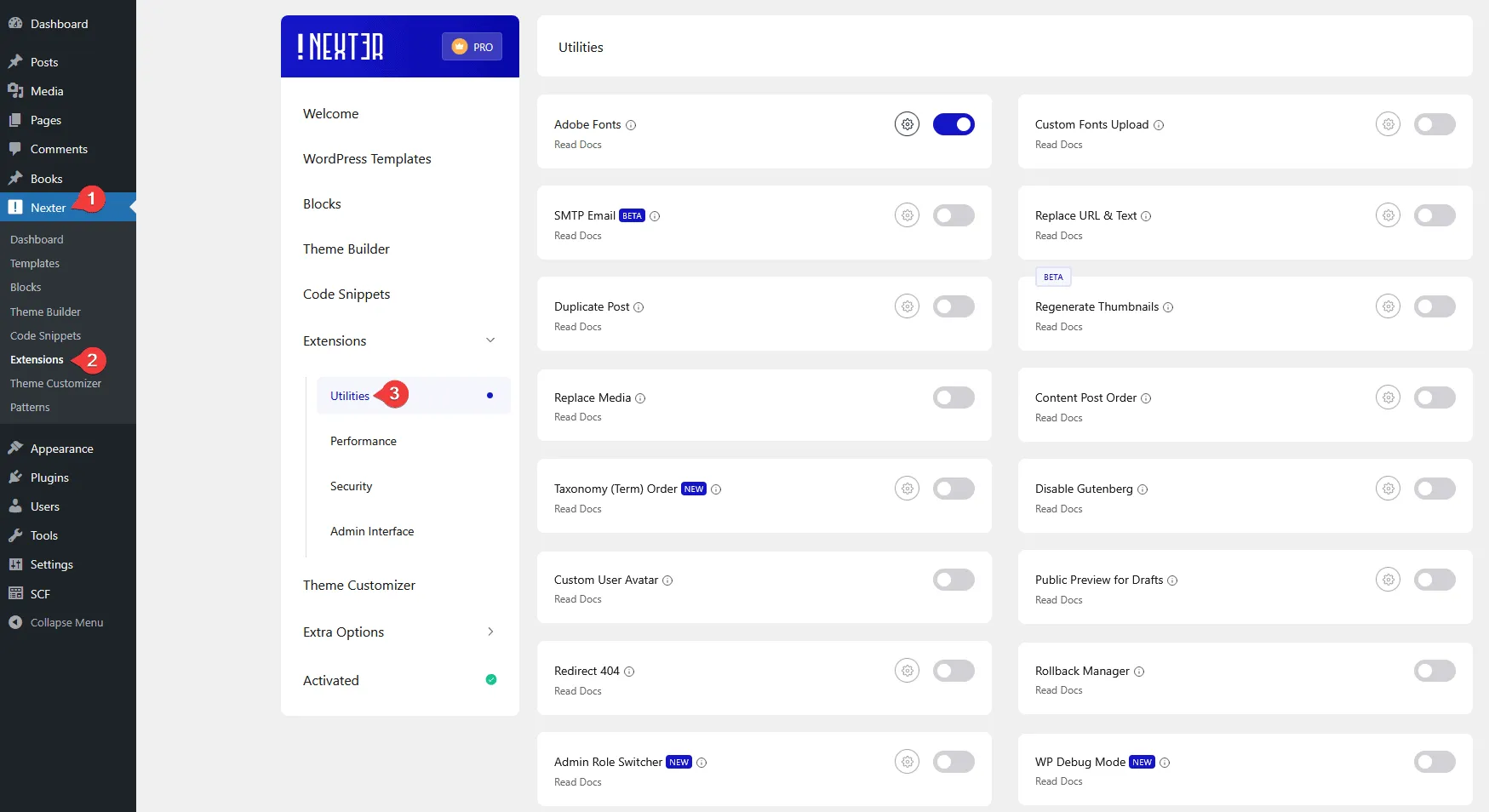
- Adobe Fonts – To upload and use Adobe fonts on your WordPress website.
- Custom Fonts Upload – To upload and use custom fonts on your WordPress website.
- Replace URL & Text – You can easily replace URL and text on your website.
- Duplicate Post – You can easily duplicate posts.
- Regenerate Thumbnails – You can easily regenerate thumbnails for your images.
- SMTP Email – From here, you can add SMTP to your WordPress site.
- Replace Media – From here, you can enable media replacement in your WordPress site.
- Content Post Order – From here, you can enable post reorder.
- Taxonomy (Term) Order – From here, you can enable taxonomy term reorder.
- Disable Gutenberg – From here, you can disable Gutenberg from your WordPress site.
- Custom User Avatar – From here, you can add a custom user avatar.
- Public Preview for Drafts – From here, you can enable public preview of an unpublished post.
- Redirect 404 – From here, you can add a 404 redirect.
- Rollback Manager – From here, you can roll back theme and plugin.
- Admin Role Switcher – From here, you can view admin pages as a non-admin.
- WP Debug Mode – From here, you can enable debug mode.
In the Performance tab, you’ll find different options to improve the performance of your WordPress website –
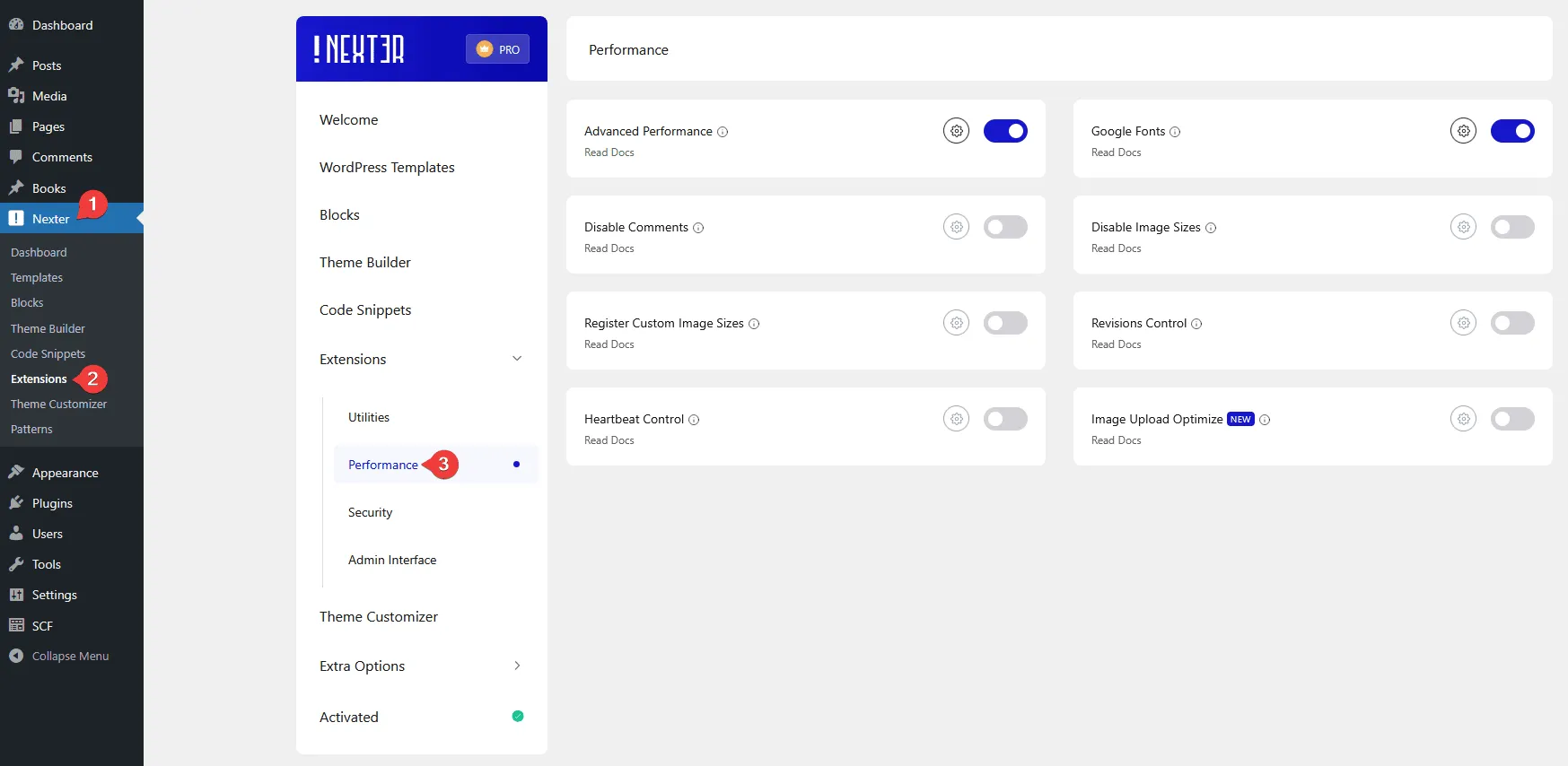
- Advanced Performance – From here, you disable many default WordPress options to improve performance.
- Google Fonts – From here, you can self-host Google Fonts on your WordPress website for free.
- Disable Comments – From here, you can disable comments on your WordPress website.
- Disable Image Sizes – From here, you can disable different image sizes.
- Register Custom Image Sizes – From here, you can add custom image sizes.
- Disable Icons – To disable the loading of Elementor icons on your Elementor website.
- Revisions Control – From here, you can add revision control for any post type.
- Heartbeat Control – From here, you can manage heartbeat control.
- Image Upload Optimize – From here, you can optimize images on upload.
In the Security tab, you’ll find different security related options –
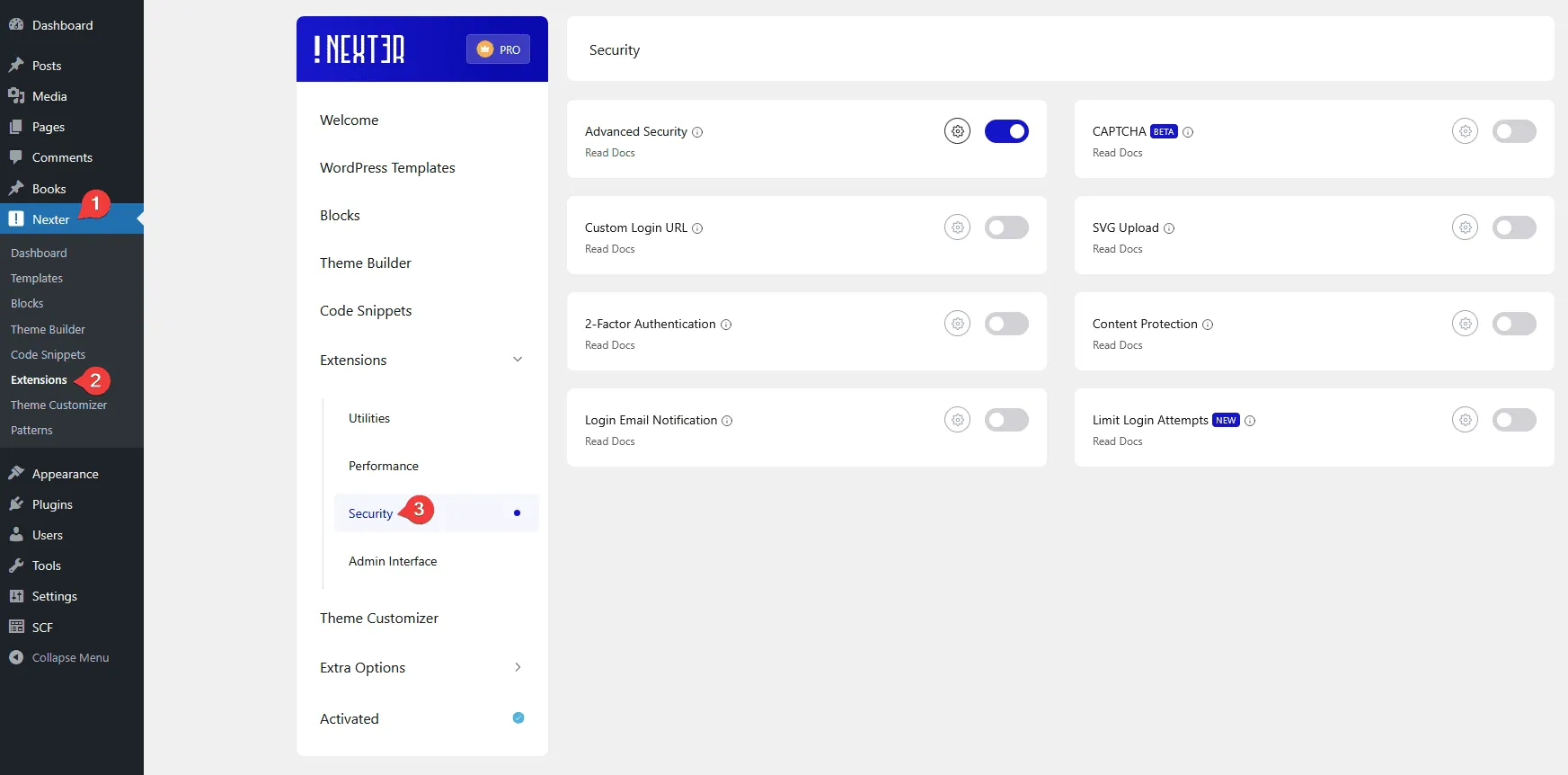
- Advanced Security – From here, you can disable many default WordPress options to improve the website security. You can disable XML-RPC, REST API, File Editor, hide WordPress version, remove REST API links, remove meta generator, enable XSS protection, enable secure cookies, and harden iFrame security.
- Custom Login URL – From here, you can add a custom login URL for your WordPress website.
- Content Protection – From here, you can add content protection to your WordPress website.
- CAPTCHA – You can add the Google reCAPTCHA security on your website.
- 2-Factor Authentication – From here, you can add two-factor authentication to your WordPress website.
- Login Email Notification – From here, you can send login email notifications on your WordPress website.
- SVG Upload – From here, you can enable SVG file upload.
- Limit Login Attempts – From here, you can limit failed login attempts.
In the Admin Interface tab, you’ll find different admin related options –
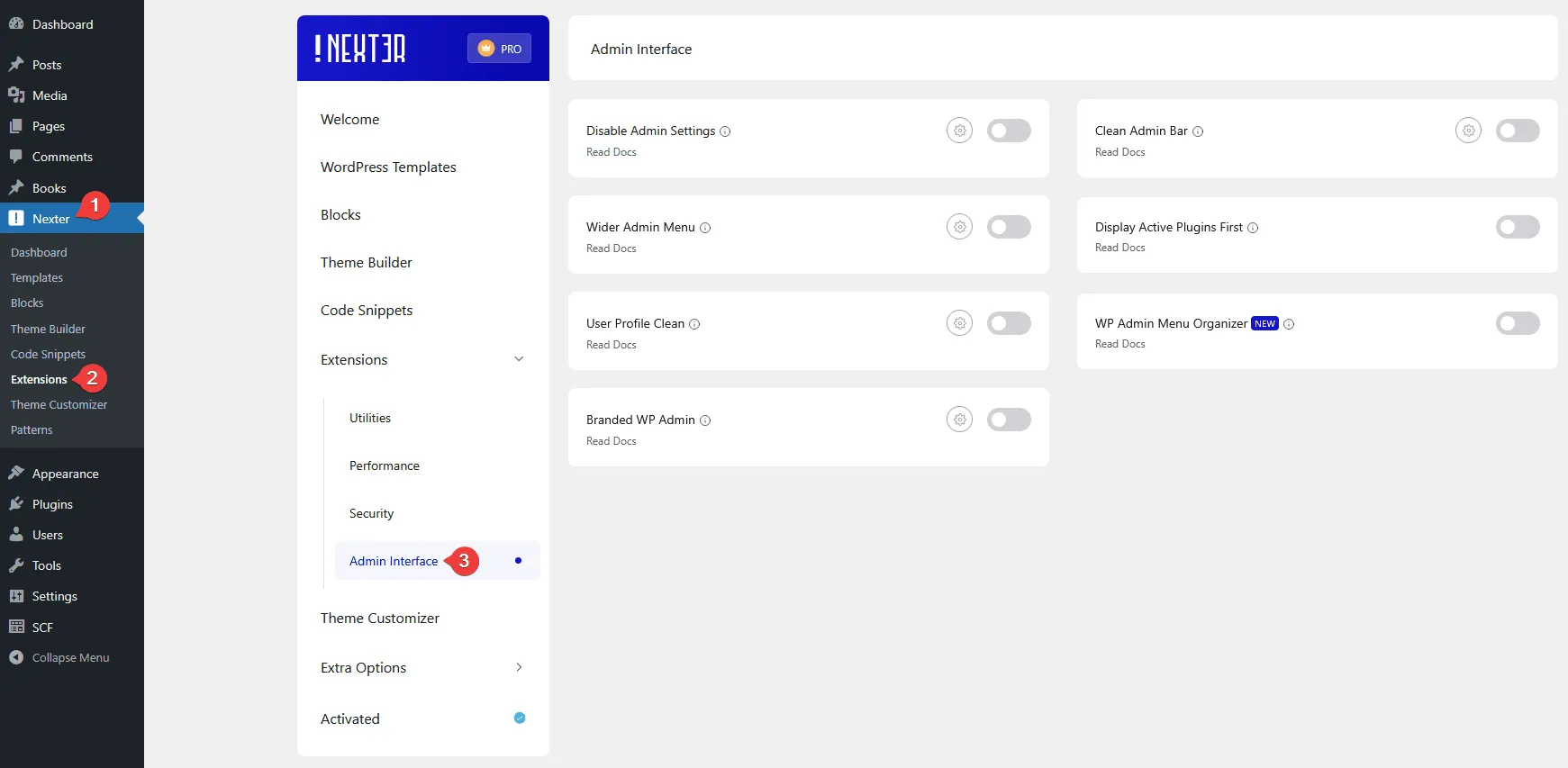
- Disable Admin Settings – You can easily hide multiple admin panel notices from here.
- Branded WP Admin – From here, you can white-label the WordPress WP Admin login page.
- Wider Admin Menu – From here, you can adjust the admin menu width.
- Branded WP Admin – From here, you can white label your WP admin login page.
- WP Admin Menu Organizer – From here, you can organize the WP admin menu.
- User Profile Clean – From here, you can clean the user profile page.
- Display Active Plugins First – From here, you can display active plugins first.
In the Extra Options tab, you’ll find different extra options related options –
- Roll Back Plugin – You can easily Roll Back Plugin from here.
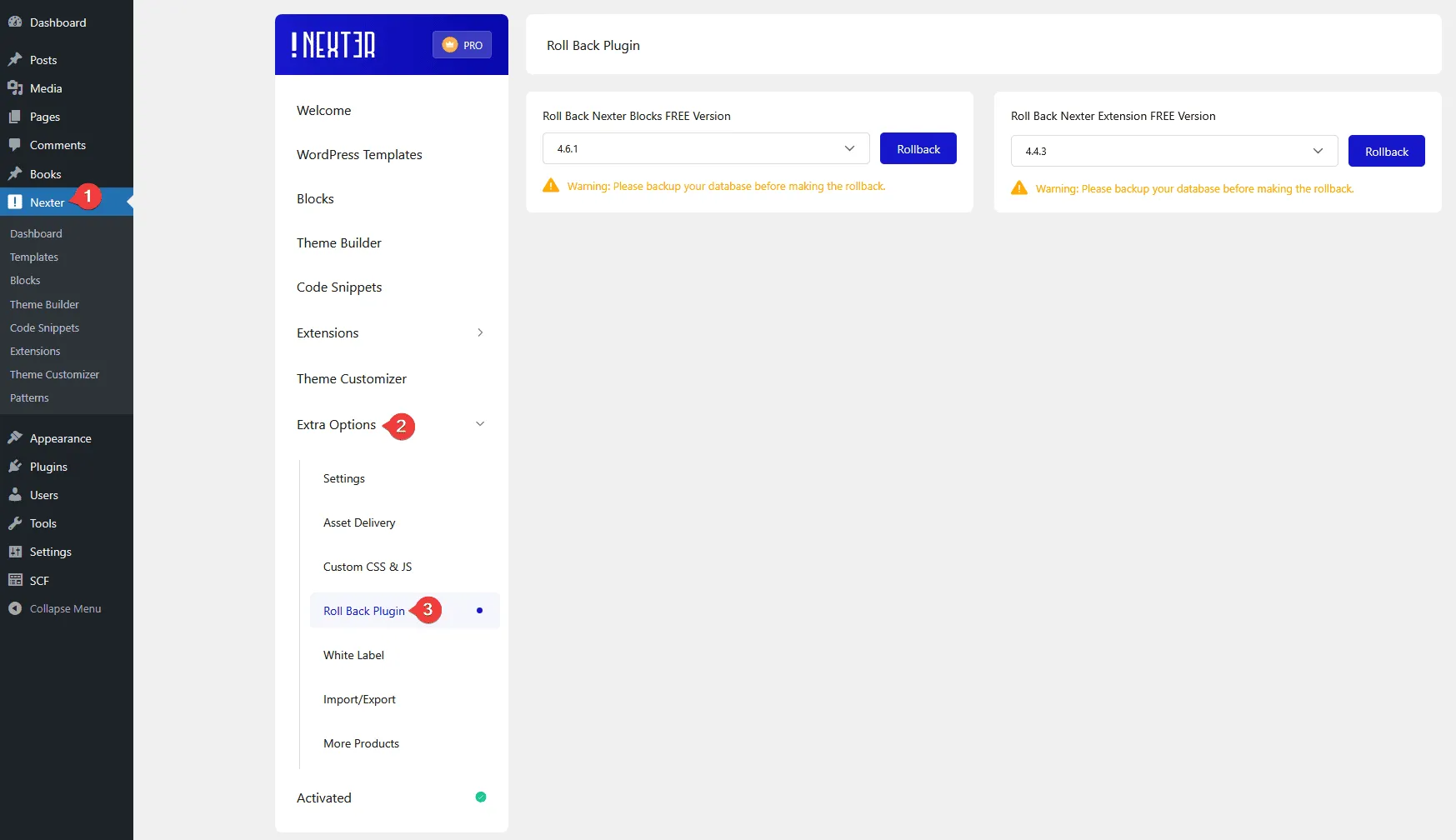
2. White Label – You can easily white the Nexter Extension with your brand name.

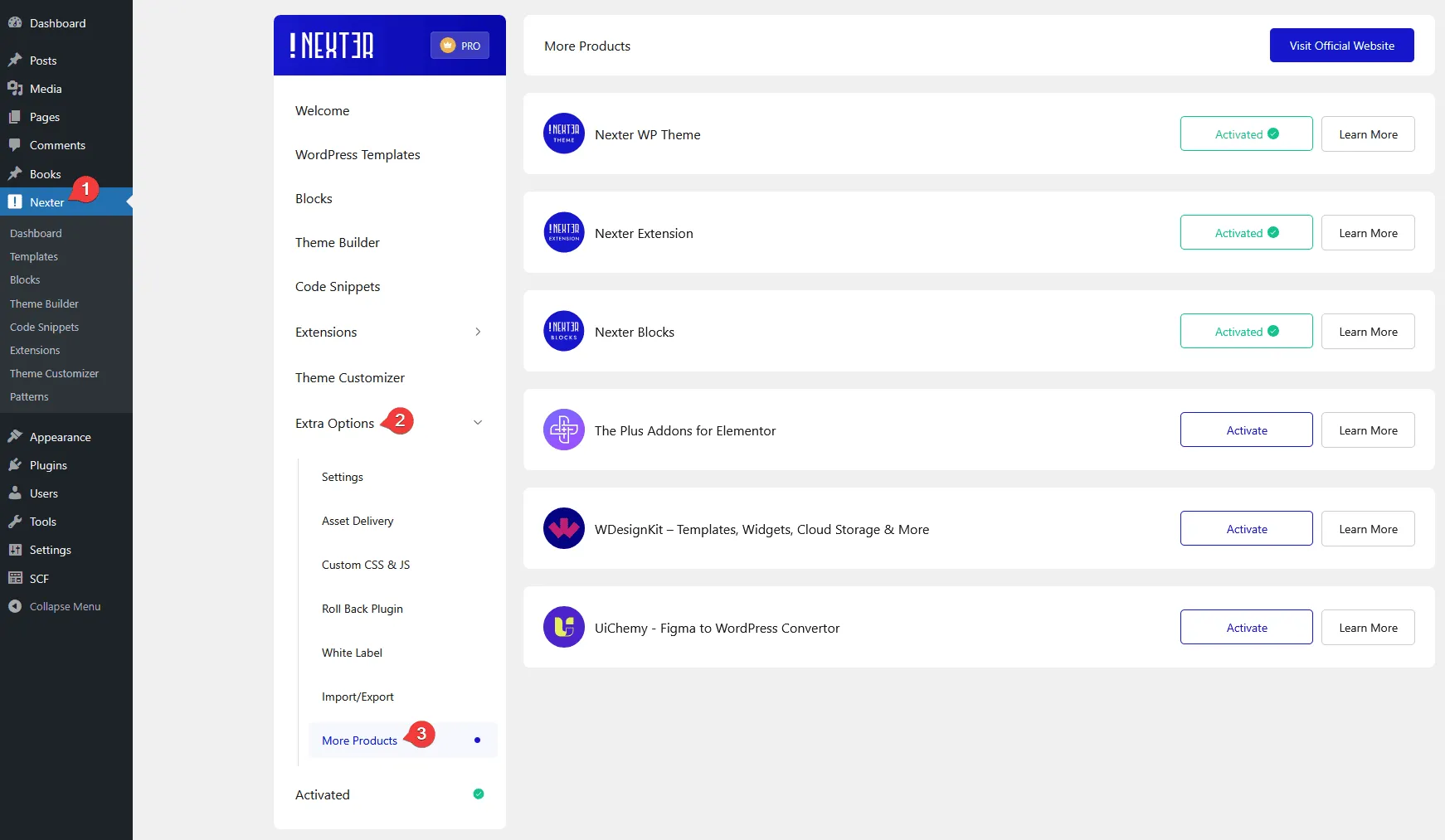
3. More Products – You can see the activated products here.
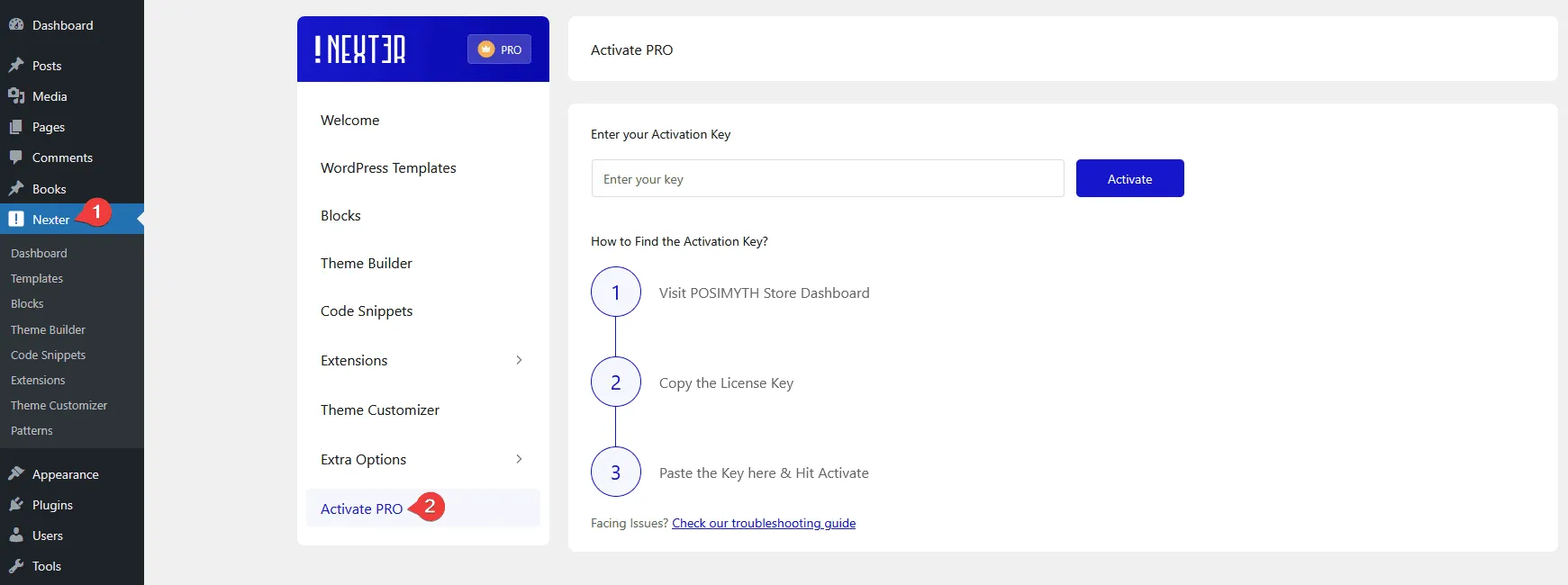
- Activate Pro – You can use the Nexter Pro extension by entering the activation key.
Nexter Pro Extension
You can use the Nexter Pro Extension plugin to get more features, such as –
WP Login White Label – You can easily customize the WordPress admin login with your own branding.
Content Protection (Right Click Disable) – From here, you can protect your content through multiple options.
Login Email Notification – From here, you can send login email notification.
To get the Nexter Pro Extension plugin, you have to buy the Nexter theme then you can download the plugin from our store.
This is how you can empower any classic WordPress theme with more features using the Nexter Extension plugins.