












To redirect 404 pages in WordPress, go to Nexter > Extensions > Utilities and switch on Redirect 404. With the free plugin, every 404 page then sends visitors to your homepage. With Nexter Extension Pro, you can send them to a page you choose instead.
Every redirect is a permanent 301, and one destination covers all missing URLs on your site.
Best Used For:
- Sites that removed or renamed pages and need to keep visitors off dead-end URLs
- Blogs and content-heavy sites where outdated post URLs return 404 errors after a restructure
- Small business sites where a lost visitor should land on a useful page
Free vs Pro: What Each Version Does
- Nexter Extension (Free): switch on Redirect 404 and all 404 pages redirect to the homepage. There is no destination field.
- Nexter Extension Pro: a settings popup lets you type the page that 404 visitors should land on.
Before You Start
- Nexter Extension (free) is installed and active. For a custom destination you also need Nexter Extension Pro active.
- For a custom destination, the page you want to send visitors to must already exist.
How to Redirect 404 Pages to the Homepage (Free)
- In your WordPress dashboard, go to Nexter > Extensions > Utilities.
- Find the Redirect 404 card and switch it on.

All 404 pages now redirect to your homepage. This suits sites where the homepage is the main hub for content.
How to Redirect 404 Pages to a Custom Page (Pro)
- Go to Nexter > Extensions > Utilities, switch on Redirect 404 and click the gear icon (⚙).
- In the Redirect to field, type the path of the page on your own site, for example
contact-us. Nexter adds your domain in front of it, socontact-ussends visitors toyoursite.com/contact-us.
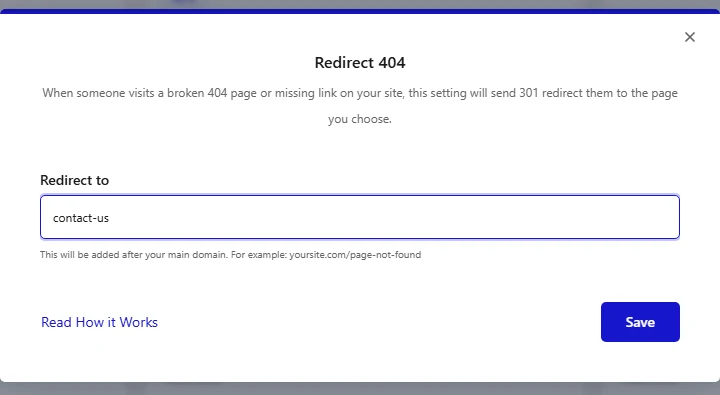
- Click Save.
Type a path, not a full URL. In our tests, pasting a full address such as https://yoursite.com/contact-us created a redirect loop, because Nexter adds the domain for you. A path that does not exist loops the same way, so check the page opens first.
How the 404 Redirect Works
- The redirect runs only on the front end of your site. Admin screens, scheduled tasks and XML-RPC requests are skipped.
- It is a 301 (permanent) redirect, and browsers can remember it. Test changes in a private window.
- Every missing URL goes to the same destination. It does not match old URLs to new ones.
Sending many different missing pages to the homepage can look like a soft 404 to search engines. If a page has moved, redirect that one URL to its closest match, and use this setting as a safety net for everything else.
Troubleshooting Common Issues
- The browser says too many redirects: the Redirect to field holds a full URL or a path that does not exist. Replace it with a path to a page that opens.
- Nothing redirects: check that the Redirect 404 switch is on, clear your caching plugin, and test in a private window. Make sure no other redirect plugin is handling the same URLs.
- The Redirect to field is missing: the custom destination needs Nexter Extension Pro to be active.
- The page still shows a 404: a caching layer may be serving the old response. Clear the page cache and any CDN cache.
Frequently Asked Questions
How do I redirect a 404 error to the homepage in WordPress?
Switch on Redirect 404 under Nexter > Extensions > Utilities. With the free plugin, every 404 page redirects to the homepage.
Can I redirect 404 pages to a custom page for free?
No. The free plugin redirects to the homepage only. The custom destination field is part of Nexter Extension Pro.
Is it better to show a custom 404 page instead of redirecting?
It depends on the site. A branded 404 page tells visitors the page is missing and can offer links, while a redirect moves them on straight away. To build one, see How to Create a 404 Page Template in WordPress.
Does a 404 redirect use a 301 or a 302?
A 301, which is a permanent redirect.
