












Do you want to rearrange the WordPress admin menu to better suit your workflow? By default, WordPress orders the admin menu items in a fixed way, which is not ideal for everyone, especially when you are managing a large site or using multiple plugins. You may want to move important items like Posts, Pages, or custom post types to the top, or hide unused menu items to reduce clutter.
With the Nexter Extension (Free) and Nexter Extension (Pro) plugins, you can organize the WordPress admin menu items.
Best Used For:
- WordPress developers managing complex multi-plugin setups who want to reduce admin sidebar clutter
- Agencies delivering sites to clients who need to hide irrelevant plugin menu items for non-technical editors
- Teams with custom post types who want their most-used menu items at the top of the sidebar
How to Organize WordPress Admin Menu with the Nexter Extension Pro?
To organize the WordPress admin menu with the Nexter Extension Pro plugin, go to Nexter > Extensions > Admin Interface from the WordPress Dashboard.
Then go to the WP Admin Menu Organizer section and enable the toggle.
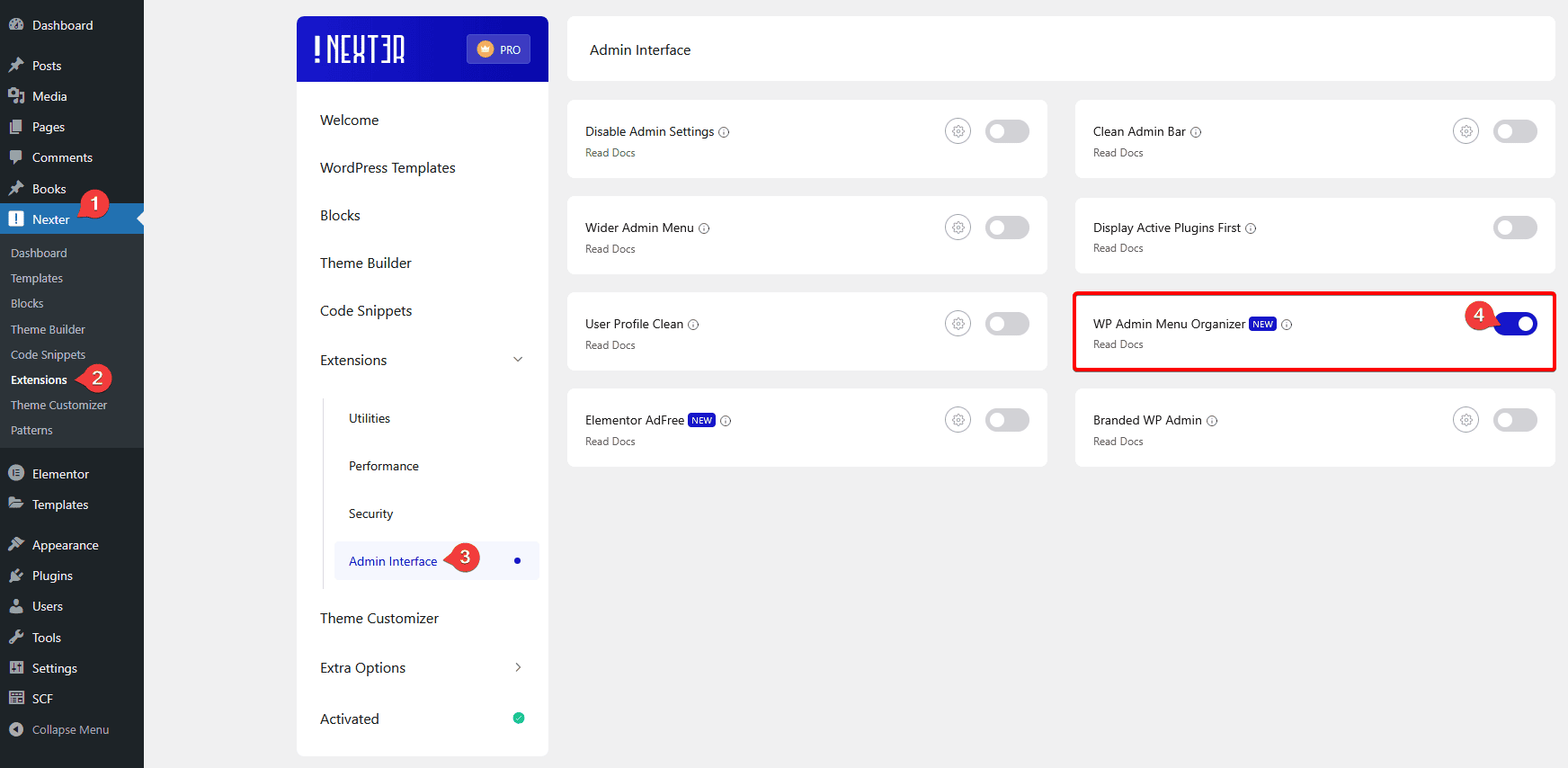
Then reload the page.
You will see a menu item Admin Menu under Nexter Extension. Click on it.
On the next page, you will see all of your WordPress dashboard menu items listed. You can organize, hide, or rename them (post type items only) as per your requirement.
To also clean up the top admin bar, see how to clean up the WordPress Admin Bar. To control the width of the admin sidebar, see how to adjust the WordPress admin menu width.
Rearrange Menu Items
To rearrange the menu items, drag and drop them to the position you want. If a menu item has a submenu, click on the Submenu link to rearrange the submenu items as well. Use this when you want your most-used sections, such as Posts or a custom post type, at the top of the sidebar so you do not have to scroll past lesser-used plugin menus.
Hide a Menu Item
To hide a menu item, click on the arrow icon. You will see two options:
- Hide until toggled — Hides the menu item from the left menu bar. If you access that menu item or its child item by URL directly, the menu item will show. Use this when you want to tuck away a menu item from your own view without removing access entirely.
- Always hide for user role(s) — Hides the menu item by user role. You can hide for all users, specific users, or exempt users by role. The menu item will not be visible to those users even if they access it by URL directly. Use this when delivering a site to a client and you want to keep certain plugin menus invisible to editors or contributors.
Note: You can do the same for a submenu item as well.
Note: This option will hide the menu item from the left menu bar but the pages will remain accessible by URL.
Rename a Menu Item
You can rename post type menu items. An editable text field appears for post type menu items, so you can edit the name directly. Use this when you want the menu label to match your client’s terminology, such as renaming “Posts” to “News” or “Blog” for a client who finds “Posts” confusing.
Once done, click on the Save Changes button to save the changes.
Then reload the page to see the changes.
Click on the Add Separator button to add a separator line in the menu items. Drag and drop to position it. Click on the cross button to delete the separator.
From the Reset Menu button, reset all changes to the default state.
