












Nexter includes over 1,000 pre-designed templates and sections you can import directly into your WordPress site. Instead of building from scratch, you start with a complete layout and customize it to match your brand.
You can import in three ways: a full Page Kits template to build a complete site, an individual template or section from inside the WordPress editor, or a preset design for a specific block.
Best Used For:
- Sites being built from scratch where a Page Kits template provides a complete, ready-to-customize site structure
- Individual pages or sections where you want a polished layout as a starting point without designing from scratch
- Specific Nexter Blocks blocks where you want to apply a pre-built style configuration instead of styling every option manually
Import Entire Website Templates (Page Kits)
Page Kits let you import a complete set of pre-designed pages, layouts, and sections at once. When you import a Page Kit, Nexter sets up the pages, assigns templates, and installs required plugins automatically. You get a working site structure in a few clicks.
Required Setup
- You need to have the Nexter Blocks plugin installed and activated.
- You need to have the Nexter Extension plugin installed and activated.
Import Templates
Before importing a Page Kits template, make sure to back up your site, as it can install additional plugins and may overwrite some of your current settings.
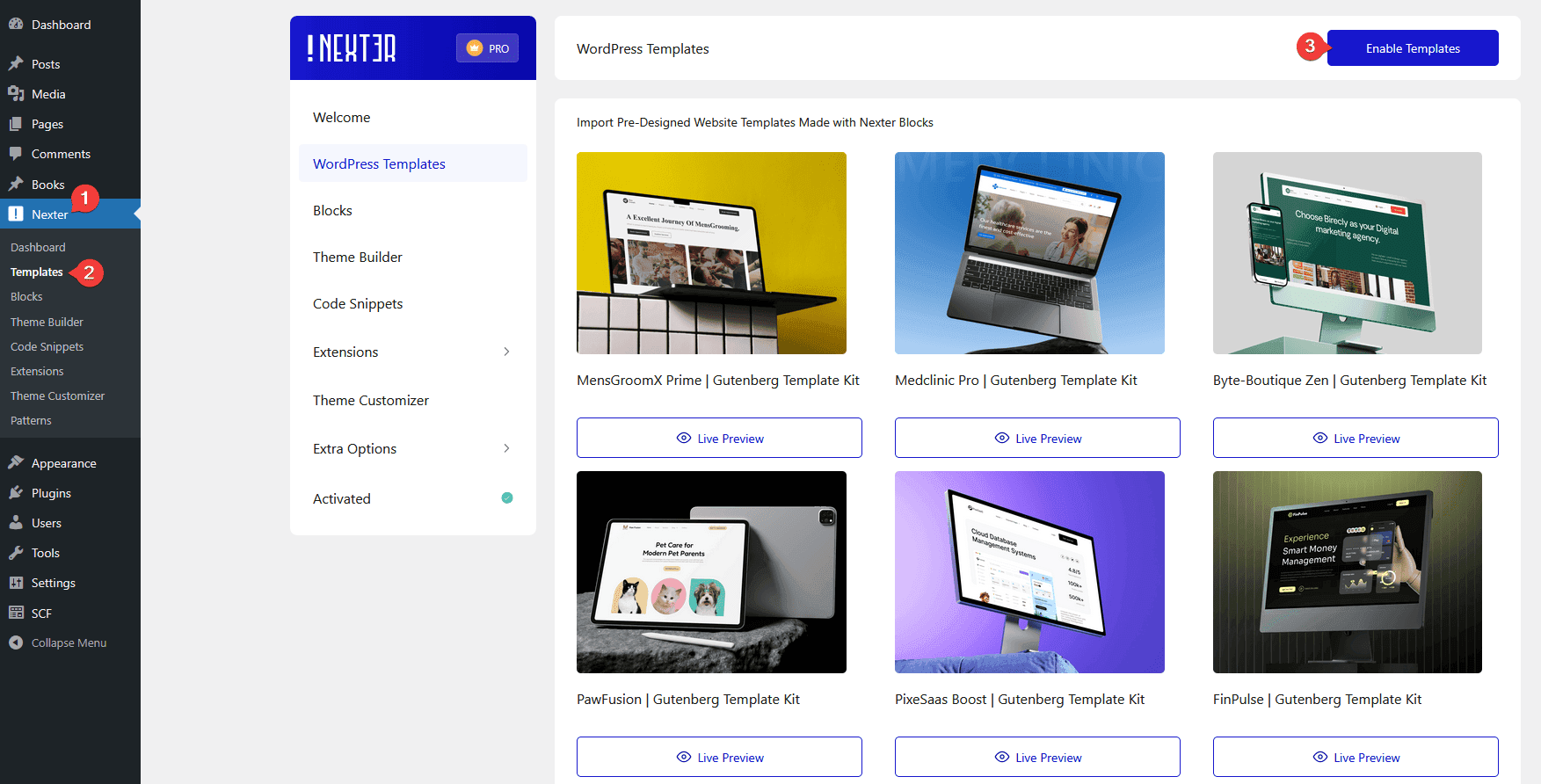
1. Go to Nexter > Templates.
Note: If you are just starting with Nexter Blocks, you might see an onboarding screen. Click the close button at the top right to reach the Templates page.
2. Click the Enable Templates button to set up the WDesignKit integration.
3. Nexter will install and activate the WDesignKit plugin, which is required for the template library. Once done, click Open Templates.
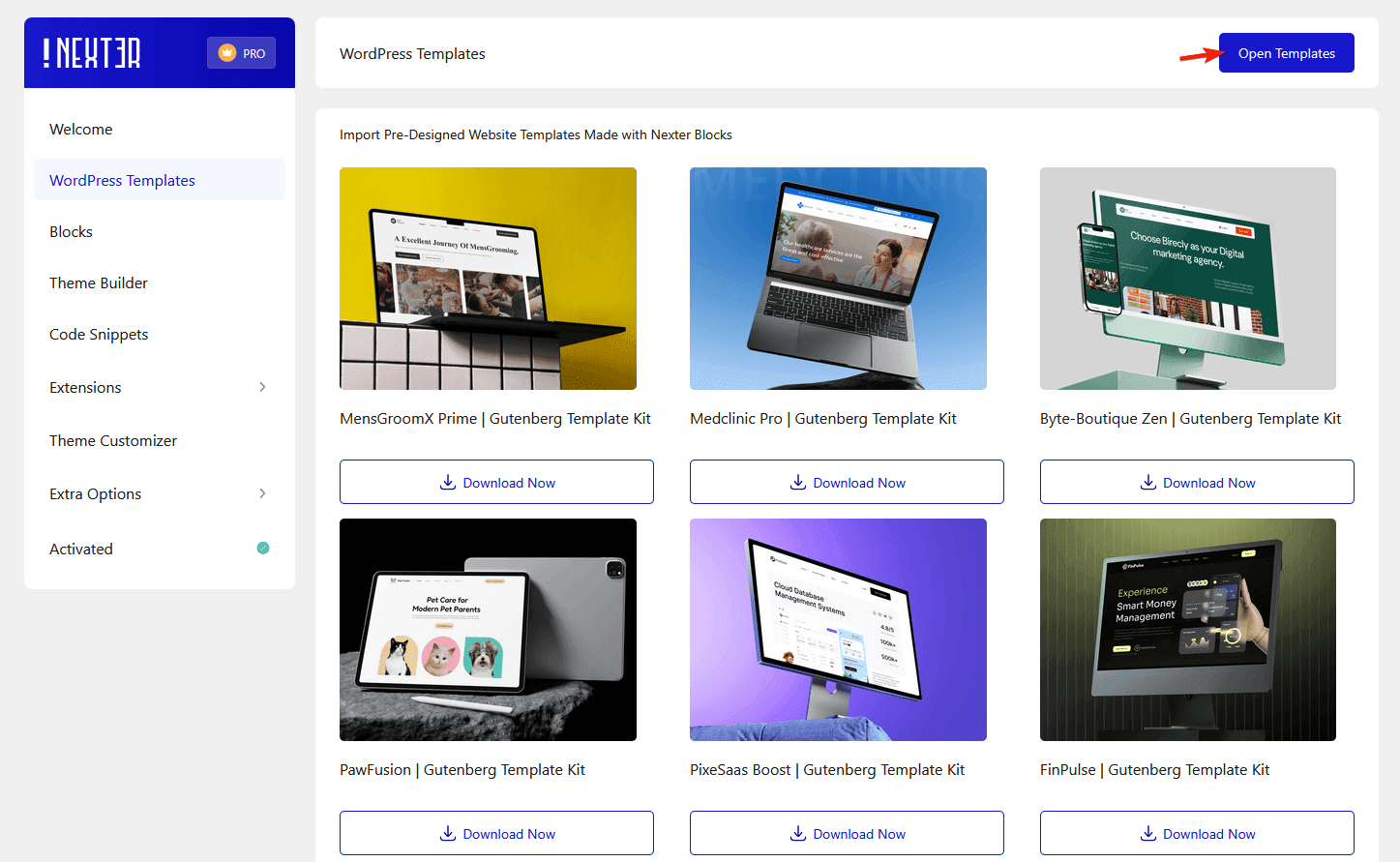
4. The template library opens with free and pro templates.
Select the Free option from the filter to see free templates only.
Page Kits templates display by default.
You can filter further by plugin requirements or tags.
Note: To use pro templates, you need a WDesignKit Pro subscription.
5. Click on the template you want to import.
6. Enter a site name and, optionally, a site tagline. Click Next.
7. Review the global typography and color settings for the template. Adjust them to match your brand if needed. Click Next.
8. Enable the Nexter Theme toggle for the best design experience.
You can also include these optional plugins:
- eCommerce – Will install the WooCommerce plugin.
- Dynamic Content – Will install the Advanced Custom Fields plugin.
- Performance – Will install the WP Optimize plugin.
- Security – Will install the All-In-One Security (AIOS) plugin.
- Extras – Will install the Rank Math SEO plugin.
9. Accept the terms and click Next.
10. Select Quick Demo Content and click Next.
Nexter automatically installs the required plugins, creates pages with demo content, and assigns the templates.
11. Once complete, click Preview Site to see the imported template on your site.
Enable All Nexter Blocks
After importing, enable all blocks in Nexter Blocks to make sure every element in the template displays correctly.
1. Go to Nexter > Blocks.

2. Turn on the Enable All toggle to activate every block at once.
Edit Templates
To edit an imported template, go to the section where its template type was assigned.
Pages
Page templates appear in the Pages section of your WordPress dashboard.
1. From the Dashboard, go to Pages.

2. Find the page you want to edit and click Edit to open it in the WordPress editor.
Theme Builder
Templates imported as theme builder templates appear under Nexter Extension in the Theme Builder section.
1. From the Dashboard, go to Nexter > Theme Builder.
2. Find the template you want to edit and click Edit to open it in the WordPress editor.
You can also click the Edit button in the Conditions column to change the display condition of a theme builder template.
To build your own custom header or footer template in the Theme Builder, see How to Create Header Template in WordPress for Free.
Import Individual Templates or Sections in Nexter Directly from the Editor
You can also import ready-made layouts directly inside the WordPress editor without leaving the page you are working on. This lets you add individual templates or sections, such as a hero, testimonials, or contact form, to any specific page without importing a complete site template.
Required Setup
- You need to have the Nexter Blocks plugin installed and activated.
Note: Use the Nexter theme for the best design experience.
Import Individual Template or Section
Open the page or post where you want to add the template in the WordPress editor.
1. Click the Import Templates button in the editor toolbar.

2. In the pop-up, click Install WDesignKit to install and activate the plugin required for the template library.

Note: If WDesignKit is already installed and activated, the template library opens directly.
3. The template library opens with free and pro templates. Select Free to view free templates only. You can filter further by template type (full page or section), plugin, or tag.
4. Click the download icon on the template you want to import.
5. Nexter automatically installs any required plugins and configures the template settings. Once complete, the template appears on your page.
Click Publish or Update to save your changes.
Note: If any element in the template does not display correctly, make sure all blocks are enabled from Nexter > Blocks.
Import Preset Designs for Specific Blocks in Nexter
Block presets are ready-made style configurations for individual Nexter Blocks blocks. Instead of styling a block from scratch, you import a preset that applies typography, colors, and layout settings instantly. This is useful when you want a polished starting point for a specific block, such as an Accordion, Info Box, or Buttons block, without manually configuring every style option.
Required Setup
- You need to have the Nexter Blocks plugin installed and activated.
Import Block Presets
1. Add the Nexter Blocks block you want to style to your page. The Accordion block is a good example to start with. Click the Import Pre-Designed Template button in the block toolbar.

2. In the pop-up, click Install WDesignKit to install and activate the plugin required for the preset library.

Note: If WDesignKit is already installed and activated, the preset library opens directly.
3. The preset library opens and automatically displays presets for the block you added. Select Free to filter free presets only. You can also browse presets for a different block using the filter options.
4. Click the download icon on the preset you want to apply. The preset design is added to the block on your page.
For a complete overview of how the Nexter Theme Builder structures your site layout with headers, footers, and archive templates, see Nexter Theme Builder Explained: Best FREE WordPress Theme Builder.
