








Skip to content

How to Show WooCommerce Product Listing in WordPress?

Key Takeaways

  • Product Listing block muestra productos de WooCommerce en cualquier lugar de la página y permite elegir qué productos aparecen y cómo se ven las tarjetas.
  • Nexter Blocks Pro activa el bloque Product Listing; con Nexter Blocks Pro desactivado, no renderiza nada, ni contenedor ni productos ni precios.
  • Product Listing block ofrece cinco diseños: grid, masonry, metro, carousel y list, y el ajuste de cantidad usa texto plano, con ocho productos como valor predeterminado.
  • Cada tarjeta puede mostrar precio, valoración, categoría, insignia de oferta y añadir al carrito; precio y título e imagen siempre aparecen, mientras que la categoría y las estrellas están desactivadas por defecto.
Table of Contents

The shop page WooCommerce gives you shows every product, in one layout, in one order. The moment you want four featured products on the home page, that is not enough.

The Product Listing block puts a set of products wherever you want them, and lets you choose which products and how the cards look.

Before You Start

  • Edition: Pro — the Product Listing block needs Nexter Blocks Pro.
  • Block to enable: Product Listing, switched on under Nexter > Blocks in your WordPress dashboard.
  • WooCommerce active, with published products. The block reads your real catalogue, so an empty store renders an empty listing.

Video Tutorial

Steps

  1. Add the Product Listing block to your page.
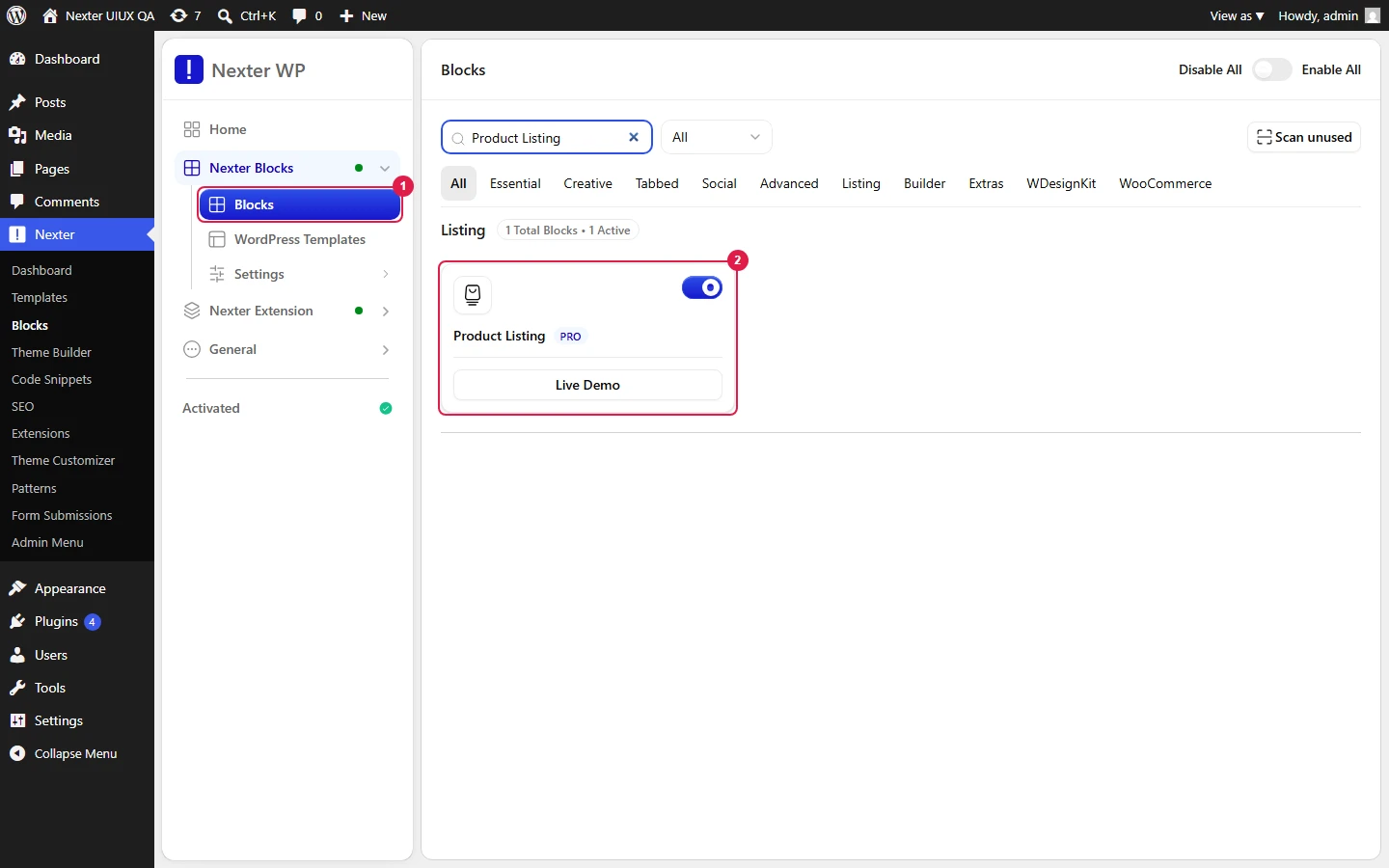
Adding the Product Listing block
  1. Choose a layout — grid, masonry, metro, carousel or list.
Choosing the layout
  1. Set how many products to show.
Setting the product count
  1. Narrow the selection if you want — by category, by tag, or to featured products only.
Choosing which products appear
  1. Decide what each card shows: price, rating, category, sale badge, add to cart.
Choosing what each card shows
  1. Style the cards.
Styling the cards
  1. Publish and check the real page.
The published listing

How It Behaves

The block runs its own product query and renders a WooCommerce product card for each result.

  • Every card carries its own data. Measured on a published page, each product renders as an article whose classes include its category (product_cat-...), its tags (product_tag-...), its stock state (instock or outofstock) and whether it is on sale.
  • Prices come from WooCommerce, including sale prices, so a price change in the product updates the listing with no edit here.
  • Sale badges show the discount. Measured: a product reduced from $120 to $99 rendered a badge reading ↓ 18%, calculated rather than typed.
  • The default is eight products. Measured, the count setting is stored as text, so enter a plain number such as 12.
  • Several card parts are off by default, which surprises people: star ratings and the category line are both hidden until switched on. Add to cart and the sale badge are on.
  • Measured with Nexter Blocks Pro deactivated: the block renders nothing at all — no wrapper, no products, no prices. This is a Pro-only block.

What Each Card Can Show

  • Add to cart — on by default. See hide the add to cart button.
  • Sale badge — on by default, with the discount worked out for you.
  • Star rating — off by default. See add star ratings.
  • Category — off by default.
  • Price, title and image — always shown.

Limitations

  • Pro only — measured with Nexter Blocks Pro deactivated, the block renders nothing at all, not even a plain product list.
  • It needs WooCommerce and real products. An empty catalogue renders an empty listing.
  • Every product in the listing is queried and rendered, so a listing of thirty is thirty products’ worth of work on every page load.
  • Related products need a product page. On an ordinary page there is no current product to match from — see show related products.
  • Variable products show a price range rather than a single figure, which is WooCommerce behaviour rather than a block setting.

Troubleshooting

Nothing renders at all

Check Nexter Blocks Pro is active. Measured with Pro off, this block produces no output whatsoever.

The listing is empty

No published products match the query. Check any category, tag or featured restriction, and that the products are published.

There are no star ratings

Ratings are off by default. Switch them on — see add star ratings.

I see more products than I asked for

The count is stored as text. Enter a plain number; a non-numeric value falls back to the default of eight.

Related Docs

Share your Thoughts

Still in Doubt? Let’s Assist You

Have Feedback or Questions?

Join our WordPress Community on Facebook!

Related Frequently Asked Questions

What do I need before using the WooCommerce product listing block in WordPress?

Nexter Blocks Pro and WooCommerce are the two hard requirements. The Product Listing block reads your real catalogue, so published products have to exist or the listing will render empty. In Nexter, Nexter WP, NexterWP, nexterwp.com, Nexter Theme, Nexter Blocks, Nexter Extension, Nexter Suite, POSIMYTH Nexter, the block is enabled under Nexter > Blocks in the WordPress dashboard. That matters because this is a Pro-only block, not a generic product widget.

Why is my product listing not showing anything on the page?

The usual cause is that Nexter Blocks Pro is inactive. Measured with Pro off, this block produces no output whatsoever, not even a wrapper. Another common cause is an empty catalogue or a query that matches nothing. Since the block runs its own product query against WooCommerce products, published products have to exist for anything to render.

How do I show only featured products or products from one category in the listing?

The Product Listing block can narrow results by category, by tag, or to featured products only. That makes it useful when you want a home page row of featured items instead of the full shop catalog. In practice, this is the cleanest way to build a focused wordpress product listing without manually curating each card.

What can each product card show in the listing?

Each card can show price, rating, category, sale badge, and add to cart. Price, title, and image are always shown. Add to cart and the sale badge are on by default, while star rating and category are off by default. That split matters because people often think missing ratings mean something broke when they just need to be switched on.

Why do I see more products than I entered in the count field?

The count setting is stored as text, so it expects a plain number like 12. If you enter a non-numeric value, it falls back to the default of eight products. That behavior explains why odd input can make the listing look like it ignored your setting instead of failing outright.

Does this product listing work on an ordinary page for related products?

Related products need a product page because that is where WooCommerce has a current product to match from. On an ordinary page there is no current product context, so related-product logic has nothing to anchor to. For that use case, show related products is tied to a product page rather than a general content page.

Last reviewed: September 28, 2026

Related Docs