












Numbered pages make a shopper commit to leaving the products they are looking at. A load more button keeps everything they have already seen on screen.
It is usually the best compromise between pagination and infinite scroll, because the shopper stays in control.
Before You Start
- Edition: Pro — the Product Listing block needs Nexter Blocks Pro.
- Block to enable: Product Listing, switched on under Nexter > Blocks in your WordPress dashboard.
- WooCommerce active, with published products. The block reads your real catalogue, so an empty store renders an empty listing.
- More products than the listing shows at once.
Steps
- Select your Product Listing block.
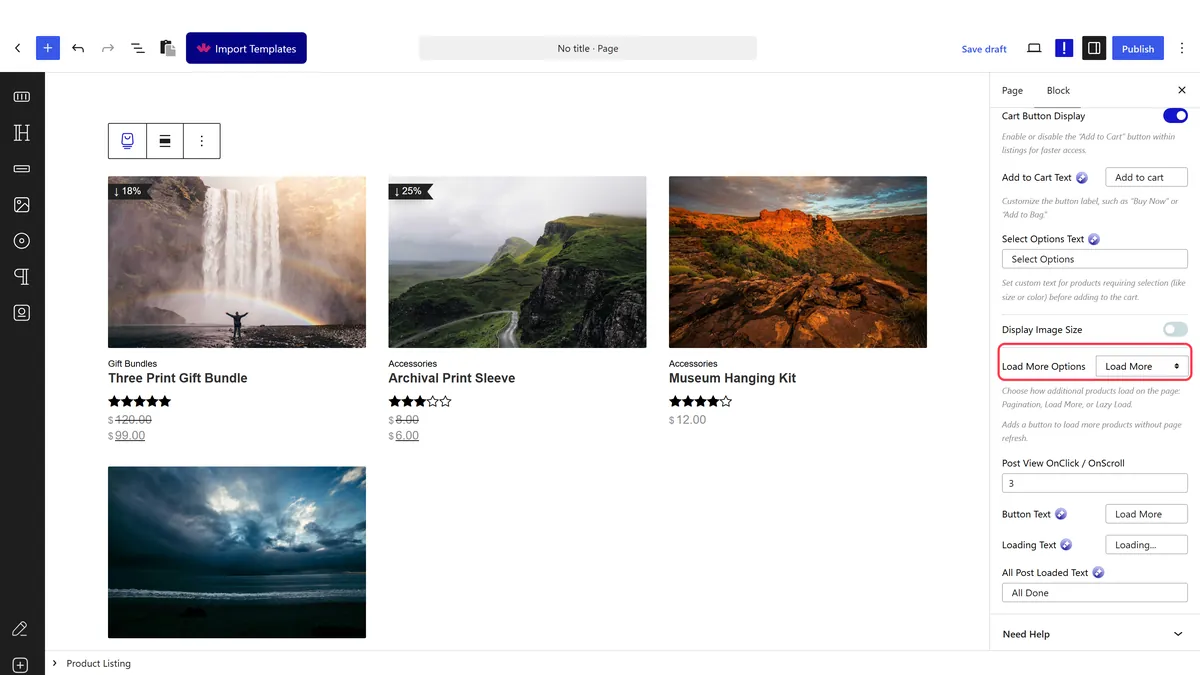
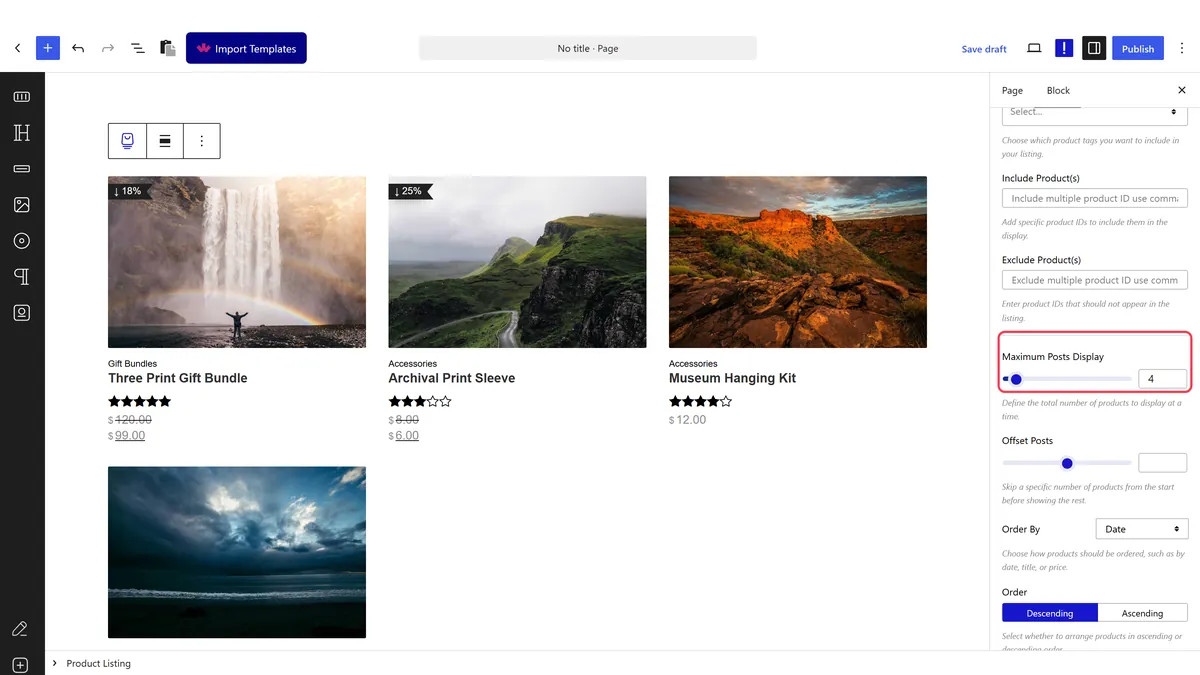
- Set how many products load at a time.
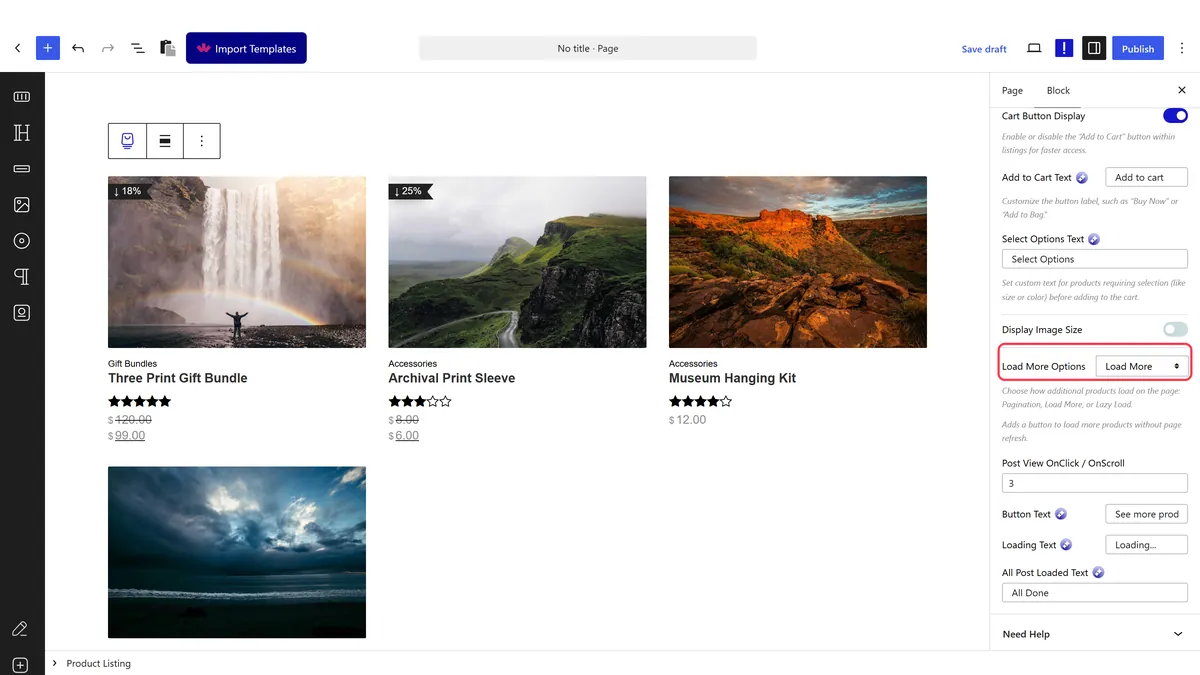
- Set the load option to load more, and change the button text if you want something more specific than Load More.
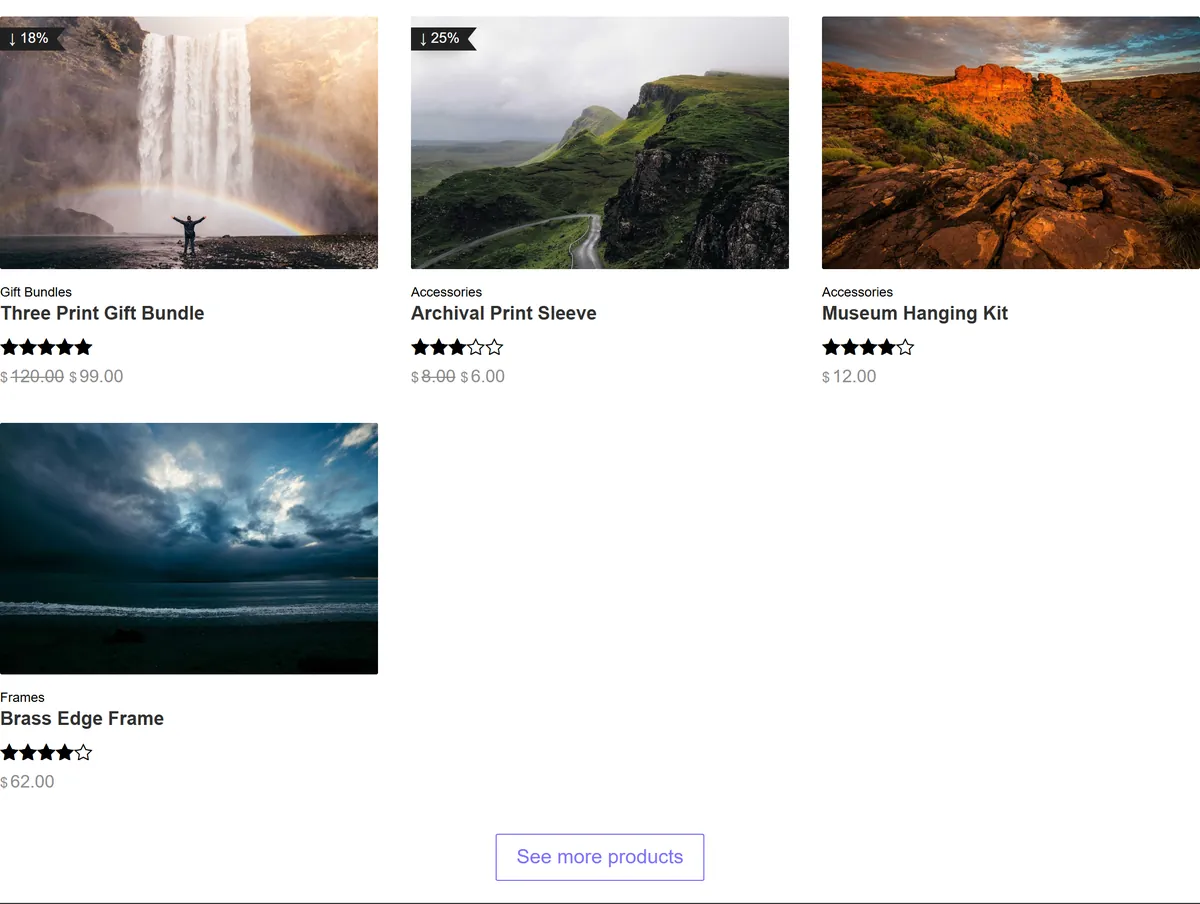
- Publish and click the button on the real page.
How It Behaves
The button is rendered below the listing and fetches the next batch when clicked.
- Measured on a published page: the listing rendered
<div class="tpgb-load-more"><a class="post-load-more">below the products, carrying the custom button text that was set. - The button text is yours. Measured, a custom label rendered exactly as entered, so Show more prints reads better than Load More.
- Each click is a request. The extra products are not in the page at the start, which is what keeps the first load fast.
- The shopper stays in control, which is the main advantage over infinite scroll.
- Measured with Nexter Blocks Pro deactivated: the block renders nothing at all — no wrapper, no products, no prices. This is a Pro-only block.
Limitations
- Pro only — measured with Nexter Blocks Pro deactivated, nothing renders.
- Loaded products are not in the URL. A shopper who loads four batches and follows a product cannot get back to where they were.
- Search engines do not click buttons. Products that only appear after loading may not be discovered, so keep a paginated archive too.
- Each batch is another request, which adds up on a slow connection.
- The button needs to be obvious. Styled too subtly, shoppers assume the catalogue ends there.
Troubleshooting
The button does not appear
The load option must be set to load more, and there must be more products than the batch size.
Clicking it does nothing
Check you are on the published page rather than the editor, and that no other plugin is throwing a JavaScript error.
It loads the same products again
Two listings on the page are sharing state. Keep one load-more listing per page.
Will Google see the loaded products?
Not reliably. Anything behind a button may not be discovered. Keep a paginated archive as well.
