












This is a milestone release for Nexter, and it follows one simple idea: the tools you need to run a WordPress site should already be built in, not bolted on. Two jobs you used to reach for a separate plugin to do, building a WooCommerce store and handling your SEO, now live right inside Nexter.
Nexter Blocks 5.0 adds 27 dedicated WooCommerce blocks that build the whole store in the block editor. And Nexter SEO brings a complete SEO toolkit into Nexter Extension. This post covers both in full: every block, every SEO module, how to set each one up, and where the docs are.
27 WooCommerce Store Builder Blocks Are Live
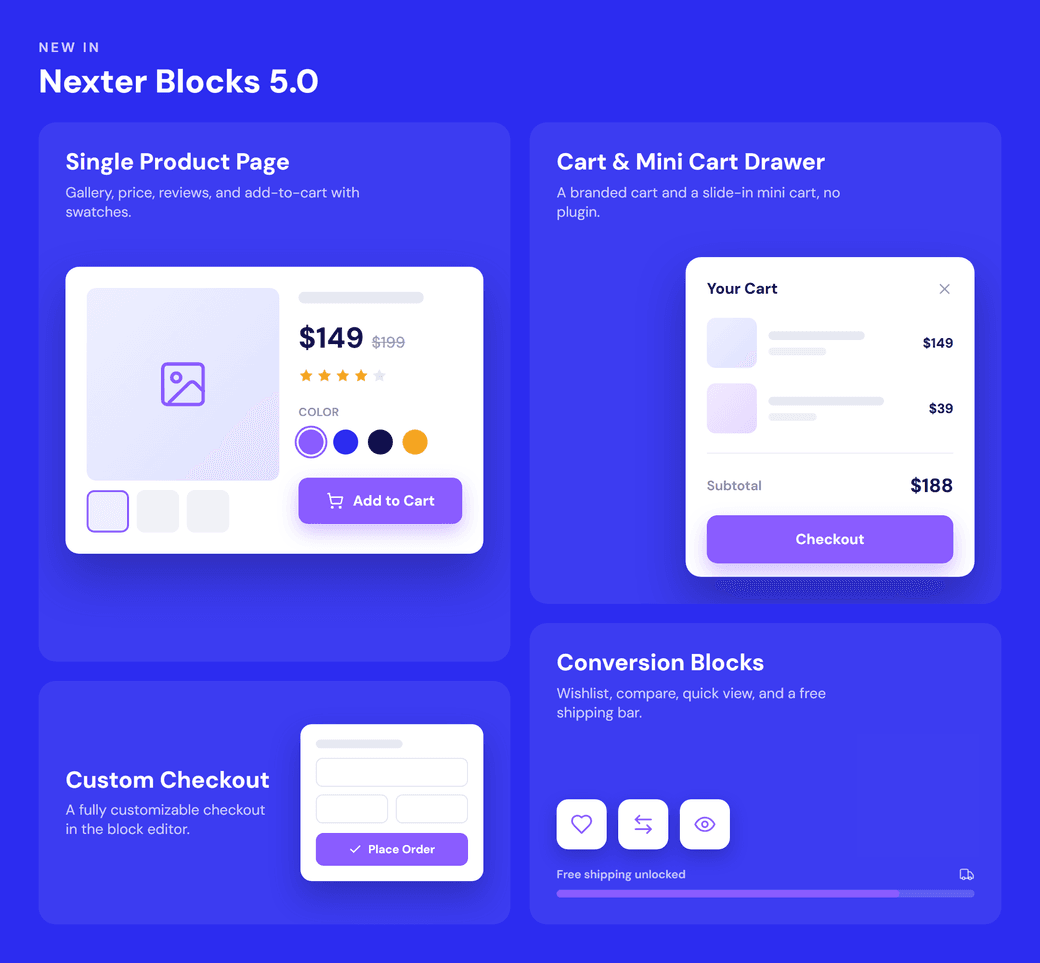
Nexter Blocks 5.0 changes that. It adds 27 dedicated WooCommerce blocks to the block editor, covering every step of the buyer journey from the single product page to the thank-you page. You build and style each part of your store with native Gutenberg blocks, and you can drop the extra plugins.
What Are WooCommerce Blocks?
WooCommerce blocks are Gutenberg blocks that output live WooCommerce data, such as products, pricing, the cart, checkout, and orders, so you can place and style store elements directly in the block editor. WooCommerce core ships a baseline set of blocks, but it renders most of a store page as a single template that you cannot restyle piece by piece.
A dedicated block library changes the granularity. Instead of one monolithic product template, Nexter Blocks breaks each store surface into its own block, so you can arrange, style, and configure every element on its own.
The 27 WooCommerce Blocks, By Store Page
The 27 blocks map to the five stages of the buyer journey. Here is the full set, grouped by the page each one builds.
Single Product Blocks (8)
- Single Product Image: main image, gallery thumbnails, zoom, and variation-based image swaps.
- Single Product Pricing: regular price, sale price, a price label, and a discount badge, with dynamic updates for variable products.
- Single Product Rating: the star rating and review count.
- Single Product Stock: in stock, out of stock, and backorder status.
- Single Product Meta: SKU, categories, and tags.
- Single Product Review: the customer reviews list and the review form.
- Single Product Tabs: Description, Additional Information, and Reviews tabs.
- Product Add to Cart: the add-to-cart button, quantity selector, variation swatches, and AJAX add-to-cart.
Setup: Build a WooCommerce product page.
Catalog Blocks (3)
- Product Quick View: preview product details in a popup without a page reload. Doc.
- Product Compare: compare products side by side in a popup table. Doc.
- Product Wishlist: let shoppers save products for later, with a live count badge. Doc.
Cart Blocks (5)
- Cart Table: the cart line items with quantity, remove, coupon field, and update controls.
- Cart Total: the order summary with subtotal, shipping, tax, and total.
- Mini Cart: a slide-in cart drawer with AJAX quantity and remove. Doc.
- Apply Coupon: a coupon entry section for the cart or checkout.
- Free Shipping Progress Bar: shows how much more a shopper needs to add to qualify for free shipping. Doc.
Setup: Build a WooCommerce cart page.
Checkout Blocks (6)
- Checkout Login: an inline login prompt for returning customers.
- Billing Address and Shipping Address: the billing and delivery forms.
- Additional Information: the order notes field.
- Payment Method: the payment gateways and the Place Order button.
- Order Review: the order summary shown before payment.
Setup: Build a WooCommerce checkout page.
Order, Thank You, And Account Blocks (5)
- Order Confirmation: the order number and success message.
- Order Payment: order number, date, email, total, and payment method.
- Thank You Order Details: the itemized order breakdown.
- Thank You Address: the billing and shipping addresses. Thank-You doc.
- My Account: the full customer account dashboard. My Account doc.
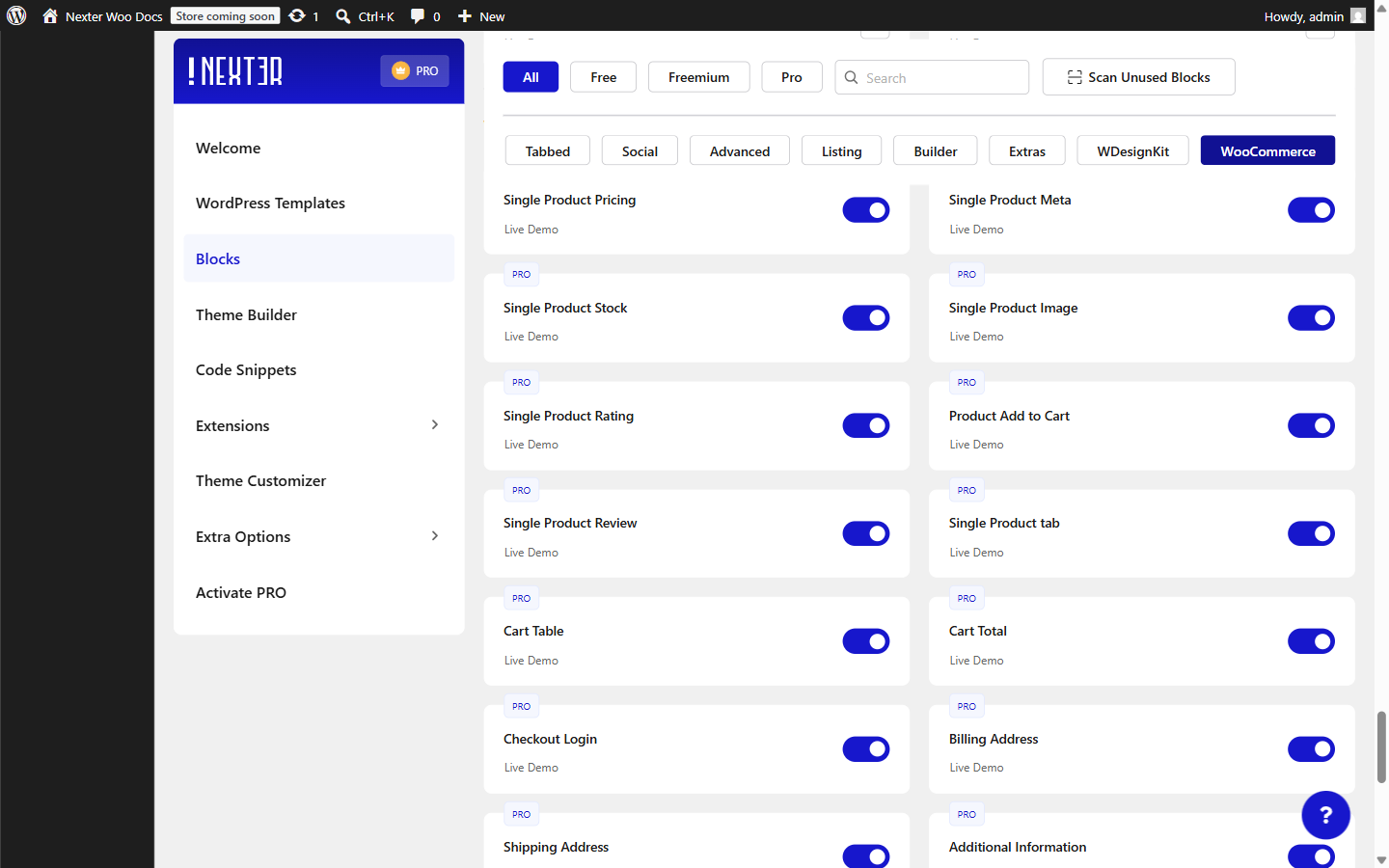
How To Build A Custom WooCommerce Product Page
The single product page is where most stores lose control, because the default template renders every element together. With the eight single product blocks, you place the image gallery, pricing, rating, stock, add-to-cart, meta, reviews, and tabs as separate blocks inside a Nexter Builder product template, then style each one from the block inspector.
Because the blocks pull live data from the current product, one template styles every product in your catalog. For the full step-by-step, see how to build a WooCommerce product page.
Customize Cart And Checkout Without A Checkout Plugin
Checkout customization normally means installing a dedicated checkout plugin. The six checkout blocks let you design the checkout page in Gutenberg instead. You place the login prompt, billing and shipping forms, order notes, coupon field, order review, and payment method as individual blocks, and style each step to match your brand.
The cart works the same way. The Cart Table and Cart Total blocks give you a branded cart page, and the Mini Cart block adds a slide-in drawer so shoppers can review their cart from any page.
Built-In Conversion Features
Several of the blocks exist to lift average order value and reduce abandonment, and they usually arrive as separate paid plugins:
- Variation swatches replace the default dropdowns with color, button, and image swatches.
- Wishlist, Compare, and Quick View help shoppers evaluate products without leaving the listing.
- The Free Shipping Progress Bar nudges shoppers toward a larger order by showing how close they are to free shipping.
Why Nexter Blocks For WooCommerce
Most Gutenberg block libraries ship a handful of WooCommerce blocks, usually a product grid and a few product elements. Nexter Blocks covers the whole store, so you are not switching tools when you reach the cart, checkout, or thank-you page. A few things set the suite apart:
- Complete coverage: 27 dedicated blocks across single product, cart, checkout, order, and account.
- Theme-native styling: every block honors your theme colors, typography, and spacing, so your store stays consistent without CSS overrides.
- Standards-grade engineering: built to WordPress Coding Standards and security-hardened, with escaped output, sanitized inputs, nonce-protected forms, and order verification on the thank-you pages.
- Fewer plugins: swatches, wishlist, compare, quick view, and a customizable checkout are included, so you maintain one plugin instead of five.
Free Vs Pro And Pricing
Nexter Blocks is free on WordPress.org and includes core WooCommerce blocks to get started. The full WooCommerce suite, including the customizable checkout, variation swatches, wishlist, compare, quick view, and the free shipping progress bar, is part of Nexter Blocks Pro, which starts at $39 per year. Every paid plan includes a 30-day money-back guarantee. See the Nexter Blocks pricing page for plan details.
Nexter SEO: A Complete SEO Toolkit Inside Nexter Extension
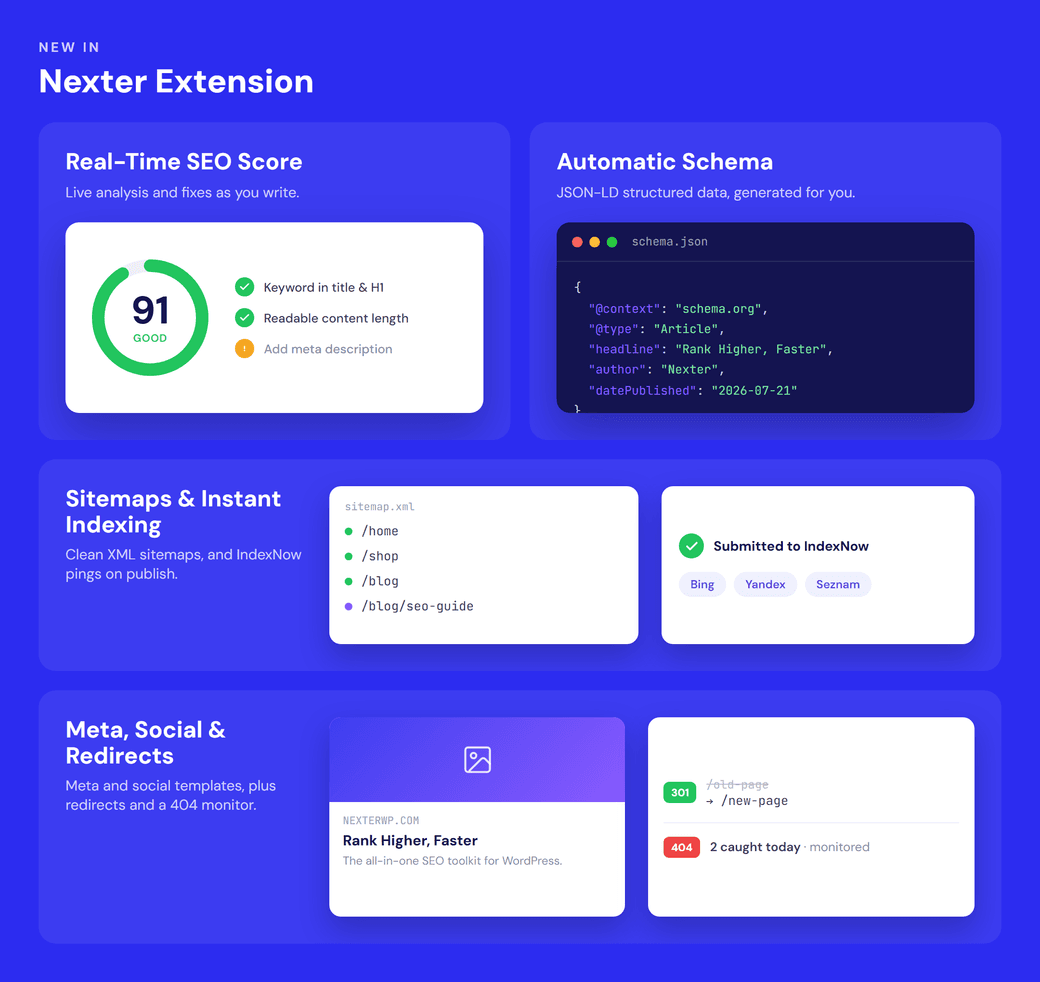
Most WordPress sites bolt on a separate SEO plugin, then juggle its settings alongside everything else you manage. With Nexter SEO, that toolkit now lives right inside Nexter Extension. No extra plugin to install, no second dashboard to learn.
Nexter SEO is a full Content SEO module: site audits, on-page meta and schema, technical controls like sitemaps and robots, redirects, and even a file built for AI search. Here is what it does and how to switch it on.
What Is Nexter SEO?
Nexter SEO is the built-in SEO module in Nexter Extension. It covers the whole workflow, from measuring your site health to on-page optimization to the technical layer, all from one place under Nexter → Content SEO. You do not need a separate SEO plugin to do SEO well.
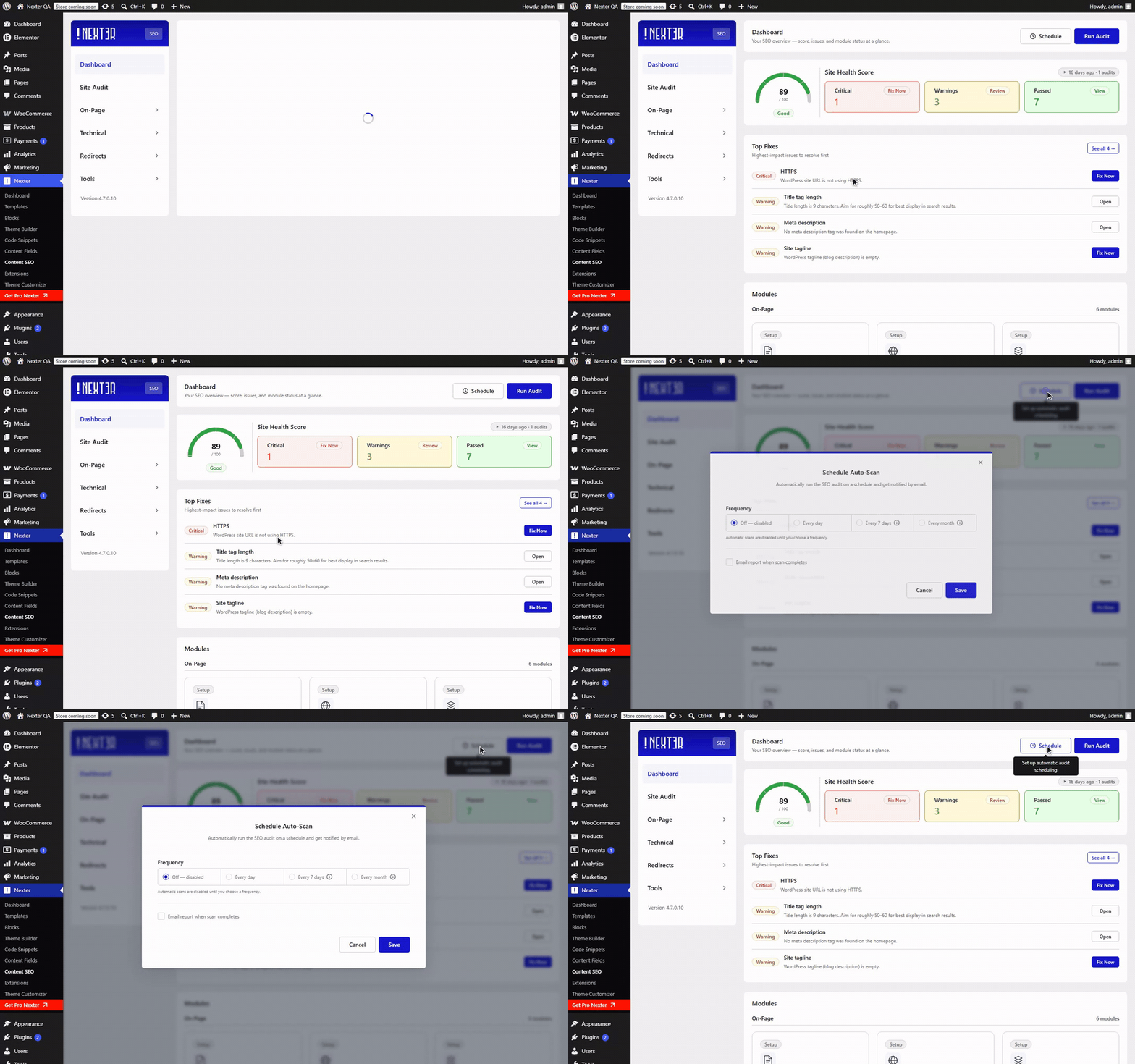
Site Health At A Glance
The Dashboard gives you a Site Health Score, a Top Fixes list, and one-click access to every module. The Site Audit runs a full set of technical and on-page checks, sorts them into Passed and Issues, and exports to JSON or CSV so you can share the results. See the Site Audit doc.
On-Page SEO
- Meta Template: set site-wide title and description templates with dynamic variables and a live search-result preview. Doc.
- Social: control your Open Graph and X share cards, with a default share image. Doc.
- Schema: a full structured-data builder (more on this below).
- Home Page, Archive Pages, and Image SEO: dedicated homepage meta, controls to disable or redirect thin archives, and automatic image alt text.
Technical SEO
- XML Sitemaps, including optional video, news, and HTML sitemaps. Doc.
- Robots Instructions and a virtual Robots.txt Editor. Doc.
- Instant Indexing via IndexNow, to push new and updated URLs to search engines right away. Doc.
- Site Verification for Google, Bing, Pinterest, and Facebook in one place. Doc.
Redirects And 404s
Create 301 redirects (plus 302, 307, 308, 410, and 451) with flexible match conditions, and let the 404 Monitor log broken URLs so you can fix them before they cost you traffic. See the Redirects doc and the 404 Monitor doc.
Import And Export
Move your entire SEO configuration between sites with a single JSON file, ideal for staging-to-live or setting up client sites from a baseline.
Powerful Schema, Without Code
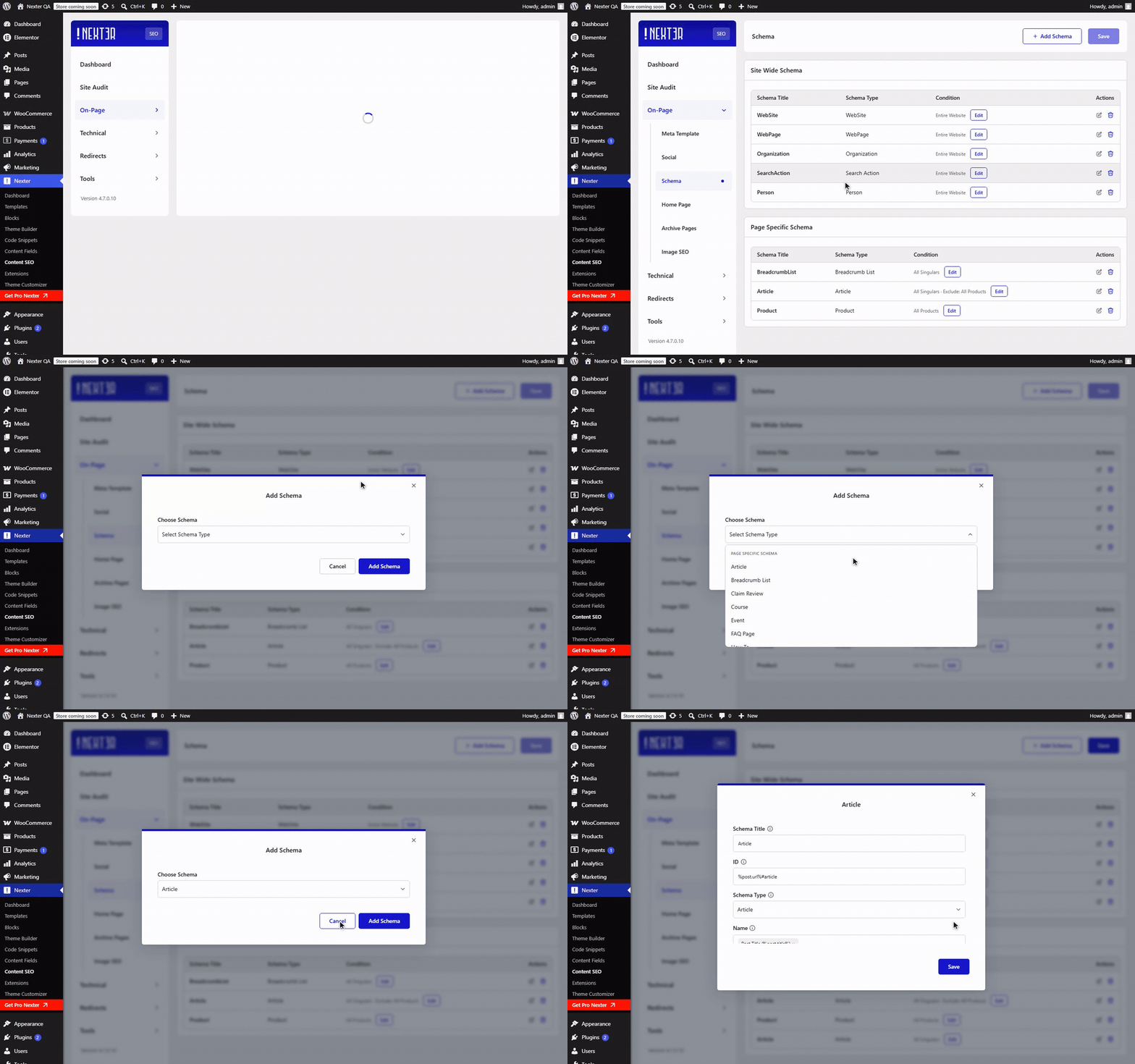
Schema is where Nexter SEO really stands out. Choose from 18 schema types, including Article, Product, FAQ Page, How To, Event, and Local Business. Map each field to a dynamic variable with the @ picker, and control exactly where each schema loads using include and exclude conditions. You get rich-result-ready JSON-LD without touching a line of code. See the Schema doc.
Built For The AI-Search Era
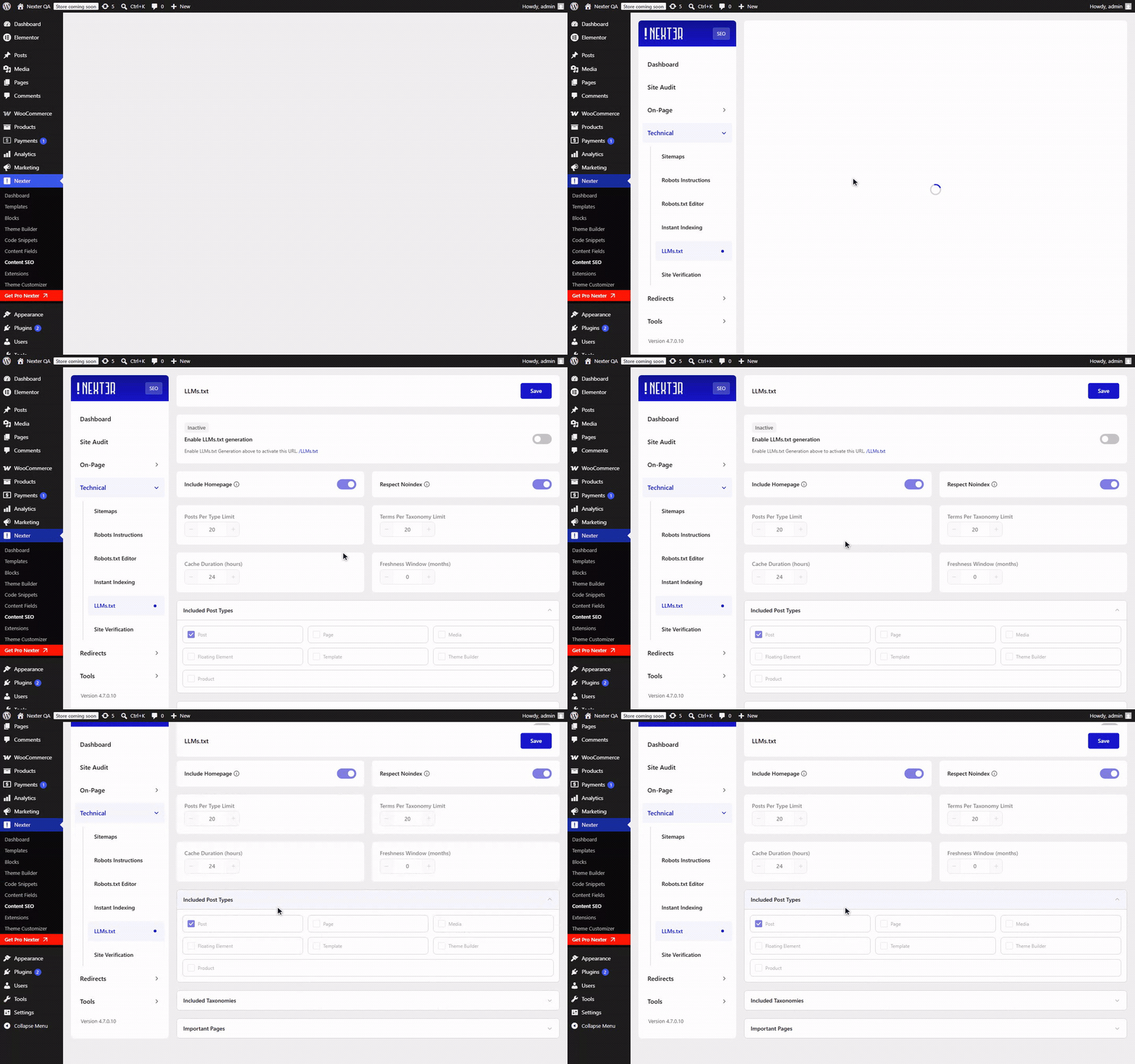
Search is not only Google anymore. Nexter SEO generates an LLMs.txt file, a clean, curated map of your best content, built to help AI agents and crawlers find and read your site. Paired with schema and Instant Indexing, it makes your site as ready for answer engines as it is for classic search. See the LLMs.txt doc.
How To Get Started
- Update Nexter Blocks, then turn on the WooCommerce blocks and build your product, cart, checkout, and account pages in the editor.
- Update Nexter Extension, open Nexter → Content SEO, and run your first site audit.
- Work through the top fixes, then set your meta, schema, sitemaps, and instant indexing.
New to the SEO side? Start with Getting Started With Nexter SEO. For the WooCommerce blocks, browse the full WooCommerce docs.
Frequently Asked Questions
Do I Need WooCommerce Installed To Use These Blocks?
Yes. The WooCommerce blocks render live store data, so WooCommerce must be installed and active. Nexter Blocks adds the design and layout layer on top of it.
Do I Need A Page Builder?
No. Everything runs in the native WordPress block editor, so you do not need Elementor or any other page builder to design your store.
Do I Still Need A Separate SEO Plugin?
No. Nexter SEO covers audits, on-page meta and schema, sitemaps and robots, redirects, and AI-search files inside Nexter Extension, so you can retire your standalone SEO plugin.
Is Nexter SEO Free?
Yes. Nexter SEO is included in Nexter Extension at no extra cost. The full WooCommerce block suite is the part that lives in Nexter Blocks Pro.
More From Nexter
- Gutenberg vs Elementor: Which One Should You Use?
- How to Add the Gutenberg Editor to WooCommerce
- Gutenberg Core Web Vitals: How to Speed Up a Block-Theme WordPress Site in 2026
- E-E-A-T for AI Search: How WordPress Sites Earn Trust from Google AI, ChatGPT and Perplexity
Founder’s Note
Both of these launches follow the same idea: fewer plugins, more built in. A WooCommerce store used to mean a page builder for product pages, a checkout plugin, and separate add-ons for swatches, wishlist, and compare. SEO used to mean a whole separate plugin on top. Now, both of those move inside Nexter.
Already building on Nexter? Update to the latest Nexter Blocks and Nexter Extension to pick up the WooCommerce Store Builder blocks and Nexter SEO.
