












Numbered pages ask the reader to make a decision and click. On a browsing page, where nobody is looking for anything specific, that is friction.
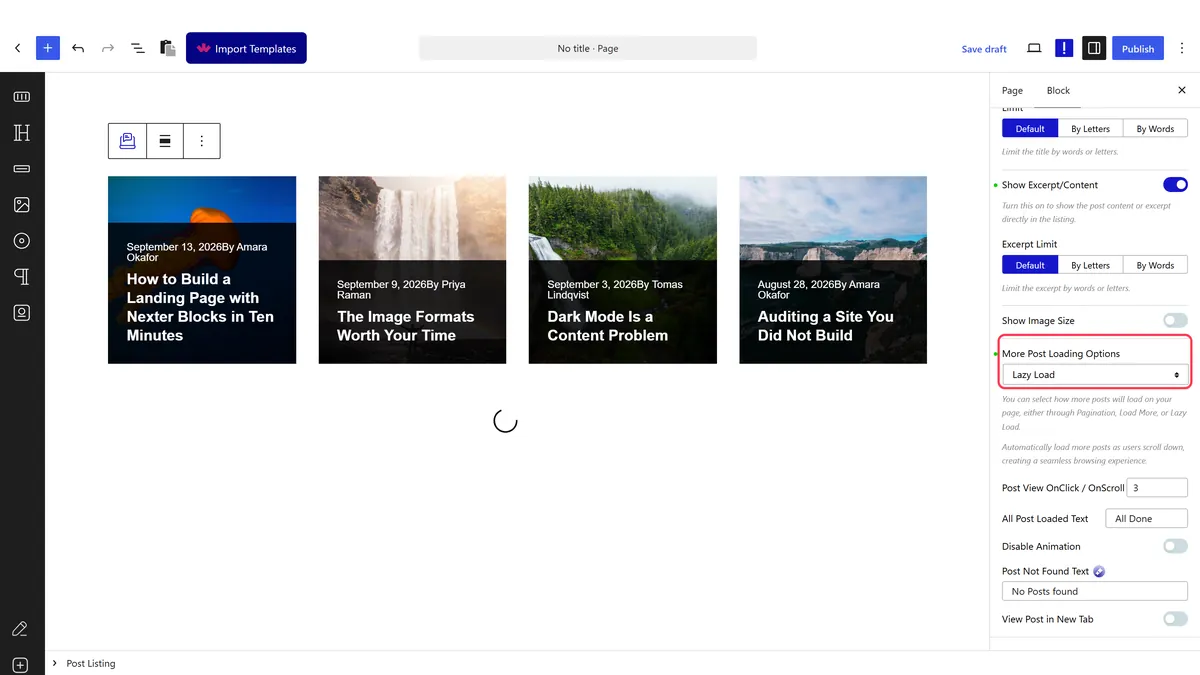
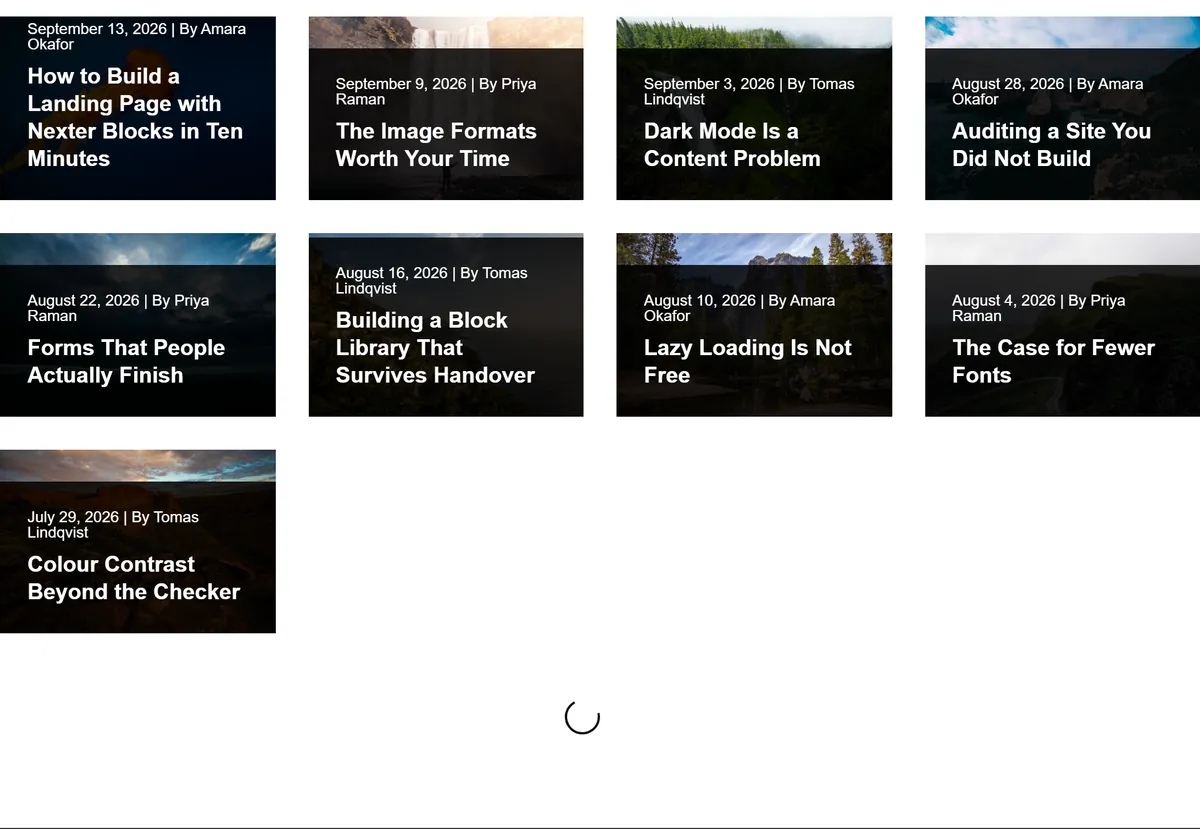
Infinite scroll loads the next set of posts as the reader reaches the bottom, so the list just keeps going.
Before You Start
- Edition: Free — works in Nexter Blocks (free) and with Nexter Blocks Pro.
- Block to enable: Post Listing, switched on under Nexter > Blocks in your WordPress dashboard.
- Noticeably more posts than one page shows, or there is nothing to load.
Steps
- Select your Post Listing block.
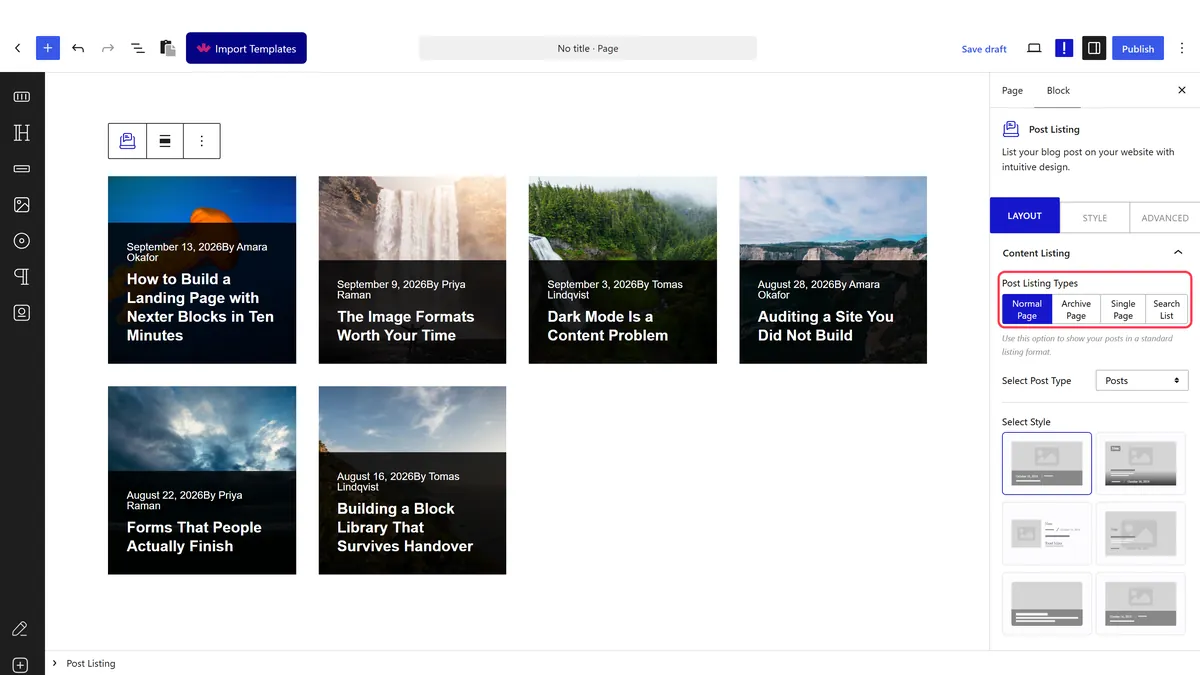
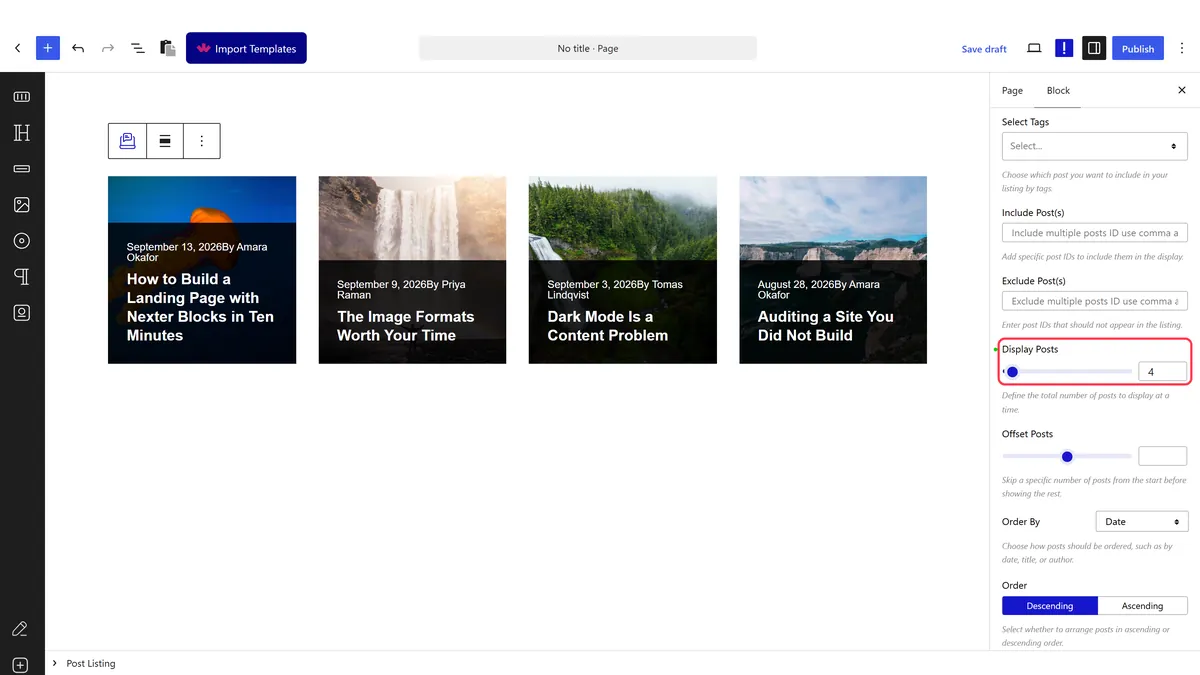
- Set how many posts load at a time.
- Set the pagination option to the infinite scroll style.
- Publish and scroll the real page to the bottom of the listing.
How It Behaves
The block carries the paging information the loader needs, and fetches the next batch as the reader arrives.
- Measured on a published page: the
data-dypostattribute carriedpage,total_page,load_moreand aload_classthat identifies this listing, which is what the loader uses to fetch the next batch. - It also carries the finished message. Measured:
loaded_postsholds the text shown once every post has loaded, andloadingtxtthe text shown while fetching. - Each batch is a request. The posts are not all in the page at the start, which is the difference from simply showing more posts.
- Everything ends up in one attribute. The block writes its whole query configuration into a
data-dypostattribute on the published page, so if a setting is not doing what you expect, that is where to look. - Measured with Nexter Blocks Pro deactivated: the listing still renders its posts. The block itself is free.
Limitations
- The footer becomes unreachable while posts keep loading, which frustrates anyone looking for contact details or links down there.
- It is hard to return to a position. A reader who follows a post and comes back lands at the top again.
- Search engines do not scroll. Posts that only appear after several loads are not reliably discovered, so do not rely on it for indexing.
- Every batch is another request, so a long scroll is a lot of round trips on a slow connection.
- A load more button is often kinder, because it keeps the reader in control.
Troubleshooting
Nothing loads when I reach the bottom
There may be nothing left to load. Check the listing is limited to fewer posts than you have, and that you are on the published page rather than the editor.
I cannot reach my footer
That is the known trade-off with infinite scroll. Switch to a load more button or numbered pages if the footer matters.
It loads the same posts again
Two listings on the page are sharing paging state. Keep one infinite listing per page.
Will Google see all the posts?
Not reliably. Anything that only appears after several loads may not be discovered. Keep a paginated archive as well.
