












Loading two hundred products onto one page is slow for the shopper and hard to scan. Showing eight with no way forward hides the rest of your catalogue.
Pagination splits the listing into pages with numbered links.
Before You Start
- Edition: Pro — the Product Listing block needs Nexter Blocks Pro.
- Block to enable: Product Listing, switched on under Nexter > Blocks in your WordPress dashboard.
- WooCommerce active, with published products. The block reads your real catalogue, so an empty store renders an empty listing.
- More products than fit on one page, or there is nothing to paginate.
Steps
- Select your Product Listing block.
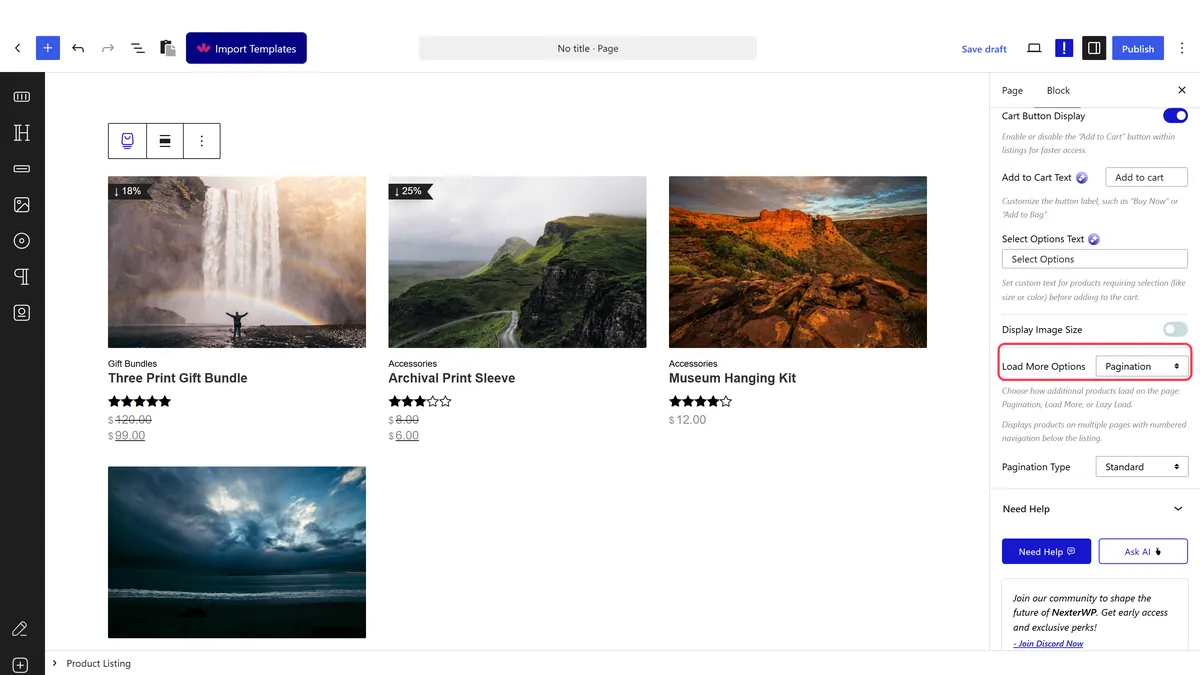
- Set how many products per page to show.
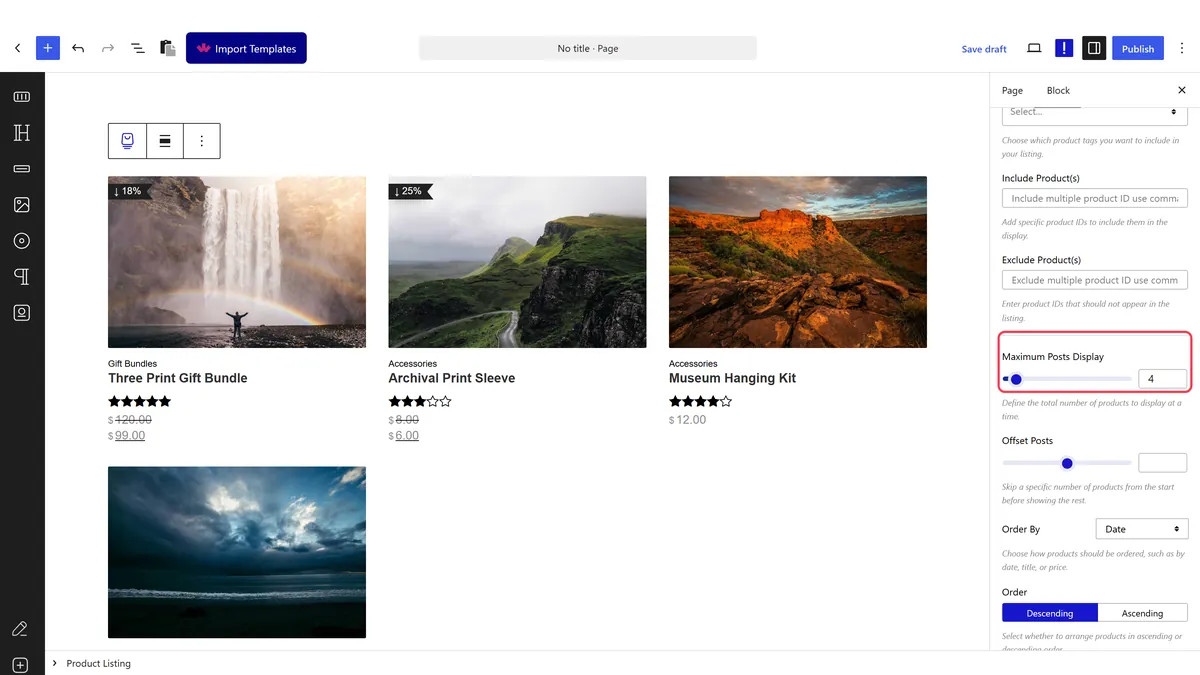
- Set the load option to pagination.
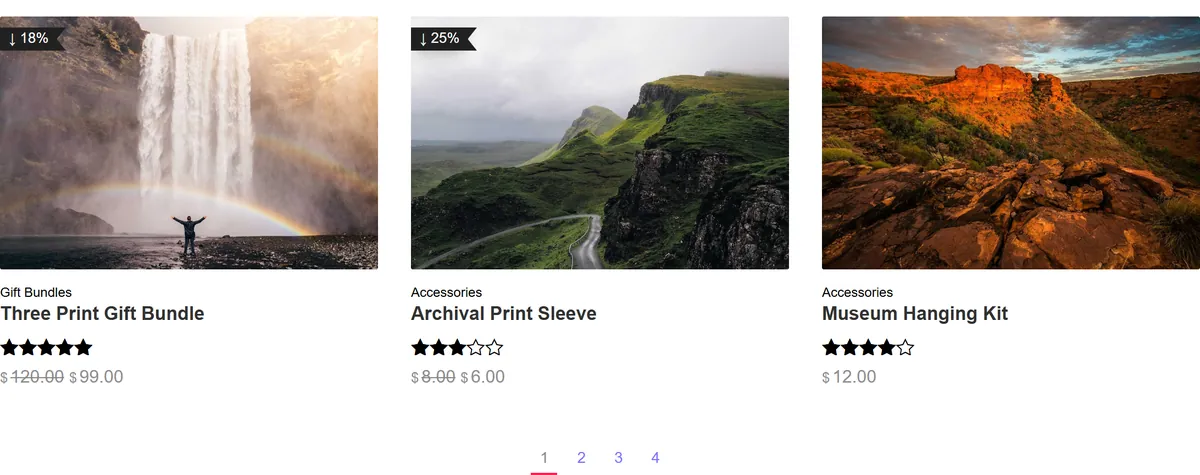
- Publish and click through to page two.
How It Behaves
The block works out the page count from your product count and renders numbered links.
- Measured on a published page: with the load option set to pagination, the listing rendered pagination markup below the products. With it left alone, no pagination markup appears.
- The count setting is stored as text. Measured: a numeric value entered as a plain number works; the default when it cannot be read is eight products.
- It is a real page change, not an extension of the list. See load more or infinite scroll for the alternatives.
- Pagination is better for SEO than the alternatives, because each page is a real URL that a crawler can reach.
- Measured with Nexter Blocks Pro deactivated: the block renders nothing at all — no wrapper, no products, no prices. This is a Pro-only block.
Limitations
- Pro only — measured with Nexter Blocks Pro deactivated, nothing renders.
- Pagination and filtering interact awkwardly, because the filter only knows about the current page — see filter products by category.
- Page two is rarely visited. Put your best sellers first rather than trusting pagination to surface them.
- Two paginated listings on one page will fight, because they share the page number.
- Very small page sizes create a lot of pages, which is tedious to shop through.
Troubleshooting
No pagination appears
Either the load option is not set to pagination, or there are not more products than fit on one page.
Page two shows the same products
Two listings on the page are sharing the page number. Keep one paginated listing per page.
The page count looks wrong
It is calculated from the products matching the query, which may be fewer than your catalogue once category or featured restrictions apply.
I would rather it kept loading
Use a load more button or infinite scroll.
