---
title: "How to Use Advanced Tab in Nexter Blocks?"
url: https://nexterwp.com/docs/use-advanced-tab-in-nexter-blocks/
date: 2023-07-17
modified: 2026-09-28
lang: en
author: "Aditya Sharma"
description: "Every Nexter block carries the same Advanced tab. It is where spacing, background, borders, visibility, position and the motion effects live, and because the options are identical on every block,..."
image: https://nexterwp.com/wp-content/uploads/2023/07/Nexter-Advanced-Options-Background-Featured-Image-1024x538.jpg
word_count: 2276
---

# How to Use Advanced Tab in Nexter Blocks?

## Key Takeaways

- Nexter Blocks comparte la misma pestaña Advanced en cada bloque, con spacing, background, borders, visibility, position y motion effects, así que aprenderla una vez cubre todo el plugin.
- Nexter Blocks Free genera CSS idéntico con Pro desactivado para spacing, background, border, radius, shadow, custom class, custom ID, custom CSS, responsive hide y custom position, mientras que las opciones Pro no producen salida.
- On Scroll Animation añade la clase tpgb-view-animation y un atributo data-animationSetting por breakpoint; se activa al entrar en el viewport y puede causar layout shift si mueve el bloque desde fuera de su posición final.
- Magic Scroll Effect enlaza la transformación del bloque al scroll con tpgb-parallax-move y los atributos data-speedx y data-speedy; es scroll-linked, se invierte al subir y puede hacer pesada una página con varios bloques.
- Event Tracking requiere activar primero la opción en las propias settings de Nexter; entonces el bloque renderiza un tpgb-event-tracker-inner con data-event-opt para Google Analytics, Facebook pixel o ambos.

Every Nexter block carries the same **Advanced** tab. It is where spacing, background, borders, visibility, position and the motion effects live, and because the options are identical on every block, learning them once covers the whole plugin.

This page is the reference for that tab. Each section below covers one option: what it does, whether it needs Nexter Blocks Pro, and what it actually changes on the page.

## What Needs Pro, And What Does Not

Measured on 5.0.6 by deactivating Nexter Blocks Pro and comparing the rendered output byte-for-byte. The free options produced identical markup and identical generated CSS with Pro switched off. The Pro options produced **nothing at all** — not a disabled state, not a wrapper, no output.

| Advanced tab option | Edition | Measured with Pro deactivated |
| ------------------- | ------- | ----------------------------- |
| Spacing, background, border, radius, shadow | Free | identical CSS generated |
| Custom class, custom ID, custom CSS | Free | identical markup |
| Responsive hide (desktop / tablet / mobile) | Free | identical CSS generated |
| Custom position, z-index | Free | identical markup |
| On scroll animation | Freemium | see the section below |
| Display rules | Freemium | see the section below |
| CSS filters | **Pro** | no wrapper rendered |
| Magic scroll, tooltip, continuous animation | **Pro** | no wrapper rendered |
| Mouse parallax, 3D tilt, advanced border radius | **Pro** | no wrapper rendered |
| Event tracking | **Pro** | no wrapper rendered |

The practical consequence: if a Pro effect stops working after a licence lapses, the block does not degrade gracefully — that effect's wrapper simply stops being written, and anything you styled against it goes with it.

## Learn via Video Tutorial

https://www.youtube.com/watch?v=EBRRhT_k6pU&t

## How to Add Global Block Style to a WordPress Block?

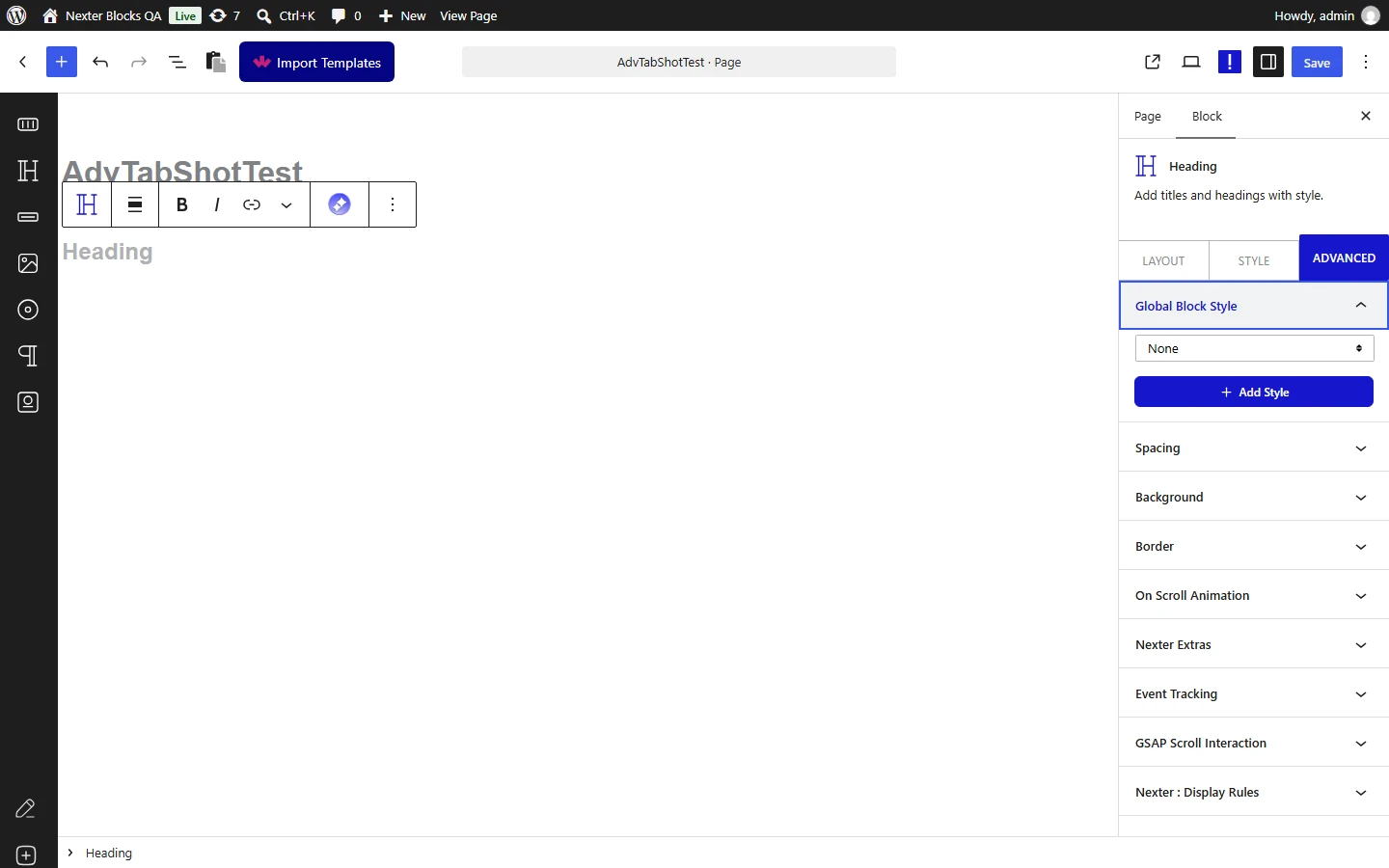
A global block style saves the current block's styling under a name, so the same look can be applied to other blocks without copying settings by hand.
![](https://nexterwp.com/wp-content/uploads/2026/09/advtab-global-block-style-full.webp)

Measured: the saved style is applied as an extra class on the block, so every block sharing that style shares one stylesheet rule rather than carrying its own copy. Full detail in [the global block style doc](https://nexterwp.com/docs/add-global-style-to-a-wordpress-block/).

## Spacing

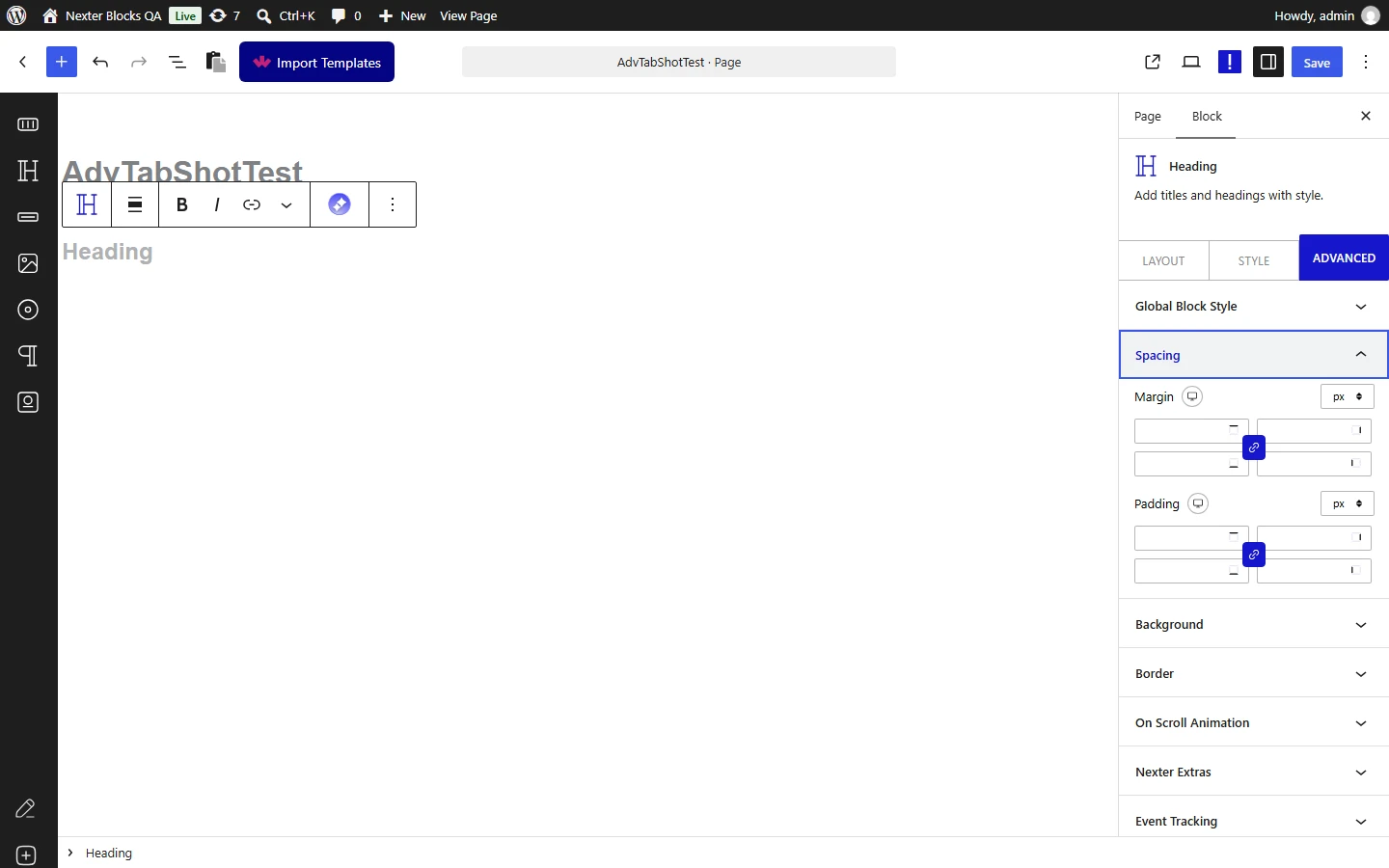
Margin and padding, set per breakpoint.
![](https://nexterwp.com/wp-content/uploads/2026/09/advtab-spacing-full.webp)

- **Edition: Free.** Measured with Pro deactivated: identical CSS.

- **It is generated as CSS, not inline styles.** Measured on a padding of 30px, the generated rule was `.tpgb-block-<id>{padding:30px}` — one rule targeting that block's own class.

- **Each breakpoint is set separately.** A desktop value does not automatically carry down; the tablet and mobile fields inherit only if you leave them empty.

## How to Add Background Color to any WordPress Block?

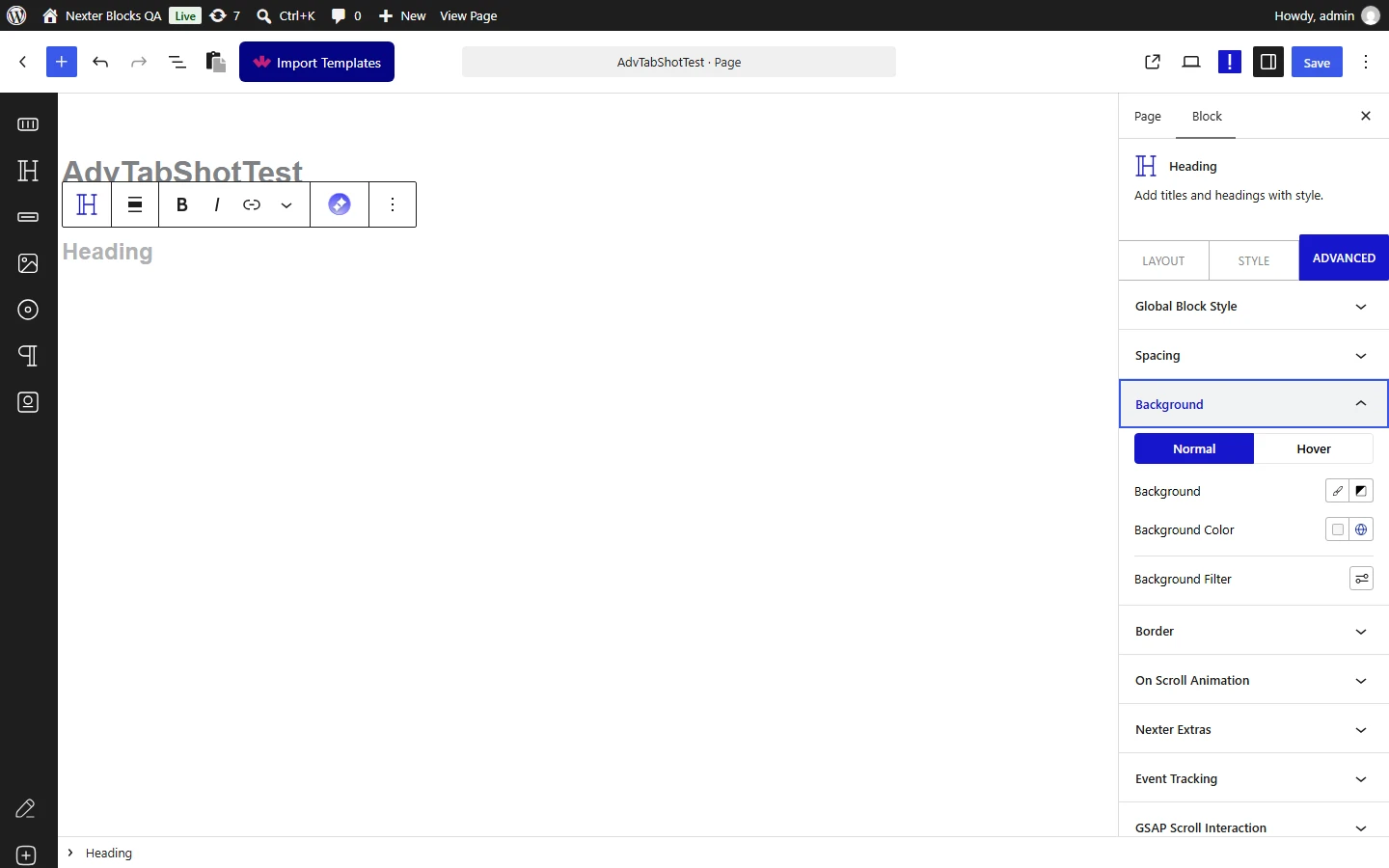
A background colour, gradient or image on the block itself, without wrapping it in a container.
![](https://nexterwp.com/wp-content/uploads/2026/09/advtab-background-full.webp)

- **Edition: Free.**

- **The background toggle has to be switched on first.** Measured: with the colour set but the background option left off, **no rule is generated at all**. This is the most common reason a background silently does nothing.

- **Measured output:** `.tpgb-block-<id>{background-color:#ff5722}`.

## How to Add a Border to any WordPress Block?

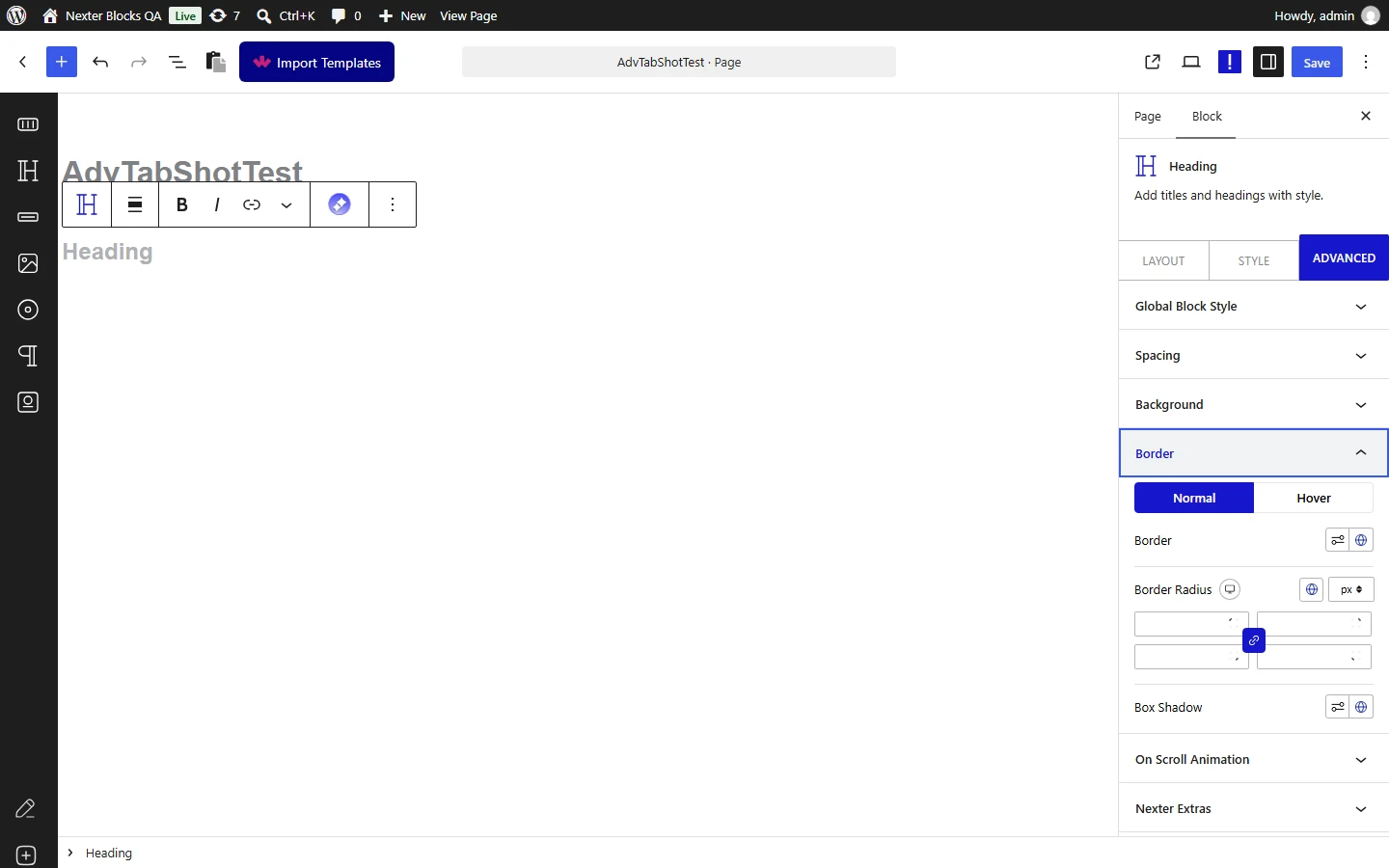
Border, corner radius and box shadow, each with its own normal and hover state.
![](https://nexterwp.com/wp-content/uploads/2026/09/advtab-border-full.webp)

- **Edition: Free.**

- **Each of the three has its own enable toggle**, and like the background they generate nothing until it is switched on. Measured individually: border, radius and shadow each produced a rule only with their toggle on.

- **Radius accepts four separate corners.** For shapes beyond that, see the advanced border radius section below, which is a Pro option.

## How to Add On Scroll Animation to any WordPress Block?

Animates the block as it enters the viewport.

### How to Activate the On Scroll Animation (Freemium)?

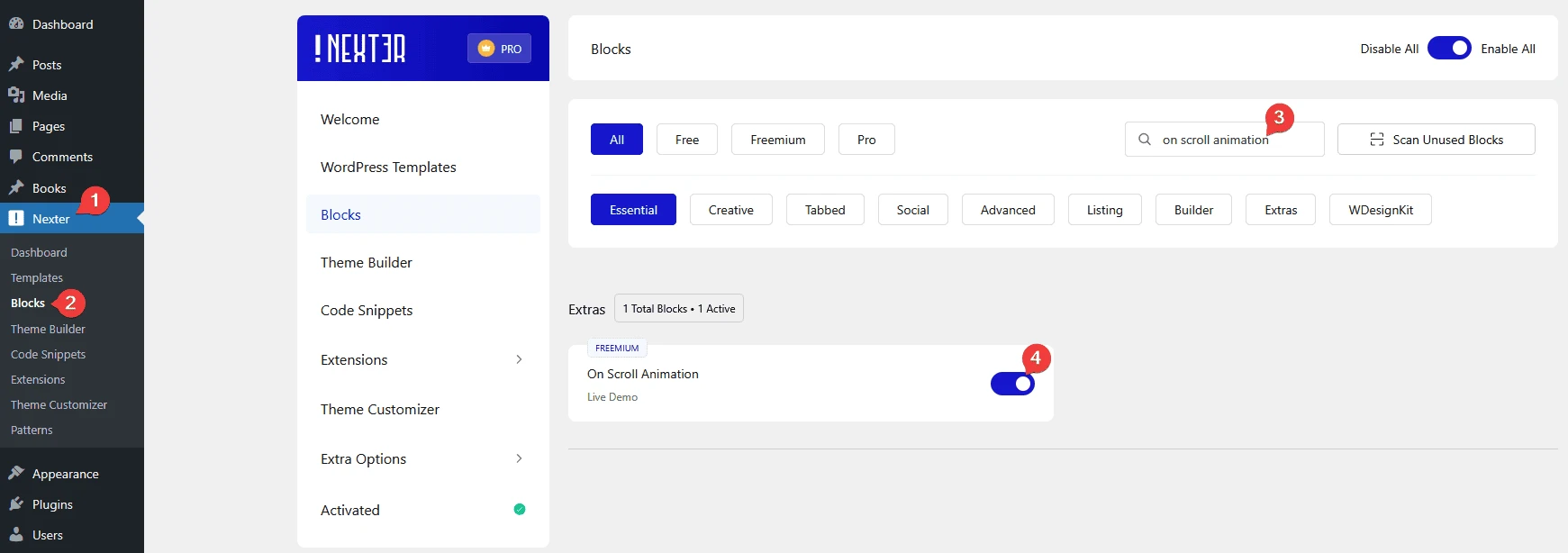
Go to **Nexter > Blocks**, search for the option by name, and turn its toggle on. Until it is enabled there, the option does not appear in any block's Advanced tab.

![](https://nexterwp.com/wp-content/uploads/2023/07/advanced-tab-on-scroll-animaton-activation-new.webp)

### How to Use the On Scroll Animation?

- **Measured:** the block gains a `tpgb-view-animation` class and a `data-animationSetting` attribute carrying the animation for each breakpoint, so the effect is driven by script reading that attribute rather than by CSS alone.

- **It fires once, on entry.** An out animation is configured separately.

- **An animation that moves a block can cause layout shift** if it starts outside its final position, which affects your Core Web Vitals. Prefer fades over large movements above the fold.

Full detail in [the on scroll animation doc](https://nexterwp.com/docs/add-on-scroll-animation-in-wordpress/).

[LIVE DEMO](https://nexterwp.com/nexter-blocks/extras/wordpress-on-scroll-content-animations)

## How to Add Magic Scroll Effect to any WordPress Block?

Ties a block's transform to the scroll position, so it moves, rotates or scales as the visitor scrolls rather than animating once.

### How to Activate Magic Scroll (Pro)?

Go to **Nexter > Blocks**, search for the option by name, and turn its toggle on. Until it is enabled there, the option does not appear in any block's Advanced tab.

![](https://nexterwp.com/wp-content/uploads/2023/07/advanced-tab-magic-scroll-activation-new.webp)

### How to Use the Magic Scroll Effect?

![](https://nexterwp.com/wp-content/uploads/2026/09/advtab-on-scroll-animation-full.webp)

- **Edition: Pro.** Measured with Pro deactivated: no wrapper and no effect markup.

- **It is scroll-linked, not time-based.** Scrolling back up reverses it.

- **It runs on every scroll frame**, so several magic-scroll blocks on one page is the quickest way to make a page feel heavy on a mid-range phone.

[LIVE DEMO](https://nexterwp.com/nexter-blocks/extras/wordpress-sticky-column/)

[LIVE DEMO](https://nexterwp.com/nexter-blocks/extras/magic-scroll-effect-for-wordpress)

## How to Add Tooltip to any WordPress Block?

Attaches a tooltip to any block, holding either plain text or a saved template.

### How to Activate the Global Tooltip (Pro)?

Go to **Nexter > Blocks**, search for the option by name, and turn its toggle on. Until it is enabled there, the option does not appear in any block's Advanced tab.

![](https://nexterwp.com/wp-content/uploads/2023/07/advanced-tab-global-tooltip-activation.webp)

### How to Use the Global Tooltip?

![](https://nexterwp.com/wp-content/uploads/2026/09/advtab-gsap-scroll-interaction-full.webp)

- **Edition: Pro.** Measured with Pro deactivated: nothing rendered.

- **Measured markup:** the block gains `tpgb-global-tooltip` plus a set of `data-tippy-*` attributes — placement, arrow, animation, offset and duration — and a `data-tooltip-opt` attribute holding the content and the trigger.

- **The trigger defaults to hover** (`mouseenter`). Hover tooltips are unreachable on touch devices, so put nothing essential in one.

- **Duration is a pair**, measured as `[300,200]` for in and out.

- **A template tooltip renders that template's markup inline**, which is powerful and also means its assets load on every page carrying the tooltip.

[LIVE DEMO](https://nexterwp.com/nexter-blocks/extras/wordpress-global-tooltip/)

## How to Add Continuous Animation to any WordPress Block?

A looping animation — a float, pulse or rotation that never stops.

### How to Activate the Continuous Animation (Pro)?

Go to **Nexter > Blocks**, search for the option by name, and turn its toggle on. Until it is enabled there, the option does not appear in any block's Advanced tab.

![](https://nexterwp.com/wp-content/uploads/2023/07/advanced-tab-continuous-animation-activation.webp)

### How to Use the Continuous Animation?

- **Edition: Pro.** Measured with Pro deactivated: nothing rendered.

- **It never stops.** That is the point and also the risk — continuous motion is a known accessibility problem for people sensitive to it, and there is no built-in control to pause it.

- **Use it on one element, not several.** Two or three looping animations in view at once read as a broken page rather than a lively one.

[LIVE DEMO](https://nexterwp.com/nexter-blocks/extras/wordpress-floating-effect/)

## How to Add Hover Effect to any WordPress Block?

A preset hover treatment applied to the whole block.

### How to Activate the Content Hover Effect (Pro)?

Go to **Nexter > Blocks**, search for the option by name, and turn its toggle on. Until it is enabled there, the option does not appear in any block's Advanced tab.

![](https://nexterwp.com/wp-content/uploads/2023/07/advanced-tab-content-hover-effect-activation.webp)

### How to Use the Content Hover Effect?

- **Edition: Pro.**

- **Hover is not available on touch devices.** Whatever the effect reveals has to be reachable another way on a phone.

- **It applies to the block as a whole**, not to individual elements inside it.

## How to Add Mouse Parallax to any WordPress Block?

Moves the block slightly in response to the pointer.

### How to Activate the Mouse Parallax (Pro)?

Go to **Nexter > Blocks**, search for the option by name, and turn its toggle on. Until it is enabled there, the option does not appear in any block's Advanced tab.

![](https://nexterwp.com/wp-content/uploads/2023/07/advanced-tab-mouse-parallax-activation.webp)

### How to Use the Mouse Parallax Effect?

![](https://nexterwp.com/wp-content/uploads/2026/09/advtab-transform-transition-full.webp)

- **Edition: Pro.** Measured with Pro deactivated: nothing rendered.

- **Measured markup:** a `tpgb-parallax-move` class with `data-speedx` and `data-speedy` attributes. **Both default to 30** when left unset.

- **It does nothing on touch devices**, which have no pointer to follow. Treat it as decoration that half your visitors will never see.

## How to Add a 3D Tilt Effect to any WordPress Block?

Tilts the block in three dimensions as the pointer moves across it.

### How to Activate the 3D Tilt (Pro)?

Go to **Nexter > Blocks**, search for the option by name, and turn its toggle on. Until it is enabled there, the option does not appear in any block's Advanced tab.

![](https://nexterwp.com/wp-content/uploads/2023/07/advanced-tab-3d-tilt-activation.webp)

### How to Use the 3D Tilt Effect?

![](https://nexterwp.com/wp-content/uploads/2026/09/advtab-position-full.webp)

- **Edition: Pro.** Measured with Pro deactivated: nothing rendered.

- **Measured markup:** a `tpgb-jstilt` class and a `data-tiltSetting` attribute. The measured defaults are `max 20`, `perspective 400`, `scale 1.18`, `speed 400`.

- **The default scale of 1.18 is a noticeable zoom.** If the tilt looks heavier than you expected, that is usually why rather than the tilt angle.

- **Pointer-driven, so it does nothing on touch.**

## How to Add Advanced Custom Border Radius to any WordPress Block?

Shapes beyond a simple corner radius — each corner given its own horizontal and vertical value, for leaf and blob shapes.

### How to Activate the Advanced Border Radius (Pro)?

Go to **Nexter > Blocks**, search for the option by name, and turn its toggle on. Until it is enabled there, the option does not appear in any block's Advanced tab.

![](https://nexterwp.com/wp-content/uploads/2023/07/advanced-tab-advanced-border-radius-activation.webp)

### How to Use the Advanced Border Radius?

- **Edition: Pro.** Measured with Pro deactivated: nothing rendered.

- **It is a separate option from the ordinary radius** in the border section, which is free. Use the free one for plain rounded corners.

- **Content is clipped to the shape**, so text near an aggressively curved corner can be cut off. Add padding to compensate.

[LIVE DEMO](https://nexterwp.com/nexter-blocks/extras/wordpress-advanced-border-radius/)

## How to Add Event Tracking to any WordPress Block?

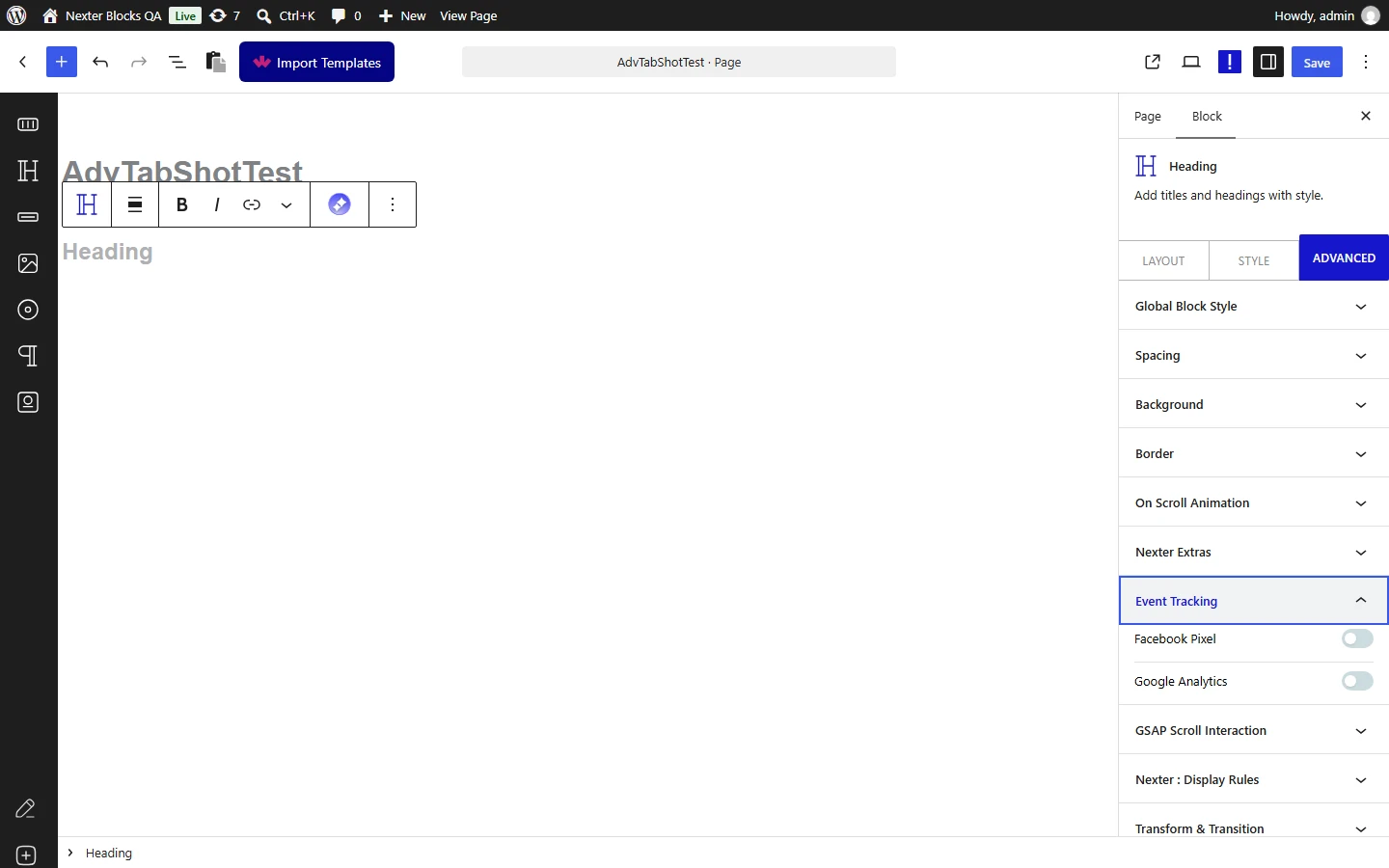
Sends an analytics event when a visitor interacts with the block, to Google Analytics, the Facebook pixel, or both.
![](https://nexterwp.com/wp-content/uploads/2026/09/advtab-event-tracking-full.webp)

**Note:** Event tracking will not emit anything until it is switched on in Nexter's own settings first. Measured: with the block configured for both Google and Facebook events but the site-level setting off, **no tracking markup was rendered at all**. With the setting enabled and nothing else changed, the block immediately rendered its tracking attributes. If your events are not firing, check this before checking anything else.

- **Edition: Pro.**

- **Measured markup, with the setting enabled:** a `tpgb-event-tracker-inner` wrapper carrying a `data-event-opt` attribute that holds the whole configuration — which providers are on, the event type and name, and any custom properties you added.

- **Custom properties are sent as name and value pairs**, measured surviving into the attribute exactly as entered.

- **The block emits the event; it does not verify it arrived.** Confirm in Google Analytics' realtime view or the Facebook pixel helper, not in the page source.

See [the event tracking doc](https://nexterwp.com/docs/add-event-tracking-in-wordpress/) for the full setup.

## Nexter : Display Rules

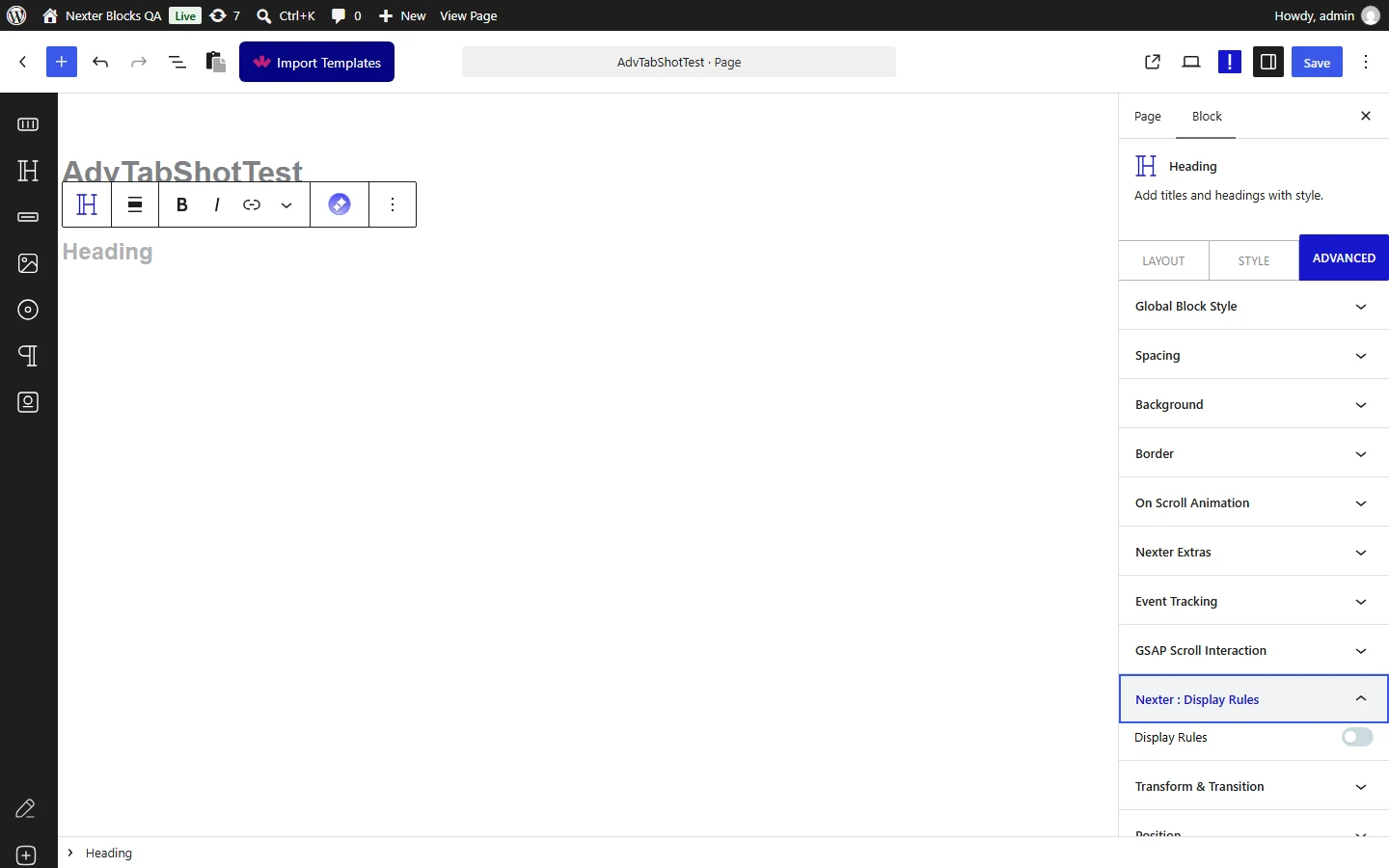
Shows or hides the block based on conditions — who is logged in, what the date is, what page it is on.

### How to Activate the Display Rules (Freemium)?

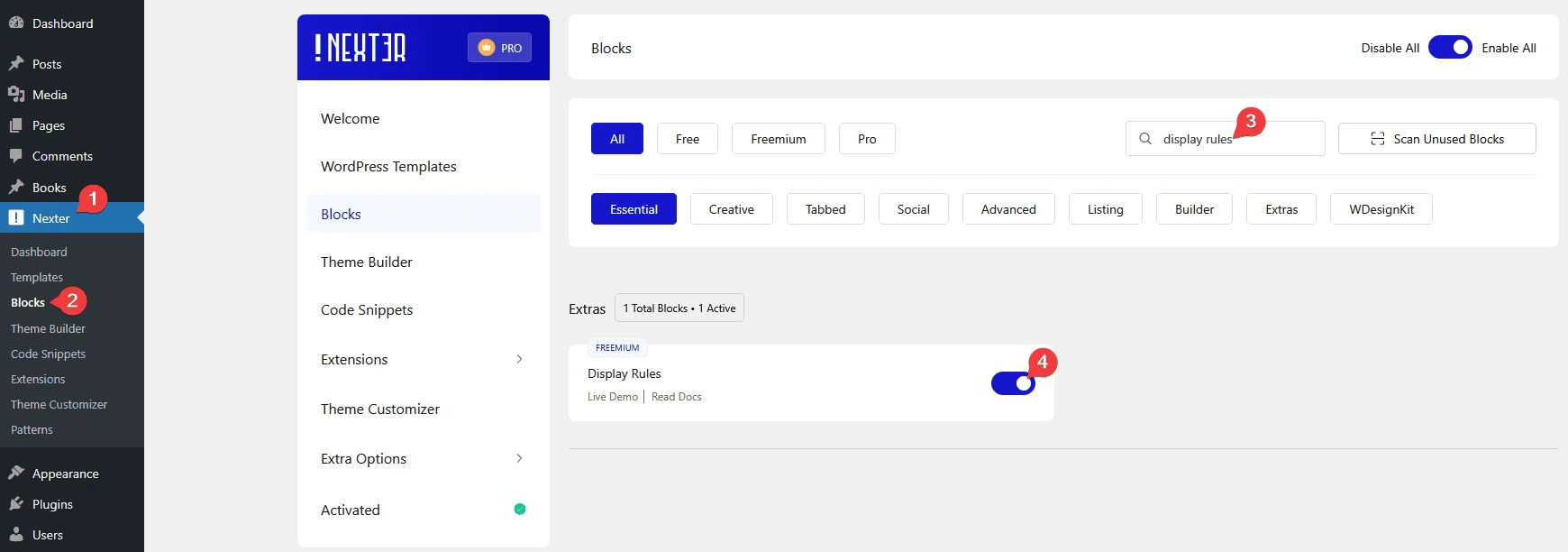
Go to **Nexter > Blocks**, search for the option by name, and turn its toggle on. Until it is enabled there, the option does not appear in any block's Advanced tab.

![](https://nexterwp.com/wp-content/uploads/2023/07/display-rules-activation-new.webp)

### How to Use the Display Rules?

![](https://nexterwp.com/wp-content/uploads/2026/09/advtab-display-rules-full.webp)

- **The block is removed server side, not hidden with CSS.** When a rule excludes it, its output is emptied before the page is sent, so the content never reaches the browser.

- **That makes it a genuine content decision**, not a cosmetic one — but it also means caching plugins can serve one visitor's version to another. Check your cache's handling of logged-in users.

Full detail in [the display rules doc](https://nexterwp.com/docs/add-display-rules-in-wordpress/).

[LIVE DEMO](https://nexterwp.com/nexter-blocks/extras/wordpress-display-conditional-rules/)

## How to Set Custom Position to any WordPress Block?

Takes the block out of the normal flow and positions it explicitly.

- **Edition: Free.**

- **Measured:** the position is applied as three classes at once — `tpgb-position-*`, `tpgb-tab-position-*` and `tpgb-mobile-position-*` — so a desktop value cascades down to tablet and mobile unless you set those separately. That is the opposite of how the spacing fields behave.

- **Absolute positioning removes the block from the flow**, so whatever followed it moves up. On a responsive layout this is the fastest way to create an overlap that only appears on one screen size.

- **Z-index is a separate field.** Measured, it generates `position:relative;z-index:<n>!important` on both the wrapper and the block.

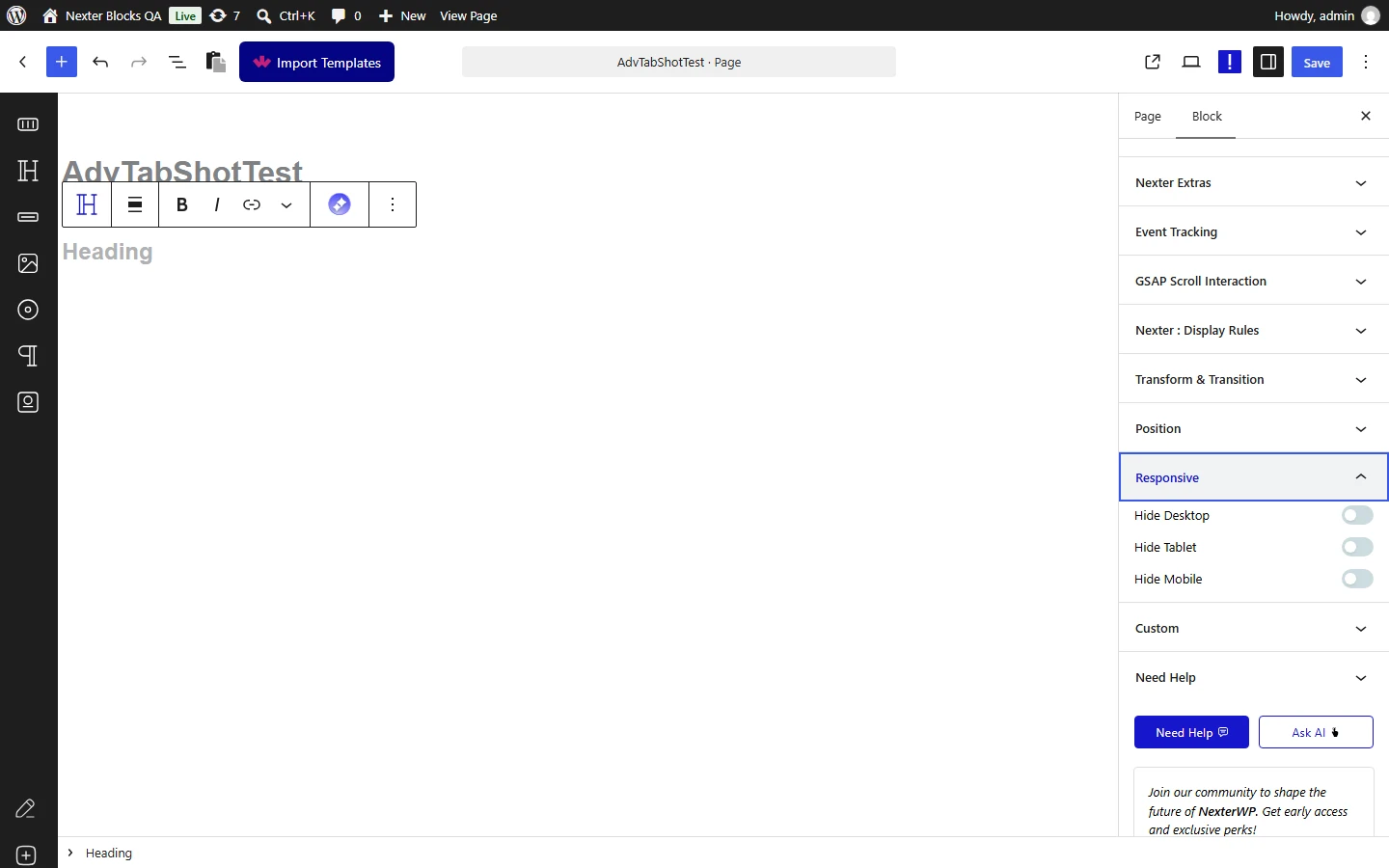
## How to Hide Content in Responsive Screens in WordPress?

Hides the block on a chosen screen size.
![](https://nexterwp.com/wp-content/uploads/2026/09/advtab-responsive-full.webp)

- **Edition: Free.**

- **The exact breakpoints, measured from the generated CSS:** mobile is `max-width 767px`, tablet is `min-width 768px` to `max-width 1200px`, and desktop is `min-width 1201px`.

- **It is `display:none`, applied with `!important`.** The block is still in the HTML and is still downloaded — it is hidden, not removed. To actually remove it, use display rules instead.

- **Hidden content is still read by search engines and can still be reached by a screen reader's document order** in some cases, so do not use it to hide something that should not be public.

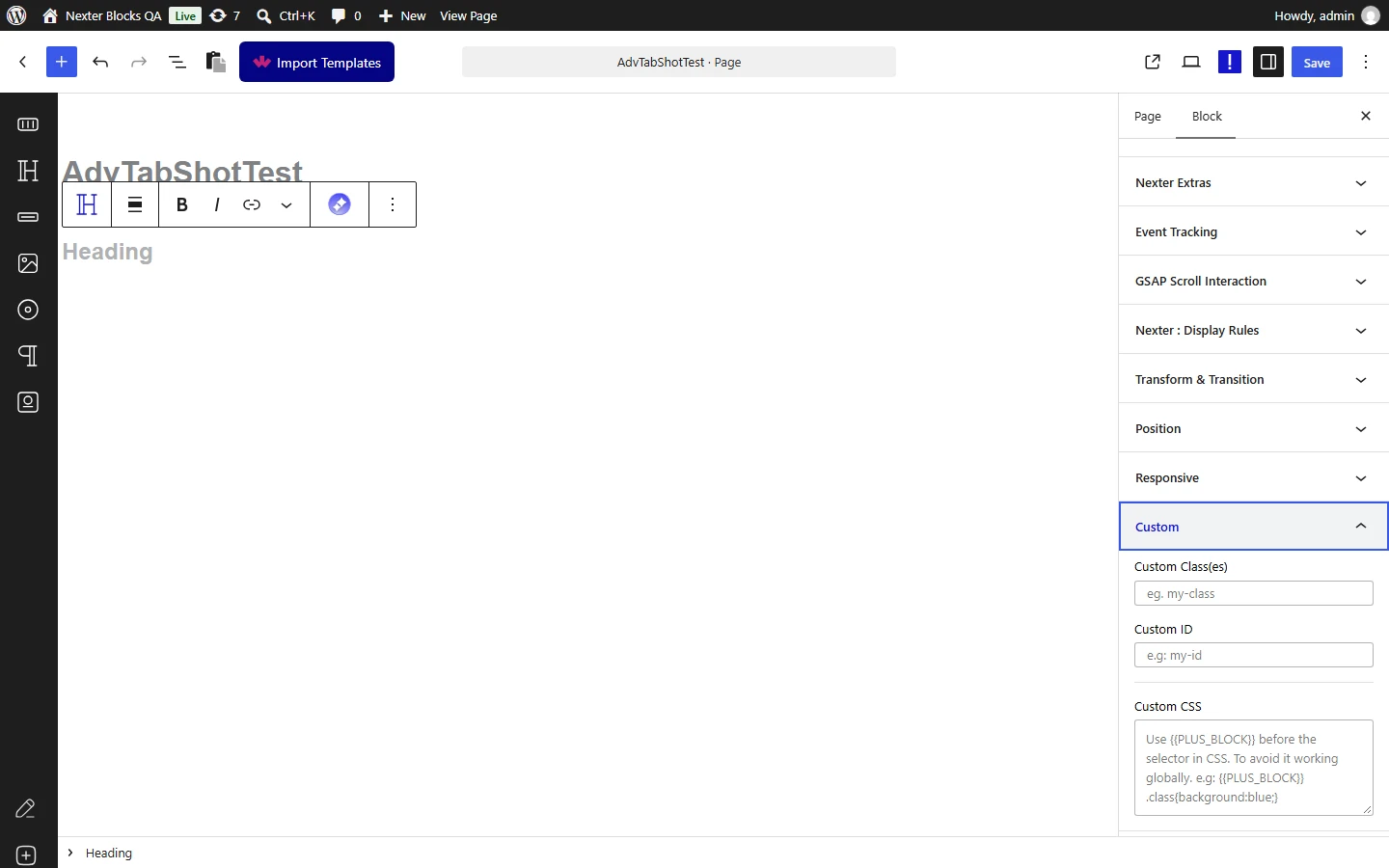
## How to Add Custom CSS Code to any WordPress Block?

Custom classes, a custom ID, and a CSS box scoped to this block.
![](https://nexterwp.com/wp-content/uploads/2026/09/advtab-custom-full.webp)

- **Edition: Free.**

- **Separate multiple classes with a space, not a comma.** Measured: whatever you type is written into the `class` attribute verbatim, so `one,two` becomes a single class literally named `one,two` rather than two usable classes.

- **Two placeholders are available in the CSS box**, and they resolve to different things. Measured: `{{PLUS_BLOCK}}` becomes `.tpgb-wrap-<id>`, the outer wrapper, and `{{PLUS_WRAP}}` becomes `.tpgb-block-<id>`, the block itself.

- **Anything else is emitted unchanged.** Measured: a rule written against `selector{...}` was output as the literal text `selector{...}`, which matches nothing. If your custom CSS does nothing at all, this is the first thing to check.

- **The CSS is generated into the page's stylesheet**, not inlined on the element, so it follows normal cascade rules.

## Related Docs

- [Add a global style to a WordPress block](https://nexterwp.com/docs/add-global-style-to-a-wordpress-block/)

- [Add on scroll animation in WordPress](https://nexterwp.com/docs/add-on-scroll-animation-in-wordpress/)

- [Add display rules in WordPress](https://nexterwp.com/docs/add-display-rules-in-wordpress/)

- [Add event tracking in WordPress](https://nexterwp.com/docs/add-event-tracking-in-wordpress/)

- [Add a sticky column in WordPress](https://nexterwp.com/docs/add-sticky-column-in-wordpress/)

## Frequently Asked Questions

**Q: Why does a Pro effect stop working after the licence lapses in Nexter Blocks?**
A: Pro-only Advanced tab effects do not degrade into a disabled state when the licence is off. The page says the wrapper simply stops being written, so the effect markup disappears entirely. That matters because anything styled against that wrapper goes with it. Free options like spacing, background, border, radius, shadow, custom class, custom ID, custom CSS, responsive hide, and custom position still render the same way with Pro deactivated.

**Q: How do I add a global block style to multiple WordPress blocks without copying settings by hand?**
A: A global block style saves the current block styling under a name and applies that look to other blocks. Nexter Blocks measures it as an extra class on the block, which means shared styles live in one stylesheet rule instead of being duplicated per block. That keeps repeated designs consistent and lighter to manage. The full behavior is covered in [the global block style doc](https://nexterwp.com/docs/add-global-style-to-a-wordpress-block/).

**Q: Why is my background color not showing on a WordPress block in Nexter Blocks?**
A: The background toggle has to be enabled before any background color, gradient, or image is generated. The page notes that if the color is set but the background option stays off, no rule is written at all. That is the usual failure mode when a background seems broken. When it works, Nexter Blocks outputs a rule like `.tpgb-block-{background-color:#ff5722}` on the block itself.

**Q: What is the difference between spacing and custom position in Nexter Blocks?**
A: Spacing controls margin and padding per breakpoint, while custom position takes the block out of normal flow and places it explicitly. The page measures spacing as generated CSS tied to the block class, but custom position uses classes for desktop, tablet, and mobile values and can create overlap because absolute positioning removes the block from flow. Z-index is separate and generates `position:relative;z-index:!important` on both wrapper and block.

**Q: Does on scroll animation in Nexter Blocks affect Core Web Vitals?**
A: It can if the animation moves content from outside its final position. The page says on scroll animation fires once when the block enters the viewport and uses a `tpgb-view-animation` class plus a `data-animationSetting` attribute. Because motion can cause layout shift, fades are safer than large movements above the fold if you care about Core Web Vitals. More detail is in [the on scroll animation doc](https://nexterwp.com/docs/add-on-scroll-animation-in-wordpress/).

**Q: What should I use instead of hover or pointer effects on touch devices?**
A: Touch devices are a bad fit for hover-based or pointer-driven Advanced tab effects. The page says hover tooltips are unreachable on touch devices, mouse parallax does nothing on touch because there is no pointer to follow, and 3D tilt also does nothing on touch. For anything important, use an effect that still leaves the content reachable another way rather than depending on hover alone.