





















Why Should You Use Developer Mode in WordPress?
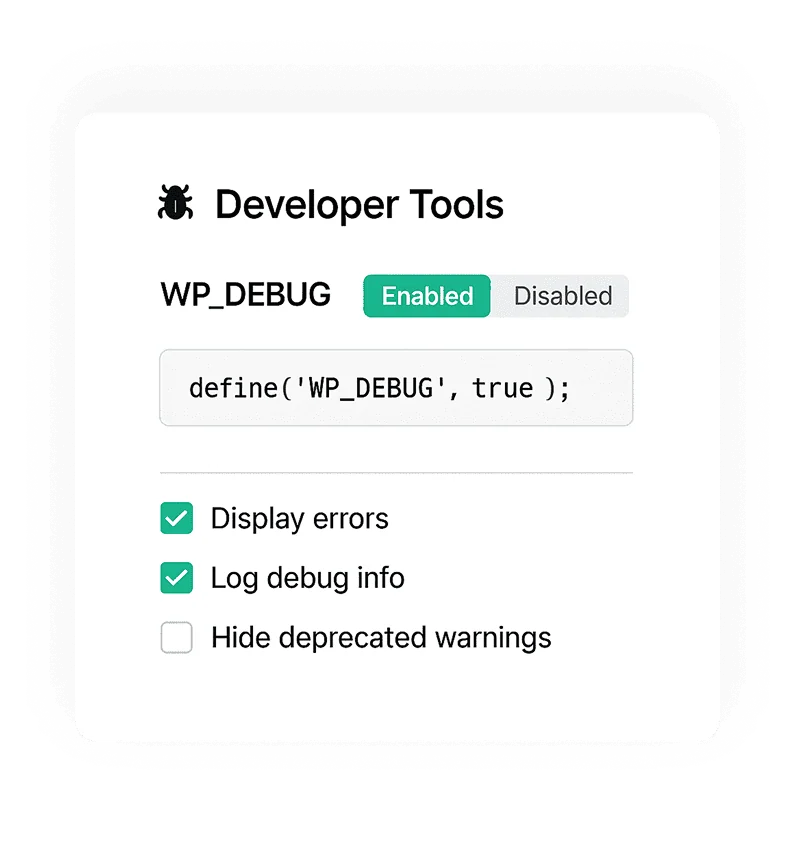
Enable WordPress Debug Mode in One Click
Quickly turn WP_DEBUG on or off from the dashboard. This keeps debugging simple and avoids manual configuration steps.
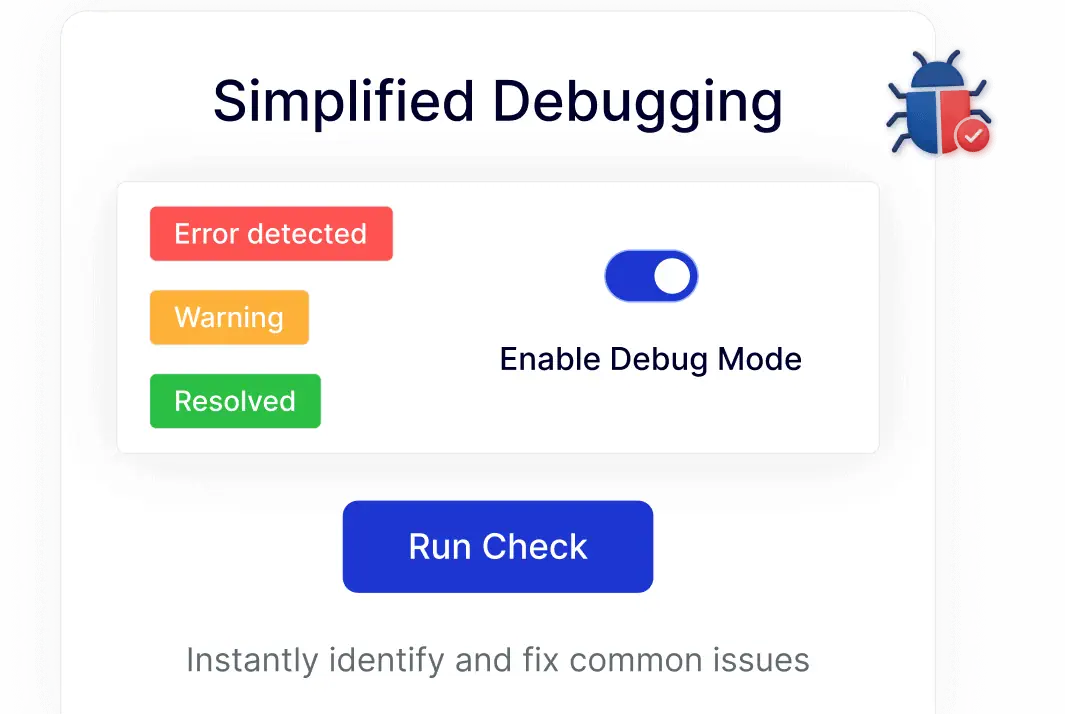
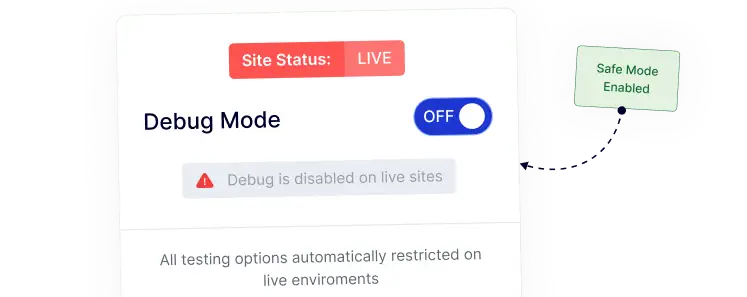
Safe Debugging Controls for Live Sites
Manage debug mode responsibly by keeping it disabled on production sites, helping maintain a clean experience for visitors.
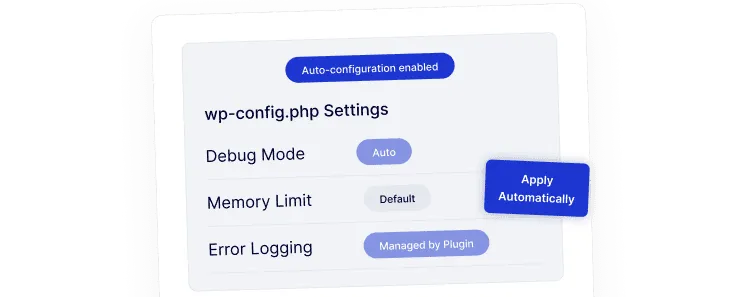
Configure wp-config Settings Automatically
No need to manually edit wp-config.php.
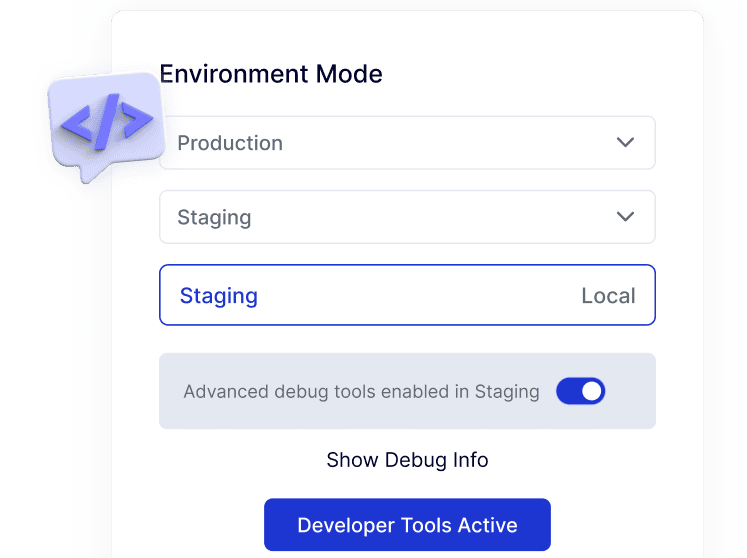
Developer-Friendly Workflow for Staging and Local Sites
Switch debug mode on for staging or local environments with ease, fitting naturally into common WordPress development workflows.
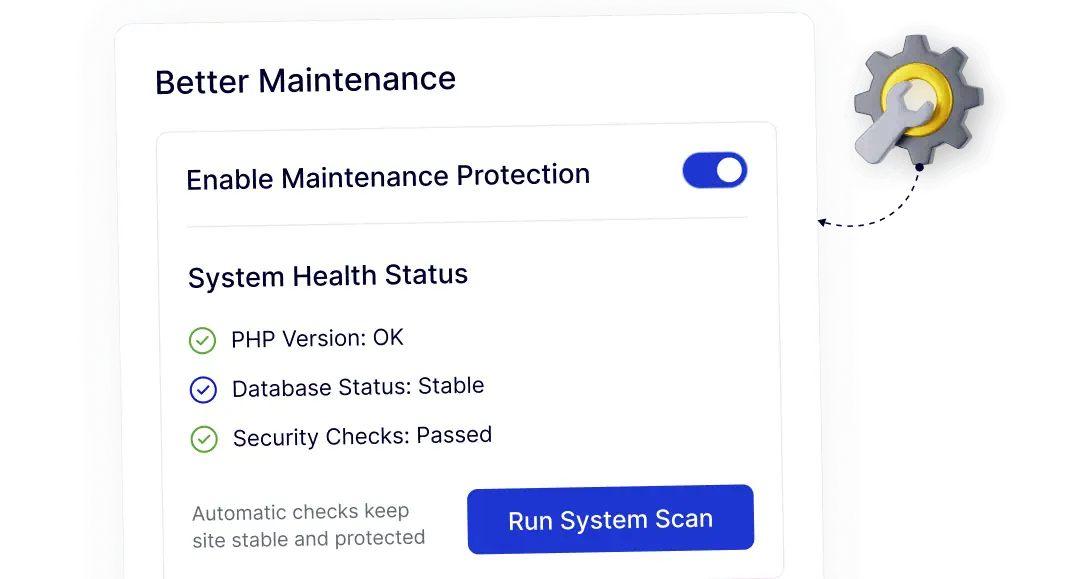
Cleaner Maintenance With Controlled Debug Settings
Centralized debug controls help keep your site organized over time, reducing overlooked settings and simplifying ongoing maintenance.