












Most sites hide their categories in a sidebar list nobody reads. If your content is organised well, that structure is worth showing properly.
The Taxonomy Listing block turns any taxonomy — categories, tags, product categories or one you registered yourself — into a set of linked cards with an image, the term name and its post count.

Before You Start
- Edition: Pro — the Taxonomy Listing block needs Nexter Blocks Pro.
- Block to enable: Taxonomy Listing, switched on under Nexter > Blocks in your WordPress dashboard.
- Terms that exist. The block lists your real taxonomy terms, so a site with one category shows one card.
Steps
- Add the Taxonomy Listing block to your page.
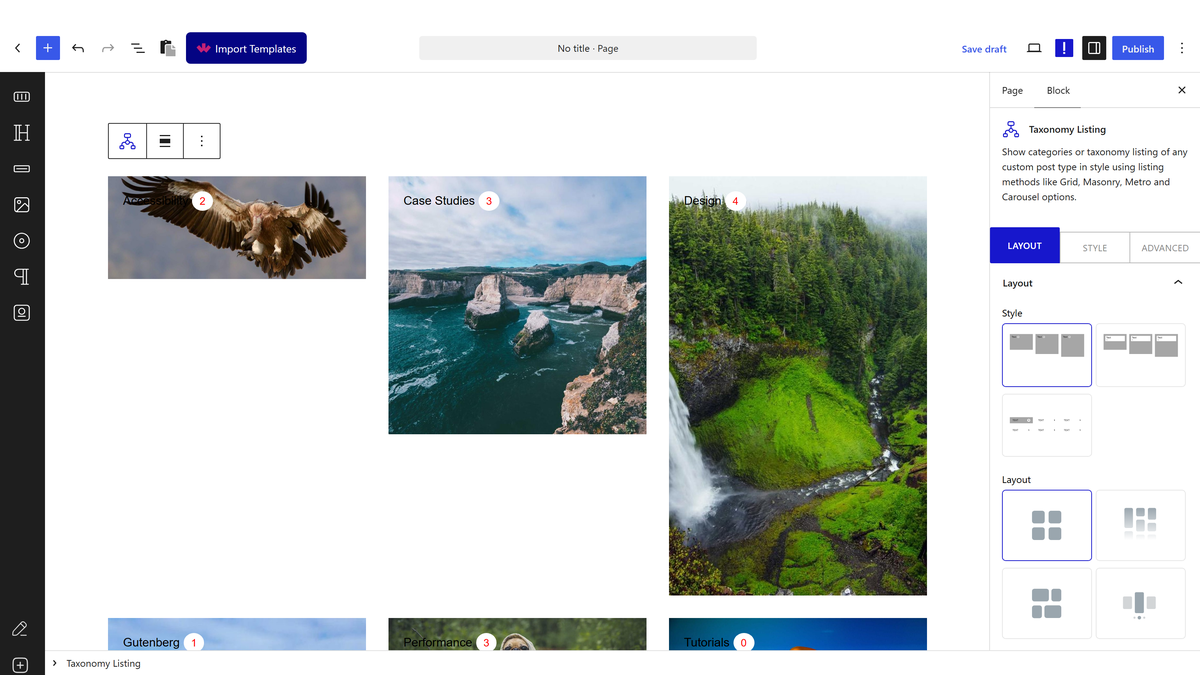
- Choose the taxonomy you want listed.
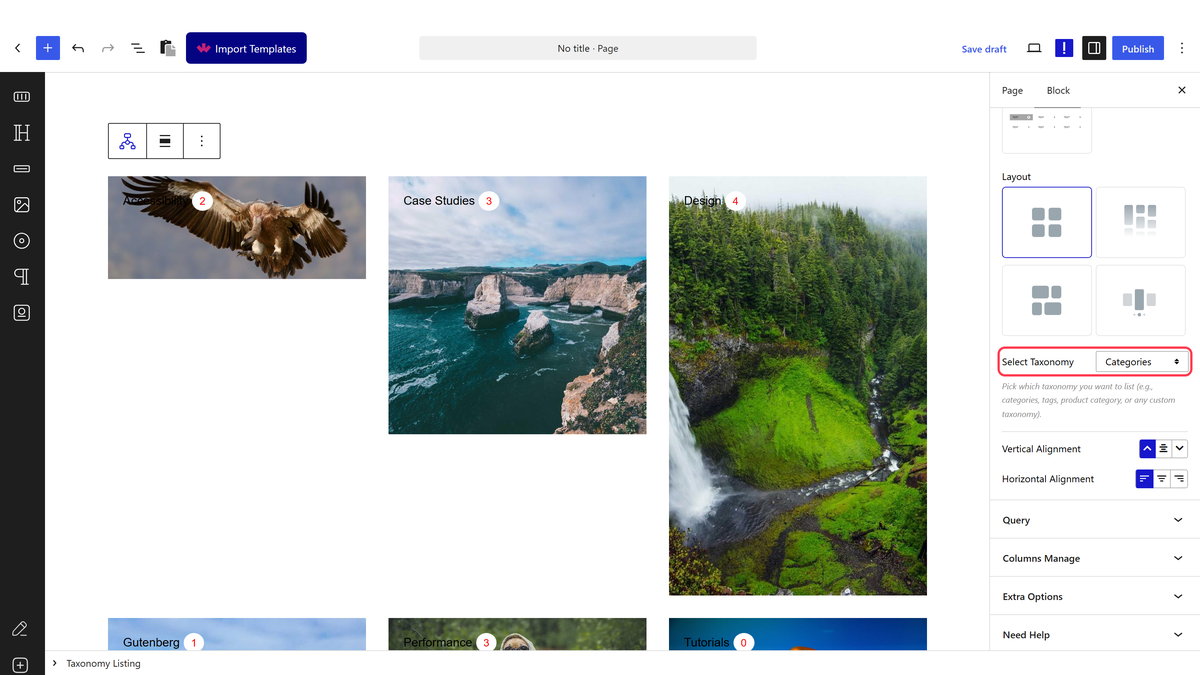
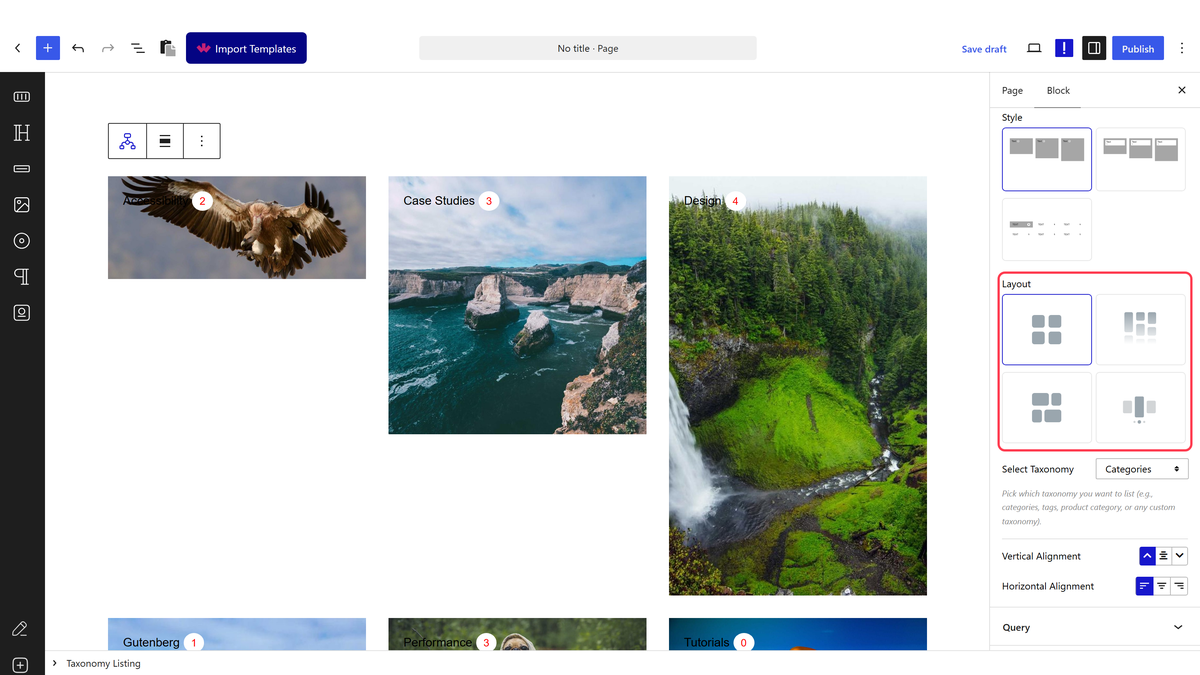
- Pick a layout — grid, masonry, metro or carousel.
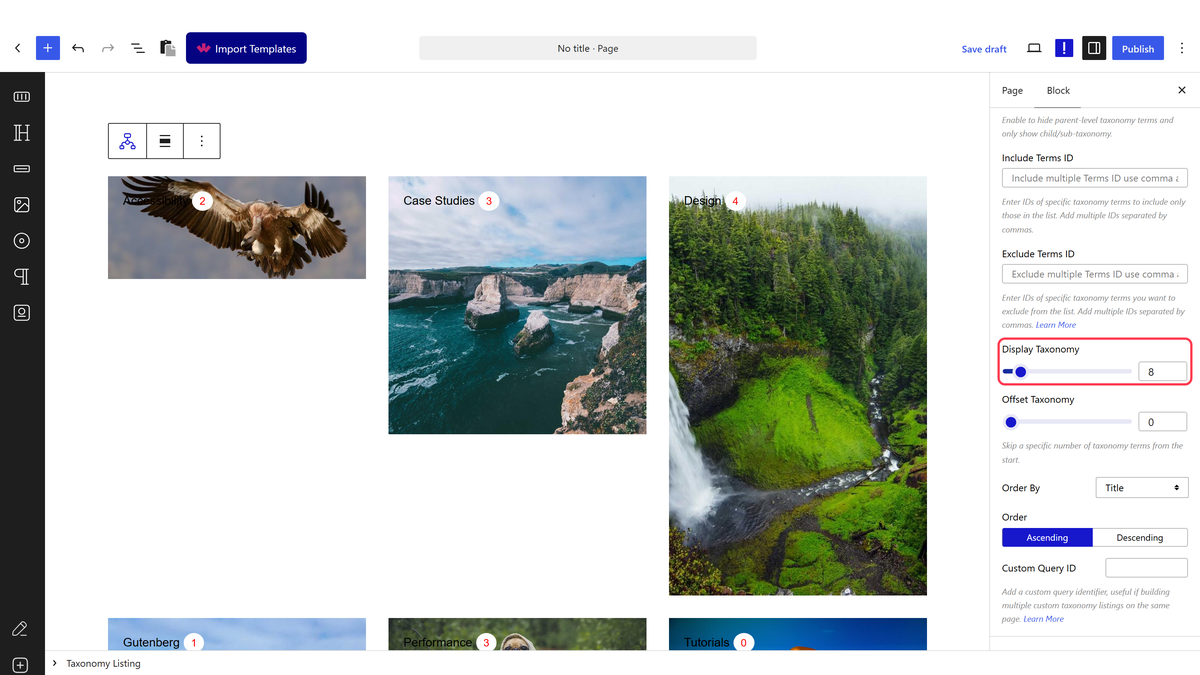
- Set how many terms to show, and the order they appear in.
- Choose what each card shows, then publish.
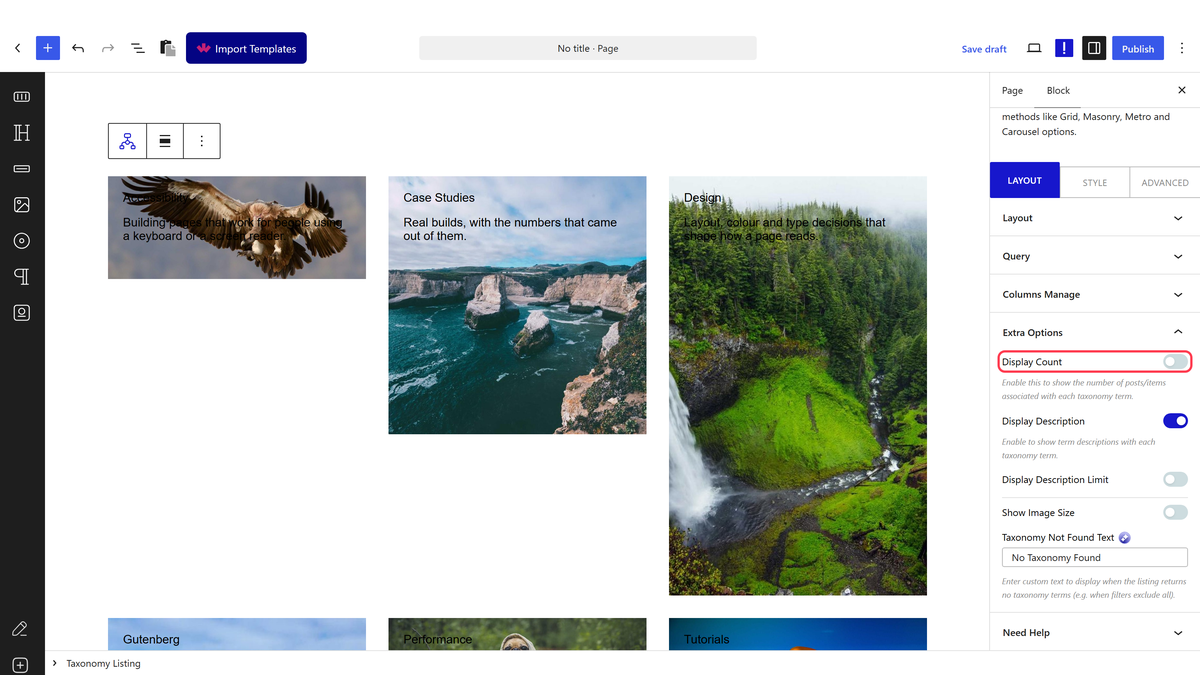
Set the image on each term itself, not here. Edit a category and you will find Nexter’s image field on that screen — that is where these cards read from.
How It Behaves
Every card is a link to that term’s archive. Measured on a real site, the first card linked straight to /category/accessibility/, so the listing is a navigation element rather than decoration.
- The category image comes from Nexter’s own term image field, set on the term itself when you edit it. It is not WordPress’s featured image and, on a product category, it is not WooCommerce’s category image either — those are stored separately and this block does not read them.
- A term with no image still renders one. Measured: removing a term’s image produced a card showing a generic placeholder shipped with the plugin, not a blank or broken image. That is why missing category images are easy to miss.
- The post count is shown by default. Measured on an untouched listing: each card rendered its real term count.
- Descriptions are off by default, and a term with an empty description renders no description element at all even once they are switched on.
- Empty terms are hidden by default, with one WordPress-level exception: a term with no posts of its own but a child that has posts is kept. Measured, and core WordPress behaves identically, so it is not something this block can change.
- Type a number into the item count; do not leave it blank. Measured on 5.0.6: a blank field renders one term rather than all of them, and so does
0. Reported to the developers. - Any registered taxonomy works. Measured across categories, tags and WooCommerce product categories with no change other than the taxonomy setting.
- Measured with Nexter Blocks Pro deactivated: the block renders nothing at all — not a wrapper, not a message, zero output. This is a Pro-only block.
Limitations
- Pro only — measured with Pro deactivated, the block is not registered and renders nothing whatsoever.
- Term images have to be set one term at a time. There is no bulk way to do it, and a large taxonomy is a long afternoon.
- A term with no image looks fine but wrong. The placeholder means you will not notice a missed term until someone points at it.
- It lists terms, not posts. For the posts inside a category, use Post Listing instead.
- There is no pagination or load more. The item count is the whole list.
- The item count field must not be left blank, for the reason above.
Troubleshooting
Only one category is showing
The item count is blank or set to zero. Type the number you want. This is the most common cause by a wide margin.
My category images are not appearing
They are read from Nexter’s term image field, set when you edit the term. A WooCommerce category image set in WooCommerce is stored separately and is not used here.
An empty category is still showing
It has a sub-category that does have posts. WordPress keeps the parents of non-empty terms, and core behaves the same way.
The carousel keeps moving while I try to click
Autoplay is on by default and does not pause on hover. Switch it off.
The block disappeared after my licence lapsed
It is a Pro block and renders nothing without Pro active.
