












Custom post types usually come with a taxonomy of their own — a portfolio with a medium, a directory with a region, a recipe site with a cuisine.
This block treats those exactly like categories. If the taxonomy is registered, it can be listed.
For every Taxonomy Listing setting in one place, see the Taxonomy Listing guide.
Before You Start
- Edition: Pro — the Taxonomy Listing block needs Nexter Blocks Pro.
- Block to enable: Taxonomy Listing, switched on under Nexter > Blocks in your WordPress dashboard.
- A registered taxonomy with terms. It has to be registered as public for its archives to be linkable.
Steps
- Add the Taxonomy Listing block, pick your taxonomy from the list, choose a layout, and publish.
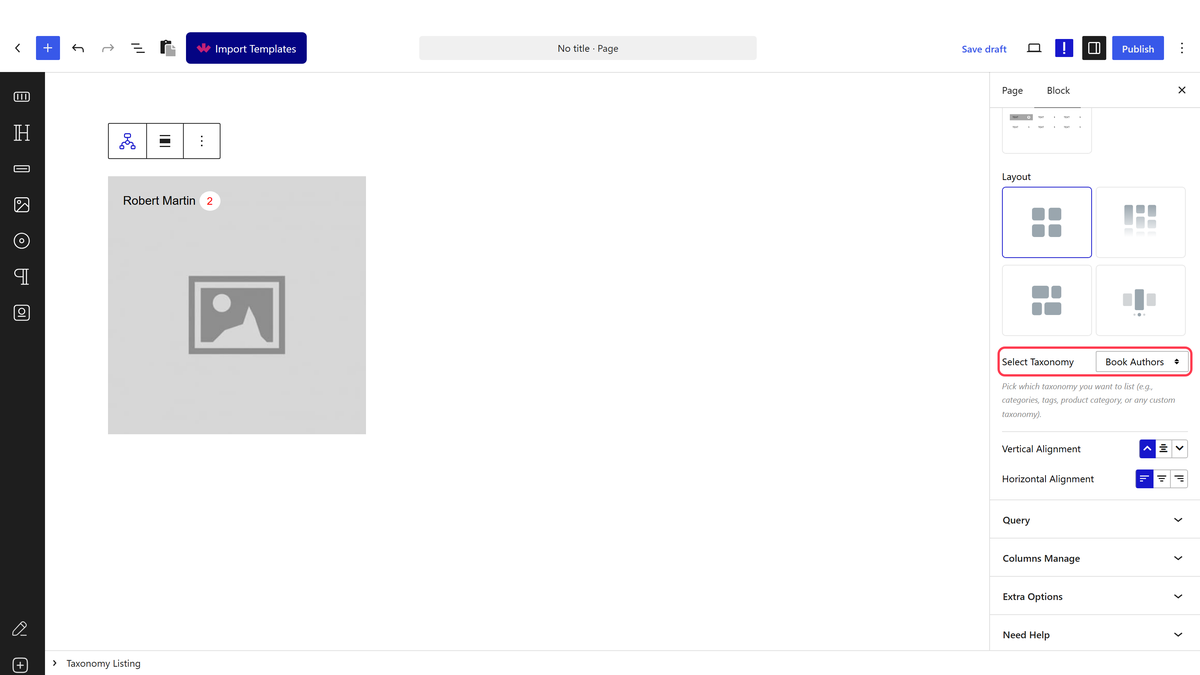
How It Behaves
- Every taxonomy behaves the same way. Measured across categories, tags and WooCommerce product categories with nothing changed but the taxonomy setting: 7, 8 and 4 terms respectively, each with real counts and archive links.
- Tags work too. They are a taxonomy like any other, so a tag cloud rendered as image cards is just this block pointed at tags.
- Each card links to the term archive that WordPress generates for that taxonomy.
- A taxonomy name that does not exist is handled gracefully. Measured: the block renders its wrapper and the not-found message rather than erroring.
- The category image comes from Nexter’s own term image field, set on the term itself when you edit it. It is not WordPress’s featured image and, on a product category, it is not WooCommerce’s category image either — those are stored separately and this block does not read them.
- The post count is shown by default. Measured on an untouched listing: each card rendered its real term count.
- Empty terms are hidden by default, with one WordPress-level exception: a term with no posts of its own but a child that has posts is kept. Measured, and core WordPress behaves identically, so it is not something this block can change.
- Type a number into the item count; do not leave it blank. Measured on 5.0.6: a blank field renders one term rather than all of them, and so does
0. Reported to the developers. - Measured with Nexter Blocks Pro deactivated: the block renders nothing at all — not a wrapper, not a message, zero output. This is a Pro-only block.
Limitations
- Pro only — nothing renders with Pro deactivated.
- The taxonomy has to be registered before the page renders. A taxonomy registered only in the admin, or registered late, will not be listed.
- Non-public taxonomies have no archive to link to, so the cards lead nowhere useful.
- Term images are Nexter’s field, and on a custom taxonomy that field is the only image source — there is nothing else to fall back on but the placeholder.
- One taxonomy per block. To list two, use two blocks.
- Hierarchy is flattened. Child terms render as their own cards, not nested under parents.
Troubleshooting
My taxonomy is not in the dropdown
It has to be registered before the block loads. Taxonomies registered conditionally, or only for the admin, will not appear.
The cards link to a page that does not exist
The taxonomy is probably registered without public archives. That is set where the taxonomy is registered, not here.
All the images are the same generic picture
No terms have an image set. Edit each term and set Nexter’s image field; the placeholder is what shows until you do.
Only one term is listed
The item count is blank or zero. Enter a number.
