












A grid is the layout people expect from a set of categories: equal cards, equal weight, easy to scan in one pass.
It is the Taxonomy Listing block’s default layout, so this is mostly a matter of choosing the column count and giving your terms images.
For every Taxonomy Listing setting in one place, see the Taxonomy Listing guide.
Before You Start
- Edition: Pro — the Taxonomy Listing block needs Nexter Blocks Pro.
- Block to enable: Taxonomy Listing, switched on under Nexter > Blocks in your WordPress dashboard.
- Terms that exist. The block lists your real taxonomy terms, so a site with one category shows one card.
Steps
- Add the Taxonomy Listing block and set the layout to grid.
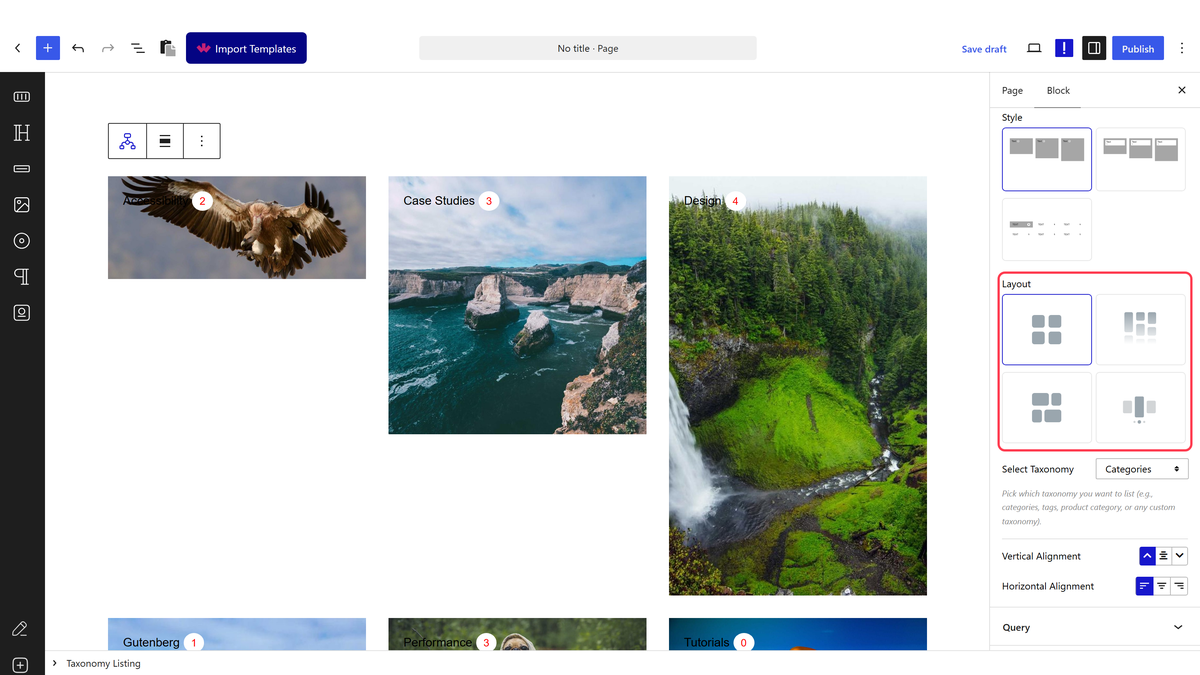
- Set the column count for desktop, tablet and mobile, then publish.

How It Behaves
- Grid uses equal-height cards in a row. Measured: the wrapper carries
tpgb-isotopeand each term renders a real<img>tag. - Columns are set per breakpoint, so a four-column desktop grid can drop to two on a tablet and one on a phone.
- The category image comes from Nexter’s own term image field, set on the term itself when you edit it. It is not WordPress’s featured image and, on a product category, it is not WooCommerce’s category image either — those are stored separately and this block does not read them.
- A term with no image still renders one. Measured: removing a term’s image produced a card showing a generic placeholder shipped with the plugin, not a blank or broken image. That is why missing category images are easy to miss.
- The post count is shown by default. Measured on an untouched listing: each card rendered its real term count.
- Empty terms are hidden by default, with one WordPress-level exception: a term with no posts of its own but a child that has posts is kept. Measured, and core WordPress behaves identically, so it is not something this block can change.
- Type a number into the item count; do not leave it blank. Measured on 5.0.6: a blank field renders one term rather than all of them, and so does
0. Reported to the developers. - Measured with Nexter Blocks Pro deactivated: the block renders nothing at all — not a wrapper, not a message, zero output. This is a Pro-only block.
Limitations
- Pro only — nothing renders with Pro deactivated.
- Grid crops to equal heights. If your term images are different shapes, use masonry instead.
- An odd number of terms leaves a gap on the last row. Nothing fills it.
- No pagination. The item count is the whole grid.
- Long term names wrap and can push cards out of visual alignment even though the grid itself stays even.
Troubleshooting
Only one category is in the grid
The item count is blank or zero. Enter the number you want.
The images look cropped
Grid cards are a fixed shape. Either crop your term images to a consistent ratio, or switch to masonry, which keeps each image’s own proportions.
Some cards show a generic image
Those terms have no image set on the term itself. The placeholder is the plugin’s, not yours.
The columns are not changing on mobile
Column counts are per breakpoint. Set the mobile value as well as the desktop one.
