












A sitemap is the map you hand search engines so they can find every page worth indexing. Nexter SEO generates your XML sitemap automatically and lets you add specialized video, news, and HTML sitemaps, plus decide exactly which post types and taxonomies get listed. This screen is where you turn those options on and off and regenerate the file after a change.
Nexter → SEO → Technical → Sitemaps.
How To Configure XML Sitemaps?
- Open Technical in the left-hand nav and click Sitemaps.
- In the XML section, tick the sitemap options you want (start with Enable XML Sitemap on).
- Under Exclude Post Types and Exclude Taxonomies, tick anything you do not want in the sitemap.
- Click Save (top right).
- Click Regenerate to rebuild the sitemap file immediately with your new settings.
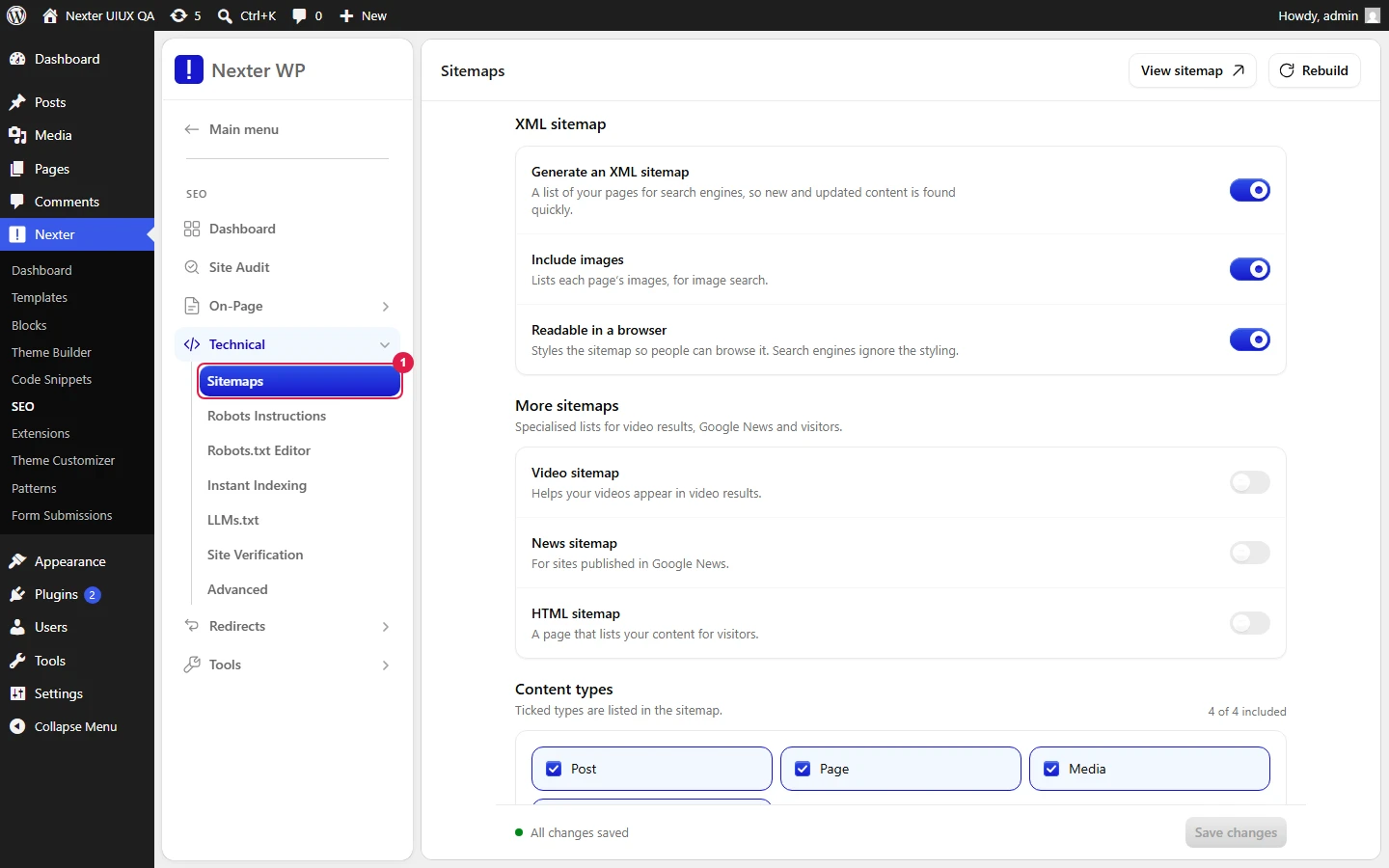
Header Actions
- Regenerate — rebuilds the sitemap file on demand. Use it after you change options or add a batch of content and want the sitemap updated right away instead of waiting for the next automatic refresh.
- Save — stores your sitemap settings.
XML Section
Each option has an info tooltip next to it.
- Enable XML Sitemap — the master switch. When on, Nexter SEO publishes your XML sitemap for search engines. Leave this on unless another SEO plugin is already handling sitemaps.
- Include Images — adds image entries to the sitemap so search engines can discover the images on your pages. Helpful for image search visibility.
- Human-Readable Stylesheet — applies a styled layout so the sitemap is readable when a person opens it in a browser, instead of showing raw XML. Search engines still read the underlying XML.
- Video Sitemap — generates a dedicated sitemap for video content. This is a special Google sitemap format that helps videos surface in Google Video results. Turn it on only if you publish video.
- HTML Sitemap — creates a plain, human-facing list of your content (a page visitors can browse), separate from the XML file search engines use. Useful as an accessible site index.
- News Sitemap — generates a Google News sitemap. This only applies if your site is accepted into Google News; leave it off otherwise.
Exclude Post Types
Tick a post type to keep it out of the sitemap. Each has a tooltip.
- Post
- Page
- Media
- Theme Builder
Exclude Taxonomies
Tick a taxonomy to keep its archive URLs out of the sitemap.
- Category
- Tag
- Format
Finding And Submitting Your Sitemap
Your XML sitemap lives at your site root, typically:
https://yourdomain.com/sitemap.xmlTo submit it to Google:
- Open Google Search Console and select your property.
- In the left menu, go to Indexing → Sitemaps.
- Under Add a new sitemap, enter
sitemap.xmland click Submit. - Google will show a Success status once it reads the file. It rechecks the sitemap on its own schedule from then on.
For Bing, add the same URL under Sitemaps in Bing Webmaster Tools.
Good To Know
- The sitemap URL is also injected automatically into your robots.txt via the Sitemaps: line, so most crawlers find it without a manual submission. Submitting in Search Console still gives you indexing stats and error reporting, so it is worth doing.
- Video and News sitemaps are niche formats. Only enable them if you actually publish video or are an approved Google News publisher, or you will generate empty or rejected sitemaps.
- Exclude lists are subtractive. Everything is included by default, and ticking a box removes it. Use them for thin or duplicate content (for example, excluding the Format taxonomy on most sites).
Troubleshooting
- My sitemap is empty or 404s. Confirm Enable XML Sitemap is on, click Regenerate, then reload
/sitemap.xml. If it still 404s, resave your permalinks under Settings → Permalinks to flush WordPress rewrite rules. - A page I excluded still shows up. Click Regenerate after saving. The sitemap is cached, so changes appear after a rebuild.
- Search Console says "Couldn't fetch." Make sure the sitemap loads in a private browser window (no login), and that no physical robots.txt is blocking it. See Robots.txt Editor.
Related: Robots.txt Editor · Robots Instructions · Instant Indexing · Site Verification
This is how you can configure XML sitemaps with Nexter SEO.
