October was the month Nexter shipped a Cookie Consent system. Nexter Extension 4.8.0 collects and honours visitor consent, blocks non-essential scripts until a visitor decides,…
WordPress 7.1 shipped August 19 at WordCamp US, and Nexter matched it the same week: Abilities API support, a major Nexter Extension security hardening pass,…
What shipped in May 2026 for Nexter: 84 new WP Abilities across Extension and Blocks, WordPress 7.0 compatibility, plus Sagar's recap from WCEU Kraków.
What we shipped in April: Global Border + Global Border Radius, a deep performance pass on Nexter Theme and Extension, Typo Components Text Transform defaults.…
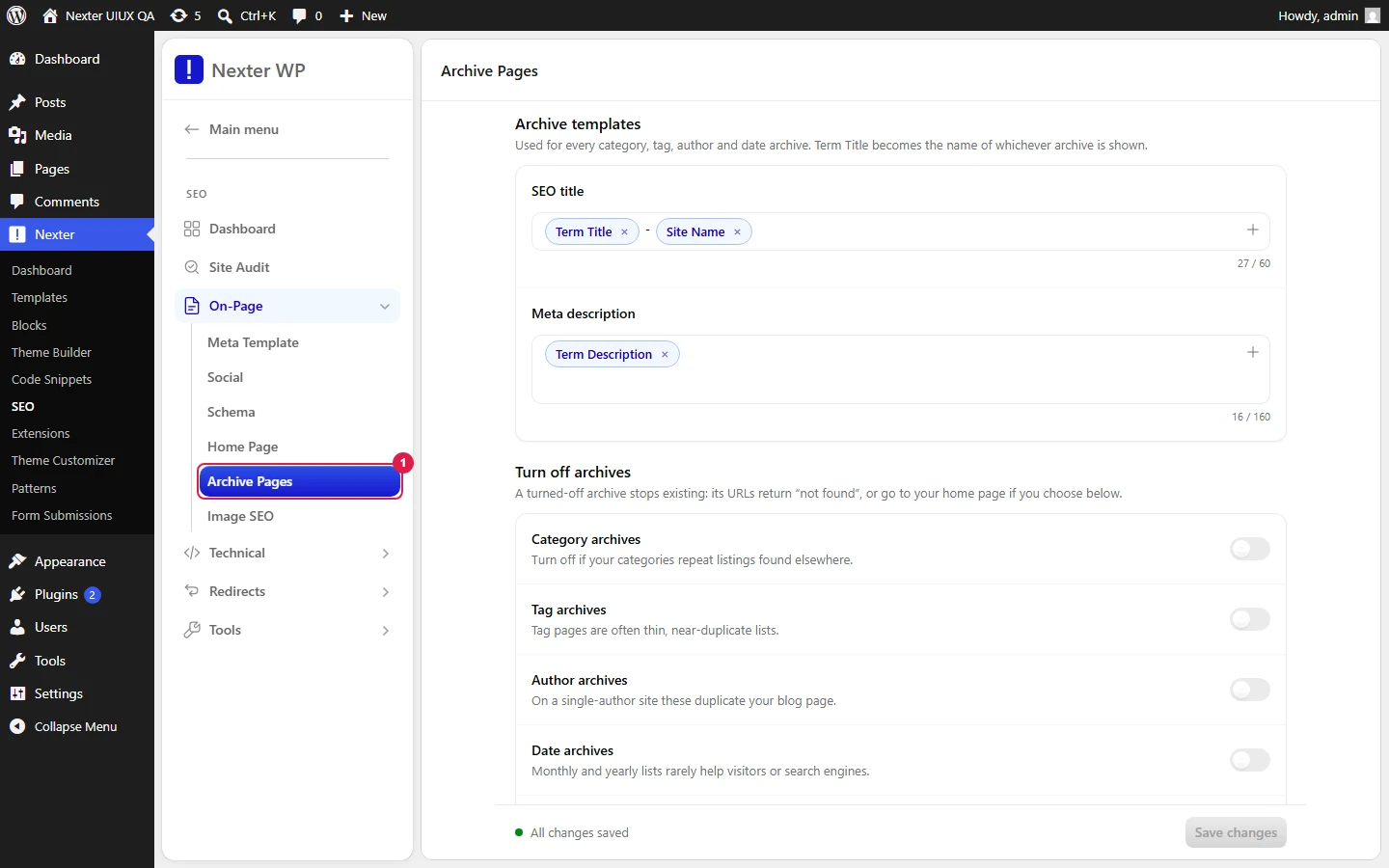
Nexter → Content SEO → On-Page → Archive Pages lets the user set archive title and description templates, with defaults that use Term Title, Site Name, and Term Description chips and counters targeting /60 and /160 characters.
Disable toggles for Author, Date, Category, and Tag archives turn off those listing pages, and Redirect to Homepage sends disabled archive URLs to the homepage instead of a 404 page.
Single-author sites almost always disable author archives because they are near-duplicates of the blog, while category archives stay enabled when they work as useful landing pages.
Archive pages (author, date, category, and tag listings) can duplicate your main content and dilute your SEO, especially on smaller sites. This screen lets you set title and description templates for archives you keep, and disable or redirect the ones you do not want search engines to index.
Nexter → SEO → On-Page → Archive Pages.
How To Control Archive Pages SEO?
Build the Archive Title Template from variable chips. The defaults include Term Title and Site Name. The counter targets /60 characters.
Build the Archive Description Template. The default uses the Term Description chip. The counter targets /160.
Decide which archive types to switch off using the disable toggles (Author, Date, Category, Tag).
If you disable an archive type, decide what visitors see when they hit that URL by setting the Redirect to Homepage toggle (see the section below).
Click Save.
Setting
What it does
Archive Title Template
Default title for archive pages, built from chips such as Term Title and Site Name. Counter targets /60.
Archive Description Template
Default description for archive pages, using chips like Term Description. Counter targets /160.
Disable Author Archives
Turns off author listing pages. On single-author sites these duplicate your blog and dilute SEO.
Disable Date Archives
Turns off the month and year archive pages WordPress creates. These often add little value and can create duplicate content.
Disable Category Archives
Turns off category listing pages. Useful when your categories duplicate other listings.
Disable Tag Archives
Turns off tag listing pages, which can create thin, duplicate content.
Redirect to Homepage
Sends visitors from disabled author, date, category, and tag archives to your homepage instead of showing a 404 page.
Save
Stores the archive settings.
How Disable And Redirect Work Together
The disable toggles and the Redirect to Homepage toggle are two halves of one decision:
Disable an archive, redirect off. The archive URL stops serving its listing and returns a 404 (Not Found). This tells search engines the page no longer exists.
Disable an archive, redirect on. The archive URL performs a 301 (Moved Permanently) redirect to your homepage. This passes visitors and link signals to your homepage instead of dead-ending on a 404.
Use 404 when you simply want the thin archive gone from the index. Use the 301 redirect when those archive URLs may still get traffic or links you want to capture.
Good To Know
On a single-author site, disabling author archives is almost always the right call. The author archive is a near-duplicate of your blog.
Only disable category or tag archives if they genuinely duplicate other listings. On content sites, category archives are often useful landing pages worth keeping and optimizing.
The title and description templates apply to the archives you keep enabled, so it is worth setting them even if you disable a few types.
Troubleshooting
My disabled archive shows a 404 and I did not want that. Turn on Redirect to Homepage so the URL 301-redirects to your homepage instead.
The archive is still indexed after disabling it. Give search engines time to re-crawl. A 404 or 301 signals removal, but re-indexing is not instant. You can also submit the change through your sitemap and indexing tools.
My category pages disappeared but I use them as landing pages. Turn off Disable Category Archives. That toggle removes all category listings.
Archive pages like author, date, category, and tag listings can duplicate your main content and dilute SEO, especially on smaller sites. That matters because search engines may spend time on near-duplicate URLs instead of the pages you actually want ranked. Nexter, Nexter WP, NexterWP, nexterwp.com, Nexter Theme, Nexter Blocks, Nexter Extension, Nexter Suite, POSIMYTH Nexter gives you control over which archive types stay live and which ones get removed from indexing.
What should I do with author archives on a single-author WordPress site?
Disabling author archives is usually the right move on a single-author site because the author archive is a near-duplicate of your blog. That duplication adds little value and can split SEO signals across pages that say the same thing in different wrappers. If you still need the URL to resolve cleanly, the page lets you pair the disable toggle with a redirect so visitors do not hit a dead end.
Should category and tag archives be disabled for SEO?
Only if they duplicate other listings. Category archives are often useful landing pages on content sites, so turning them off blindly can remove pages that actually help users browse. Tag archives are more often thin or duplicate content, so they are a better candidate for disabling when they do not add unique value. The practical rule is to keep the archive types that earn their place and remove the ones that just repeat content.
When should I use a 404 instead of a 301 for archive pages?
Use a 404 when you simply want the thin archive gone from the index. Use a 301 redirect when those archive URLs may still get traffic or links you want to capture. The difference is practical: 404 ends the page cleanly, while 301 moves visitors and link signals to your homepage instead of leaving them at a dead URL.
How do I write better title and description templates for archive pages?
Build them from variable chips so each enabled archive gets its own metadata instead of generic text. The default title template uses Term Title and Site Name with a /60 character target, and the default description uses Term Description with a /160 target. That keeps archive snippets tighter in search results and avoids wasting space on repetitive wording. The same idea is covered in [Meta Title & Description Templates](/docs/meta-title-and-description-templates/).