












The Redirection Manager creates and manages URL redirects so visitors and search engines always land on the right page instead of a broken link. Use it whenever you change a slug, retire a page, or merge two posts, and let it preserve the SEO value of the old URL.
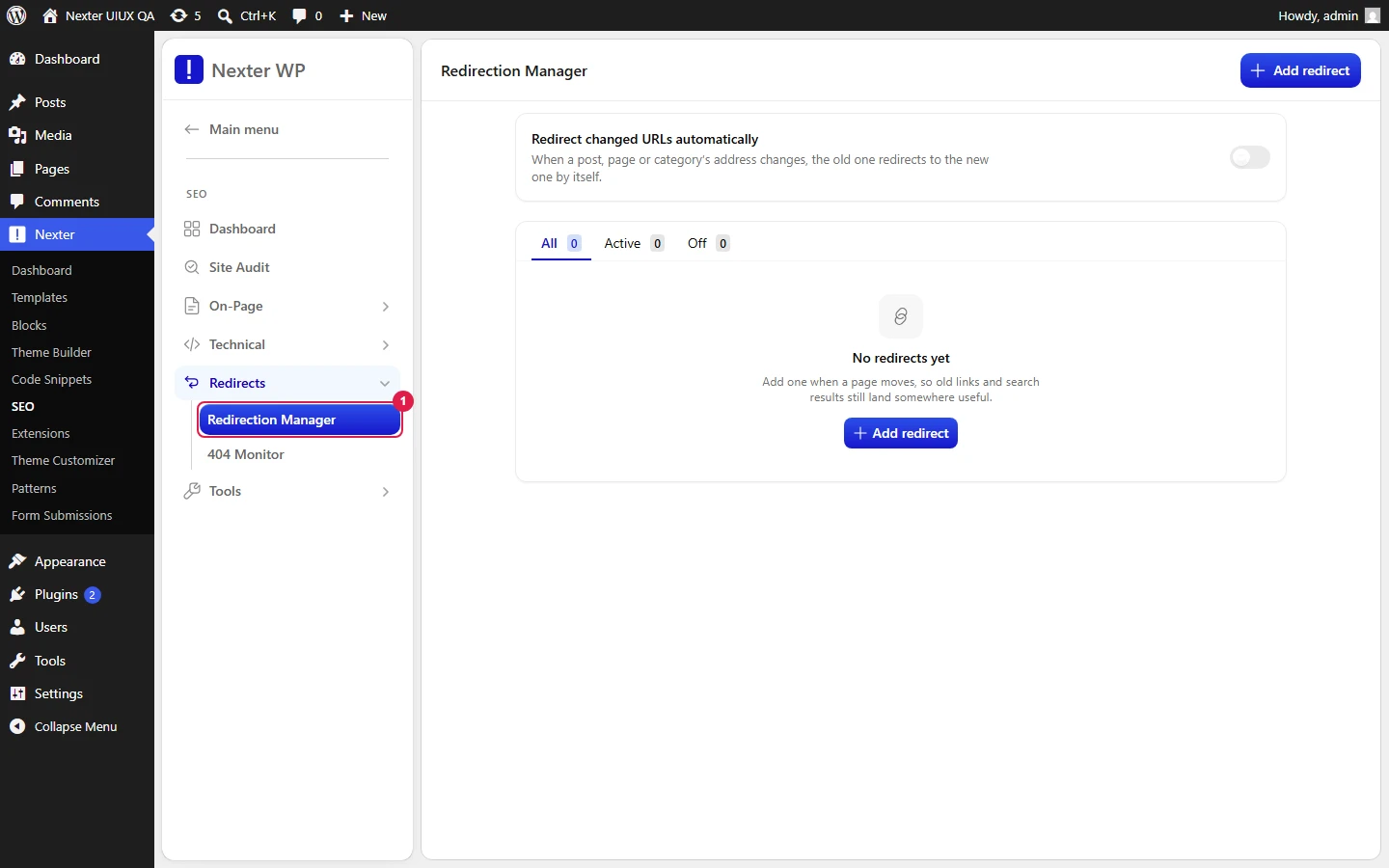
Nexter → SEO → Redirects → Redirection Manager.
How To Create & Manage Redirects?
- Click Add New (top right, and also in the empty state) to open the 301 Redirect Manager modal.
- In the From field, enter the source URL you want to redirect away from.
- Pick a Condition for how the source URL is matched. The default is Exact Match.
- Choose a Redirect Type. The default is 301 Moved Permanently.
- In the To URL field, enter the destination the visitor should land on.
- Set Query Parameters to control how anything after the
?in the source URL is handled. - Click Save. Your redirect appears in the list, where you can search it with the Search… box.
- Use the Auto Redirect toggle on the list screen to have Nexter create a redirect automatically whenever you change a published post's slug, so old links keep working without a manual entry.
| Field | What it does |
|---|---|
| From | The source URL to redirect away from. |
| Condition | How the From URL is matched. Options: Exact Match, Contains, Starts With, Ends With. |
| Redirect Type | The HTTP status the redirect returns. Options: 301 Moved Permanently, 302 Found (Temporary), 307 Temporary Redirect, 308 Permanent Redirect, 410 Content Deleted (Gone), 451 Unavailable For Legal Reasons. |
| To URL | The destination URL visitors are sent to. |
| Query Parameters | How the query string on the source URL is treated: ignore, match exactly, or keep in redirect. |
| Auto Redirect | List-screen toggle that auto-creates a redirect when a published post's slug changes. |
| Search… | Filters the redirect list by URL or destination. |
Choosing A Condition
- Exact Match — fires only when the requested URL matches the From URL exactly. Best for redirecting a single, specific page.
- Contains — fires when the requested URL contains the From value anywhere in it. Useful for catching a string that appears across many URLs.
- Starts With — fires when the requested URL begins with the From value. Good for redirecting an entire folder or path prefix (for example an old
/blog/structure). - Ends With — fires when the requested URL ends with the From value. Handy for matching by file extension or a trailing slug pattern.
Choosing A Redirect Type
- 301 Moved Permanently — the default and the right choice most of the time. Use it when a page has moved for good. Search engines transfer the old URL's ranking signals to the destination and update their index.
- 302 Found (Temporary) — use when the move is temporary and you intend to bring the original URL back. Search engines keep the original URL indexed and do not pass ranking to the destination.
- 307 Temporary Redirect — the modern, stricter temporary redirect. Like 302 but guarantees the request method (for example POST) is preserved. Reach for it in app or form flows where the method must not change.
- 308 Permanent Redirect — the modern, stricter permanent redirect. Like 301 but preserves the request method. Use it when you need permanent behavior and method preservation together.
- 410 Content Deleted (Gone) — not a redirect to another page. It tells search engines the content is permanently gone, which removes it from the index faster than a 404. Use it for pages you deleted with no replacement.
- 451 Unavailable For Legal Reasons — signals the content was removed for legal reasons (a takedown, a court order, a regional block). Use it only when that is genuinely the case.
Rule of thumb: if the page has a new home, use 301. If it is coming back, use 302. If it is gone for good with no replacement, use 410.
Handling Query Parameters
The Query Parameters option decides what happens to everything after the ? on the source URL:
- ignore — the redirect fires regardless of query parameters, and they are dropped from the destination.
- match exactly — the redirect fires only when the query string matches exactly, so
?ref=aand?ref=bare treated as different URLs. - keep in redirect — the redirect fires and carries the original query parameters through to the destination, which is what you want when tracking or campaign parameters must survive the redirect.
Good To Know
- 301 is permanent and heavily cached. Browsers and search engines remember a 301 for a long time. Double-check the To URL before saving, because reversing a 301 that visitors have already cached is slow.
- Auto Redirect saves you from broken links after slug edits. Turn it on if you rename published posts often. It only covers slug changes, so manual moves and deletions still need a manual entry.
- Use 410 instead of a soft 404 when you have permanently removed content. It gets the page out of search results faster.
- Match method matters at scale. A Starts With or Contains rule can catch far more URLs than you expect. Test with a specific URL before trusting a broad pattern.
Troubleshooting
- My redirect isn't firing. Check the Condition. An Exact Match rule ignores any URL that differs even by a trailing slash or a query parameter. Loosen the condition or add the exact variant.
- Query parameters are being dropped. Set Query Parameters to keep in redirect so tracking and campaign tags pass through to the destination.
- A page still 404s after I deleted it. A redirect needs a valid To URL. If there is no replacement page, use a 410 Content Deleted (Gone) entry instead of pointing to a dead destination.
- I renamed a post and old links break. Enable Auto Redirect on the list screen so future slug changes create redirects automatically, then add a manual redirect for the one that already broke.
Related: Track Broken Links With The 404 Monitor · Control Archive Pages SEO · Import & Export SEO Settings
This is how you can create and manage redirects with Nexter SEO.
