












Robots Instructions is a simple matrix for telling search engines how to treat each type of content on your site. Instead of editing pages one at a time, you set robots meta directives in bulk per post type, taxonomy, and archive. This is how you keep thin or duplicate pages out of search results without touching a line of code.
Nexter → SEO → Technical → Robots Instructions.
How To Set Indexing Rules In Nexter SEO?
- Open Technical in the left-hand nav and click Robots Instructions.
- Pick a scope tab: Post Types, Taxonomies, or Archives.
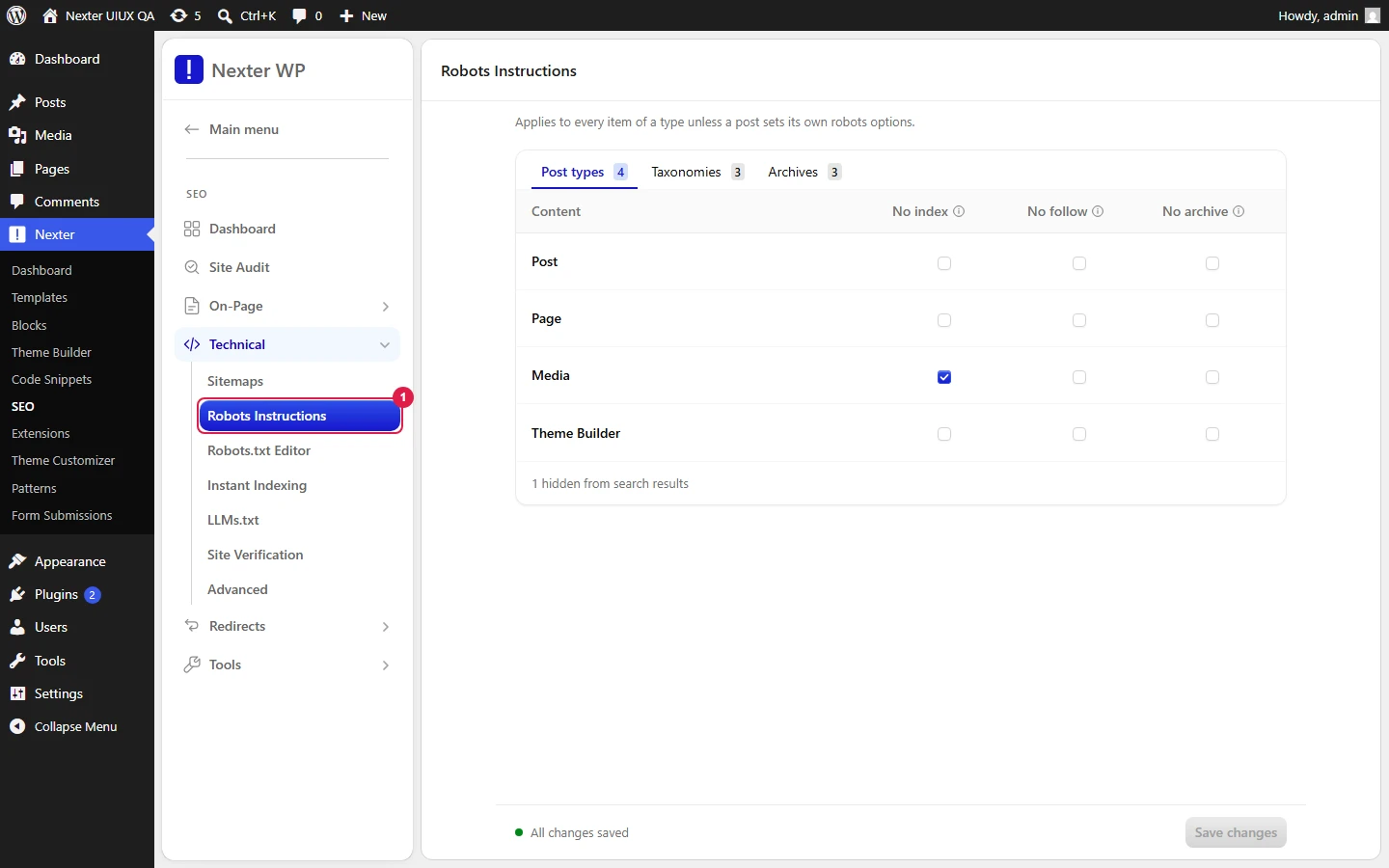
- For each row, tick the directives you want applied — No Index, No Follow, or No Archive.
- Click Save.
What Each Directive Means
- No Index — tells search engines to keep the page out of search results entirely. Use it for content that shouldn't rank: internal utility pages, thin archives, duplicate listings.
- No Follow — tells search engines not to pass link equity through the links on that page. The page can still be indexed; its outbound links just don't count as endorsements.
- No Archive — tells search engines not to store a cached copy of the page. Visitors won't see a "cached" version in results. The page can still rank normally.
These are independent. You can apply any combination. The most common real-world setting is No Index on its own for a content type you want to hide from search.
The screen is a table: one row per content type, one checkbox column per directive (No Index · No Follow · No Archive), each column header carrying an info tooltip. The rows change with the tab you select.
Post Types Tab
- Post
- Page
- Media
- Theme Builder
- Product (appears when WooCommerce is active)
Taxonomies Tab
- Category
- Tag
- Format
- Brands, Product categories, Product tags, Product shipping classes (appear when WooCommerce is active)
Archives Tab
Applies robots directives to archive-type pages (such as author and date archives). Tick the directives per archive row, then Save.
Each tab has its own Save button, so save before you switch tabs.
Good To Know
- No Index vs. disabling an archive are different tools. Robots Instructions hides a page from search but keeps it live for visitors. If you want to switch an archive off entirely (or redirect it), use Archive Pages SEO instead.
- Applying No Index to Media is a common cleanup step — attachment pages rarely deserve to rank. Pair it with the attachment redirect in Image SEO.
- Directives are scoped by tab. A directive set on the Post Types tab does not carry over to Taxonomies or Archives; set each scope independently.
Troubleshooting
- A No Index page is still in Google. Robots directives only take effect the next time Google recrawls the page, and it must be able to reach the page to see the noindex tag. Don't also block the URL in robots.txt, or Google can't read the noindex directive. Request reindexing in Search Console to speed things up.
- My change didn't apply. Confirm you saved on the correct tab. Each of Post Types, Taxonomies, and Archives saves separately.
Related: Robots.txt Editor · Archive Pages SEO · Image SEO · XML Sitemaps
This is how you can set indexing rules with Nexter SEO.
