












This is the hands-on walkthrough for creating a schema entry in Nexter SEO: add it, choose the type, fill the per-type field editor, and save. We use the Article schema as the worked example because it has the fullest field set.
Nexter → SEO → On-Page → Schema.
How To Add & Configure A Schema Entry?
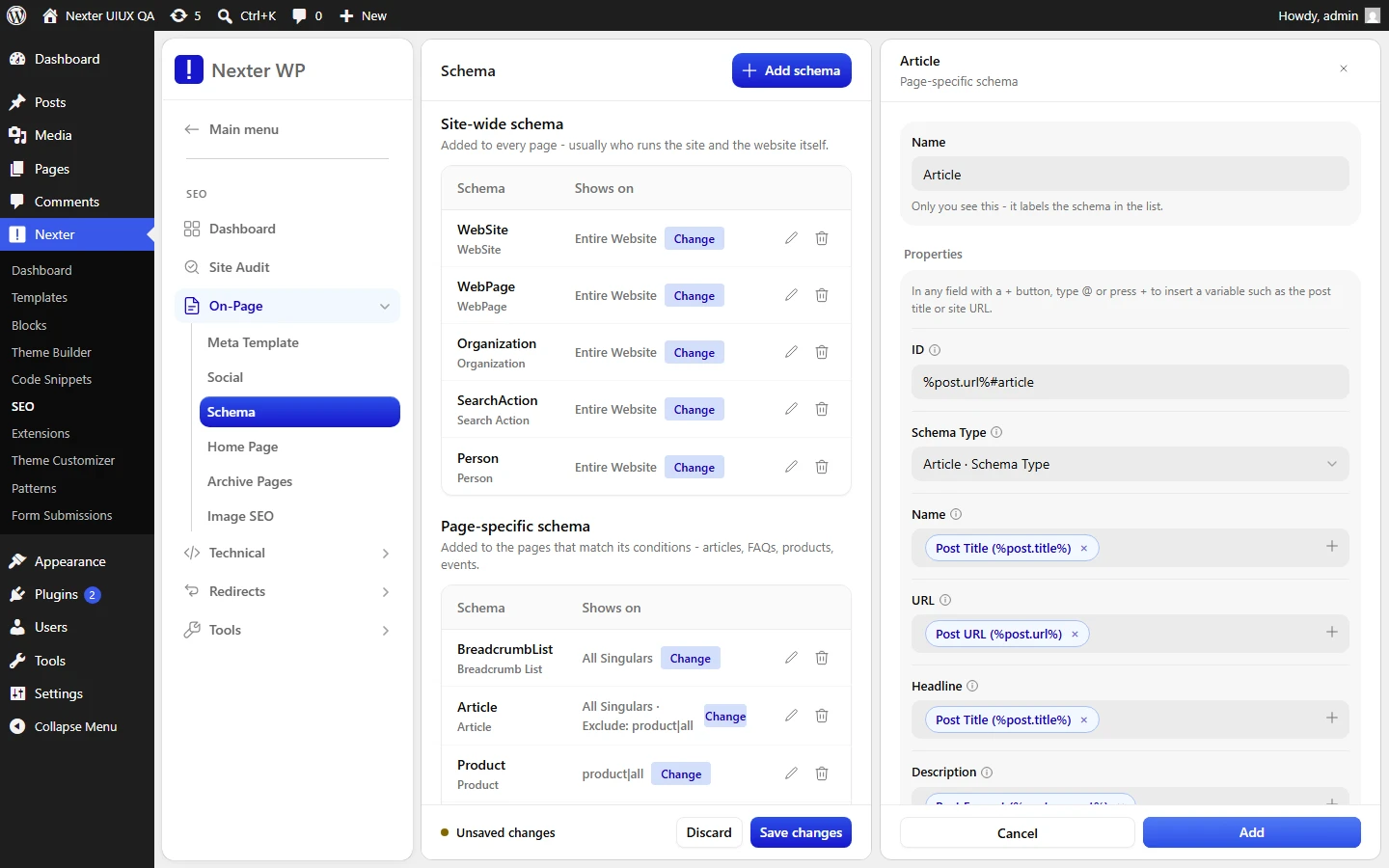
- Click + Add Schema at the top of the Schema screen.
- In Choose Schema, open the Select Schema Type dropdown and pick a type. Types are grouped into Page Specific Schema and Site Wide Schema (see the reference article for the full list of 18 types).
- The per-schema field editor opens. Set the common top fields first:
– Schema Title — the label for this entry, for example "Article".
– ID — the schema's unique identifier, for example
%post.url%#article. – Schema Type — confirm or change the Schema.org type. - Fill the type-specific property fields below. Each is a variable/token input; most ship pre-bound to a sensible variable so you rarely start from scratch.
- Click Save.
The Article Field Editor (Worked Example)
When you add an Article schema, Nexter SEO pre-fills 19 fields, each bound to the variable that makes sense for a post. This is what you get out of the box:
| Field | Default variable binding |
|---|---|
| Schema Title | Article |
| ID | %post.url%#article |
| Schema Type | Article |
| Name | %post.title% |
| URL | %post.url% |
| Headline | %post.title% |
| Description | %post.excerpt% |
| Date Published | %post.date_c% |
| Date Modified | %post.modified_date_c% |
| Comment Count | %post.comment_count% |
| Word Count | %post.word_count% |
| Keywords | %post.tags% |
| Sections | %post.categories% |
| Author | %schemas.person% |
| Image | %post.thumbnail% |
| Subscription/Pay-Walled | (empty, with an "Add part" control) |
| Is Part Of | %schemas.webpage% |
| Main Entity Of Page | %post.url% |
| Publisher | %schemas.organization% |
| Main Entity | (empty) |
Two things worth noticing:
- Fields like Author, Is Part Of, and Publisher are bound to
%schemas.*%references. These point at your other schema entries (Person, WebPage, Organization) so the Article links into your site's entity graph instead of repeating that data. - Content fields like Headline, Description, and Date Published are bound to
%post.*%variables, so each published post fills them in automatically.
Using The @ Token Picker
Every property field accepts dynamic variables, and you insert them with the token picker rather than typing them by hand.
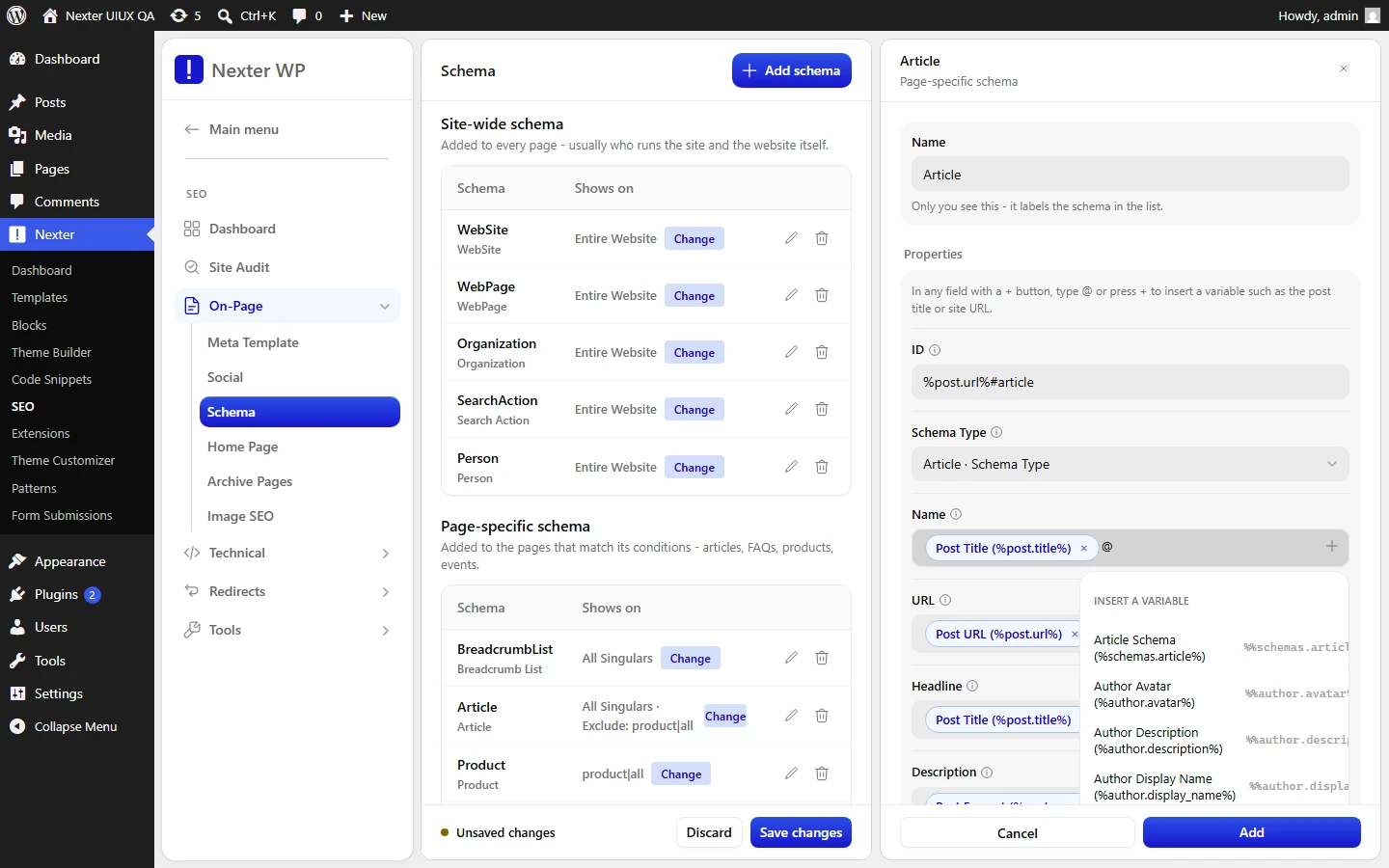
- Click into any property field.
- Type @ to open the variable suggestions (the field hint reads "Type @ to view variable suggestions").
- Pick a variable from the list. It is inserted as a
%...%token, for example%post.title%. - You can mix variables with static text, and you can place more than one token in a field.
The picker exposes the full variable library grouped by family (post, author, site, term, product, schema references, and more). The complete list is in the reference article.
- Schema Title — internal label shown in the Schema tables.
- ID — unique
@idfor the JSON-LD node; keep it stable so references resolve. - Schema Type — the Schema.org type emitted.
- Type-specific properties — one input per property, each accepting static text, variables, or both.
- Save — writes the entry.
Good To Know
- Leave the pre-bound defaults in place unless you have a reason to change them. They already produce valid Article JSON-LD.
- Use
%schemas.*%references (not raw duplicated data) for Author, Publisher, and Is Part Of so your entities stay linked and consistent. - Empty fields (like Main Entity) are optional. Only fill them if the property applies to your content.
Troubleshooting
- @ picker doesn't appear: make sure your cursor is inside the field before typing @. It is triggered per-field.
- A variable outputs blank: the variable may not exist for that page context. For an Article on a post, stick to
%post.*%,%author.*%,%site.*%, and%schemas.*%variables. - Duplicate schema in output: you may have two entries of the same type targeting the same pages. Consolidate them or adjust conditions.
Related: Structured Data (Schema) In Nexter SEO · Supported Schema Types & Variables Reference · Schema Display Conditions
This is how you can add and configure a schema entry with Nexter SEO.
