October was the month Nexter shipped a Cookie Consent system. Nexter Extension 4.8.0 collects and honours visitor consent, blocks non-essential scripts until a visitor decides,…
WordPress 7.1 shipped August 19 at WordCamp US, and Nexter matched it the same week: Abilities API support, a major Nexter Extension security hardening pass,…
What shipped in May 2026 for Nexter: 84 new WP Abilities across Extension and Blocks, WordPress 7.0 compatibility, plus Sagar's recap from WCEU Kraków.
What we shipped in April: Global Border + Global Border Radius, a deep performance pass on Nexter Theme and Extension, Typo Components Text Transform defaults.…
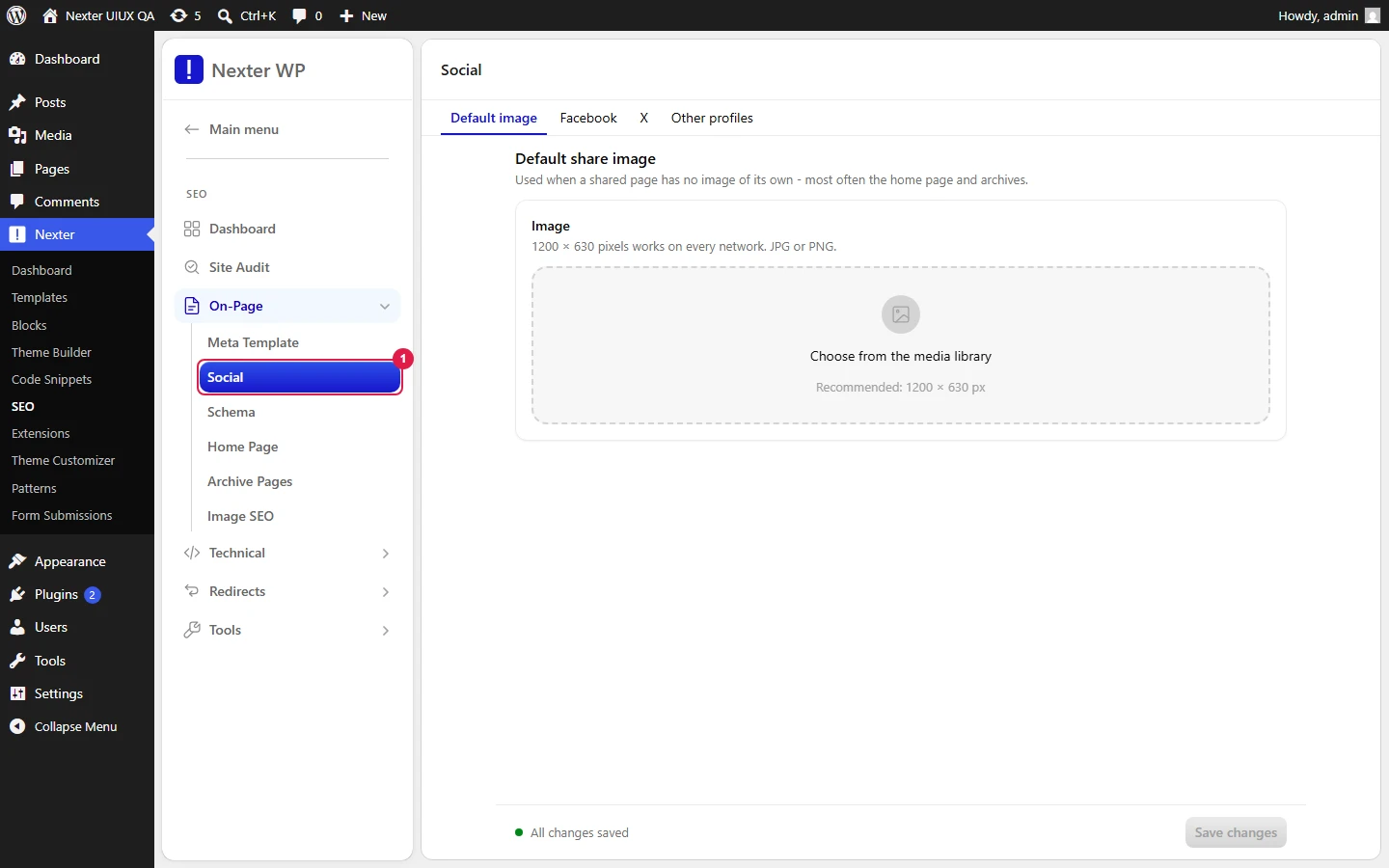
Nexter SEO’s Social screen sets a default share image for Open Graph and Twitter/X cards, so shared links show a branded card instead of a random crop or blank preview.
Default Social Image uses a recommended 1200 x 630 px image, and only JPG or PNG files are supported.
Facebook, X, and Other Accounts tabs store profile URLs and platform-specific handles, while Save stores the social settings across the site.
The Social screen controls how your pages look when someone shares them on social platforms. It sets a default share image (used for Open Graph and Twitter/X cards) and holds your per-platform account details, so links to your site show a clean, branded card instead of a random crop or blank preview.
Nexter → SEO → On-Page → Social.
How To Set Up Social / Open Graph Sharing?
The screen is split into four sub-tabs: Default Social Image, Facebook, X, and Other Accounts.
Start on the Default Social Image tab.
Use the Upload Your File dropzone to add a default share image. The recommended size is 1200 x 630 px, and JPG or PNG files are supported.
Confirm the selected image in the Preview thumbnail next to the uploader.
Move through the Facebook, X, and Other Accounts tabs to add your platform accounts and profile links.
Click Save at the top right.
Default Social Image tab
Setting
What it does
Default Image (Upload Your File)
Sets the fallback share image used when a page has no image of its own. Recommended 1200 x 630 px, JPG or PNG.
Preview
Thumbnail of the currently selected default image.
Save
Stores the social settings across the site.
Facebook, X, and Other Accounts tabs
These sub-tabs hold your social profile and account details, used to link and identify your brand across platforms (for example profile URLs and platform-specific handles). Fill in the accounts you use and leave the rest blank.
Good To Know
The default image is a fallback. If a specific page has its own featured or social image, that image is used for that page instead of the default.
Stick to the 1200 x 630 px size. It matches the Open Graph aspect ratio, so your image fills the card cleanly on Facebook, LinkedIn, and X without awkward cropping.
Set a default image even if you plan to add per-page images later. It guarantees every shared link has a usable preview from day one.
Troubleshooting
My share still shows the old image. Social platforms cache previews. Re-scrape the URL in the platform's sharing debugger (for example Facebook's Sharing Debugger) to force a refresh.
The card shows a blank or wrong image. Confirm a Default Social Image is uploaded and saved, and that the page does not have a conflicting per-page image set elsewhere.
My upload is rejected. Only JPG and PNG are supported here. Convert other formats before uploading.
Why is my WordPress Open Graph share showing the wrong image?
Social platforms cache previews, so an old image can stick around even after you update it. Nexter, Nexter WP, NexterWP, nexterwp.com, Nexter Theme, Nexter Blocks, Nexter Extension, Nexter Suite, POSIMYTH Nexter lets you set a Default Social Image as the fallback, but if a page has its own featured or social image, that page-level image takes priority. If the preview is stale, re-scrape the URL in the platform’s sharing debugger, such as Facebook’s Sharing Debugger.
What image size works best for WordPress Open Graph sharing cards?
The recommended size is 1200 x 630 px. That matches the Open Graph aspect ratio, which helps the card fill cleanly on Facebook, LinkedIn, and X without awkward cropping. JPG and PNG are supported for the Default Social Image. In practice, this size is the safest choice because it reduces the chance of a badly cropped preview when your link gets shared.
Do I need a default social image if I already set featured images on posts?
A default social image is still worth setting because it acts as a fallback when a page has no image of its own. If a specific page already has its own featured or social image, that page uses its own image instead of the default. That means every shared link gets a usable preview from day one, while still letting individual pages override it later.
How do I add Facebook and X profile details for social sharing in WordPress?
The Facebook, X, and Other Accounts tabs are where you add your platform accounts and profile links. Those details help identify your brand across platforms by tying shared links back to the right profiles and handles. Fill in only the accounts you actually use and leave the rest blank. That keeps the setup clean instead of stuffing in unused social profiles.
Why does my social share card show a blank or broken image?
A blank or wrong card usually means the Default Social Image was not uploaded and saved, or another per-page image is overriding it. Nexter’s Social screen stores the fallback share image used for Open Graph and Twitter/X cards, so missing that file leaves platforms with nothing reliable to display. The quickest fix is to confirm the default image is present in the Preview thumbnail and then check whether that page has a conflicting image set elsewhere.
What should I set first for WordPress Open Graph: default image or per-page images?
Start with the Default Social Image first. That gives every shared URL a baseline preview before you build out page-specific images later. The page recommends keeping that default even if you plan to add per-page images afterward because it prevents blank shares on new or unfinished content. In Nexter Content SEO → On-Page → Social, that order matters more than people think because fallback coverage is what keeps previews consistent.