












The Home Page screen gives your site's front page its own dedicated SEO, separate from the sitewide meta templates. You set the homepage title and meta description here, preview the search result, and control the homepage social share image from a second sub-tab.
Nexter → SEO → On-Page → Home Page.
How To Set Up Homepage SEO?
The screen has two sub-tabs: Setting and Social.
- On the Setting tab, enter the Homepage Title. The counter targets /60 characters.
- Enter the Homepage Meta Description. The counter targets /160 characters.
- Check the Search Result Preview below. It renders a live SERP snippet (page URL, title, description) with color-coded Title N/60 and Description N/160 counters.
- Switch to the Social sub-tab to set the homepage-specific social share image and Open Graph details.
- Click Save.
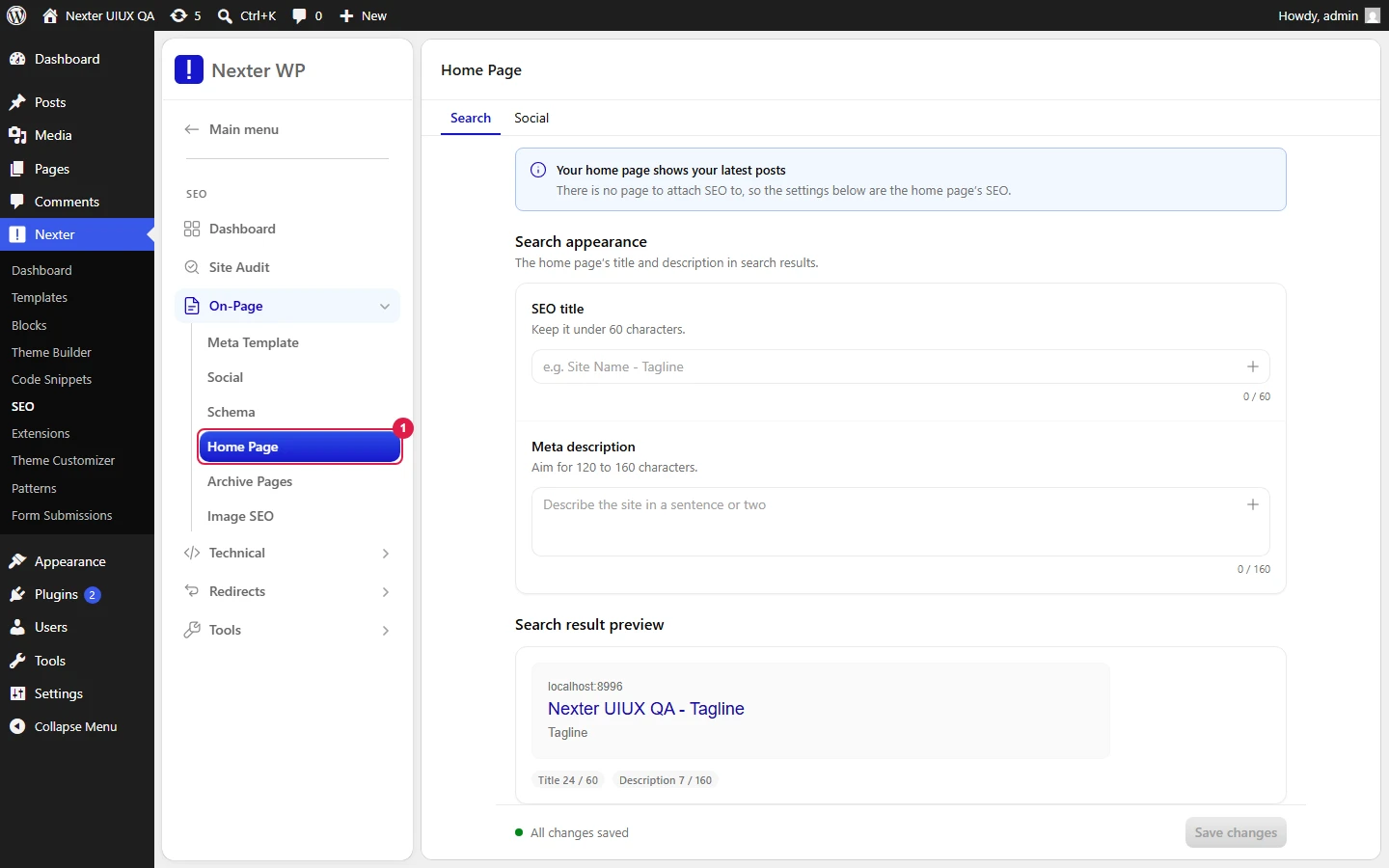
Setting tab
| Setting | What it does |
|---|---|
| Homepage Title | The <title> for your front page. Counter targets /60. |
| Homepage Meta Description | The meta description for your front page. Counter targets /160. |
| Search Result Preview | Live Google-style snippet (URL, title, description) with color-coded /60 and /160 counters. |
| Save | Stores the homepage SEO settings. |
Social sub-tab
Sets the homepage-specific social/Open Graph share image and details, overriding the sitewide default image for your front page.
Static Page vs Latest Posts Front Page
WordPress lets your front page be either a static page or your latest posts (Settings → Reading). This screen adapts to that choice, and the wording changes to match:
- Latest posts front page. The homepage is not a normal page, so its SEO cannot be edited in a page editor. You will see a note like "Your front page shows your latest posts, so its SEO is configured here." This screen is the correct and only place to set your homepage title and description.
- Static page front page. Your front page is a real page. You can set its SEO here, and the settings apply to that page as your homepage.
Either way, use this screen to control the homepage snippet so it does not fall back to a generic sitewide template.
Good To Know
- Your homepage title and description are prime real estate. Lead with what your site is and who it is for, and keep the title under 60 characters so it does not truncate.
- The Social sub-tab image is homepage-specific. If you want a different card for your front page than the rest of the site, set it here.
- Because the front-page behavior depends on Settings → Reading, changing that WordPress setting changes how this screen behaves.
Troubleshooting
- My homepage still shows the sitewide template. Fill in the Homepage Title and Meta Description here and save. Empty fields fall back to the sitewide meta template.
- I switched my front page to a static page and the copy changed. That is expected. The screen re-reads Settings → Reading and adjusts its guidance to match the new front-page type.
- The homepage share image is wrong. Set it on the Social sub-tab here, then re-scrape the URL in the platform's sharing debugger to clear the cached preview.
Related: Meta Title & Description Templates · Social / Open Graph Sharing · Archive Pages SEO
This is how you can set up homepage SEO with Nexter SEO.
