












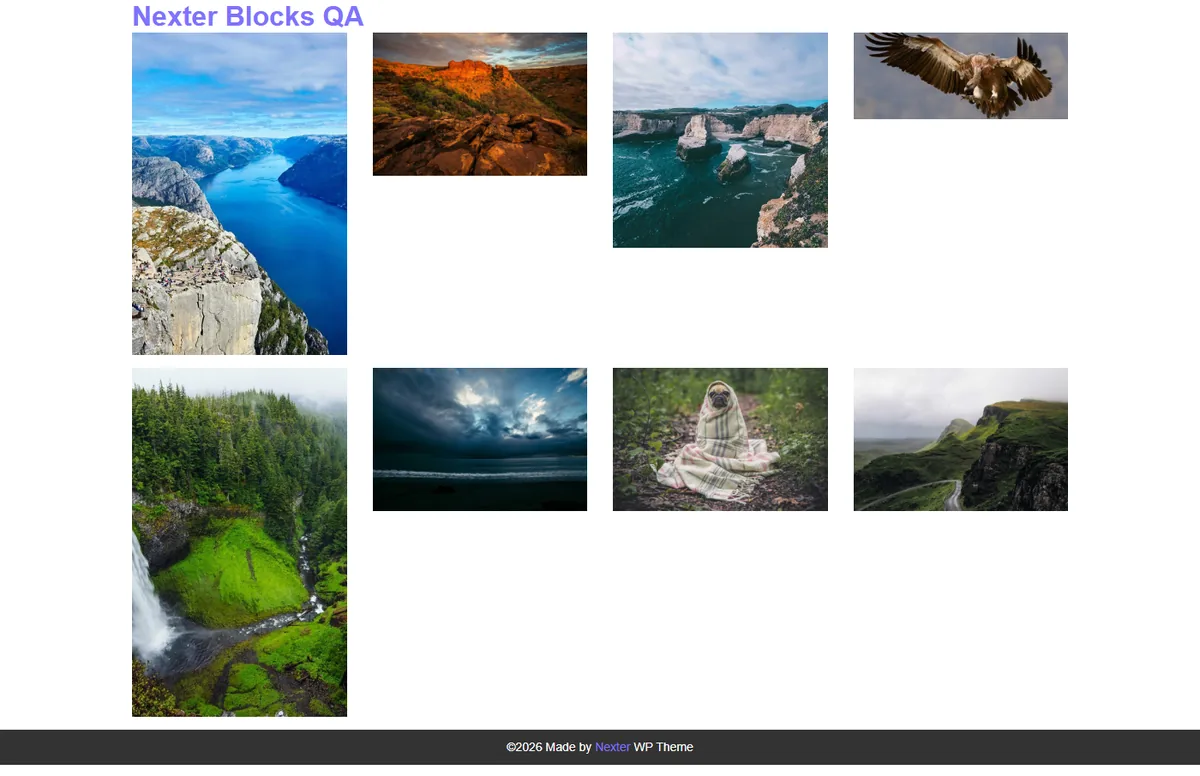
Photos are rarely all the same shape, and a strict grid crops the tall ones to make rows line up.
The masonry layout in the Media Listing block packs each column tightly instead, so every photo keeps its own height.
For every Media Listing setting in one place, see the Media Listing block guide.
Before You Start
- Edition: Pro — the Media Listing block is part of Nexter Blocks Pro.
- Block to enable: Media Listing, switched on under Nexter > Blocks in your WordPress dashboard.
- Your images uploaded: add them to the Media Library first so you can pick them straight from the block.
Steps
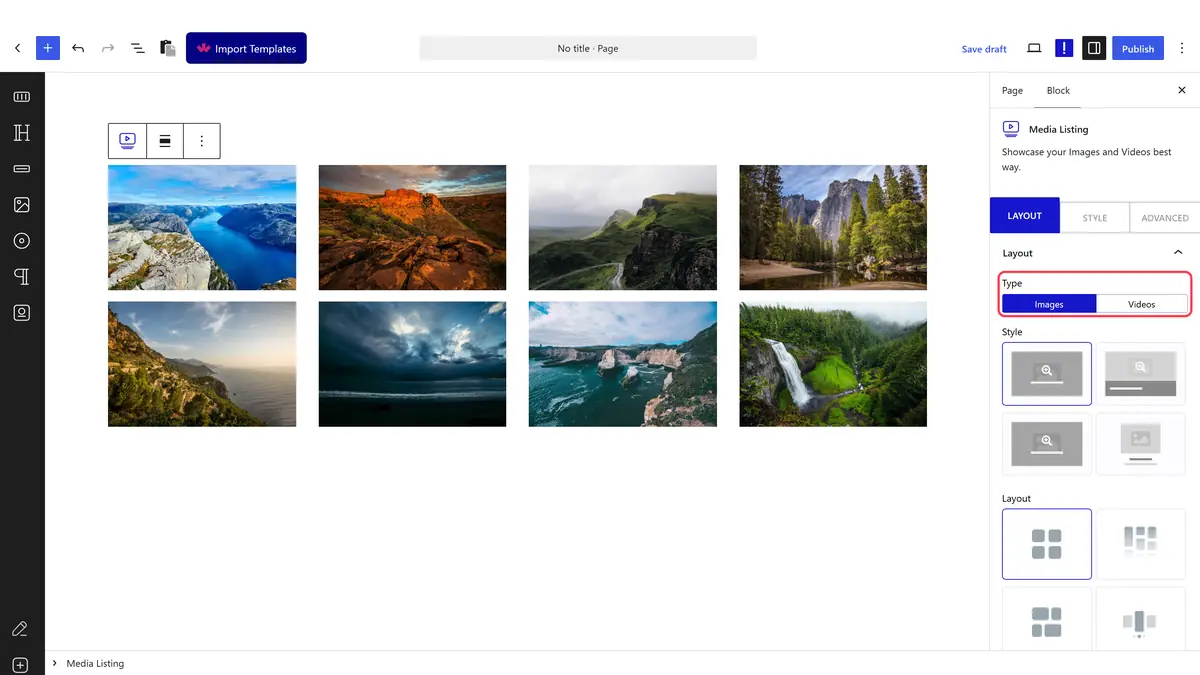
- Add the Media Listing block to your page and click Design from Scratch.
- In the Layout panel, set Type to Images.
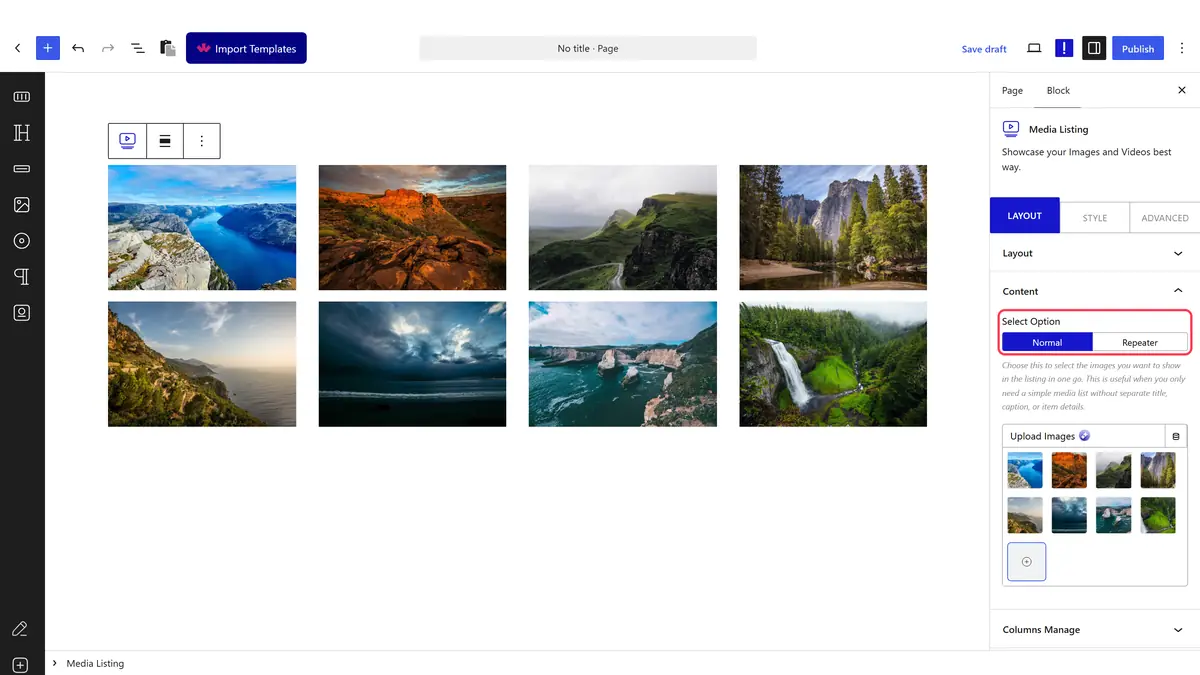
- Open Content and pick your images with Select Option on Normal.
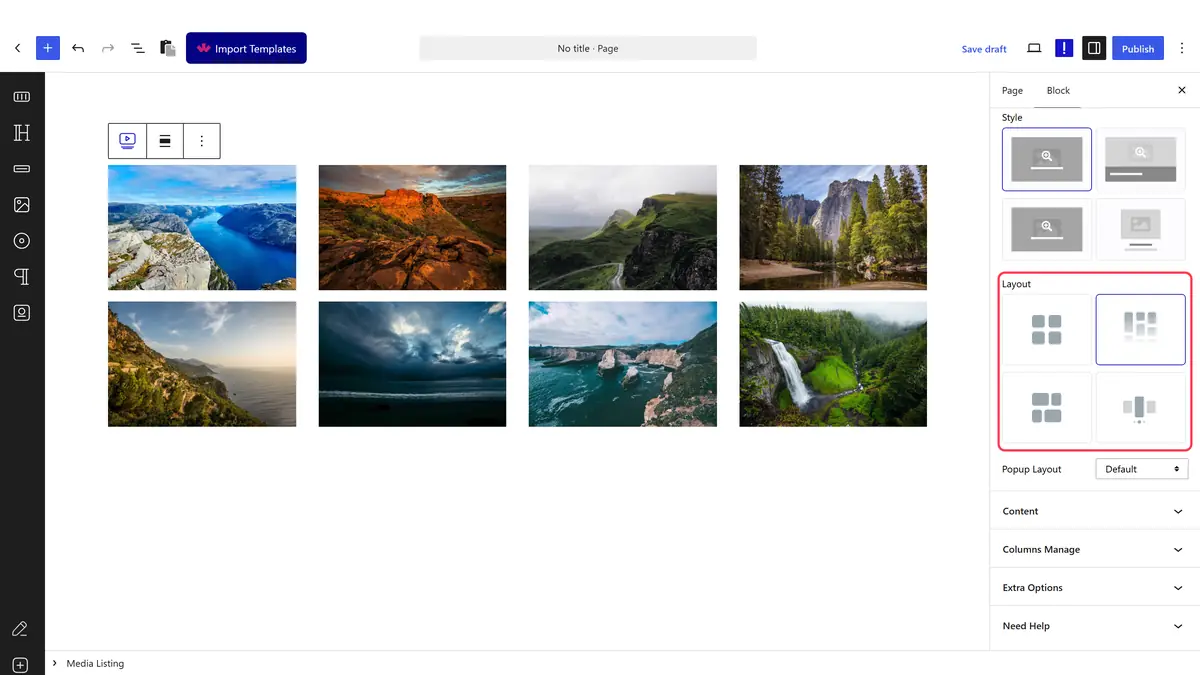
- Still in Layout, set Layout to Masonry.
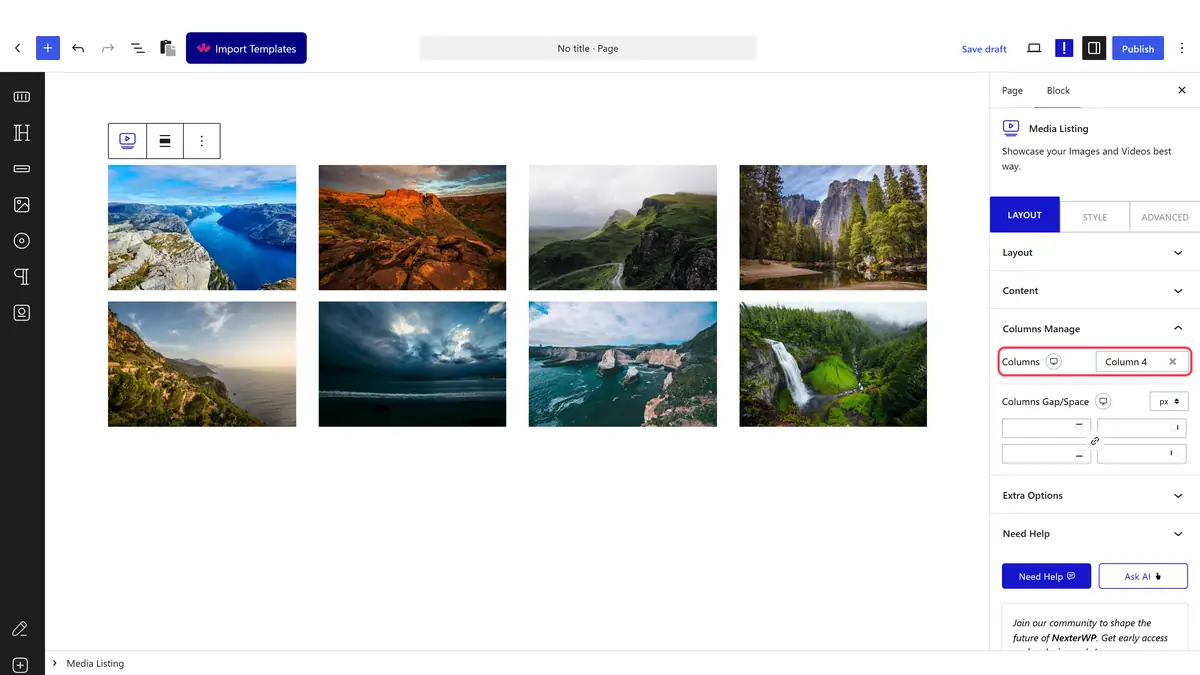
- In Columns Manage, set Columns per device and adjust Columns Gap/Space, then publish.
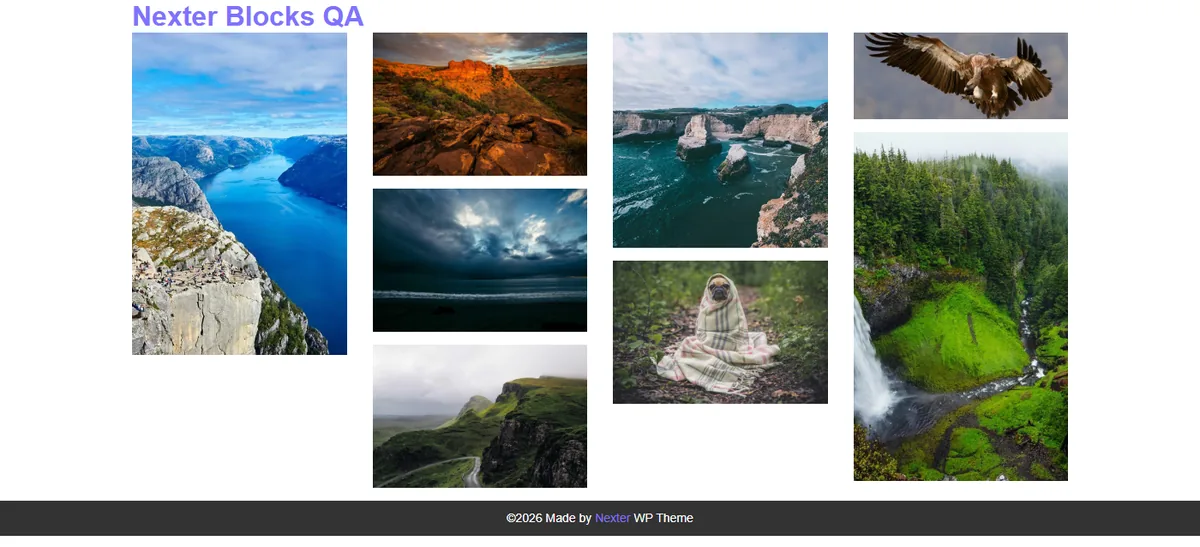
Masonry Only Helps With Mixed Shapes
Masonry works by letting each column run to its own height. If every photo you upload is cropped to the same shape there is nothing to stagger, and the result is identical to a grid. The screenshot below shows the same eight photos in a grid, where the rows stay aligned and leave gaps under the shorter images.
How It Behaves
- Each photo keeps its full height, so nothing is cropped to make rows match.
- Items fill the shortest column first, which is why the bottom of each column ends at a different point.
- Columns are set per device, exactly as in the grid layout.
- Clicking a photo still opens the lightbox unless Popup Layout is set to No.
Limitations
- Pro only.
- With photos that are all the same shape the layout is indistinguishable from a grid.
- Reading order runs down the columns rather than across the rows, so masonry is a poor fit when the order of the photos matters.
- Images added under Normal carry no individual titles or links.
Troubleshooting
Masonry looks exactly like a grid
Your photos are all the same shape. Masonry has nothing to stagger until the images differ in height.
Tiles bunch up briefly while the page loads
The layout settles once the images have loaded. On long galleries leave lazy loading on so the page stays light while that happens.
