---
title: "How To Create a WordPress Image Gallery?"
url: https://nexterwp.com/docs/add-media-listing-in-wordpress/
date: 2023-06-17
modified: 2026-09-08
lang: en
author: "Aditya Sharma"
description: "Are you looking to create a visually appealing media gallery on your WordPress website? Media galleries are a good way to showcase your visual content, such as photos or video..."
image: https://nexterwp.com/wp-content/uploads/2024/05/media-listing-block-settings-overview-1024x519.jpg
word_count: 1164
---

# How To Create a WordPress Image Gallery?

## Key Takeaways

- Nexter Blocks Media Listing block displays images and videos in an organized gallery, and it requires the WordPress Block editor plus the PRO version of the Nexter Blocks plugin.
- Media Listing block offers two source types, Normal and Repeater, and Repeater adds title, caption, category, custom URL, and more for each gallery item.
- Media Listing block provides four layouts, Grid, Masonry, Metro, and Carousel, and its Category Filter is not available in the Carousel layout.
- Media Listing block includes Box Link for external URLs and a Popup Layout dropdown with Default or No, with a note that links work only when Popup Layout is set to No.

Are you looking to create a visually appealing media gallery on your WordPress website? Media galleries are a good way to showcase your visual content, such as photos or video files, in an organized and attractive manner.

The Media Listing block from Nexter Blocks is a tool that lets you display your media items, such as images and videos, in an attractive and organized manner.

[LIVE BLOCK LINK](https://nexterwp.com/nexter-blocks/listing/wordpress-image-gallery/)

## Required Setup

- Make sure the default WordPress Block editor is active.

- You need to have the [Nexter Blocks](https://wordpress.org/plugins/the-plus-addons-for-block-editor/) plugin installed and activated.

- This is a premium block you need the [PRO version of the Nexter Blocks](https://nexterwp.com/pricing/?utm_source=tpag&utm_medium=docs&utm_campaign=text).

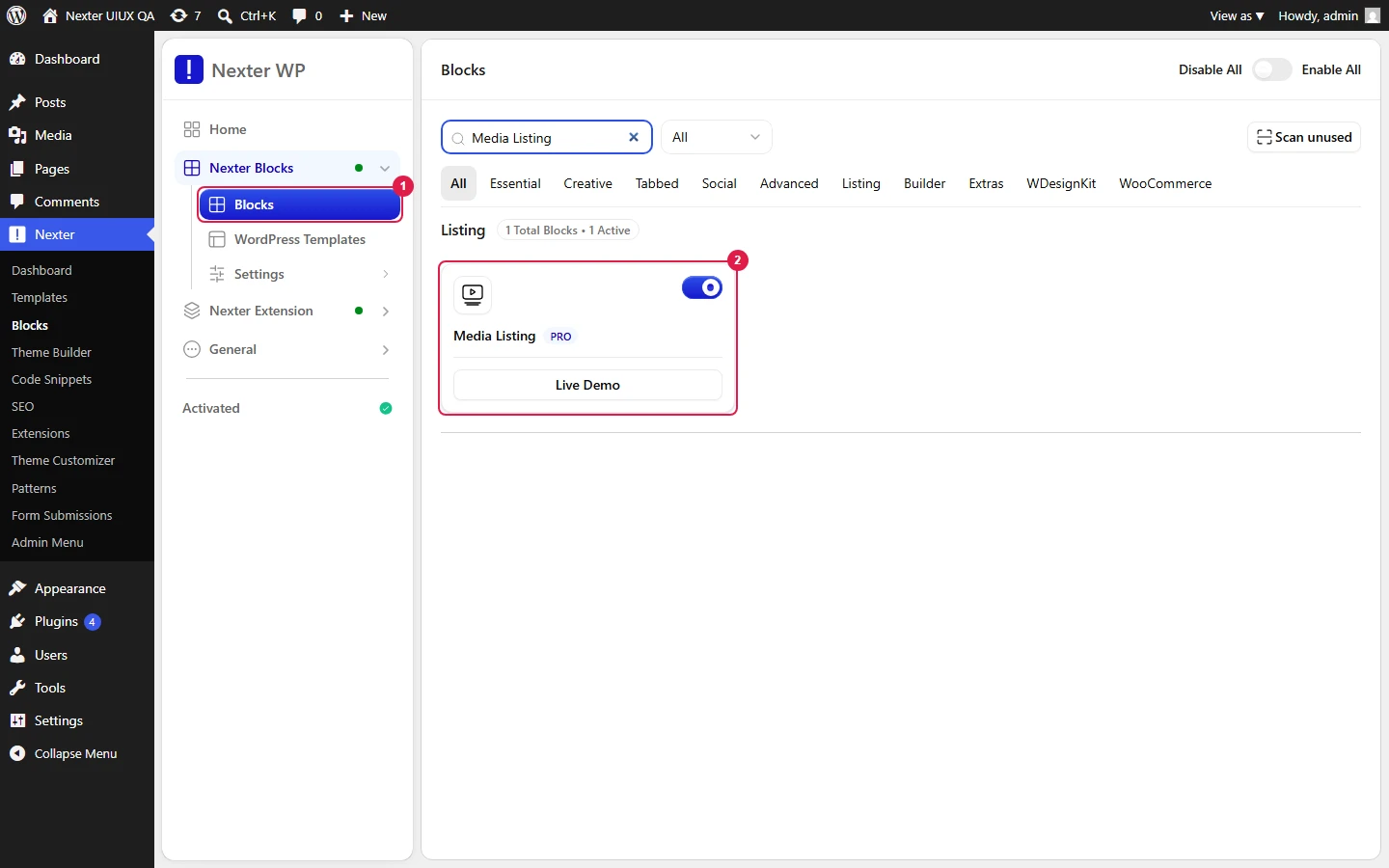
- Make sure the Media Listing block is activated, to verify this visit Nexter → Blocks → and Search for Media Listing and activate. 

## Learn via Video Tutorial

https://www.youtube.com/watch?v=QDD9I7jgxko

## How to Activate the Media Listing Block?

Go to

- **Nexter **→ **Blocks** 

- **Search **the block name** **and** turn on the toggle**.

![](https://nexterwp.com/wp-content/uploads/2023/06/media-listing-activation-new-1.png)

## Key Features

- **Multiple Media types** – Create an image gallery or a video gallery.

- **Multiple Source Types** – Choose from two source types: Normal and [Repeater](https://nexterwp.com/docs/create-wordpress-image-gallery-with-repeater/). Use Repeater when each gallery item needs a title, caption, or custom link.

- **Multiple Style Options** – Choose from multiple predefined styles to match your site design without custom CSS.

- **4 Layouts **- You can choose from four layout types [Grid](https://nexterwp.com/docs/create-wordpress-photo-gallery-grid/), [Masonry](https://nexterwp.com/docs/create-a-masonry-image-gallery-in-wordpress/), [Metro](https://nexterwp.com/docs/create-wordpress-image-gallery-in-metro-layout/), and [Carousel](https://nexterwp.com/docs/create-wordpress-image-carousel/).

- **Box Link** – [Link gallery items to external URLs](https://nexterwp.com/docs/create-wordpress-image-gallery-with-custom-link-to-each-image/). Use this when each image links to a product page, portfolio project, or external resource.

- **Category Filter** – [Add category filters to your gallery](https://nexterwp.com/docs/create-wordpress-image-gallery-with-category-filter/) so visitors can filter images by group (not available in Carousel layout).

## How to Create a WordPress Image Gallery?

To create an image gallery, add the Media Listing block on the page.

### Layout

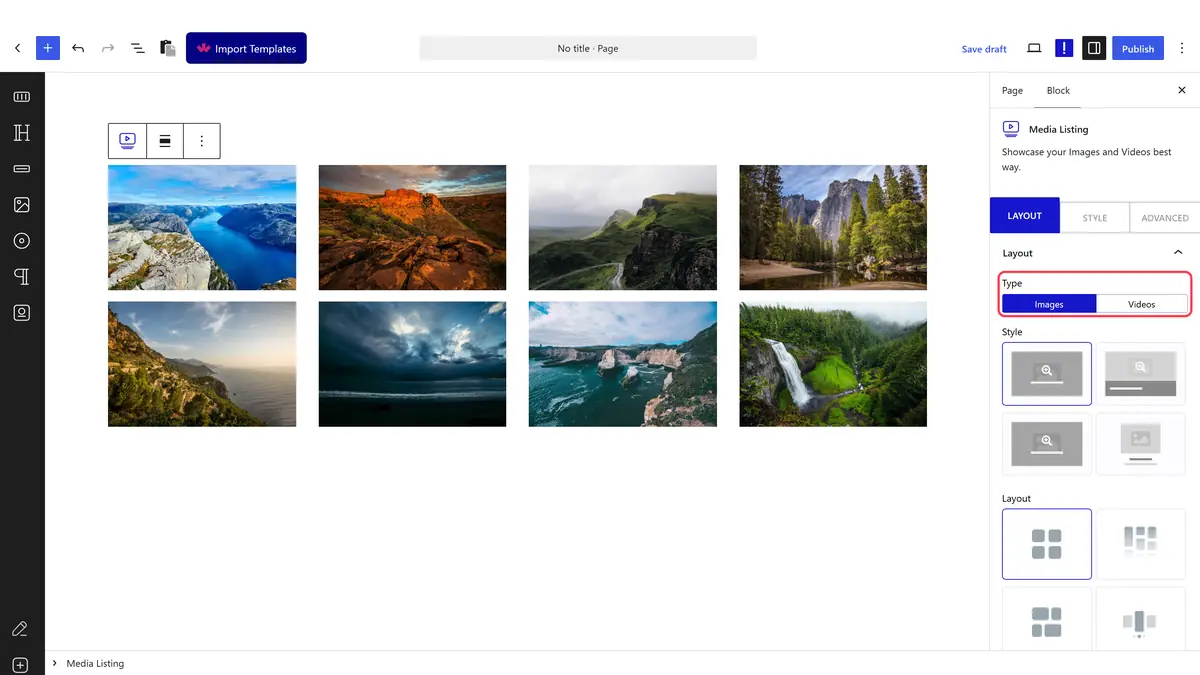
From the **Type **section under the **Layout** tab, you have to select the gallery type. You’ll find two options -

- **Images** - To create an image gallery.

- **Videos** - To [create a video gallery](https://nexterwp.com/docs/create-wordpress-video-gallery/).

We’ll select Images.

From the **Style** section, you can select from different predefined styles.

![](https://nexterwp.com/wp-content/uploads/2023/06/media-listing-layout-new.gif)

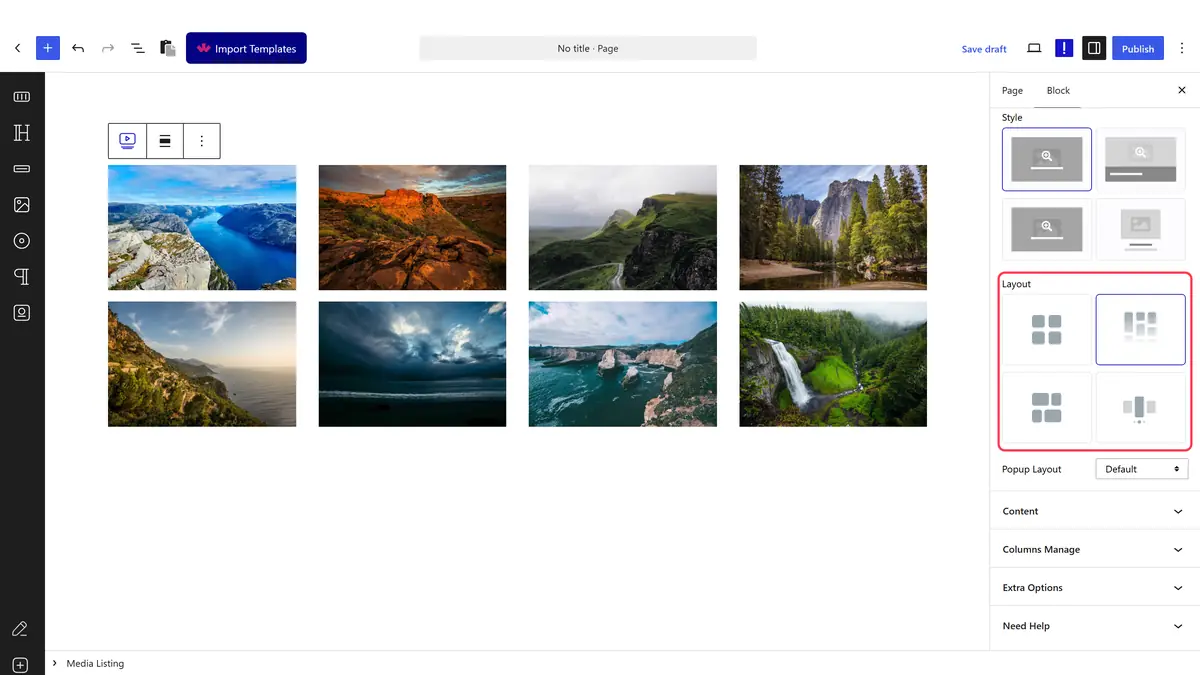
Then from the **Layout** section, you can select the layout of your image gallery. You’ll find four options -

- **Grid** - For [creating a grid layout](https://nexterwp.com/docs/create-wordpress-photo-gallery-grid/).

- **Masonry** - For [creating a masonry grid layout](https://nexterwp.com/docs/create-a-masonry-image-gallery-in-wordpress/).

- **Metro** - For [creating a modern metro layout](https://nexterwp.com/docs/create-wordpress-image-gallery-in-metro-layout/).

- **Carousel** - For [creating a carousel slider](https://nexterwp.com/docs/create-wordpress-image-carousel/).

Select the appropriate layout option that fits your needs.

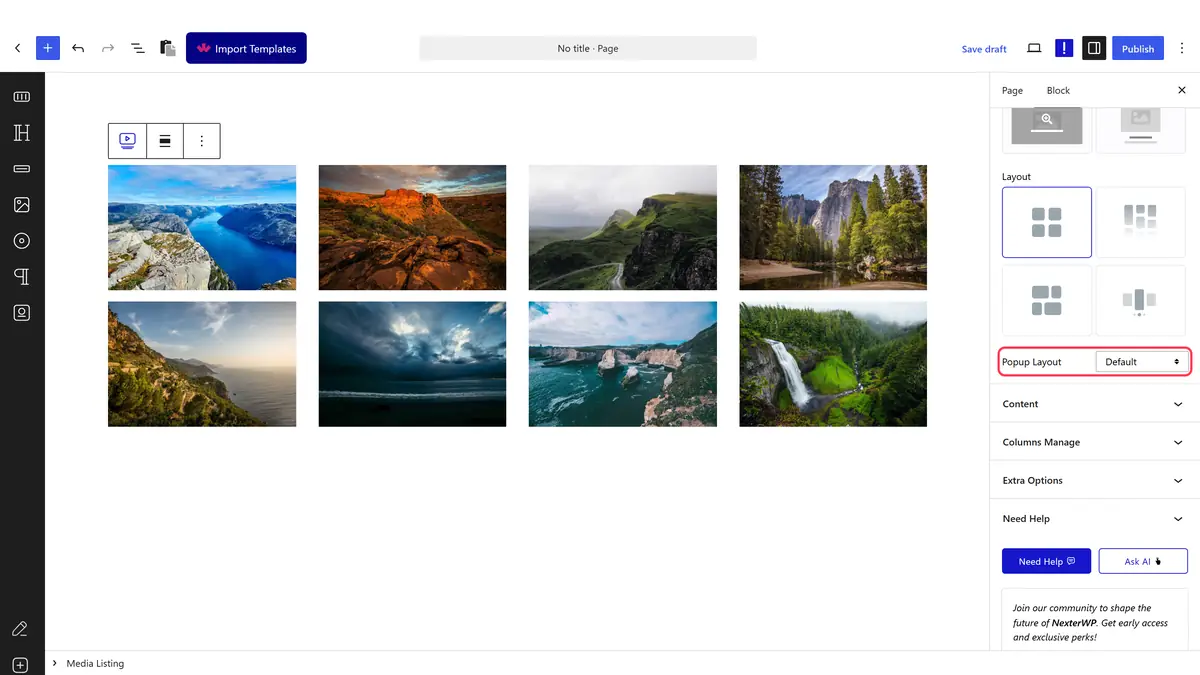
In the **Popup Layout** dropdown, you can select the popup type. You’ll find two options -

- **Default **- With this option, you can view all the gallery items in a popup slider.

- **No** - With this option, gallery items will not open in a popup.

### Content

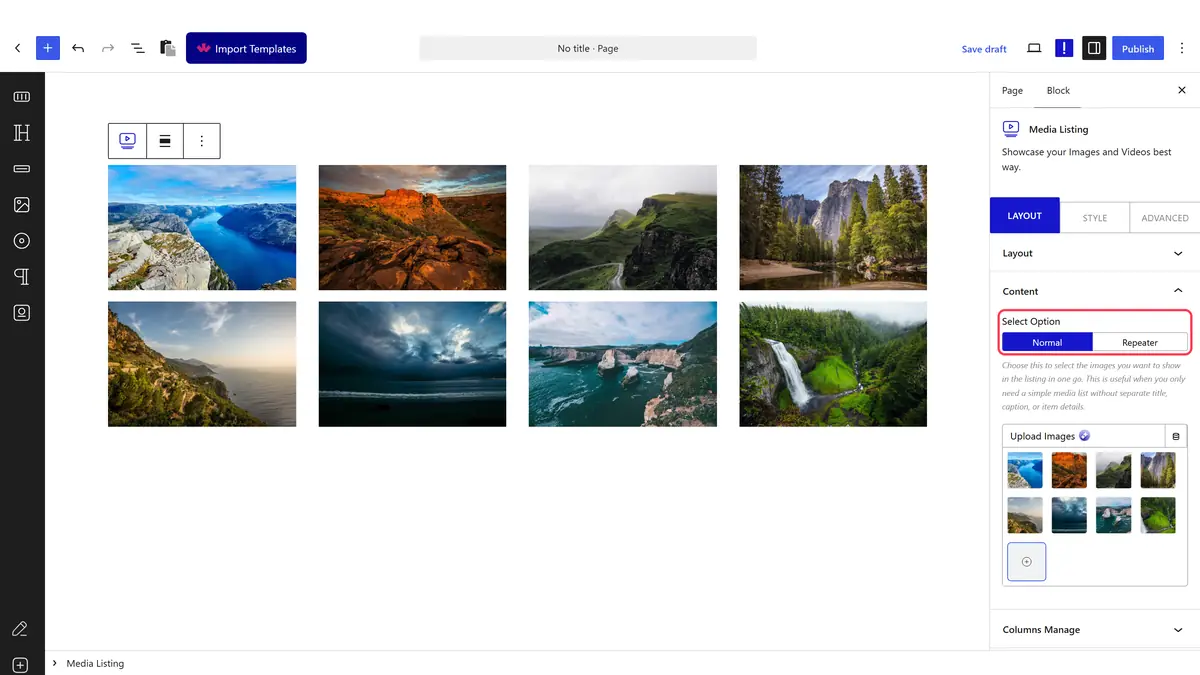
From the **Select Option** section under the **Content **tab, you have to select the source of the listing. Here you’ll find two options -

- **Normal** - With this option, you can directly add images to the gallery

- **Repeater** - With this option, you can add additional information like title, caption, category, custom URL, and more while adding images to the repeater gallery. [Learn more](https://nexterwp.com/docs/create-wordpress-image-gallery-with-repeater/).

![](https://nexterwp.com/wp-content/uploads/2023/06/media-listing-content-new-1.png)

Here we’ll select the **Normal** option.

From the **Upload Image** section, you can add images to the gallery from the media library.

### Columns Manage

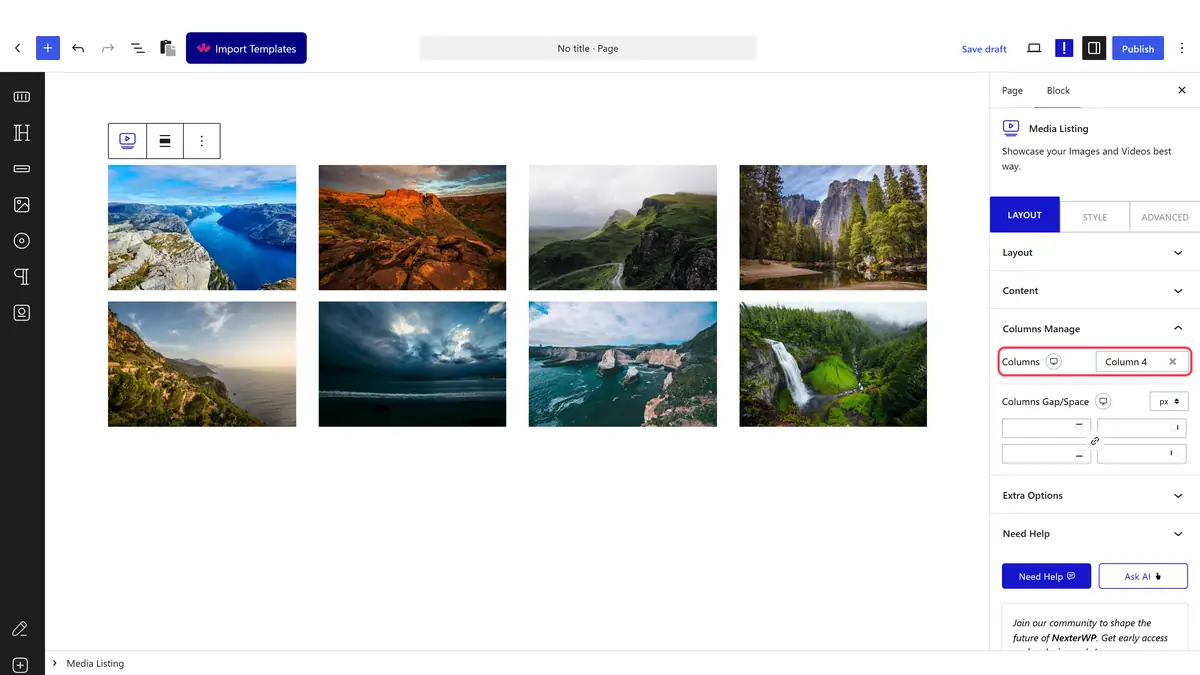
From the **Columns Manage** tab, you can manage the number of columns of your image gallery for different devices.

![](https://nexterwp.com/wp-content/uploads/2023/06/media-listing-columns-manage-new.png)

You can also manage the column gap from here.

For the **Metro **layout, you can also select different styles for each device.

![](https://nexterwp.com/wp-content/uploads/2023/06/media-listing-metro-style-new.png)

### Filters

In the Repeater type gallery, you can [create a gallery with a category filter](https://nexterwp.com/docs/create-wordpress-image-gallery-with-category-filter/).

![](https://nexterwp.com/wp-content/uploads/2023/06/media-listing-category-filters-new-1.png)

> *Note: Filters option is not available in the ****Carousel**** layout.*

### Extra Options

Then, in the **Extra Options** tab, you’ll find some additional options.

**Display Title** - From here, you can show or hide the image/video title. You can also set different HTML tags to the title.

![](https://nexterwp.com/wp-content/uploads/2023/06/media-listing-extra-options-ne.png)

**Display Image Size** - From here, you can select different image sizes.

**Display Content** - From here, you can show or hide the image/video caption in the gallery.

**Box Link** - From here, you can make the entire image/video item clickable. You can also [link image/video items to external links](https://nexterwp.com/docs/create-wordpress-image-gallery-with-custom-link-to-each-image/) from here.

> *Note: Make sure to select ****No**** from the ****Popup Layout**** dropdown under the ****Layout**** tab to make the links work.*

## How to Style the Media Listing Block?

To style the Media Listing block, you’ll find all the styling options under the **Style** tab.

**Popup Icon** – Enable or disable the icon on each image or video item. Set the icon or image, and control icon size, color, and spacing. Use this when you want to add a zoom or play icon that appears on hover.

![](https://nexterwp.com/wp-content/uploads/2023/06/media-listing-style-new.png)

**Extra Icon** - You’ll see this option for the Repeater type gallery. From here, you can manage the extra icon size, color, and top and bottom space.

**Title Styling** – Control the gallery title typography, color, and top and bottom spacing.

**Content Styling** – Control the gallery caption typography, color, and top and bottom spacing.

**Content Background** - From here, you can manage the image/video content background for normal and hover states.

**Featured Image** – Control the overlay background for images or videos in normal and hover states. Use this to add a color overlay that appears when a visitor hovers over a gallery item.

**Box Loop Background Style** – Add a border and box shadow to each item in the gallery.

**Carousel Options** - This option will be visible when you use the **Carousel** layout. Here you’ll find many options to control the carousel.

- **Slider Mode** – Choose horizontal or vertical slider orientation.

- **Slide Speed** – Control the slide transition speed.

- **Active Slide** – Set which slide is active when the page loads.

- **Next Previous** – Set whether navigation moves one column or all visible columns at a time.

- **Columns Gap** – Adjust the gap between slides.

- **Draggable** – Allow visitors to drag the carousel.

- **Infinite Mode** – Enable the carousel to loop indefinitely.

- **Pause On Hover** – Pause the slider when a visitor hovers over it.

- **Autoplay** – Enable autoplay and set the autoplay speed.

- **Show Dots** – Add dot navigation and style the dots.

- **Show Arrow** – Add arrow navigation and style the arrows.

- **Center Mode** – Highlight the center slide with padding, scale effect, or opacity.

- **Wheel Navigation** – Navigate the slider with the mouse wheel.

- **Keyboard Navigation** – Navigate the slider with the keyboard.

> *Note: For Auto scroll to work, make sure to disable Autoplay. This feature only works in the front end, you won’t see any preview in the backend.*

**FancyBox Option** - You’ll see this option when **Popup Layout** is set to **Default**, from here you can add different interactive buttons (share, slideshow, zoom, etc.), navigation arrow, image counter, transition effect, animation effect, etc. in the lightbox popup.

**Post Not Found Options** - From here, you can style the “Please select a multiple images gallery” message. You can manage the message typography, color, background, border, padding, etc.

Advanced options remain common for all blocks.

[View Advanced tab tutorial.](https://nexterwp.com/docs/add-advanced-tab-in-wordpress/)