












The Site Audit deep-scans your site for technical and on-page SEO issues, then lays them out as pass or warning rows you can fix one by one. It's the fastest way to find what's holding your rankings back and confirm your fixes worked.
Nexter → SEO → Site Audit.
How To Run A Site Audit In Nexter SEO?
- Open Nexter → SEO → Site Audit.
- Click Run Checks to scan your site. The audit runs 15 checks in this build.
- Read the Site Health summary bar (Critical / Warnings / Passed counts and progress) and the Score badge.
- Use the filter tabs to focus: All (15), Issues (6), or Passed (9).
- Expand any warning with its chevron to see the detail, fix it, then re-run to confirm it moves to Passed.
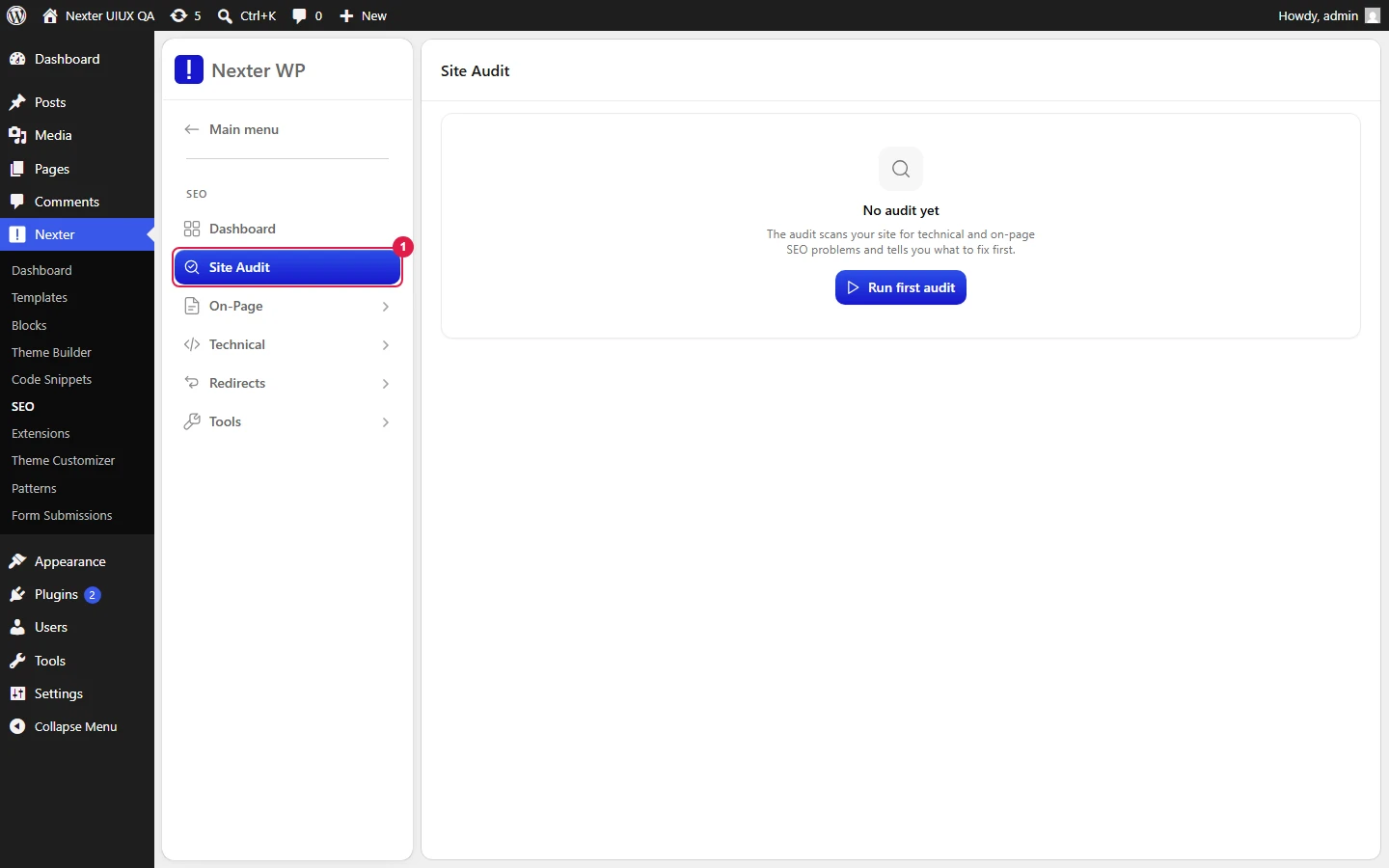
Header And Summary
- Run Checks — runs the audit (15 checks total in this build).
- Site Health summary bar — shows Critical, Warnings, and Passed counts with a progress bar.
- Score badge — your health score (for example, 52), with Last run: <date/time> beside it.
- Export JSON / Export CSV — download the full audit results in either format for sharing or record-keeping.
Filter Tabs
- All (15) — every check.
- Issues (6) — only checks that need attention (warnings).
- Passed (9) — only checks your site already passes.
Check Rows
Each row shows a status pill (Passed or Warning), the check name, and an explanation.
- Example passed checks: WWW vs non-WWW redirect, HTTPS, robots.txt, XML sitemap.
- Example warnings: Canonical tag, Title tag length, Meta description.
- A Fixed indicator appears on resolved or passed rows.
Per-Check Controls
- X (dismiss) — ignore a check so it stops appearing as an issue.
- Chevron (expand) — open the row to see the detail and how to fix it.
The Fix Workflow
- Filter to Issues so you only see what needs work.
- Expand a warning with its chevron to read the detail.
- Make the fix (for example, add a meta description or shorten a title) in the relevant On-Page or Technical screen.
- Click Run Checks again. The resolved check moves to Passed and shows the Fixed indicator.
- If a check doesn't apply to your site, use the X to dismiss it and keep your Issues list clean.
Good To Know
- Re-run Run Checks after every batch of fixes — the audit shows the state from its last run, not live.
- Use Export CSV to hand the list to a teammate, or Export JSON to feed it into another tool.
- Dismissing a check with X removes it from your issues view. Only dismiss checks that genuinely don't apply to your site.
Troubleshooting
- A check I fixed still shows as a warning. Click Run Checks to re-scan — results don't refresh on their own.
- The Issues count doesn't match what I expect. Any checks you dismissed with X no longer count as issues. Check the All tab to see the complete list.
- I can't tell what a warning wants. Click the chevron to expand the row for the full explanation and fix guidance.
Related: Nexter SEO Dashboard Overview · Getting Started With Nexter SEO
This is how you can run a site audit with Nexter SEO.
