












Excerpts are the main reason cards in a grid end up different heights. One post with a long first paragraph and the whole row stretches.
Limiting the excerpt trims every card to the same length, so the grid stays even.
Before You Start
- Edition: Free — works in Nexter Blocks (free) and with Nexter Blocks Pro.
- Block to enable: Post Listing, switched on under Nexter > Blocks in your WordPress dashboard.
- The excerpt switched on in the block, since it is hidden by default.
Preview
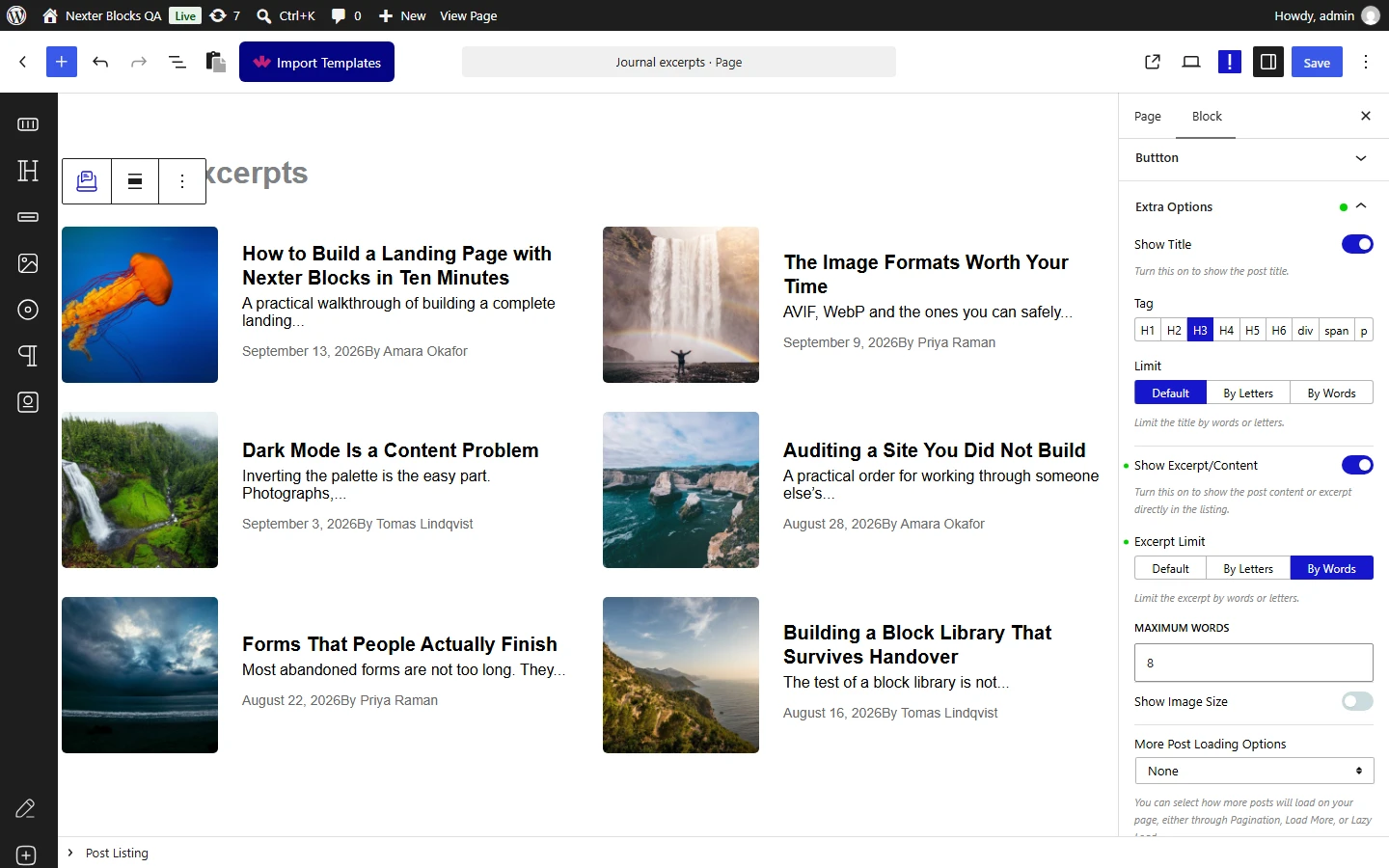
Steps
- Select your Post Listing block.
- Switch the excerpt on if it is not already showing.
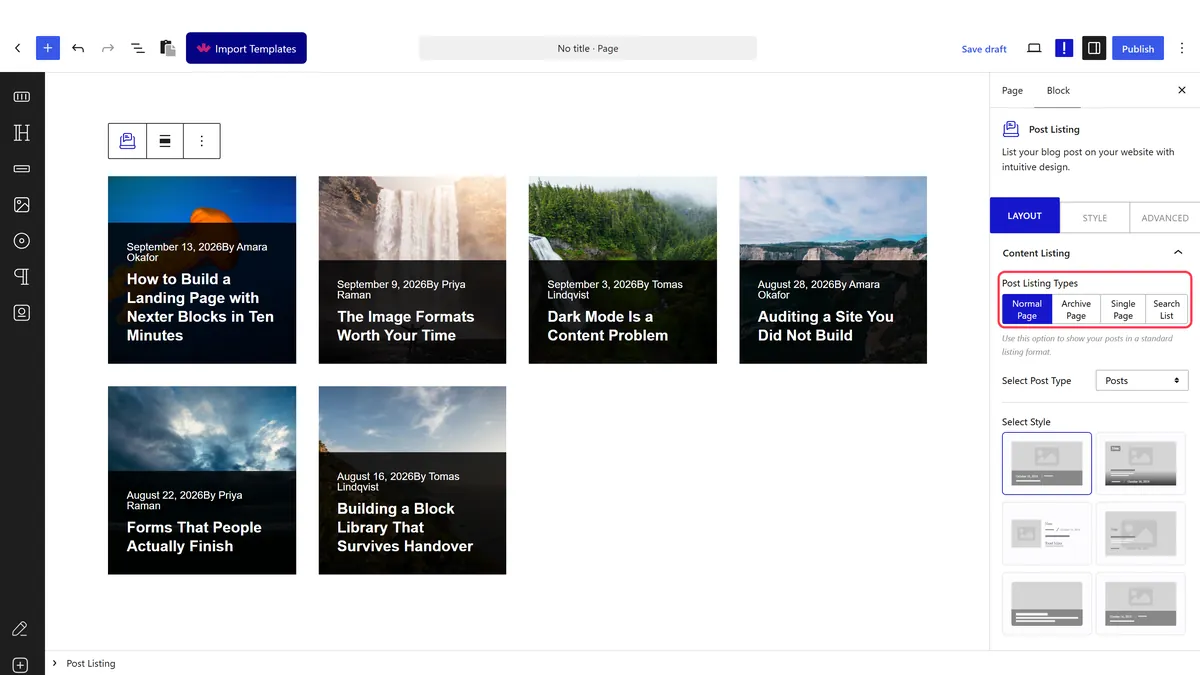
- Change the excerpt limit from default to words or characters.
- Set the number to trim at.
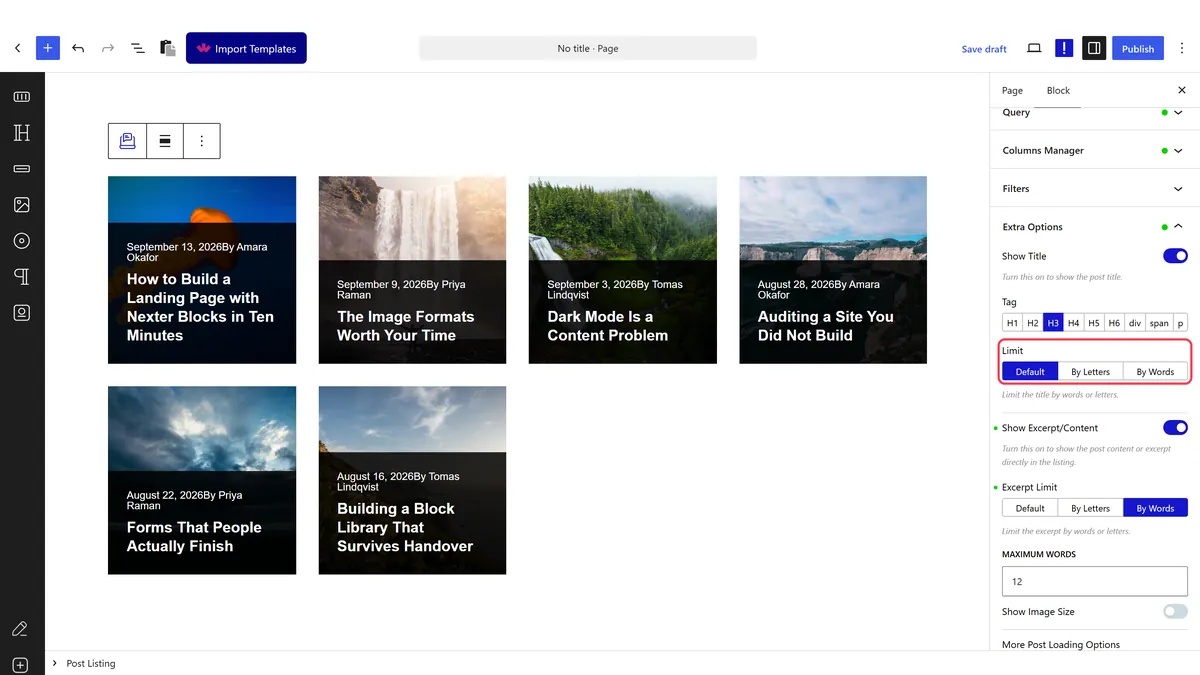
- Publish and check the cards line up on the real page.
How It Behaves
The excerpt is off until you switch it on, and the limit then applies to every card.
- The excerpt is hidden by default. Measured on an untouched listing, no excerpt renders until it is enabled.
- Measured with the excerpt on and a word limit set, the excerpt rendered trimmed to that length on every card.
- It uses the post’s excerpt if there is one, and falls back to the start of the content if not, which is standard WordPress behaviour.
- Equal excerpts make equal cards, which is the main reason to use this rather than for reading comfort.
- Measured with Nexter Blocks Pro deactivated: the listing still renders its posts. The block itself is free.
Limitations
- Auto-generated excerpts start mid-thought. Where a post has no written excerpt, the opening of the content rarely works as a summary.
- Trimming can end on a preposition and read awkwardly.
- It applies to every card, so there is no per-post control.
- Writing real excerpts is better than trimming. A hand-written summary does a job no character limit can.
- Very short limits stop being useful, because five words tells the reader nothing the title did not.
Troubleshooting
No excerpt shows at all
The excerpt is off by default. Switch it on before setting a limit.
The excerpt is the opening of the post
That post has no written excerpt, so WordPress falls back to the content. Write an excerpt on the post.
The cards are still uneven
Something else is varying, usually the title length or the image ratio. See limit the blog post title.
The excerpt cuts mid-word
You are limiting by characters. Switch to words.
