












A repeater field holds a list — team members, specifications, opening hours — stored as rows against a post. The Repeater block lays out one row, and then repeats that layout for every row in the field.
You design the row once, with ordinary Nexter and core blocks inside it, and the block renders it as many times as there are rows.
Required Setup
- Edition: Pro. Measured with Nexter Blocks Pro deactivated: the Repeater block and both of its inner blocks are not registered at all and render nothing.
- A plugin that provides repeater fields. Only two are supported, measured from the render code: Advanced Custom Fields and JetEngine. No other custom field plugin is read.
- ACF users need ACF Pro. The repeater field type is not part of ACF free — confirmed on ACF 6.8.10 free, where the repeater type is not registered at all. The block reads the field’s sub-fields, which only a genuine repeater has.
- A post that actually has rows saved in that field.
Learn via Video Tutorial

How to Activate the Repeater Block?
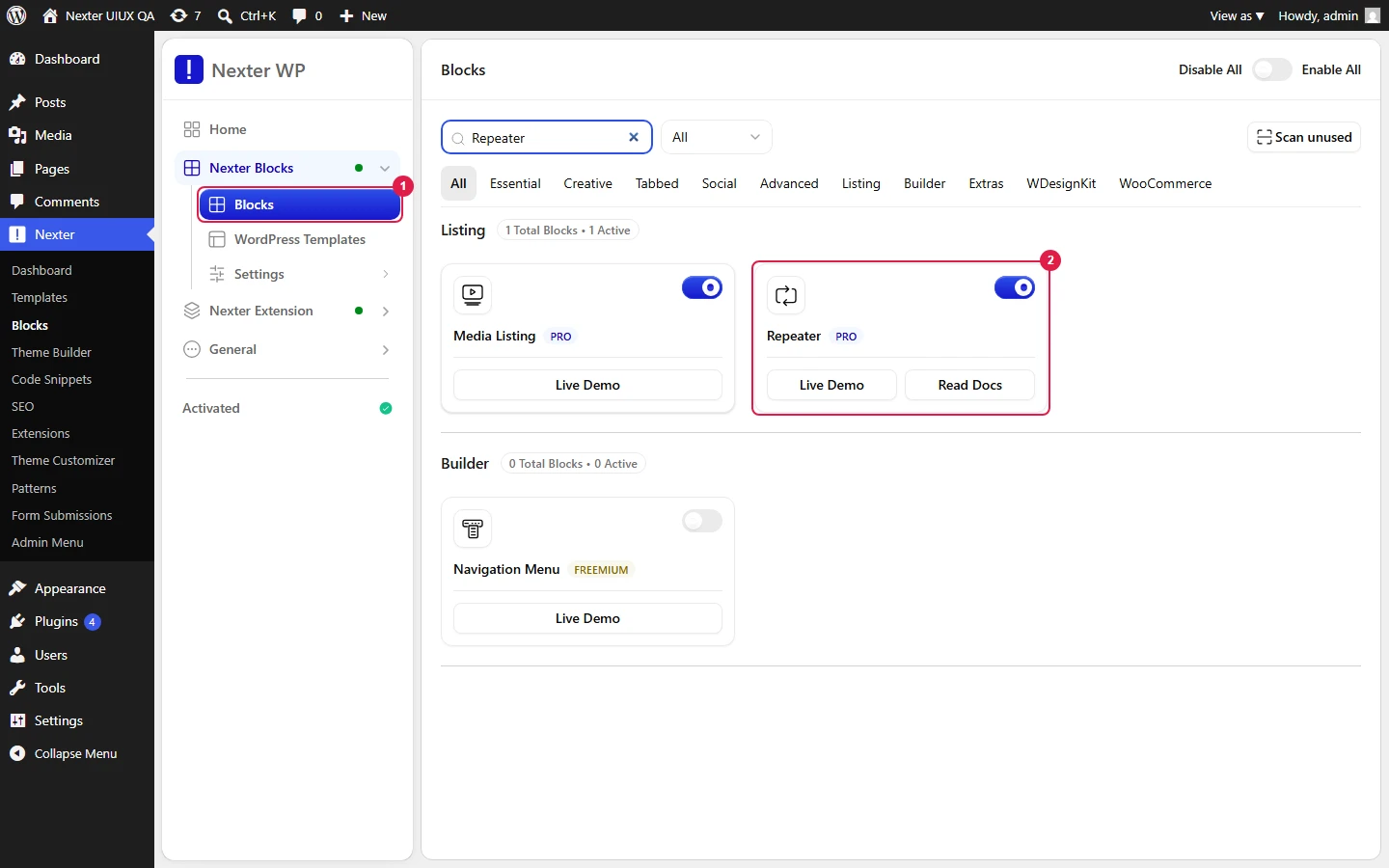
Go to Nexter > Blocks, find the Repeater block and turn its toggle on. Until it is enabled there, it does not appear in the inserter.
Key Features
- The row layout is built from real blocks, not a template language, so anything you can style on a normal block you can style here.
- Rows are resolved on every page request. Measured: the row loop runs server-side at render time, so editing the field data updates the page without re-saving it.
- It can read another post’s rows. The post setting defaults to the current post, but a specific post ID can be given instead.
- Column count and gaps are set on the parent block, so the repeated rows can form a grid rather than a stack.
How to Use the Repeater Block?
Add the Repeater block, choose the field source and the repeater field, then build the row layout inside it.
Inside the row, each dynamic element is bound to one sub-field. The block supplies the current row to everything inside it, so the same layout produces different content for each row.
Set the column count and spacing on the parent block to control how the repeated rows are laid out.
Blocks You Can Use Inside a Repeater
The row layout can be built from these:
- Core Heading
- Core Button
- Advanced Button
- Blockquote
- Core Image
- Info Box
- Pricing List
- Message box
- Paragraph
- Advanced Heading
- Container
- Accordion
- CTA Banner
- Pro Button
- Advanced Image
- Expand
- Heading Animation
- Pricing Table
How It Behaves
Measured against a three-row field, with one block inside the row layout:
| Case | Measured result |
|---|---|
| Three rows of data | the row layout rendered three times |
| Field that does not exist | renders nothing at all — no wrapper, no message |
| A field source other than ACF or JetEngine | renders nothing at all |
| Pro deactivated | blocks unregistered, nothing renders |
- An empty result is silent. There is no placeholder and no error, so a repeater pointing at the wrong field looks identical to one pointing at an empty one.
- Image sub-fields are resolved to a URL whether the field stores an attachment ID or an image object, so an image inside a row works without extra configuration.
- The current post is the default source, which is what you want inside a single post template.
Limitations
- Pro only, and it does not degrade — without Pro the blocks are not registered and the area is simply empty.
- ACF free is not enough. Repeater fields are an ACF Pro feature. If the field type is not available when you build the field, this block has nothing to read.
- Only ACF and JetEngine. Meta Box, Pods, Toolset and plain custom fields are not read, and choosing anything else produces an empty area rather than a warning.
- Failures are silent. A wrong field name, an empty field and an unsupported source all look the same on the front end: nothing.
- Row data has to be stored in the form the block expects. Measured: rows held as a serialised array rendered correctly, while the same rows held as a JSON string rendered zero times. Reported to the developers.
- If you build against JetEngine, keep JetEngine installed. Measured on 5.0.6: with a JetEngine field source and JetEngine not present, the page errors rather than degrading. Reported to the developers. Do not deactivate it on a site whose pages use it.
Troubleshooting
Nothing renders where the repeater should be
Work through it in this order: Nexter Blocks Pro active, the block enabled under Nexter > Blocks, the field source set to ACF or JetEngine, the field name correct, and the post actually having rows saved. Every one of those failures looks the same — an empty area.
I have ACF but there is no repeater field type
Repeater fields are part of ACF Pro. ACF free does not register the type, so the field cannot be created in the first place.
Only the first row shows, or none do
Check how the field data is stored. Rows saved as a serialised array are read correctly; rows saved as a JSON string are not read at all on this version.
The page broke after I deactivated a plugin
If the repeater was built against a JetEngine field, the page needs JetEngine present. Reactivate it, then change the field source before removing it again.
My field plugin is not in the source list
Only ACF and JetEngine are supported. There is no generic custom-field source.
