How to Add Dynamic Content in WordPress Gutenberg? (ACF, Tooltips, MetaBox, Pods, JetEngine)

Key Takeaways

  • Utilizes the Dynamic Content extension from Nexter Blocks to display user data and custom field data in WordPress.
  • Requires the Pro version of Nexter Blocks and the default WordPress Block editor to activate dynamic content features.
  • Supports various data types including post, archive, author, comment, site, WooCommerce, and custom field data from ACF, MetaBox, Pods, and JetEngine.
  • Enables dynamic links and images through cylindrical icons in block fields for enhanced customization in Gutenberg.
Table of Contents

Do you want to show content dynamically in WordPress? By incorporating dynamic content into your WordPress website, you can create a more engaging and tailored experience for your visitors.

With the Dynamic Content extension from Nexter Blocks, you can display different dynamic content such as user data and custom field data to build dynamic WordPress websites.

Best Used For:

  • Post templates on Gutenberg-powered blogs displaying dynamic titles, excerpts, and featured images pulled from ACF fields
  • WooCommerce single product page templates showing dynamic price, stock status, and custom product attributes
  • Membership sites where user-specific data such as author name and registration date is displayed conditionally per logged-in user

Required Setup

Learn via Video Tutorial:

Youtube video

How to Activate the Dynamic Content?

There are no additional activation steps to enable dynamic content. When you use any block from Nexter Blocks, the Dynamic Content option is available in different parts of the block.

Key Features

  • Post data – Shows different post-related data such as post title, slug, excerpt, date, post type, and publish status. Use this when building single post templates where headings and text should update automatically based on the current post.
  • Archive data – Shows archive-related data such as archive title, description, and URL on an archive template. Use this when building category or tag archive pages where the page heading should reflect the current taxonomy term. For an example in practice, see How to Create a Category Archive Page in WordPress.
  • Author data – Shows author-related data such as author name, ID, and post count. Use this when building author bio sections or post listing pages that display who wrote each post.
  • Comment data – Shows comment-related data such as comment count and status. Use this when building single post templates that display how many comments a post has received.
  • Site data – Shows site-related data such as site title and tagline. Use this when you want the site name or description to appear dynamically in a block rather than as static text.
  • WooCommerce data – Shows WooCommerce-related data such as product title, price, rating, and stock status. Use this when building custom single product templates that need to display live product data.
  • Custom field data – Shows custom field data created with plugins such as ACF, MetaBox, Pods, and JetEngine. Use this when you have structured data stored in custom fields and want to display it in a specific location on the page.

Adding Dynamic Content in WordPress Gutenberg? (ACF, Tooltips, MetaBox, JetEngine, Pods)

To add dynamic content, add any block from Nexter Blocks to the page.

Add Dynamic Content

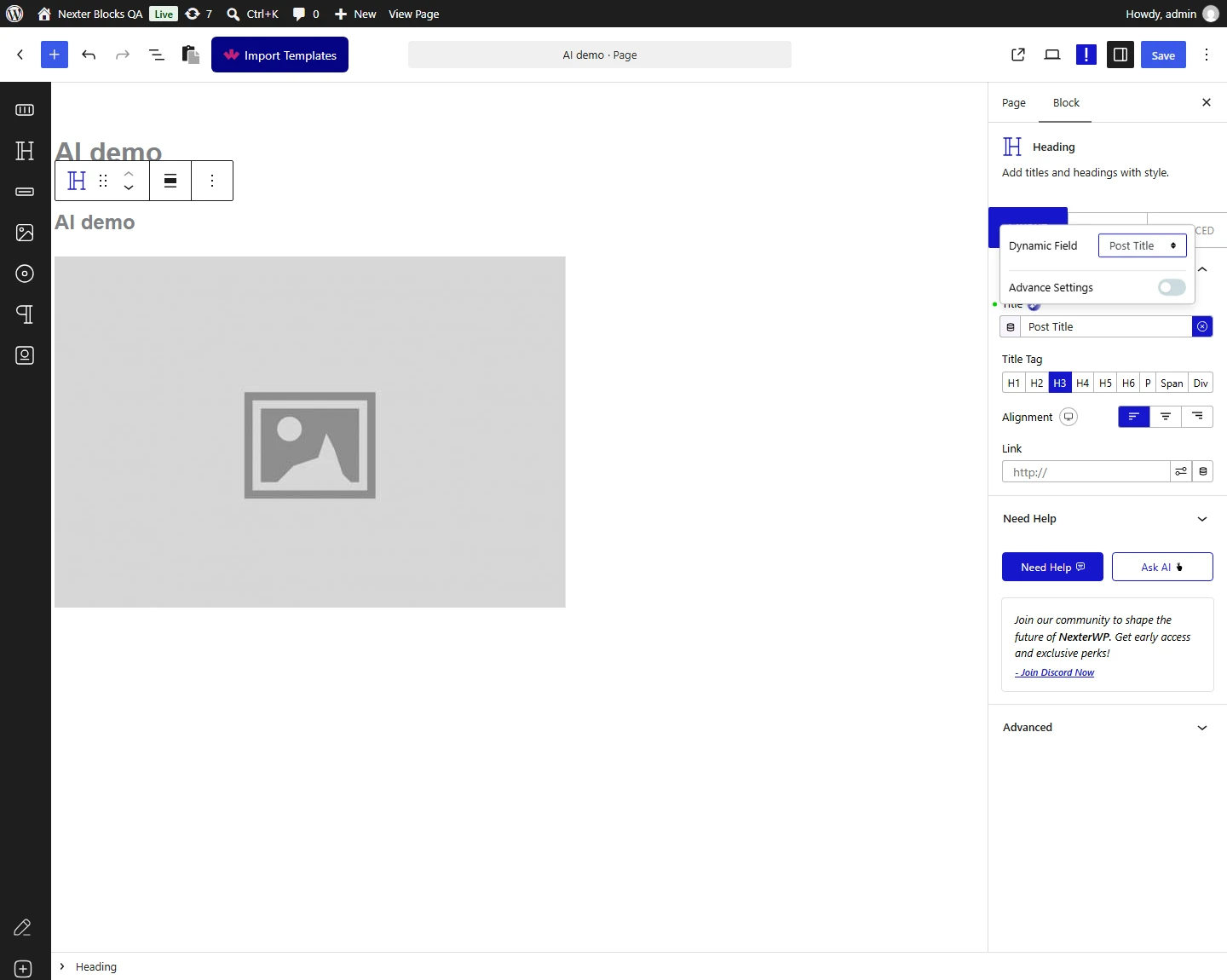
For instance, add the Heading block from Nexter Blocks.

Click on the cylindrical icon at the end of the Title field.

Note: You will find this option at different places for different blocks, but wherever you see the cylindrical icon you can add dynamic content. 

Dynamic Content cylindrical icon in Nexter Blocks Heading block Title field

Then, from the Dynamic Field dropdown, choose the data you want to add. You will find different options depending on the block type and plugins installed on your site.

Note: The options will vary based on field type (content, image, URL etc.) and plugins installed (WooCommerce, custom field plugins etc.)

Post: To show different post-related data.

  • Post Title – To show post title.
  • Post Slug – To show post slug.
  • Post Excerpt – To show the post excerpt.
  • Post Date – To show the post publish date based on the timezone set in WordPress.
  • Post Date GMT – To show the post publish date based on GMT (Greenwich Mean Time).
  • Post Modified – To show the post modified date based on the timezone set in WordPress.
  • Post Modified GMT – To show the post modified date based on GMT (Greenwich Mean Time).
  • Post Type – To show the post type.
  • Post Status – To show the post publish status.

Archive: To show archive-related data on an archive template.

  • Archive Title – To show the archive title on an archive template.
  • Archive Description – To show the archive description on an archive template.
  • Archive Url – To show the archive URL on an archive template.

Author: To show author-related data.

  • Author Name – To show the author name.
  • Author ID – To show the author ID.
  • Author Posts – To show the number of posts by the author.
  • Author First Name – To show the author’s first name.
  • Author Last Name – To show the author’s last name.

Comment: To show comment-related data.

  • Comment Number – To show the number of comments on a single post template.
  • Comment Status – To show the comment status on a single post template.

Site: To show site-related data.

  • Site Title – To show the site title.
  • Site Tagline – To show the site tagline.

If you are using the WooCommerce plugin, you will see different WooCommerce-related options.

WooCommerce: To show different WooCommerce-related data on a single product template. 

  • Product Title – To show the product title.
  • Product Terms – To show the product category or tag.
  • Product Price – To show the product price.
  • Product Rating – To show the product rating.
  • Product Sale – To show the sale tag on a discounted product.
  • Product Short Description – To show the product short description.
  • Product SKU – To show the product SKU.
  • Product Stock – To show the product stock status.

If you are using custom field plugins such as ACF, MetaBox, Pods, or JetEngine, you will see relevant options.

Custom field – Shows custom field data created with plugins such as ACF, MetaBox, Pods, and JetEngine. The section name varies based on the installed plugin and the custom field group name. The option names vary based on the custom field names.

Select the option that matches your requirements.

By enabling the Advance Settings toggle, you can add a prefix, postfix, and fallback text to the data.

Note: For some options, you will find additional settings.

Add Dynamic URL

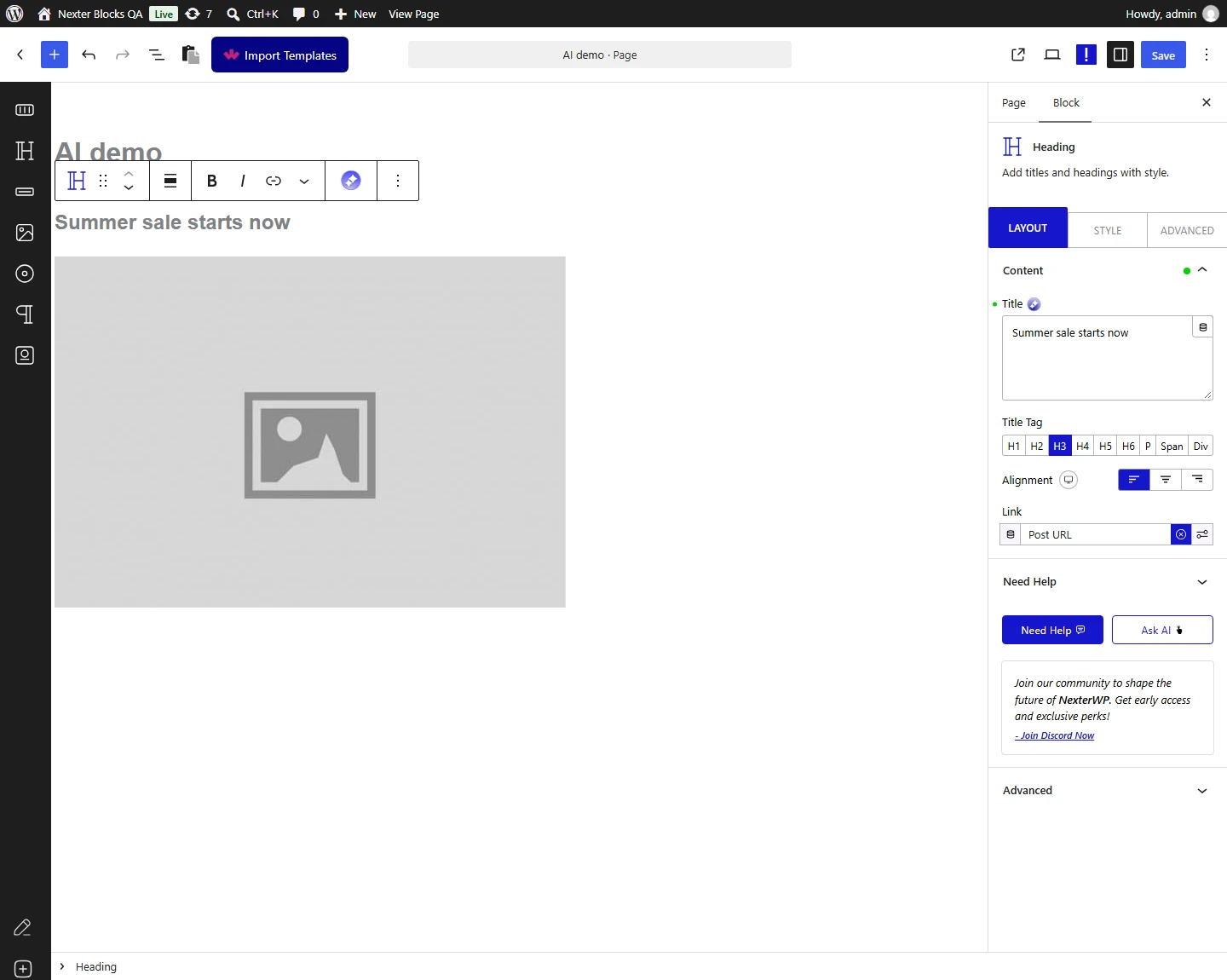
In the Link field, you can add dynamic links by clicking the cylindrical icon.

You will find different link-related options here. 

Dynamic URL options in Nexter Blocks Link field

Post: To add post-related URL.

  • Post Url – To add post URL.

Site: To add site-related URL.

  • Site Url – To add site URL.

Author: To add author-related URLs.

  • Author Posts Url – To add the author’s post page URL.
  • Author Profile Picture Url – To add the author’s profile picture URL.

By enabling the Advance Settings toggle, you can add a fallback URL as well.

Add Dynamic Image

You can also add a dynamic image to an image field of a block.

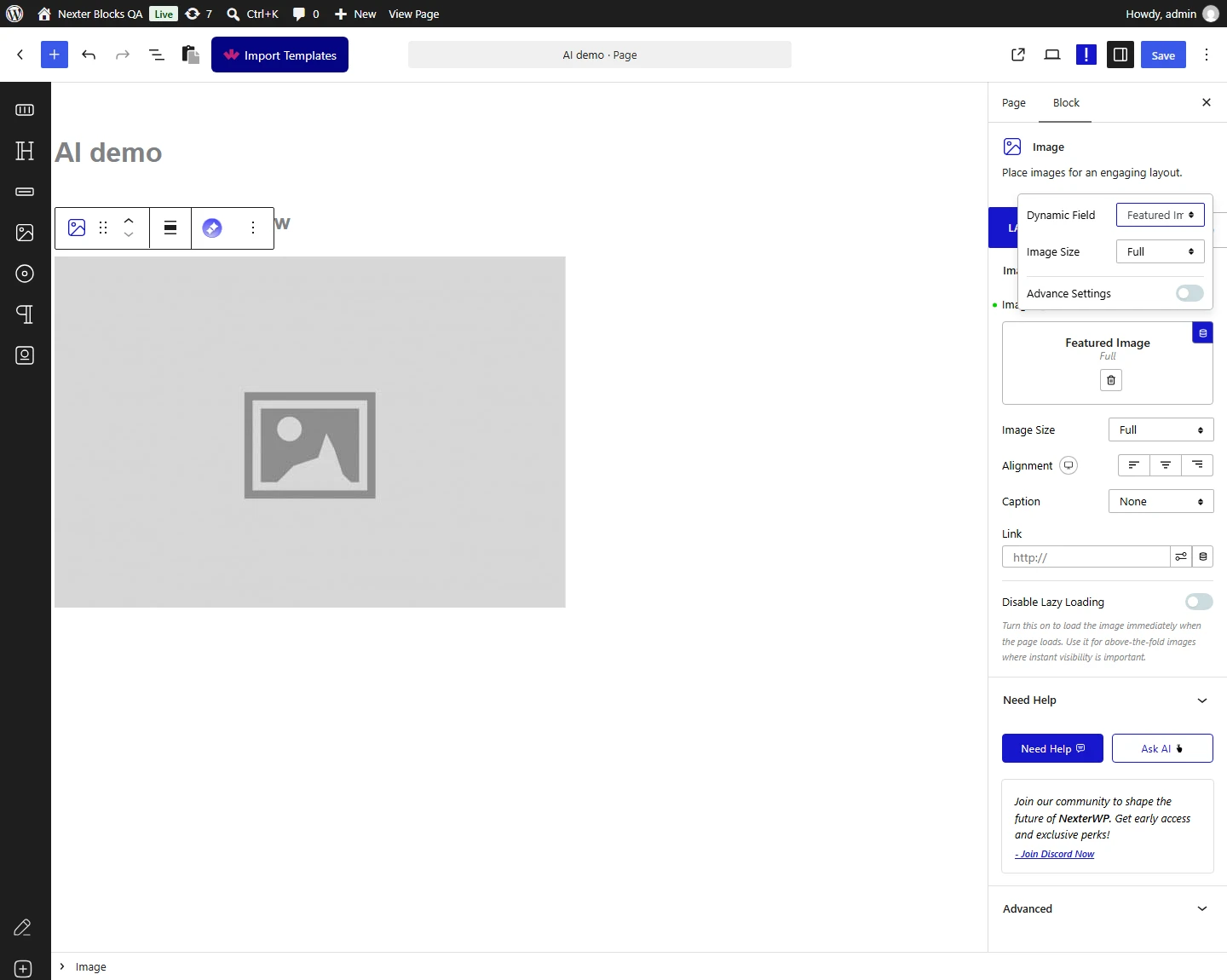
For instance, add the Image block from Nexter Blocks.

Click on the cylindrical icon at the end of the Image field. 

You will find different image-related options here. 

Dynamic Image options in Nexter Blocks Image field

Post: To add post-related images.

  • Featured Image – To add the featured image of the post.

Site: To add site-related images.

  • Site Logo – To add site logo.

Author: To add author-related images.

  • Author Profile Picture – To add the post author’s profile image on a single post template.
  • User Profile Picture – To add the logged-in user’s profile image.

From the Image Size dropdown, set the image size for the dynamic image.

By enabling the Advance Settings toggle, you can add a fallback image as well.

This is how you can add different types of dynamic content in WordPress using Nexter Blocks.

About the Author

Photo of Aditya Sharma CMO of Nexter
CMO at POSIMYTH Innovations · Nexter · 7 years experience

He has spent years in the WordPress ecosystem building, breaking, and optimizing sites until they actually perform. He works at the intersection of speed, growth, and usability, helping creators ship websites that load fast and convert. An active WordPress community contributor sharing through tools, tutorials, and direct collaboration. Tested practice, not theory.

WordPressThemesElementorn8nAIClaudeAutomationServer

Share your Thoughts

Get Instant Answers to all your questions about Nexter Blocks,
Extensions & Theme trained on 1000+ Docs and Videos

Still in Doubt? Let’s Assist You

Have Feedback or Questions?

Join our WordPress Community on Facebook!