How to Create a WordPress Video Gallery?

Key Takeaways

  • Nexter Blocks includes the Media Listing block, which allows users to create a video gallery by selecting videos from the Type section.
  • Users can upload videos in multiple formats including mp4, m4v, and mov using the Media Listing block in Nexter Blocks.
  • The Media Listing block supports creating filterable video galleries by allowing users to manually create and assign categories to videos.
Table of Contents

Enhance your WordPress website with a dynamic and engaging video gallery. A video gallery is a fantastic way to showcase your collection of videos and capture your audience’s attention. Whether you want to display tutorial videos, product demos, client testimonials, or creative content, a video gallery can help you present your videos in an organised and visually appealing manner.

You can easily create an engaging WordPress video gallery with the Media Listing block from the Nexter Blocks.

To check the complete feature overview documentation of the Nexter Blocks Media Listing block, click here.

Requirement  – This block is a part of the Nexter Blocks, make sure its installed & activated to enjoy all its powers.

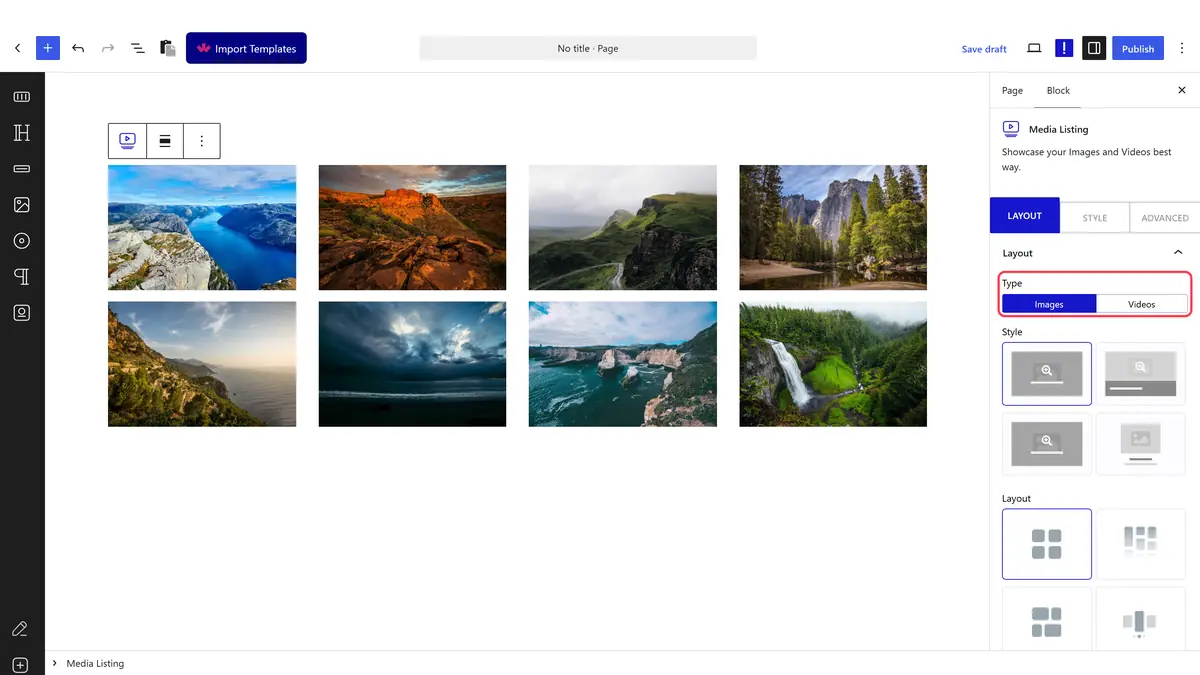
To do this, add the Media Listing block on the page, 

1. Select Videos from the Type section.

2. Then select the appropriate listing style and layout from the Layout tab.

3. Select Default from the Popup Layout dropdown to show the video in a lightbox.

media listing layout video normal new

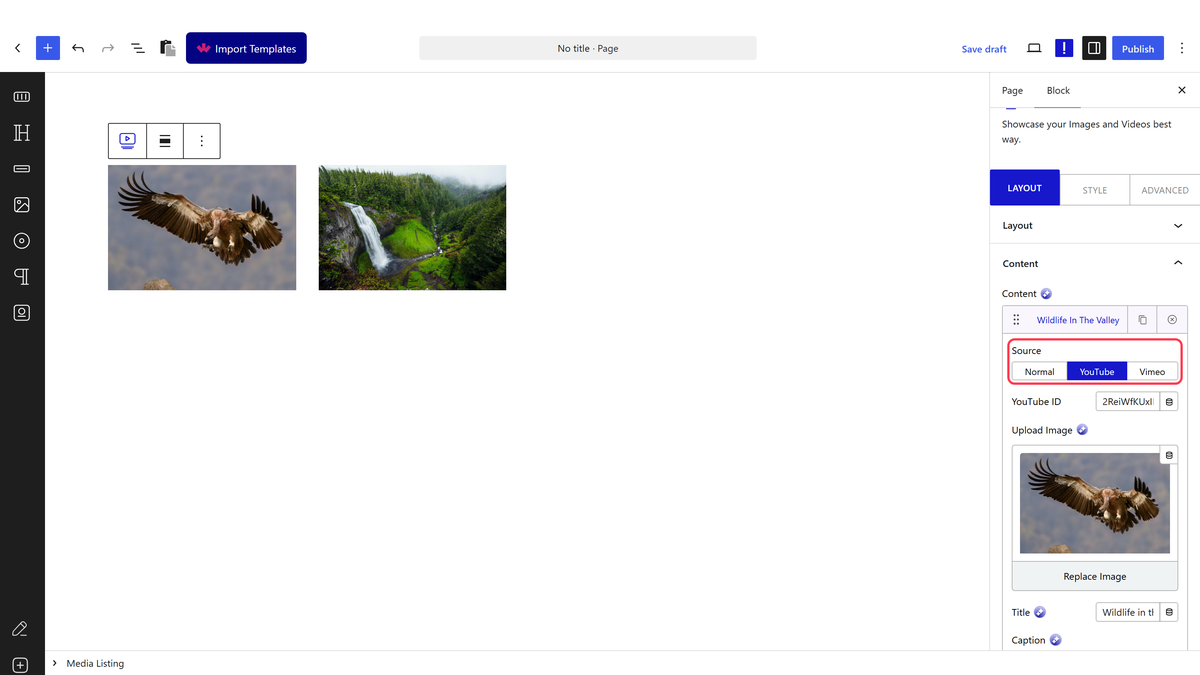
4. Then go to the Content tab, by default, you’ll see two items, open the first Image tab. Here, you can add content for the video gallery.

Source – Here, you have to select the video source, you’ll find three options, Normal, YouTube, and Vimeo.

Here we’ll select the  Normal option.

Upload Mp4 Video – Here, you have to add a video from the media library.

Note: Supported video formats mp4, m4v, mov, wmv, avi, mpg, ogv, 3gp.  

Upload Image – Here, you have to add an image overlay for the video to make the thumbnail clickable.

Title – Here, you can add a title for the video.

Caption – Here, you can add a caption for the video.

Category – Here, you can manually create a category and add the video to it. This can be used to create a filterable video gallery, similarly as would do for a filterable image gallery.

Note: You can add multiple categories separated by a comma (,).

Select Icon – From here, you can add an extra icon or image to the video.

Link – Here, you can add a custom link to the WordPress gallery videos.

Note: When you use the custom link, the video won’t show in the lightbox. To make the link work properly, set No in the Popup Layout dropdown.

You can repeat the process in the second Image tab.

Click on the +Add content button to add multiple videos.

Also, read How to Create WordPress YouTube Video Gallery.

About the Author

Photo of Aditya Sharma CMO of NexterWP
CMO at POSIMYTH Innovations · NexterWP · 7 years experience

He has spent years in the WordPress ecosystem building, breaking, and optimizing sites until they actually perform. He works at the intersection of speed, growth, and usability, helping creators ship websites that load fast and convert. An active WordPress community contributor sharing through tools, tutorials, and direct collaboration. Tested practice, not theory.

WordpressThemesElementorn8nAIClaudeAutomationServer

Share your Thoughts

Get Instant Answers to all your questions about Nexter Blocks,
Extensions & Theme trained on 1000+ Docs and Videos

Still in Doubt? Let’s Assist You

Have Feedback or Questions?

Join our WordPress Community on Facebook!

Related Frequently Asked Questions

What should I do if the Media Listing block isn't showing up?

If the Media Listing block isn't appearing, ensure that you have the Nexter Blocks installed and activated. This block is essential for creating a video gallery. Without it, you won't have access to the necessary features to add and manage your videos effectively.

What is the best way to organize videos in my gallery?

To effectively organize videos in your gallery, consider using categories. You can manually create categories and add videos to them, which allows for a filterable video gallery. This approach helps users navigate your content more easily and find specific videos they are interested in.

What happens if I use a custom link for my video?

If you use a custom link for your video in the Media Listing block, the video will not display in the lightbox. To ensure the custom link works correctly, set the Popup Layout dropdown to 'No'. This is important to avoid confusion for users expecting the video to open in a lightbox.

Last reviewed: April 14, 2026

Related Docs