












Sometimes a block needs to sit at a slight angle, overlap the section above it, or mirror itself — the sort of adjustment that would otherwise mean custom CSS.
The transform options do all of that from the Advanced tab, without touching a stylesheet.
Before You Start
- Edition: Pro — transform effects needs Nexter Blocks Pro.
- Block to enable: any Nexter block, switched on under Nexter > Blocks in your WordPress dashboard.
- This is an Advanced tab option, so it is available on Nexter blocks generally rather than being a block of its own. Open any Nexter block and look under Advanced.
Preview
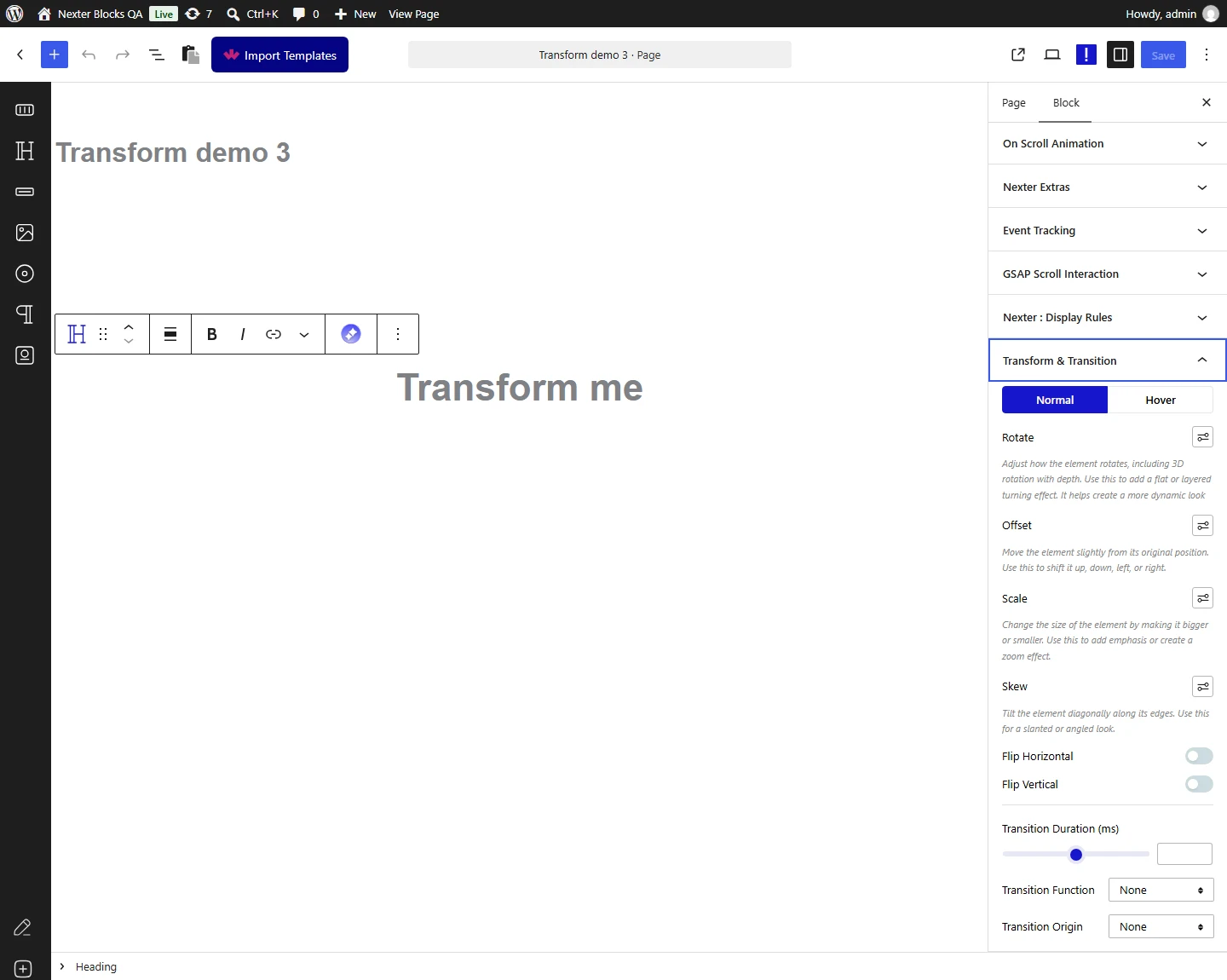
Steps
- Select your block, open the Advanced tab and expand Transform & Transition. Click the settings button next to Rotate and set Rotate (deg).
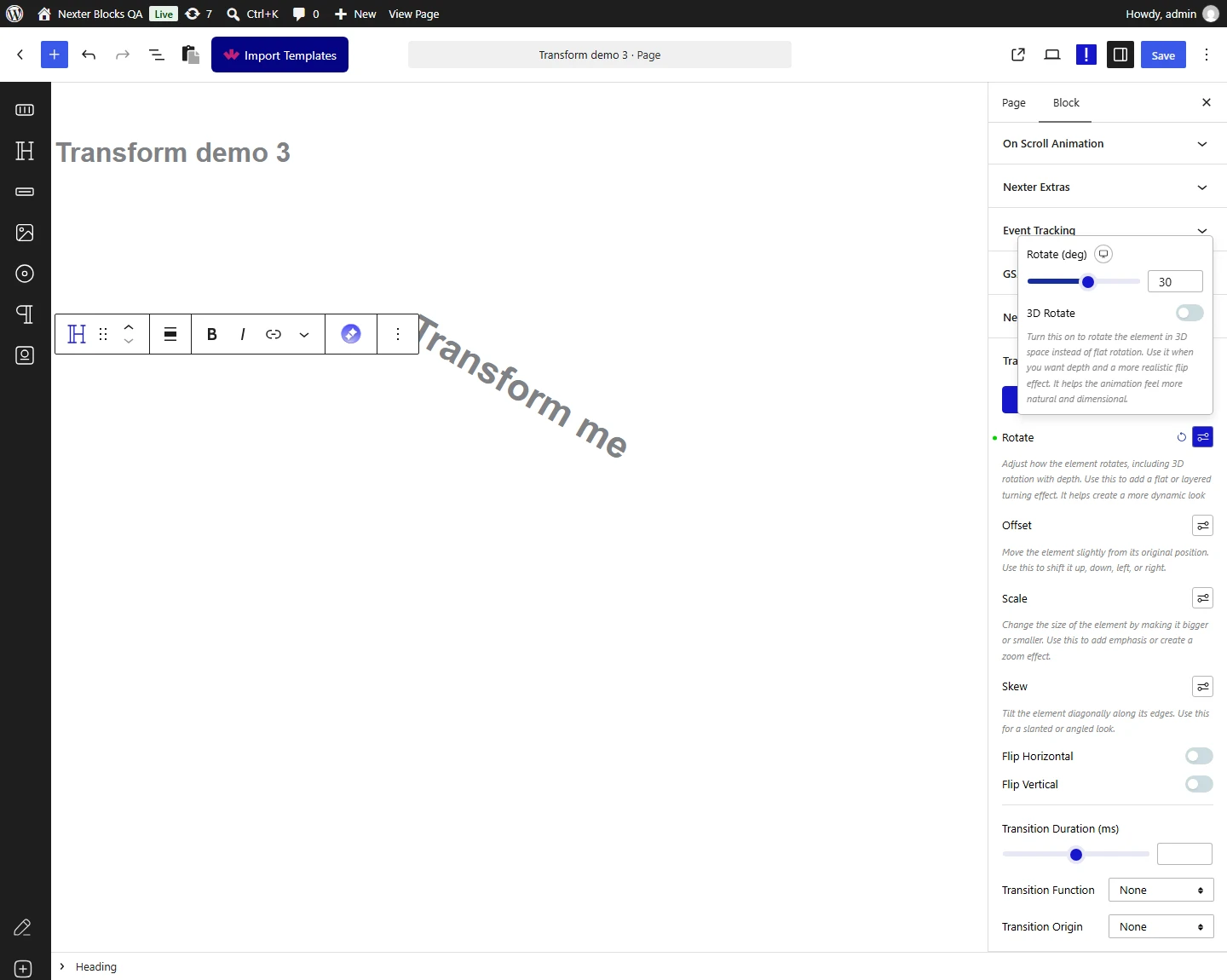
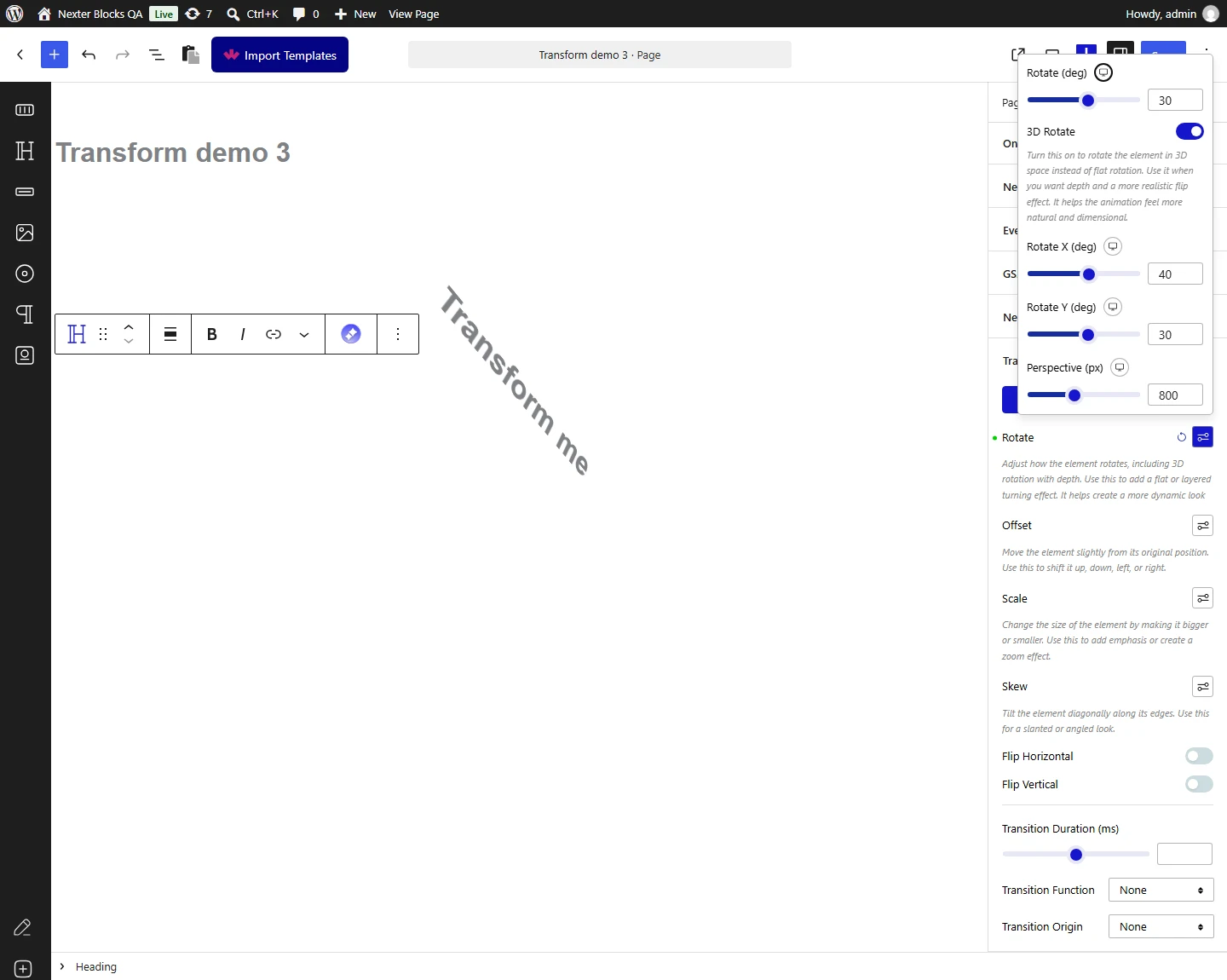
- Turn on 3D Rotate for depth, then set Rotate X, Rotate Y and Perspective.
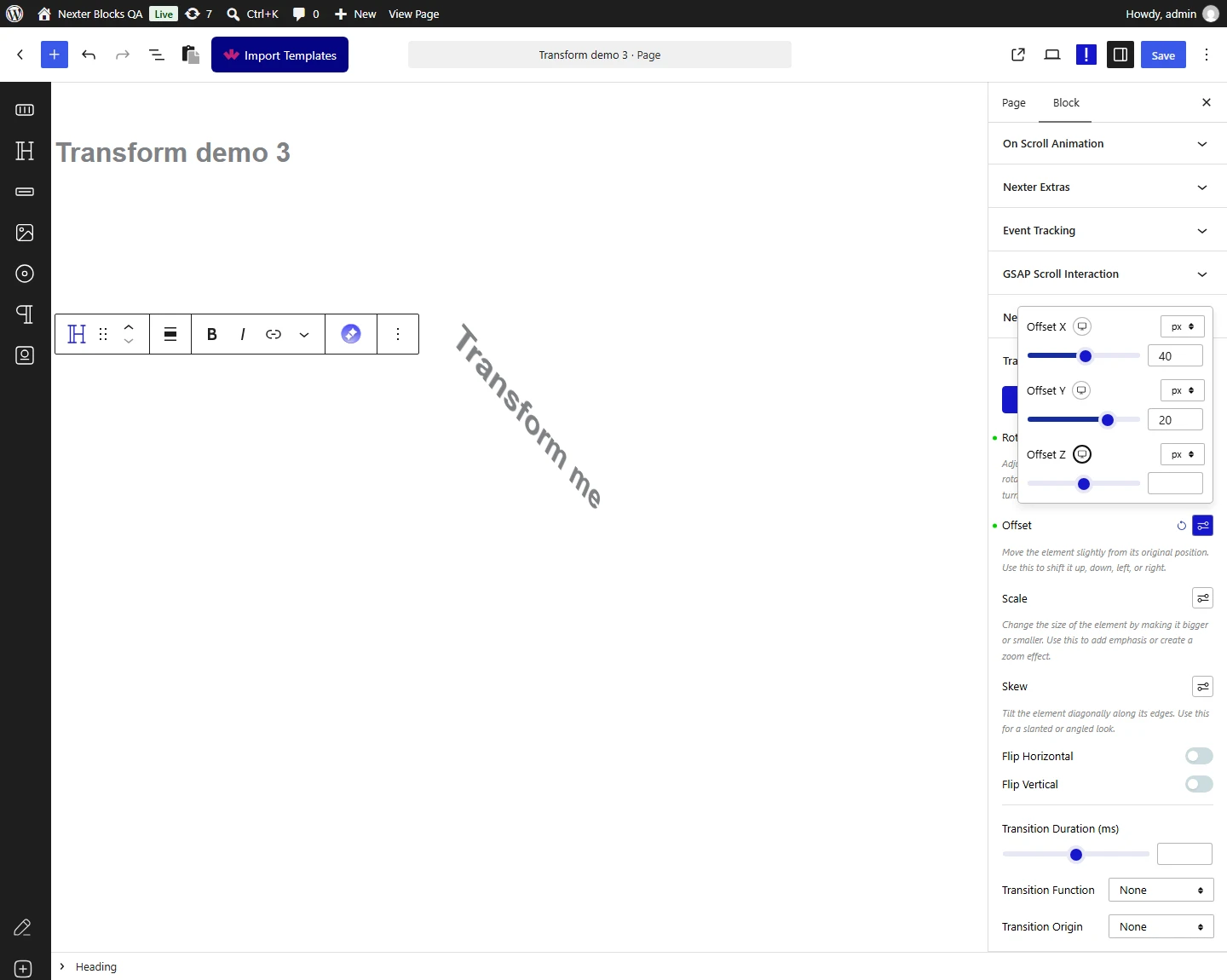
- Open Offset to move the block along X and Y.
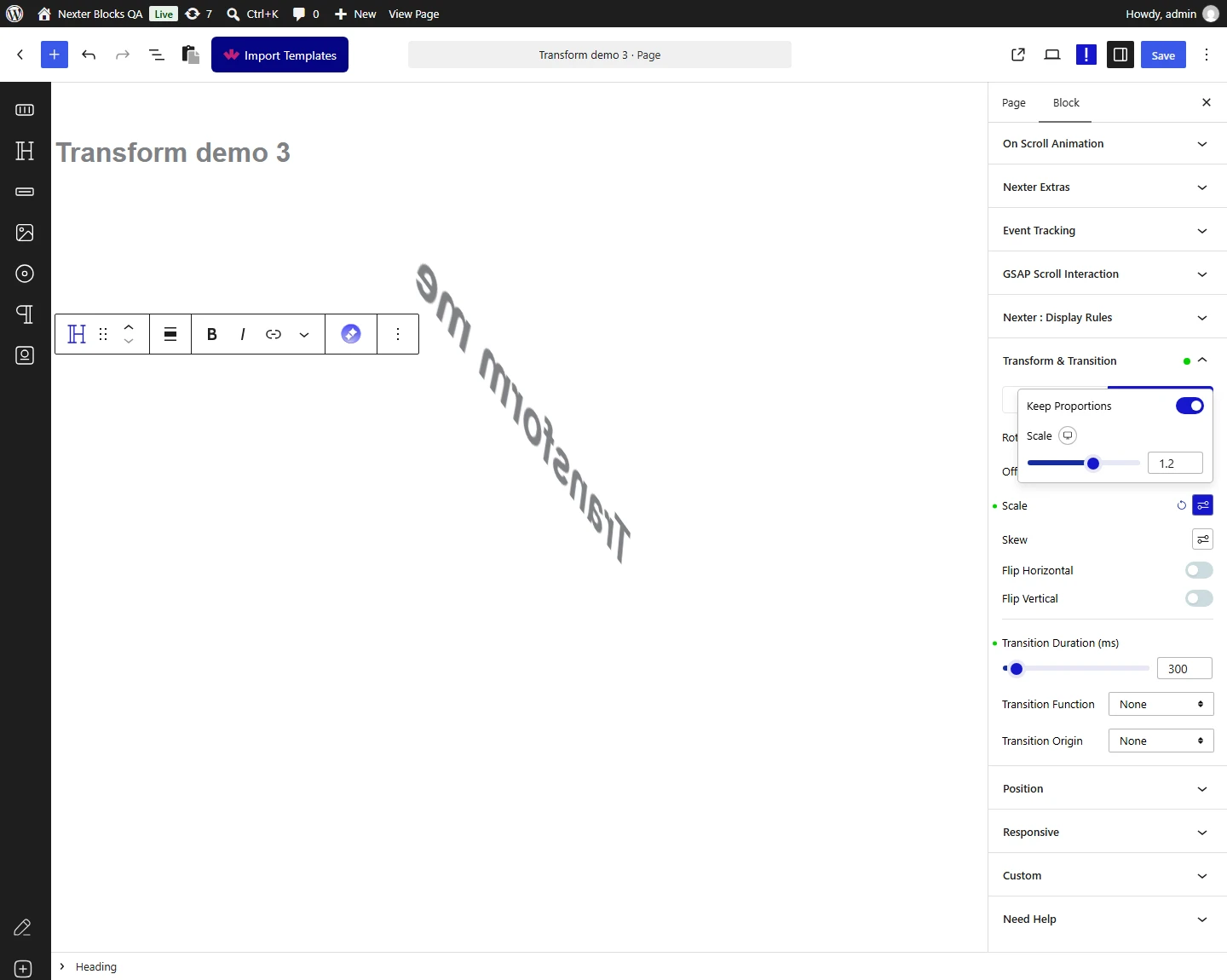
- Open Scale to resize it. Switch Keep Proportions off to scale each axis separately.
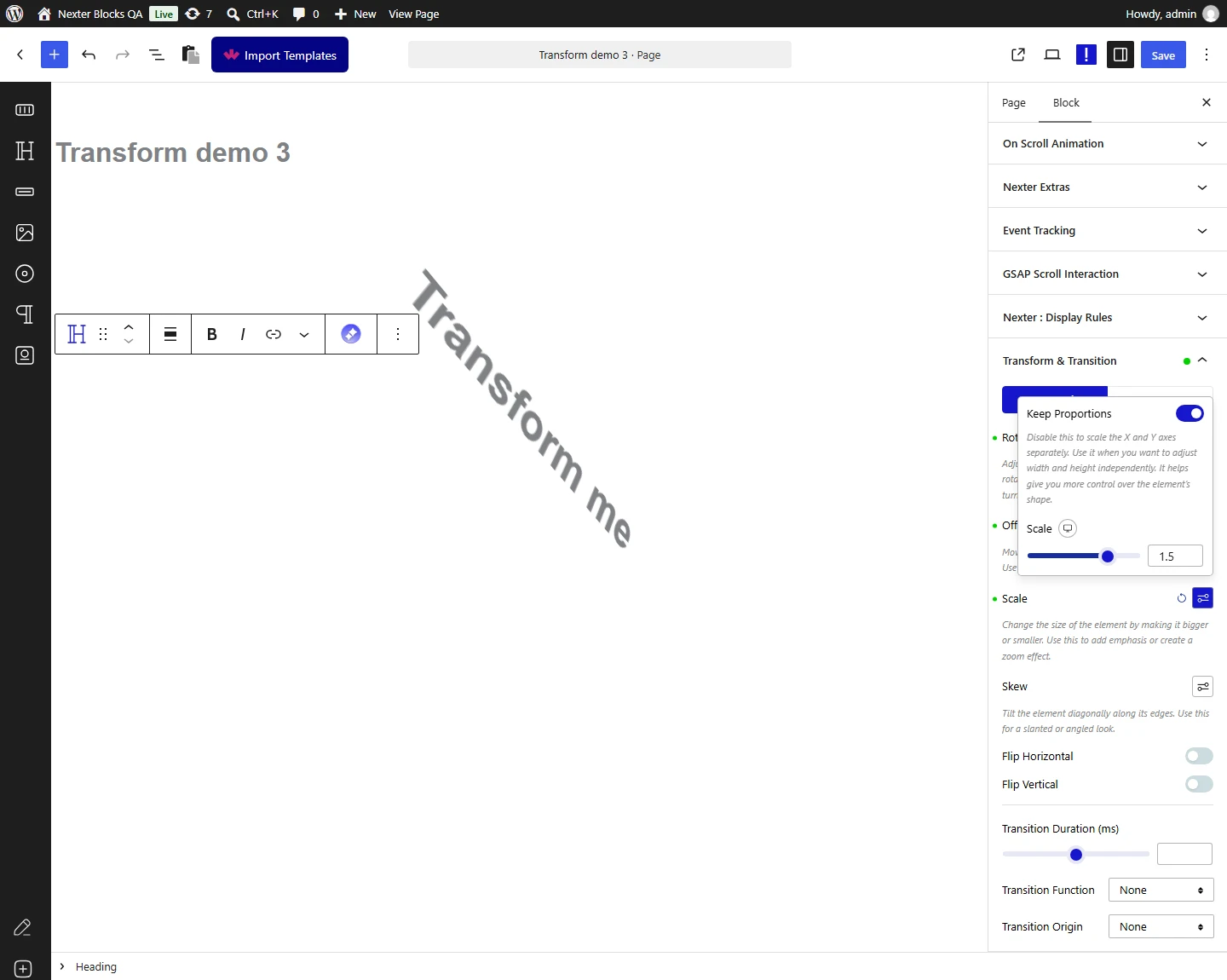
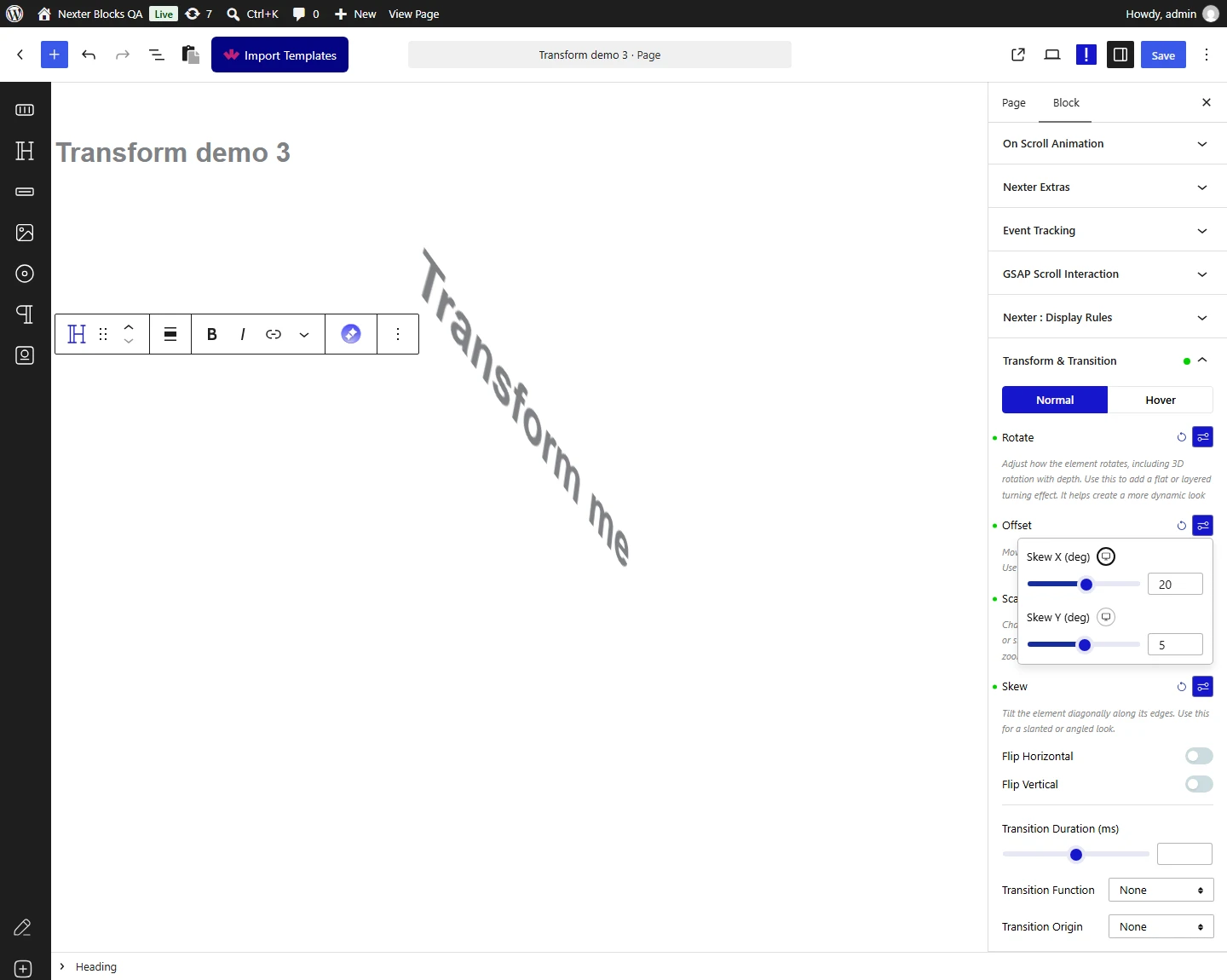
- Open Skew to tilt the block along X and Y.
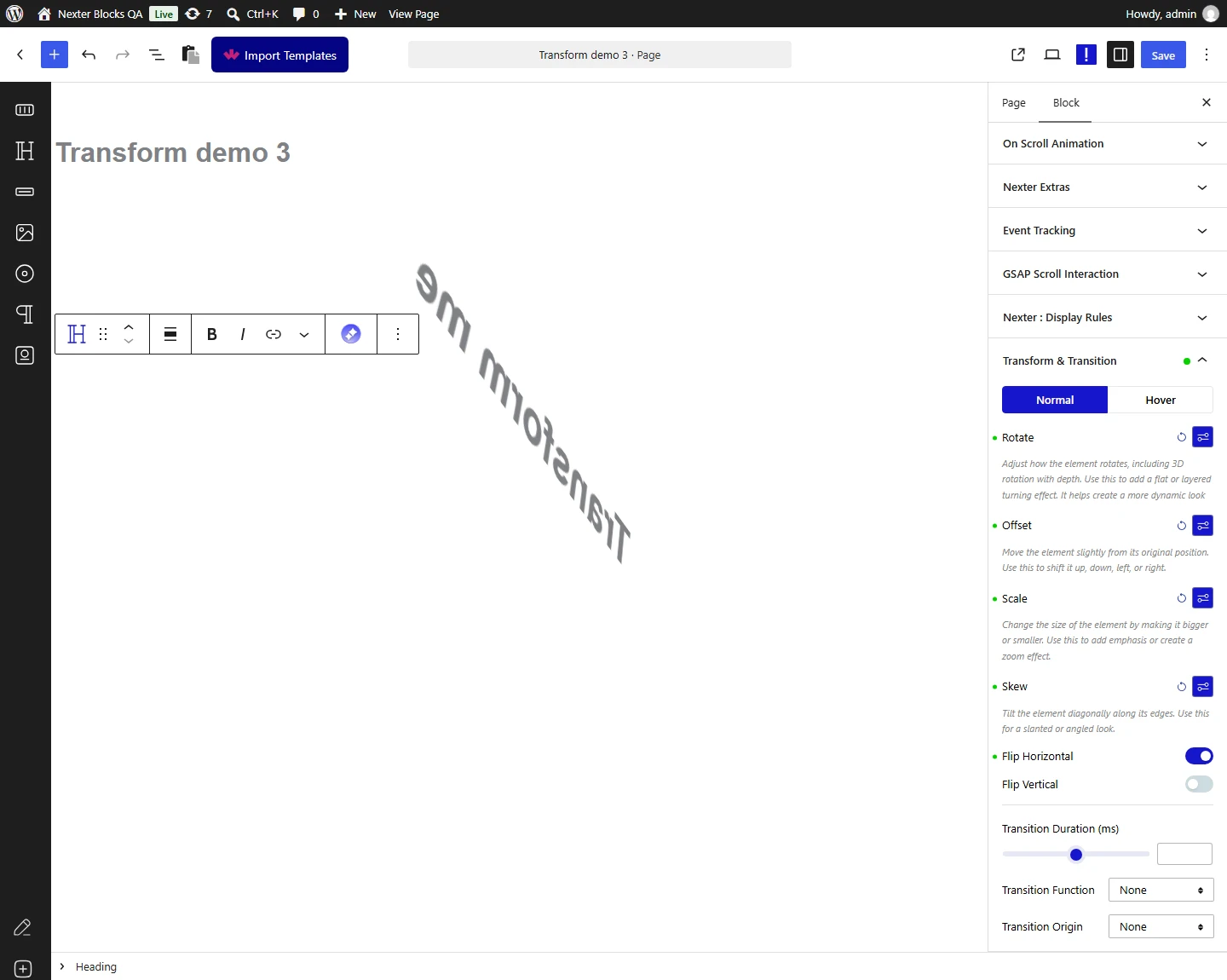
- Turn on Flip Horizontal or Flip Vertical to mirror it, then publish and check the real page at each screen size.
Switch to the Hover tab to give the block a different transform while the pointer is over it, and set Transition Duration so the change animates.
How It Behaves
Every variant compiles into one CSS transform matrix on the block.
- Measured on published pages, each value producing exactly the expected matrix: rotating 30° gave
matrix(0.866025, 0.5, -0.5, 0.866…); an offset of 40 by 20 pixels gavematrix(1,0,0,1,40,20); a scale of 1.5 gavematrix(1.5,0,0,1.5,0,0); a horizontal flip gavematrix(-1,0,0,1,0,0). - Skew and combinations were measured too — a skew of 20 by 5, and a rotation and scale together, both produced a single combined matrix rather than two separate rules.
- Transform does not move the space the block occupies. The layout still reserves the original position, which is why a rotated block can overlap whatever is next to it.
- Order matters when you combine. Rotating then scaling is not the same as scaling then rotating.
- Measured with Nexter Blocks Pro deactivated: the effect disappears entirely and the block renders as though the option had never been set.
Limitations
- Pro only — measured with Nexter Blocks Pro deactivated, no transform rule is generated and the block sits square.
- Overlap is the usual surprise. Because the reserved space does not change, a moved or rotated block will sit on top of its neighbour unless you add spacing.
- Rotated text is harder to read, and a lot harder at small sizes.
- Values set at desktop carry down to phones, where a 40-pixel offset is a much larger share of the screen. Set them per breakpoint.
- A transformed block can cause sideways scrolling if it moves past the edge of the page.
Troubleshooting
Nothing happens
Check you are on the Normal tab (the Hover tab only applies while the pointer is over the block), that the value is set for the screen size you are viewing, and that Nexter Blocks Pro is active.
My block overlaps the one below it
Expected. Transform does not change the space the block reserves — add margin to compensate.
The page scrolls sideways now
The block has moved past the page edge. Reduce the offset, or set it to zero at smaller widths.
It looks wrong on mobile
Desktop values are inherited downwards. Set smaller values, or none, at the phone breakpoint.
Combining two effects gives an odd result
They compile into one matrix and the order is significant. Try setting one at a time to see which is doing what.
