When you create multi-column layouts in the WordPress block editor, unequal column heights can break the visual balance of your page. Without a dedicated tool, you would need to write custom CSS to force columns to the same height.
The Equal Height feature in Nexter Blocks solves this. It lets you fix equal column height in WordPress by targeting a CSS class on the element causing the size difference, with no custom code required. A similar Equal Height feature is also available in The Plus Addons for Elementor for Elementor users.
Best Used For:
- Blog post listing layouts where post titles or excerpts vary in length across cards
- Pricing table sections where each plan lists a different number of features
- Service or info card sections built with the Nexter Blocks Container block in Gutenberg
Required Setup
- Make sure the default WordPress Block editor is active.
- You need to have the Nexter Blocks plugin installed and activated.
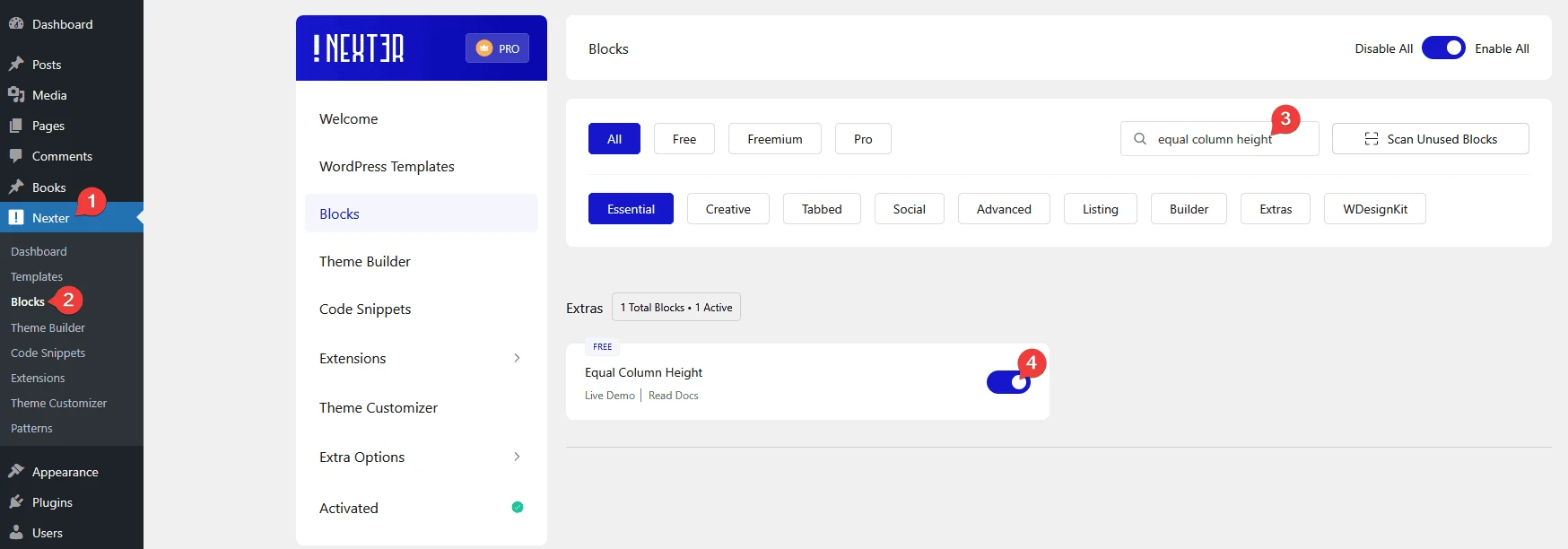
- Make sure the Equal Column Height is activated, to verify this visit Nexter → Blocks → and Search for Equal Column Height and activate.
- You have to use the Nexter Blocks.
Learn via Video Tutorial:
How to Activate the Equal Height Extension?
Go to
- Nexter → Blocks
- Search the block name and turn on the toggle.

Why do you need Equal Height Option In WordPress?
The WordPress block editor has improved significantly in recent versions, offering a capable layout system for building multi-column pages without a separate page builder.
Even so, making columns equal in height is not part of the core Gutenberg feature set. When column content varies in length, cards and containers in the same row end up at different heights, which breaks the visual alignment of your layout.
The Equal Height feature in Nexter Blocks fixes this by letting you target a CSS class on the element causing the height difference. All elements sharing that class will adjust to the same height. No custom CSS is required.
How to Make Column Height Equal in WordPress?
To use the Equal Height option in Nexter Blocks, select the parent container that wraps your columns, such as the Container block. The Equal Height option is not available on individual child elements. It must be set on the parent container.
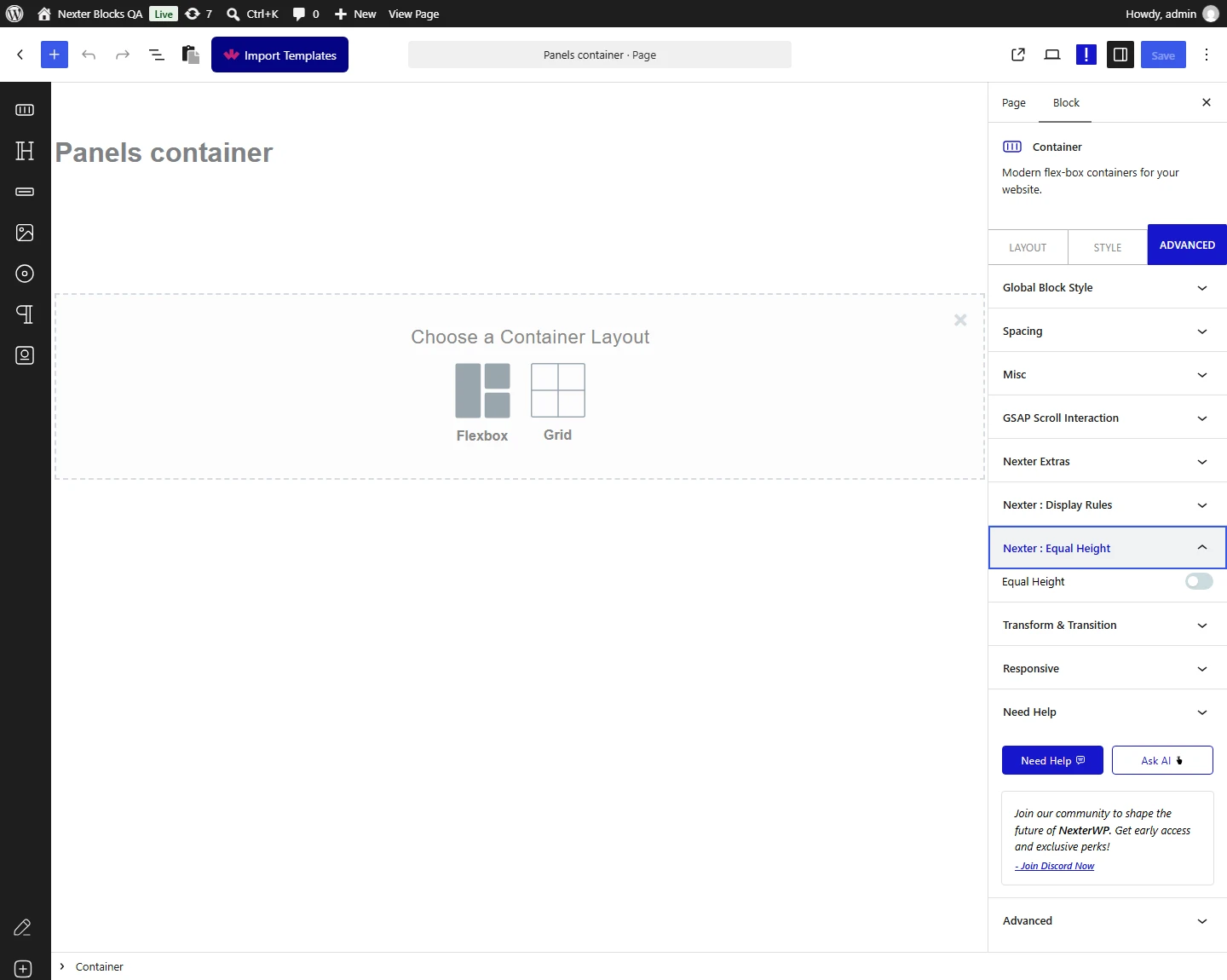
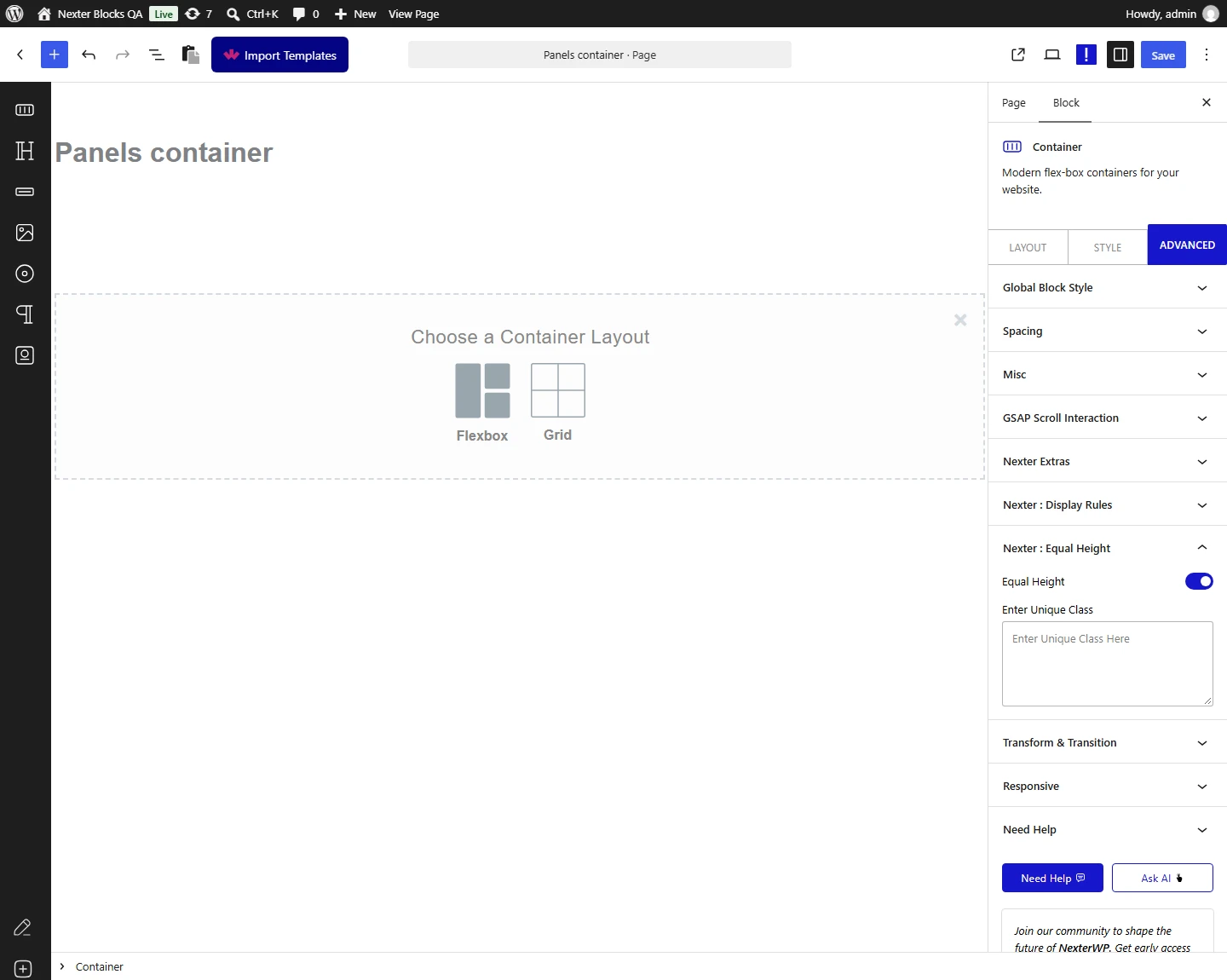
Select the parent container and go to Advanced > Nexter : Equal Height > Equal Height and turn on the toggle.

In the Enter Unique Class field, enter the CSS class of the element causing the unequal height. All elements sharing that class inside the container will adjust to the same height.
Note: To use this method, you have to use the browser inspect element tools, so familiarity with the browser dev tools would be an added advantage.
Here is how this process works.
How to find Unique Class to make equal column height in WordPress (Gutenberg)?
To identify the correct CSS class, use your browser’s Inspect Element tool to find the element creating the height difference, or its parent container.
Once you have identified the element, copy its CSS class from the Inspect panel and paste it into the Enter Unique Class field.
Add a period (.) in front of the class name. Then click Apply Equal Height to preview the result in the editor.

Note: You can add the selected elements parent classes as well to make it more specific.
Here is an example using two blockquotes placed side by side. They have uneven height because their content differs in length.
Right-click on the element causing the height issue and select Inspect. You can do this from the WordPress editor (backend) or from the published page (frontend).
Find the class name in the HTML and copy it. Then select the parent container, in this case the Nexter Blocks Container block, and go to Advanced > Nexter : Equal Height > Equal Height, then turn on the toggle.
Paste the class name with a period (.) in front into the Enter Unique Class field and click Apply Equal Height to preview the result.
Click Update to save your changes. The Apply Equal Height button only previews the result in the editor and does not save it.
The video below shows this method in detail.
Real World Use Cases for WordPress Equal Height
See below for examples of how the Equal Height feature works in common WordPress layouts.
Fixing Equal Height for WordPress Blog Post Listing Block

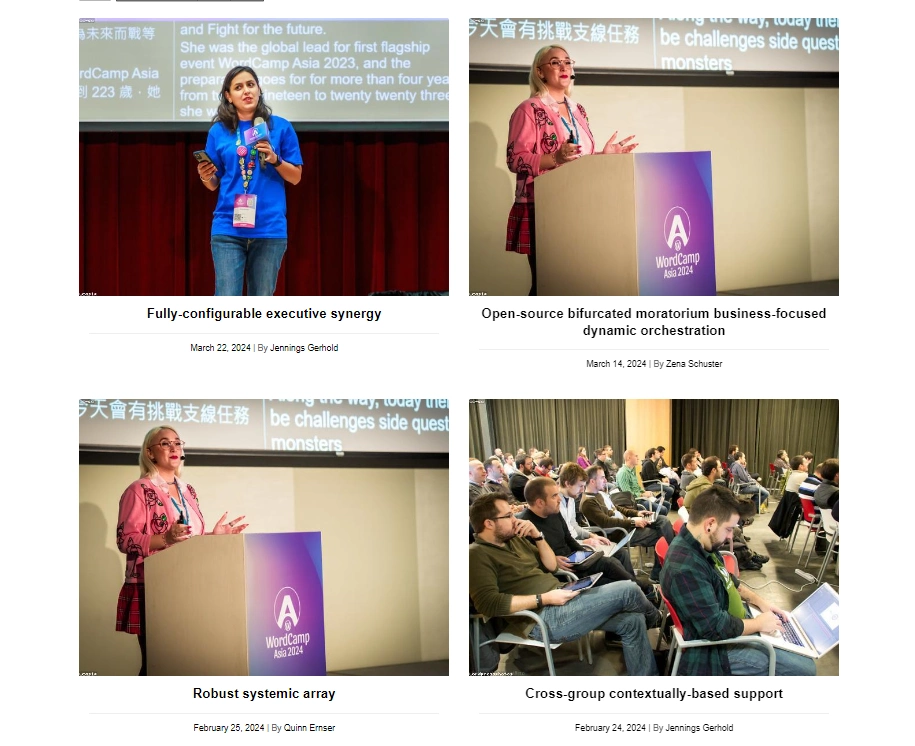
In this example, 4 blog posts appear in 2 rows of 2 items, but the post item heights are uneven. Here is how to fix this using the Equal Height feature. The Post Listing block in Nexter Blocks is where you will most often encounter this issue.
Note: We will be using Inspect Element directly from the backend, but you can do it from the frontend as well.
The difference in post title height is causing the layout issue. Right-click on the title element and select Inspect to find its class name.
Copy the class name. In this example it is tpgb-post-title.
Note: As you can see in the example, a div can have multiple classes. You can use multiple classes or any single class to target the element.
Since this is a single block containing all elements, select the Post Listing block and go to Advanced > Nexter : Equal Height > Equal Height, then turn on the toggle.
Paste the class name with a period (.) in front, like .tpgb-post-title, into the Enter Unique Class field and click Apply Equal Height to preview the changes.
All post titles are now the same height, which aligns the items in each row of the post listing.
Fixing Equal Height for WordPress Pricing Table Block

In this example, a pricing table has 3 pricing plans. Each plan lists a different number of features, so the plan cards are uneven in height. The Pricing Table block in Nexter Blocks is a common place where this layout issue appears.
The Equal Height feature in Nexter Blocks fixes this without any custom CSS.
The difference in feature list length is causing the height issue. Right-click on the features section, open Inspect Element, and copy the parent container class name. In this example it is pricing-content-wrap.
Since the pricing plan blocks sit inside a Container block, select the main container and go to Advanced > Nexter : Equal Height > Equal Height, then turn on the toggle.
Paste the class name with a period (.) in front, like .pricing-content-wrap, into the Enter Unique Class field and click Apply Equal Height to preview the changes.
How to Target Multiple CSS Class for Equal Height in WordPress (Gutenberg)

In this example, 3 infobox blocks have uneven height because both titles and descriptions differ in length. Two elements are causing the height difference, not one.
To preserve design alignment across cards, you need to make titles equal in height separately from descriptions. Setting equal height only on the container would not keep titles and descriptions independently aligned across cards.
The Equal Height feature in Nexter Blocks lets you target multiple elements by entering multiple CSS classes in the same field, separated by commas.
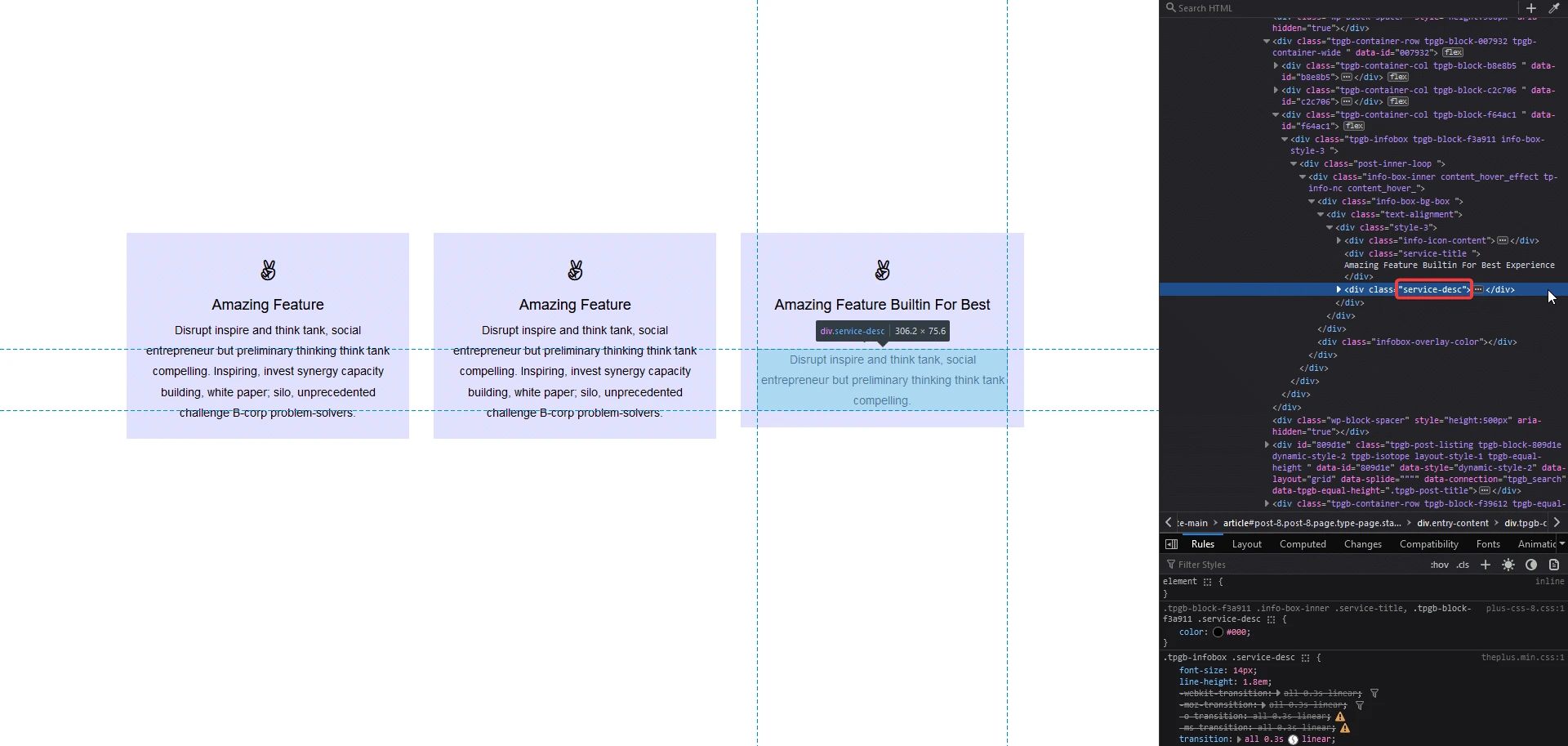
Go to the frontend, right-click on the description, open Inspect Element, and copy the class name. In this example it is service-desc.

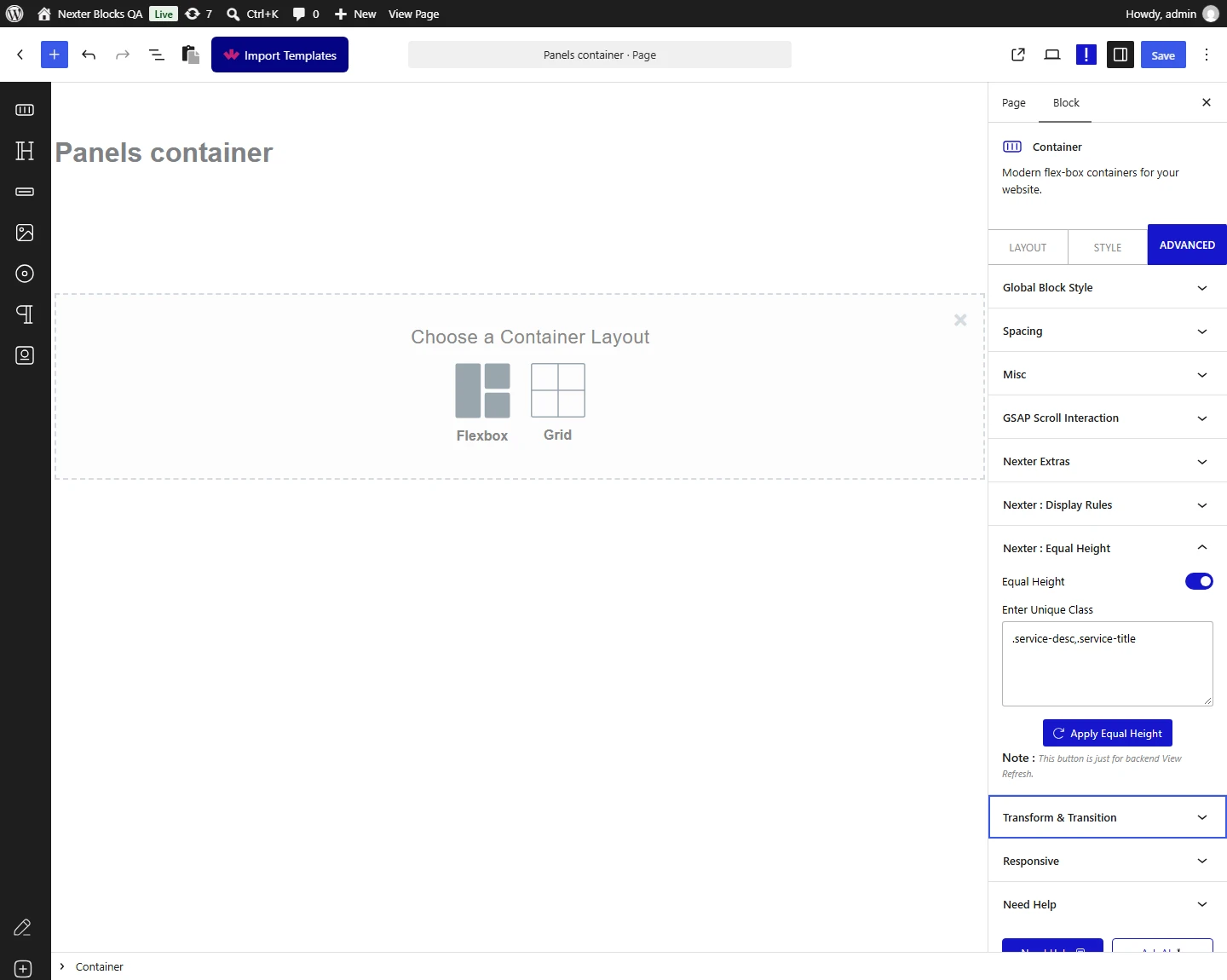
Return to the WordPress editor, select the main container, and go to Advanced > Nexter : Equal Height > Equal Height, then turn on the toggle.
Paste the class name with a period (.) in front, like .service-desc, into the Enter Unique Class field.
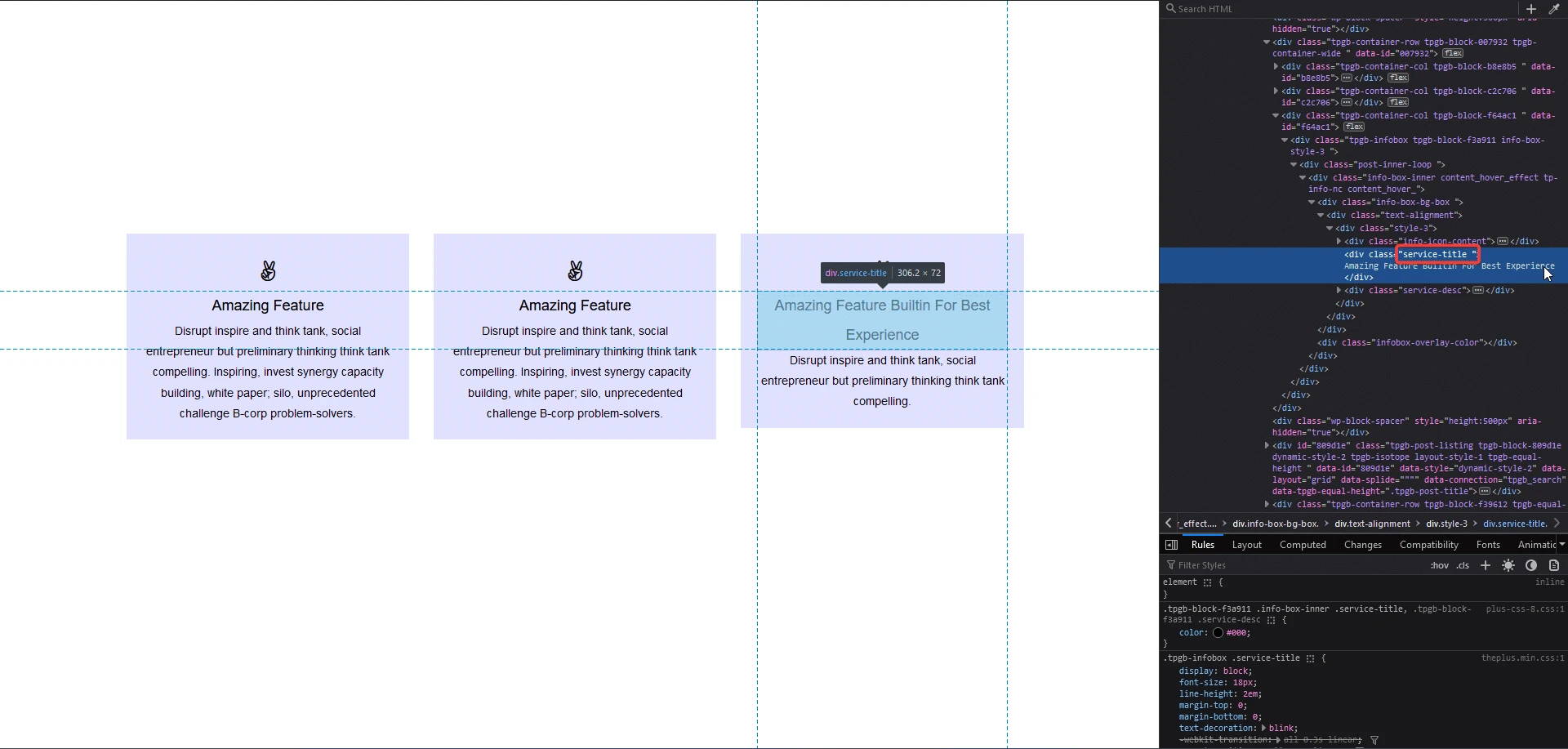
Now inspect the title element on the frontend to find its class name. In this example it is service-title.

Return to the editor. To add a second class, place a comma after the first class name and add the second class with a period (.) in front, with no spaces. In this example the result is .service-desc,.service-title.

Click Apply Equal Height. All infobox blocks are now equal in height, with titles and descriptions aligned across each card.