












A grid forces every card to the height of the tallest one in its row, which looks orderly until one person has a three-line bio and everyone else has one.
Masonry lets each card be its own height and packs them together, so the gaps close up.
For every Team Member setting in one place, see the Team Member feature guide.
Before You Start
- Edition: Pro — this layout needs Nexter Blocks Pro. Measured on a published page: without Pro the members still render, but as a plain grid with none of this layout’s behaviour.
- Block to enable: Team Member, switched on under Nexter > Blocks in your WordPress dashboard.
Steps
- Add the Team Member block and add your people to the member list.
- Set Layout to Masonry.
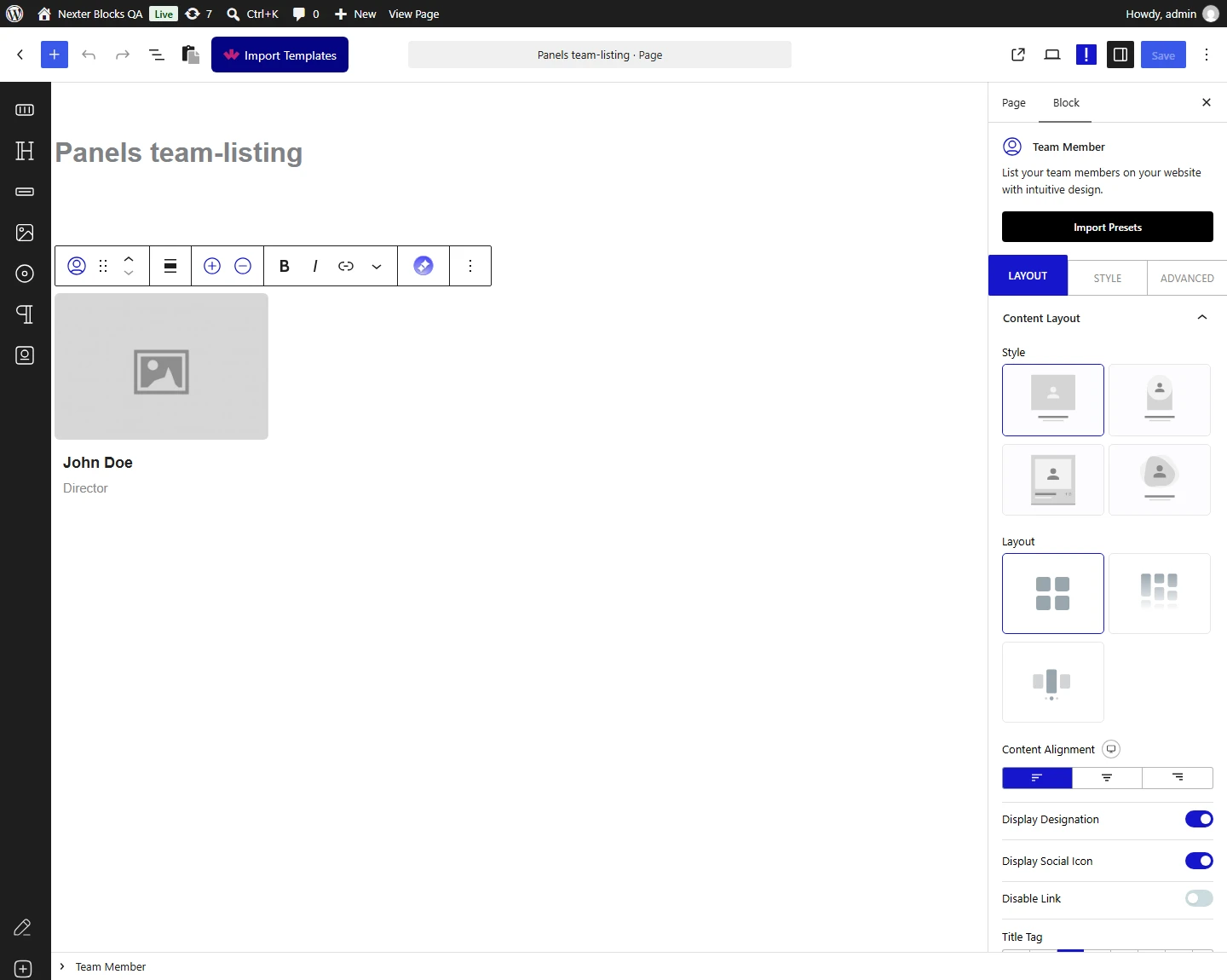
- Set the column count for each screen size.
- Check the result — cards should now vary in height and pack together.

How It Behaves
- Cards keep their own height and are packed into columns rather than rows — measured on a published page, the block switched to its isotope layout mode.
- Without Nexter Blocks Pro this falls back to a plain grid. Measured with Pro switched off: the members still rendered, but the masonry layout was not applied at all.
- The effect only shows when cards genuinely differ in height — identical bios give a result indistinguishable from a grid.
- Masonry works with the category filter, unlike the carousel layout.
Limitations
- Pro only — measured, the free plugin renders a plain grid instead.
- Reading order follows columns, not rows, which can put people in an order you did not intend — check it if the sequence matters.
- With cards of equal height masonry looks identical to grid, so it is only worth choosing when bios vary.
- Layout is calculated in the browser, so cards can shift slightly as images finish loading.
Troubleshooting
Masonry looks exactly like grid
Two possibilities, both measured: Nexter Blocks Pro is not active, in which case masonry falls back to a plain grid; or all your cards are the same height, in which case there is nothing for masonry to pack differently.
The cards overlap or jump on load
The layout is calculated once images have sizes. Make sure every member has a photo of a consistent aspect ratio.
My team is in a strange order
Masonry fills column by column rather than left to right. Use the Grid layout if the reading order matters.
