---
title: "How To Create a Team Member Listing in WordPress?"
url: https://nexterwp.com/docs/add-team-member-in-wordpress/
date: 2023-07-15
modified: 2026-09-28
lang: en
author: "Aditya Sharma"
description: "A team page is one of the few pages people read before deciding whether to trust you, and it lives or dies on looking current and consistent. The Team Member..."
image: https://nexterwp.com/wp-content/uploads/2024/05/team-member-block-settings-overview-1024x519.jpg
word_count: 535
---

# How To Create a Team Member Listing in WordPress?

## Key Takeaways

- Nexter Blocks Team Member block keeps photos, names, roles, and social links in one list, and it lays them out without hand-built columns.
- Nexter Blocks Team Member block is freemium: the member list itself and Grid layout work in the free version, while Masonry, Carousel, Style 2, and the category filter need Nexter Blocks Pro.
- Nexter Blocks Team Member block sets categories in each member’s own Category field as a comma-separated list, and columns are set per screen size so a four-across desktop grid can drop to two on tablet.

A team page is one of the few pages people read before deciding whether to trust you, and it lives or dies on looking current and consistent.

The Team Member block keeps every person in one list — photo, name, role and social links — and lays them out without hand-built columns.

[LIVE BLOCK LINK](https://nexterwp.com/nexter-blocks/listing/wordpress-team-members/)

## Before You Start

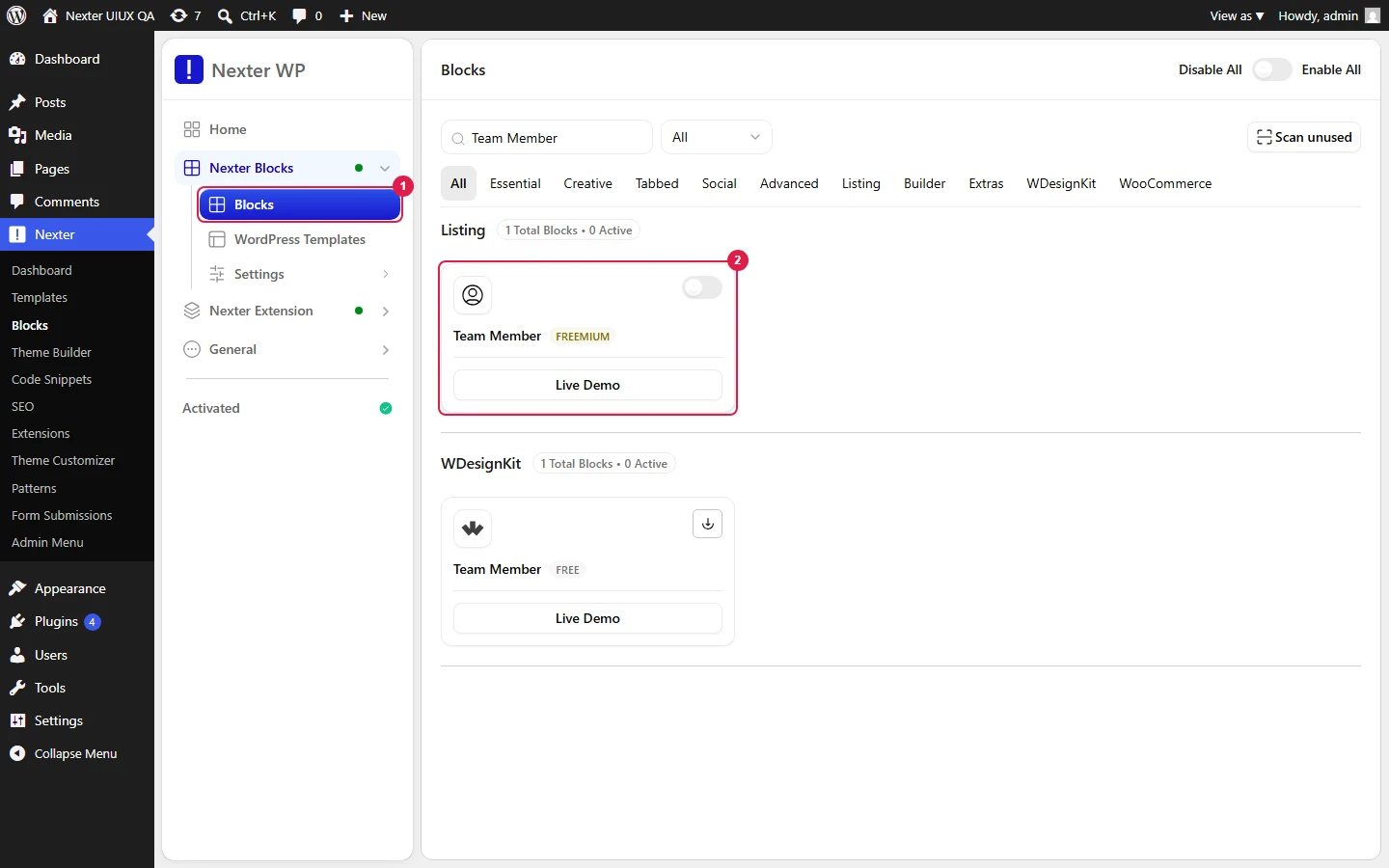
- **Edition:** Freemium — the member list itself and the Grid layout work in the free Nexter Blocks. Masonry, Carousel, Style 2 and the category filter need Nexter Blocks Pro.- **Block to enable:** Team Member, switched on under **Nexter > Blocks** in your WordPress dashboard.

## Video Tutorial

https://www.youtube.com/watch?v=GZJHbKO0kcc

## Steps

- Add the **Team Member** block to your page.

![Enabling the Team Member block in Nexter > Blocks](https://nexterwp.com/wp-content/uploads/2023/07/team-member-activation-new-1.webp)

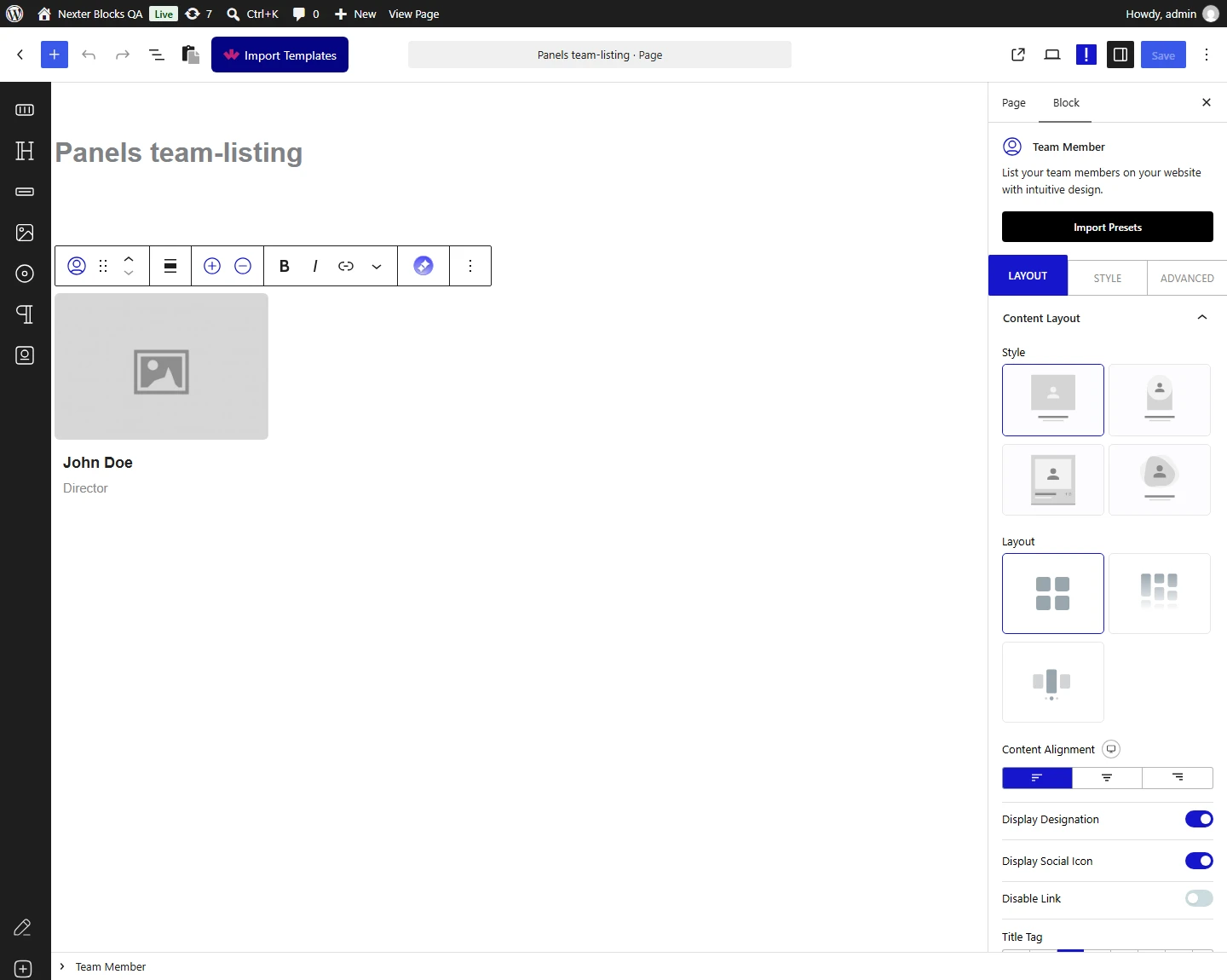
- Add a member for each person and fill in their name, role and photo.
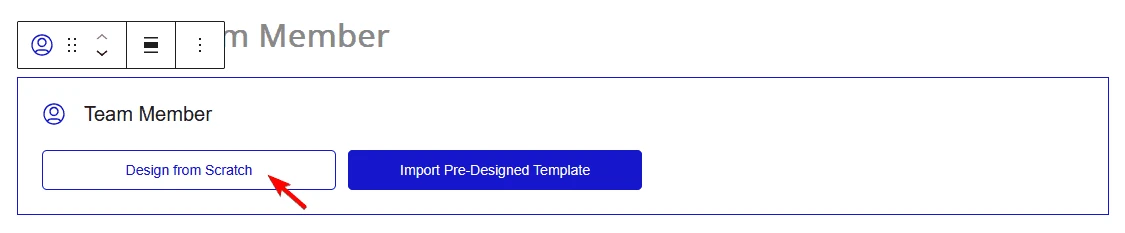
![The member list settings](https://nexterwp.com/wp-content/uploads/2023/07/team-member-design-type.webp)

- Add each person's social and contact links.

![Team Listing block, Content Layout panel in the Layout tab](https://nexterwp.com/wp-content/uploads/2026/09/rs-team-listing-layout-content-layout.webp)

- Choose a **Layout** — Grid works on the free plugin; Masonry and Carousel need Pro.
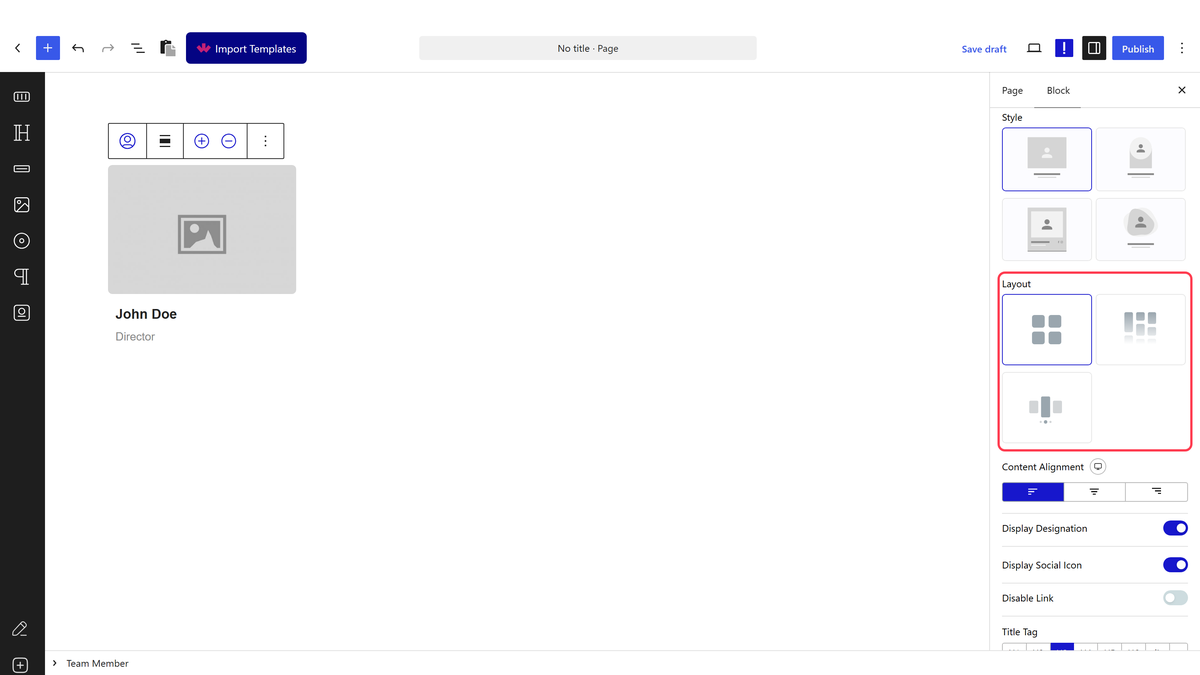
![The layout options](https://nexterwp.com/wp-content/uploads/2026/09/tm-overview-layout.webp)

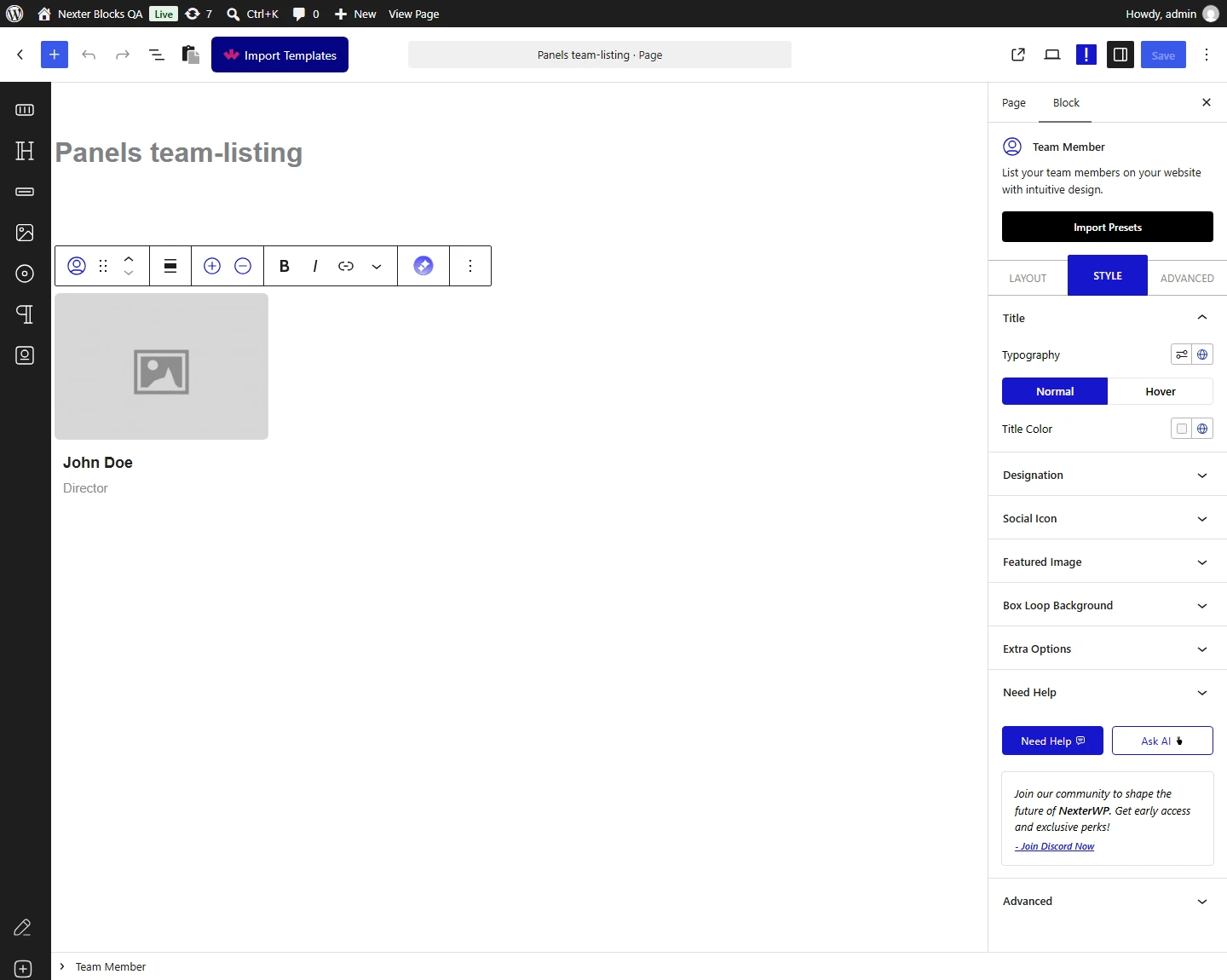
- Pick a **Style** and adjust the columns for each screen size.
![Team Listing block, Title panel in the Style tab](https://nexterwp.com/wp-content/uploads/2026/09/rs-team-listing-style-title.webp)

## How It Behaves

This block is freemium. The split below was measured by publishing the same listing twice — once with Nexter Blocks Pro active, then again with Pro switched off:

| Feature | Free | Needs Pro |
| ------- | ---- | --------- |
| The member list itself — photos, names, roles, social links | Yes | — |
| Grid layout | Yes — measured rendering identically on both | — |
| Masonry layout | No — falls back to a plain grid | Yes |
| Carousel layout | No — renders as a static list, no slider | Yes |
| Style 2 | No — the cards render empty | Yes |
| Category filter | No — no filter bar at all | Yes |

- Each member is one row in the list, so reordering the team does not mean rebuilding the layout.- Categories are set on each member, in that member's own **Category** field, as a comma-separated list. The block-level fields only set the labels on the filter bar. See [the category filter doc](https://nexterwp.com/docs/add-category-wise-filter-in-team-member-listing-in-wordpress/).- Columns are set per screen size, so a four-across desktop grid can drop to two on tablet.

## Limitations

- **Style 2 renders empty without Pro.** Measured with Pro switched off: the cards appear but contain no photo and no name. Stay on Style 1 on a free site.- **Masonry and Carousel silently fall back** rather than warning you — measured, the members still render but as an ordinary grid.- **The category filter does not appear on the Carousel layout.** Measured: with the filter switched on and the layout set to Carousel, no filter bar rendered at all, while the same settings on Grid produced it. Use Grid or Masonry if you need filtering.- The block lists people you enter by hand; it does not pull members from posts or users.

## Troubleshooting

### My cards are empty after choosing Style 2

Style 2 needs Nexter Blocks Pro. Measured with Pro off: the card wrappers render with no photo and no name inside them. Switch back to Style 1.

### My carousel is not sliding

The Carousel layout needs Pro. Measured without it, the members render as a plain static list with no slider markup at all.

### Masonry looks exactly like grid

That is the free fallback — measured, the masonry layout needs Pro and otherwise renders as an ordinary grid.

### My filter bar is missing

Two reasons, both measured: the filter needs Pro, and it is not rendered at all on the Carousel layout. Use Grid or Masonry.

## Related Docs

- [Grid layout](https://nexterwp.com/docs/show-team-member-listing-in-grid-layout-in-wordpress/)- [Masonry layout](https://nexterwp.com/docs/show-team-member-listing-in-masonry-grid-layout-in-wordpress/)- [Carousel slider](https://nexterwp.com/docs/show-team-member-listing-in-carousel-slider-in-wordpress/)- [Category filter](https://nexterwp.com/docs/add-category-wise-filter-in-team-member-listing-in-wordpress/)

## Frequently Asked Questions

**Q: What do I need before creating a WordPress team member listing with this block?**
A: The Team Member block is freemium, so the member list itself and the Grid layout work in the free Nexter Blocks, while Masonry, Carousel, Style 2, and the category filter need Nexter Blocks Pro. The block also has to be enabled under Nexter &gt; Blocks in your WordPress dashboard. That split matters because free sites can still publish a basic team list, but advanced layouts and filtering depend on Pro.

**Q: Why are my team member cards empty after choosing Style 2?**
A: Style 2 needs Nexter Blocks Pro. With Pro switched off, the cards still render but the photo and name are missing, so it looks like an empty shell rather than a broken page. The practical fix is to stay on Style 1 on a free site, since Style 1 is the safe option when you do not have Pro active.

**Q: Why is my team member carousel not sliding?**
A: Carousel layout needs Nexter Blocks Pro. Without it, the members render as a plain static list with no slider markup at all, so there is nothing for the carousel behavior to animate. That means the issue is not usually your content order or card setup, but the missing Pro requirement for the layout itself.

**Q: Why does Masonry look exactly like a grid in my team listing?**
A: That is the free fallback behavior. Masonry needs Nexter Blocks Pro, and when Pro is off it renders as an ordinary grid instead of a masonry layout. The important detail is that the members still show up, so the layout change can look subtle unless you know to expect the fallback.

**Q: Why is my filter bar missing on a WordPress team member listing?**
A: Two things can hide it: the category filter needs Nexter Blocks Pro, and it does not render at all on the Carousel layout. On Grid or Masonry, the same settings can produce a filter bar, but Carousel suppresses it completely. If filtering matters, use Grid or Masonry instead of Carousel.

**Q: What is the best layout choice for a team member listing if I want filtering?**
A: Grid is the safest choice because it works in the free plugin and supports the category filter when Pro is active. Masonry also supports filtering, but both Masonry and Category filter need Nexter Blocks Pro. Carousel is a poor fit for filtering because no filter bar renders on that layout at all.