












A gallery is the fastest way to show work, products or a video library without writing any layout code.
The Media Listing block in Nexter Blocks Pro turns a set of images or videos into a grid, masonry, metro or carousel gallery, with an optional lightbox and category filter.
Before You Start
- Edition: Pro — the Media Listing block is part of Nexter Blocks Pro.
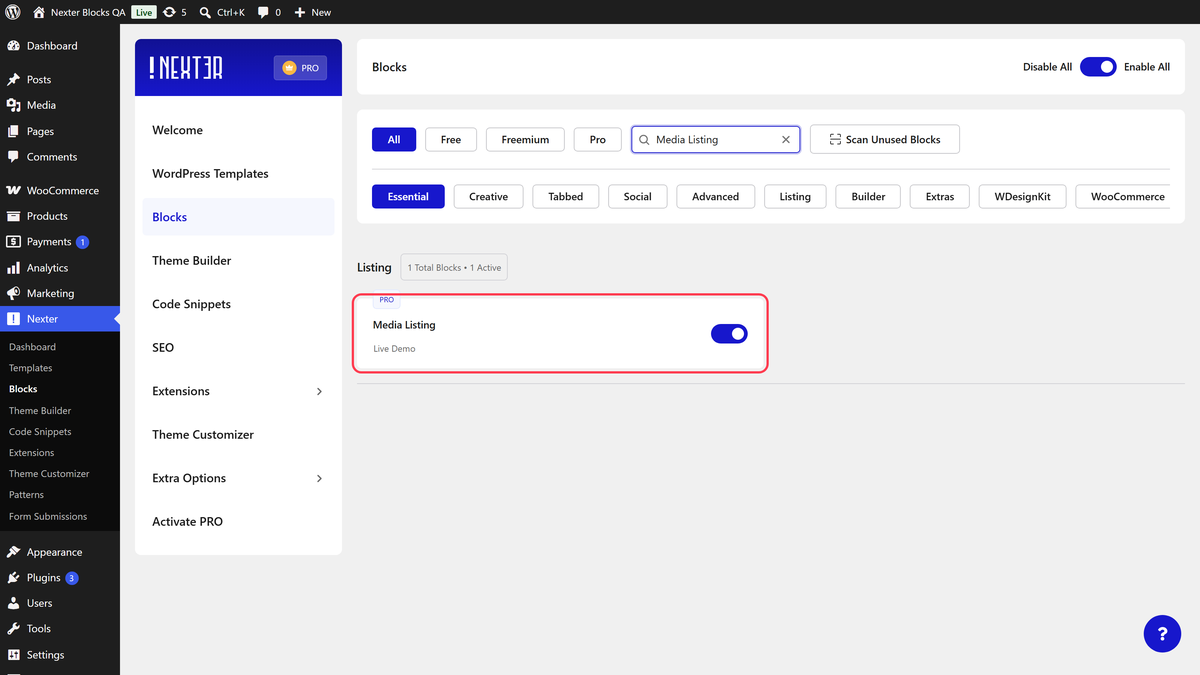
- Block to enable: Media Listing, switched on under Nexter > Blocks in your WordPress dashboard.
- Your images uploaded: add them to the Media Library first so you can pick them straight from the block.
Learn via Video Tutorial
Steps
- Add the Media Listing block to your page and click Design from Scratch.
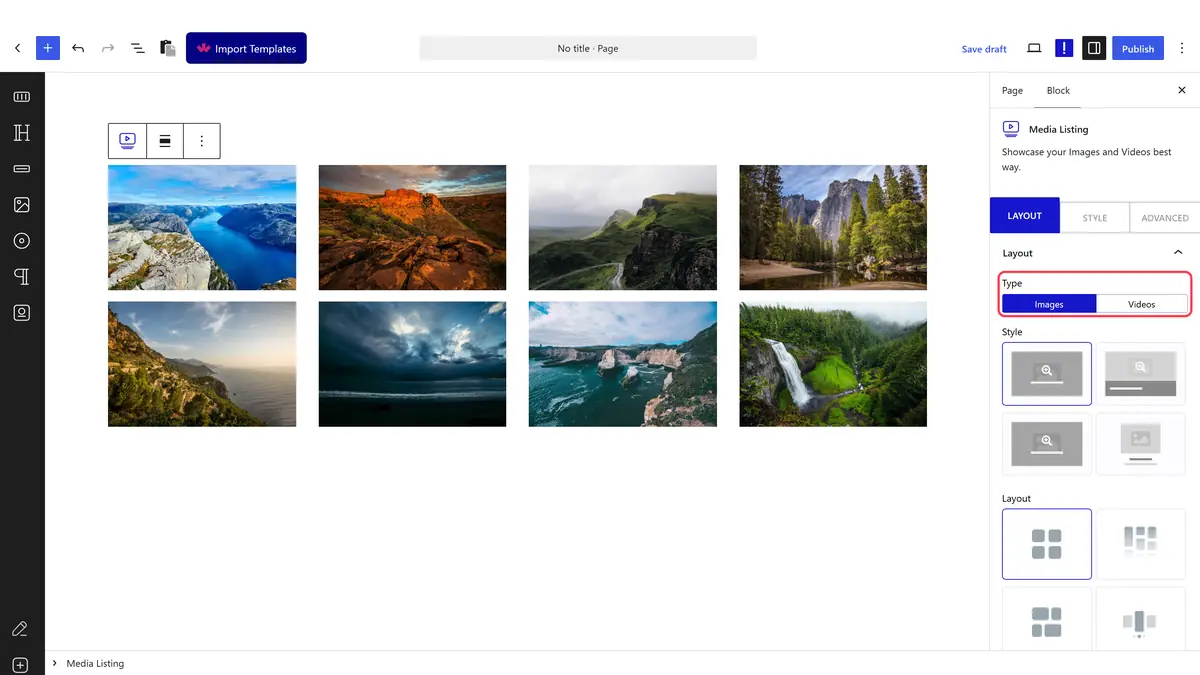
- In the Layout panel, set Type to Images.
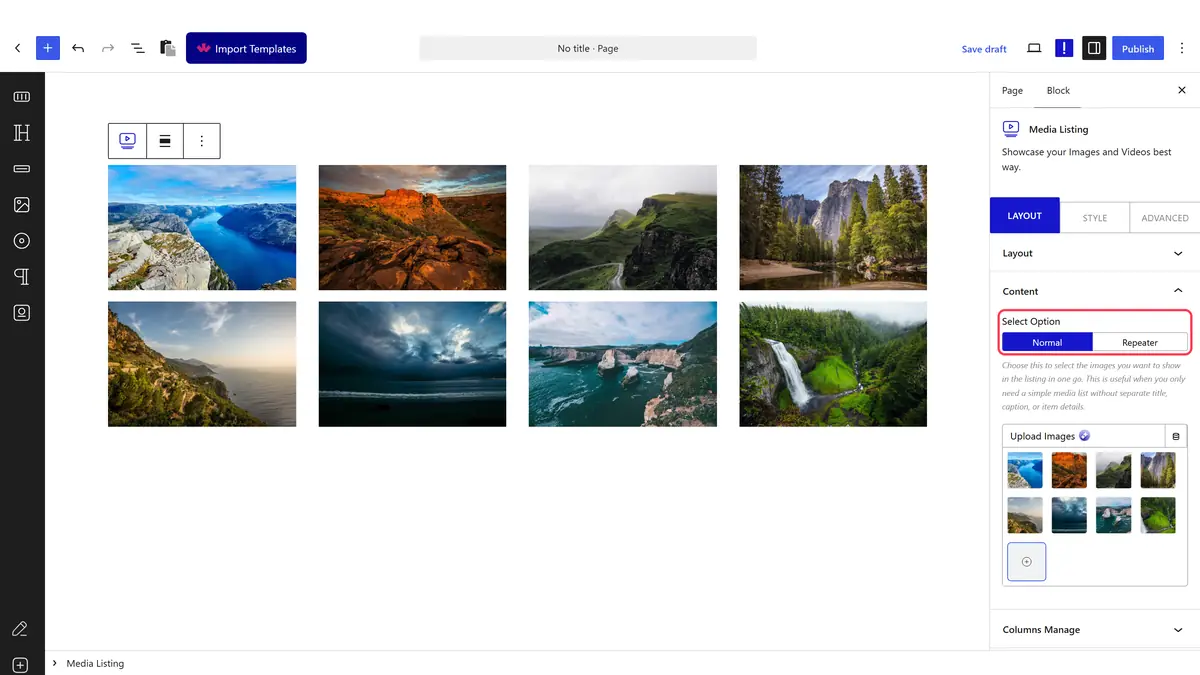
- Open the Content panel. With Select Option on Normal, pick your images from the Media Library.
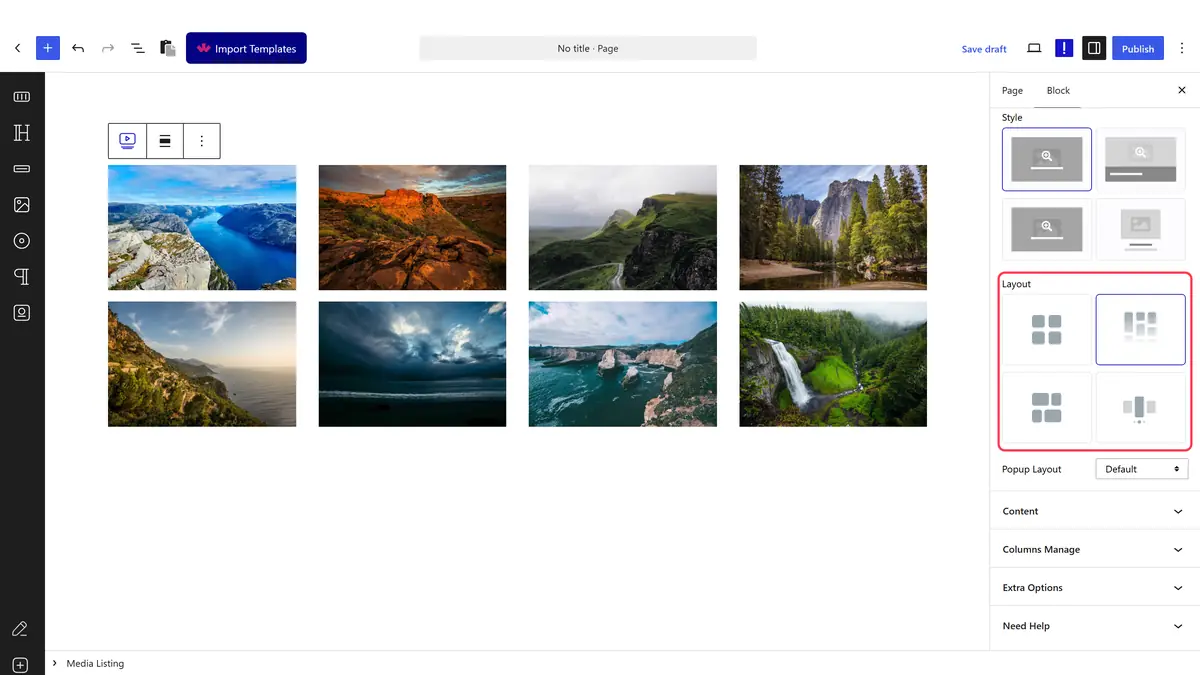
- Back in Layout, choose Grid, Masonry, Metro or Carousel.
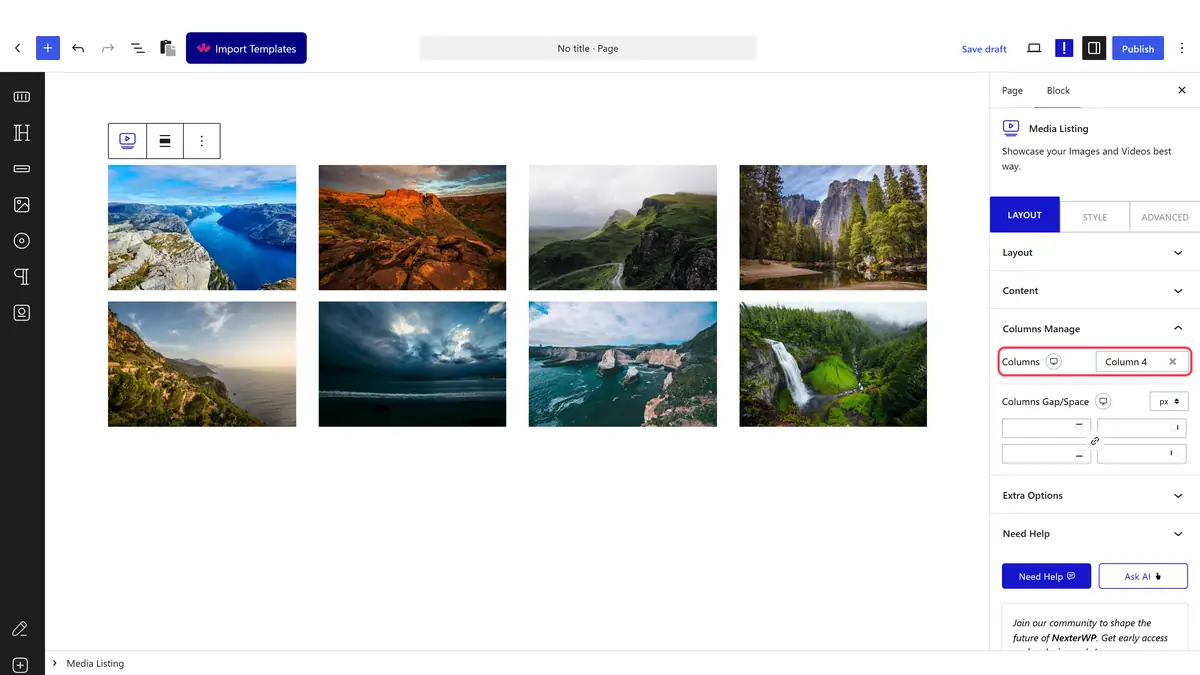
- In Columns Manage, set Columns for desktop, tablet and mobile.
- Decide whether clicking an image opens the lightbox using Popup Layout, then publish.
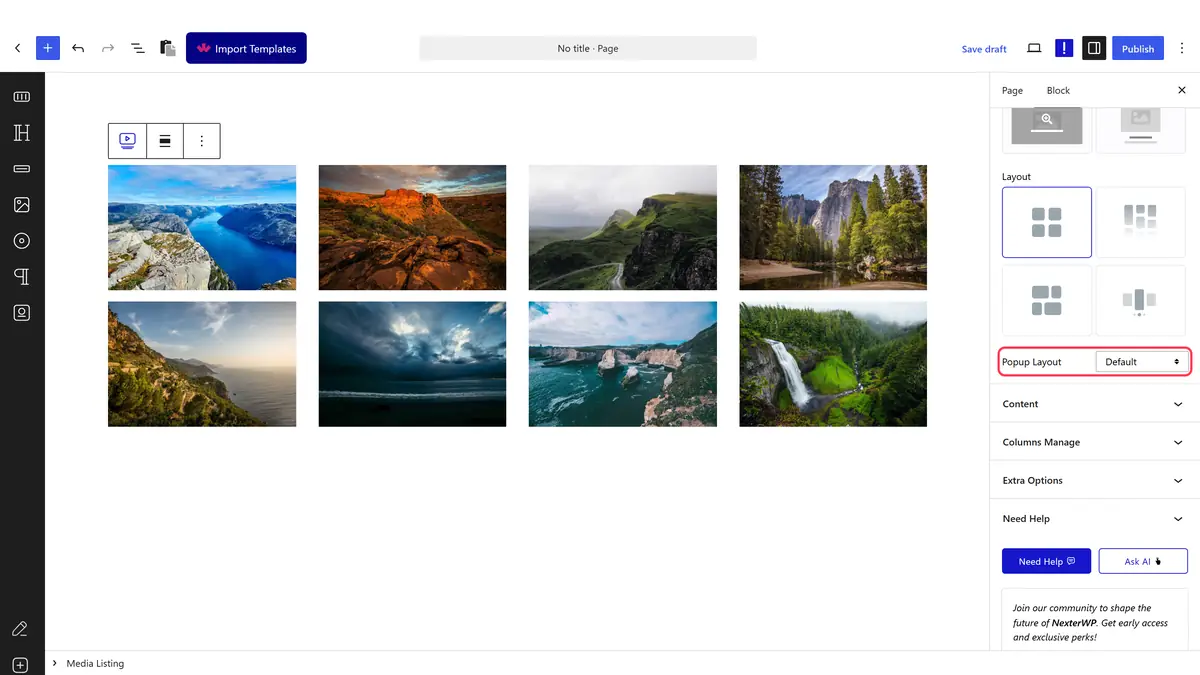
What Each Panel Controls
| Panel | What you set there |
|---|---|
| Layout | Type (Images or Videos), Style, Layout and Popup Layout |
| Content | Normal image picking, or Repeater items with their own title, caption, category and link |
| Columns Manage | Columns per device, Metro Column, Custom Layout and the gap between items |
| Filters | Category Wise Filter and the filter style |
| Extra Options | Box Link, Force Custom URL and the image size used |
Pick a Layout
| Layout | What it gives you | Guide |
|---|---|---|
| Grid | Even rows and columns, every tile the same height | Photo gallery grid |
| Masonry | Columns packed tightly, so tiles of different heights sit together | Masonry gallery |
| Metro | A mixed pattern of large and small tiles | Metro gallery |
| Carousel | A sliding row with arrows and dots | Image carousel |
How It Behaves
- With Popup Layout on Default, clicking a tile opens the image in a lightbox. Set it to No and the tiles stop opening anything.
- Normal content is just a list of images. Repeater gives each item its own title, caption, category and link, which is what the category filter and custom links need.
- Switching Type to Videos replaces the image picker with per item video sources: self hosted, YouTube or Vimeo.
- Columns is set per device, so a three column desktop gallery can drop to one column on a phone.
Limitations
- Pro only. The Media Listing block is not in the free plugin.
- The category filter needs Repeater content and does not appear on the Carousel layout.
- Masonry only looks different from Grid when your images have different shapes. A set of identically cropped photos renders the same either way.
- Custom per item links need the lightbox switched off, because the lightbox takes the click first.
Troubleshooting
The gallery is empty
Check that Select Option matches where your images are. Images added under Normal do not show while the block is set to Repeater, and the other way round.
The block is missing from the inserter
Switch Media Listing on under Nexter > Blocks in your dashboard.
Images look stretched or blurry
Set Display Image Size in Extra Options to a size close to how large the tiles actually render.
