












A portfolio grid is only useful if each photo leads to the project behind it.
The Media Listing block can give every item its own link, so clicking a tile opens that page instead of the lightbox.
For every Media Listing setting in one place, see the Media Listing block guide.
Before You Start
- Edition: Pro — the Media Listing block is part of Nexter Blocks Pro.
- Block to enable: Media Listing, switched on under Nexter > Blocks in your WordPress dashboard.
- Your images uploaded: add them to the Media Library first so you can pick them straight from the block.
Steps
- Add the Media Listing block to your page and click Design from Scratch.
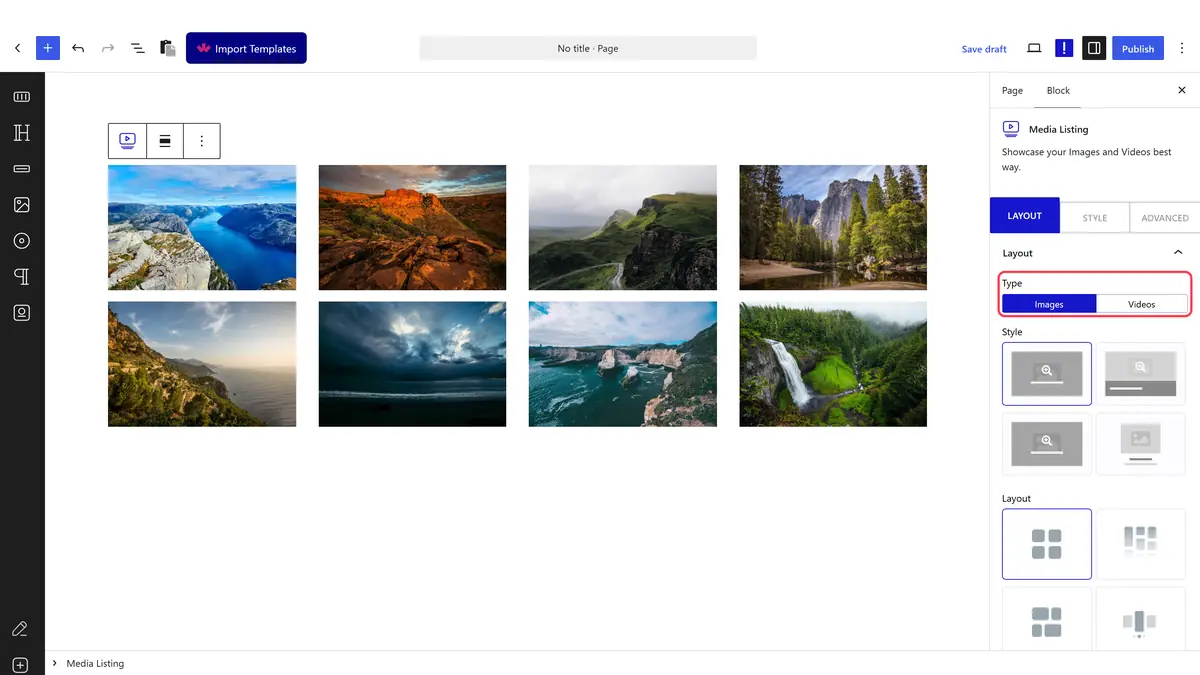
- In the Layout panel, set Type to Images.
- Open the Content panel and set Select Option to Repeater.
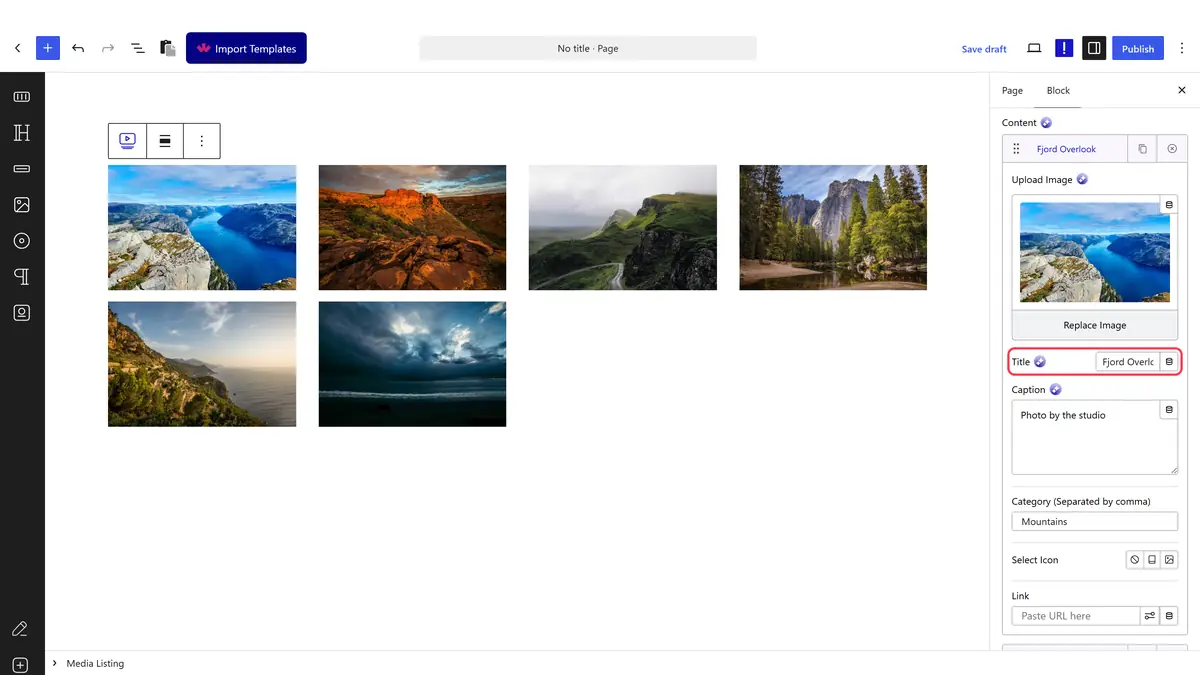
- Click + Add Item for each photo, then set its Image, Title and Caption.
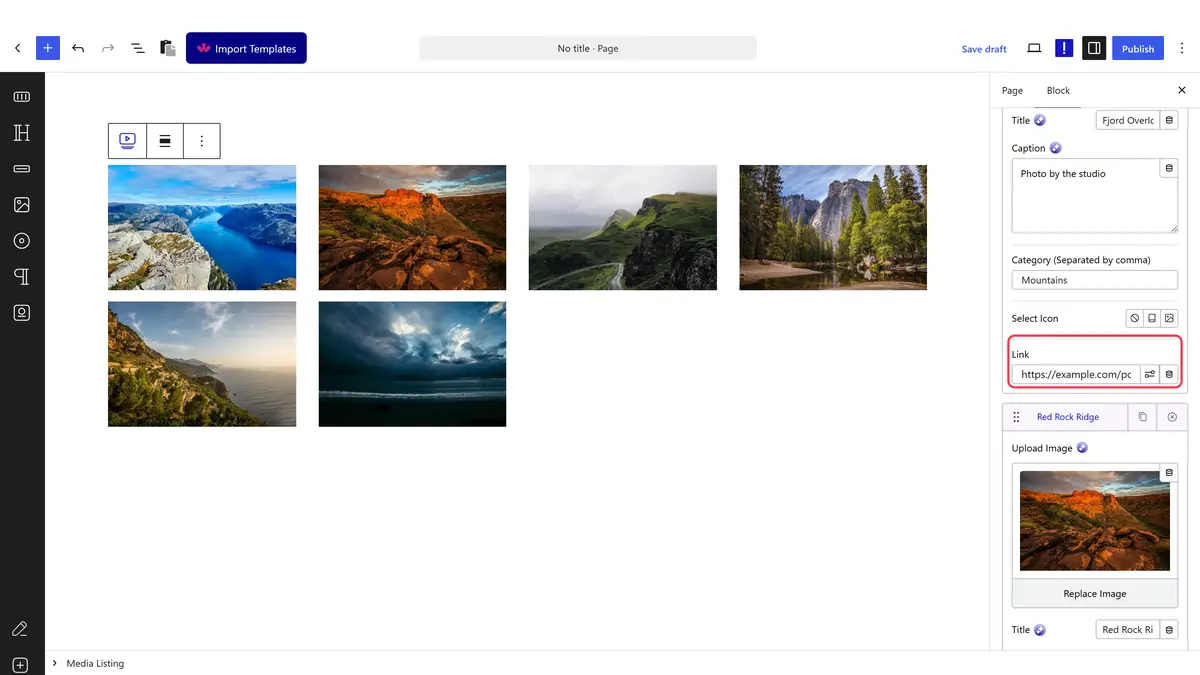
- Fill in the Link field on each item with the page it should open.
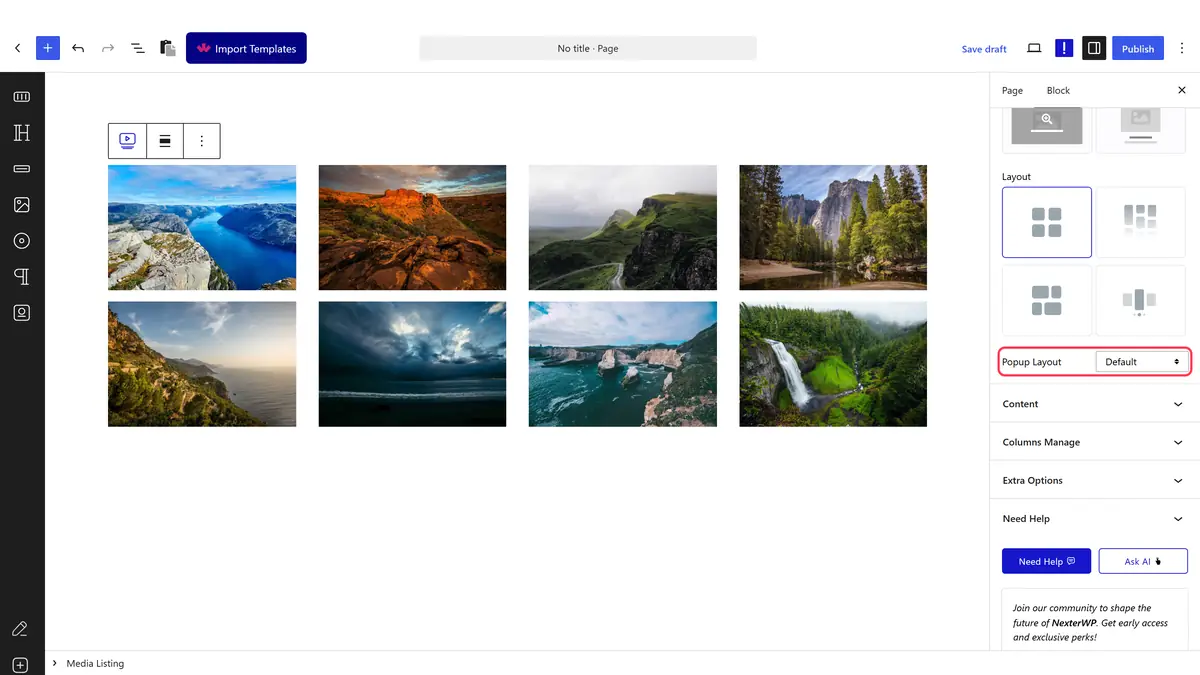
- Back in Layout, set Popup Layout to No so the lightbox stops taking the click.
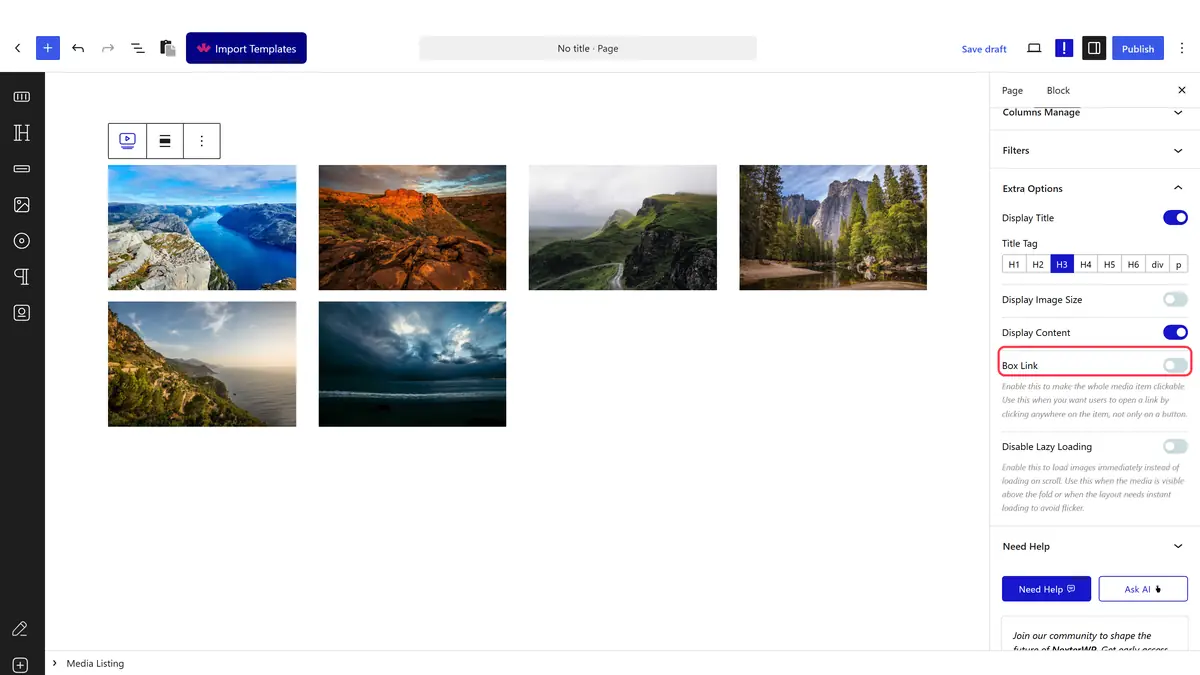
- Open Extra Options and switch Box Link on so the whole tile is clickable.
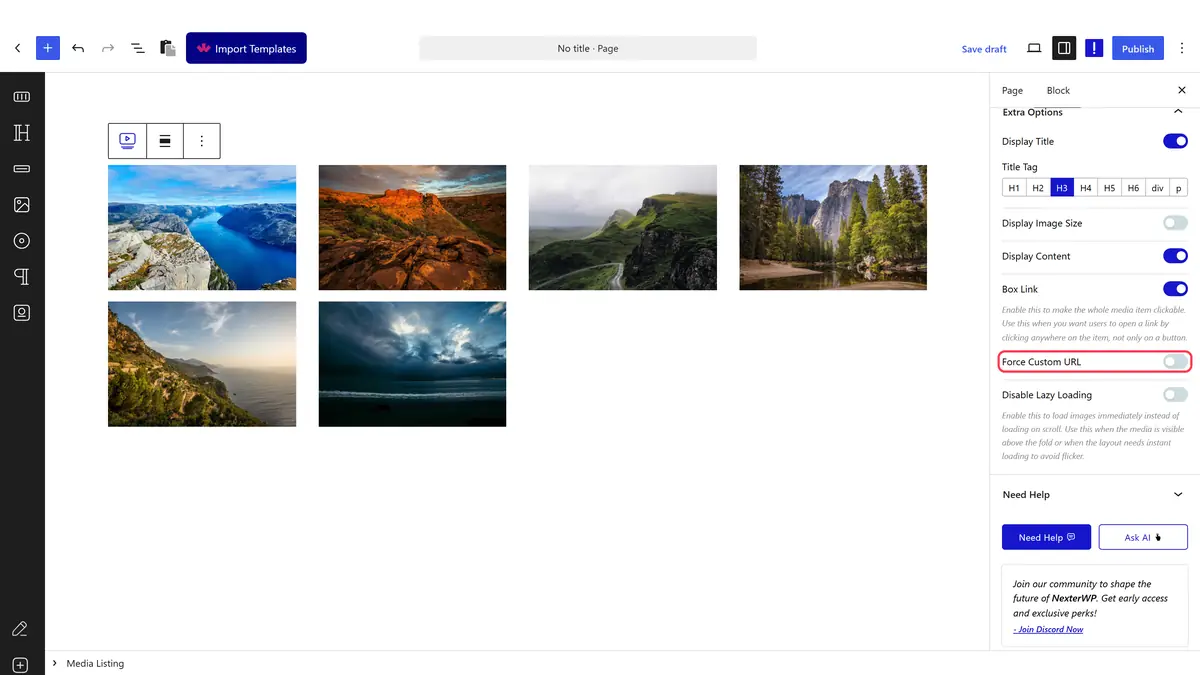
- Switch Force Custom URL on so the item’s own link is used, then publish.
All Three Settings Are Needed
| Setting | Where | Why it matters |
|---|---|---|
| Popup Layout = No | Layout | While the lightbox is on it intercepts the click and the link never runs |
| Box Link = on | Extra Options | Makes the whole tile clickable rather than just the title |
| Force Custom URL = on | Extra Options | Uses the Link you typed on the item instead of the image file |
How It Behaves
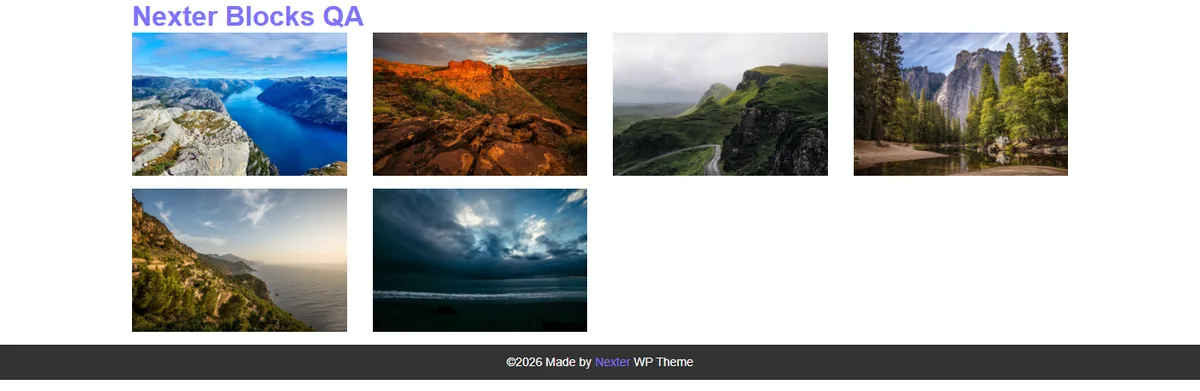
- Each tile links to the address on its own repeater item, and items with an empty link stay unclickable.
- With all three settings in place the gallery has no lightbox triggers left at all.
- Links can point anywhere, including other sites, and each item keeps its own open in a new tab setting.
- Leaving any one of the three off falls back to the previous behaviour, usually the lightbox.
Limitations
- Pro only.
- Links need Repeater content. Images picked under Normal have no link field.
- You cannot have the lightbox and custom links at the same time. It is one or the other per gallery.
- Links are typed per item, so a changed URL has to be updated on every item that uses it.
Troubleshooting
Clicking a photo still opens the lightbox
Popup Layout is still on Default. Set it to No.
Clicking opens the image file instead of my page
Switch Force Custom URL on in Extra Options.
Only the title is clickable
Switch Box Link on so the click area covers the whole tile.
