---
title: "How to Create a WordPress Mega Menu?"
url: https://nexterwp.com/docs/create-a-wordpress-mega-menu/
date: 2024-12-02
modified: 2026-04-14
author: "Aditya Sharma"
description: "Do you want to create a WordPress mega menu? Mega menus are large, multi-column drop-down menus that display a wide range of options and subcategories in a single panel, providing..."
image: https://nexterwp.com/wp-content/uploads/2024/12/How-to-Create-a-WordPress-Mega-Menu_-1024x519.jpg
word_count: 871
---

# How to Create a WordPress Mega Menu?

## Key Takeaways

- Utilizes the Navigation Menu block from Nexter Blocks to create a WordPress mega menu.
- Requires installation and activation of Nexter Blocks for full functionality of the Navigation Menu block.
- Incorporates a multi-level dropdown by selecting menu levels from 0 Level to 6 Level in the menu settings.
- Offers options for mobile optimization, including the Mobile Mega Menu Link toggle and responsive settings.

Do you want to create a WordPress mega menu? Mega menus are large, multi-column drop-down menus that display a wide range of options and subcategories in a single panel, providing a more efficient and organized way for visitors to navigate a website.

With the Navigation Menu block from the Nexter Blocks, you can easily create a WordPress mega menu.

*To check the complete feature overview documentation of the Nexter Blocks Navigation Menu block, [click here](https://nexterwp.com/docs/add-a-navigation-menu-in-wordpress/).*

***Requirement  - This block is a part of the Nexter Blocks, make sure it's installed & activated to enjoy all its powers.***

[LIVE BLOCK LINK](https://nexterwp.com/nexter-blocks/builder/wordpress-navigation-menu/)

## Create Patterns for Mega Menu

To create the mega menu using the Navigation Menu block you have to create patterns for each mega menu item.

Then to create a mega menu item follow the steps - 

1. From the Dashboard go to **Appearance** > **Patterns **> **Add New Pattern**.

2. Click On the **Add New Pattern** section, it will open a popup.

3. Then, add the Pattern name, keep the **Synced** toggle enabled, and click on the **Add** button.

4. On the next screen create the menu using any WordPress blocks and then publish it.

Following this process, you have to create all the mega menu items that you want in your mega menu.

## Create the Mega Menu

To do this, add the Navigation Menu block to the header template and follow the steps -

> *Note: To create the header template, you can use the free *[*Nexter Builder*](https://nexterwp.com/docs/nexter-theme-builder-explained/)*.*

### Add Top Level Menu

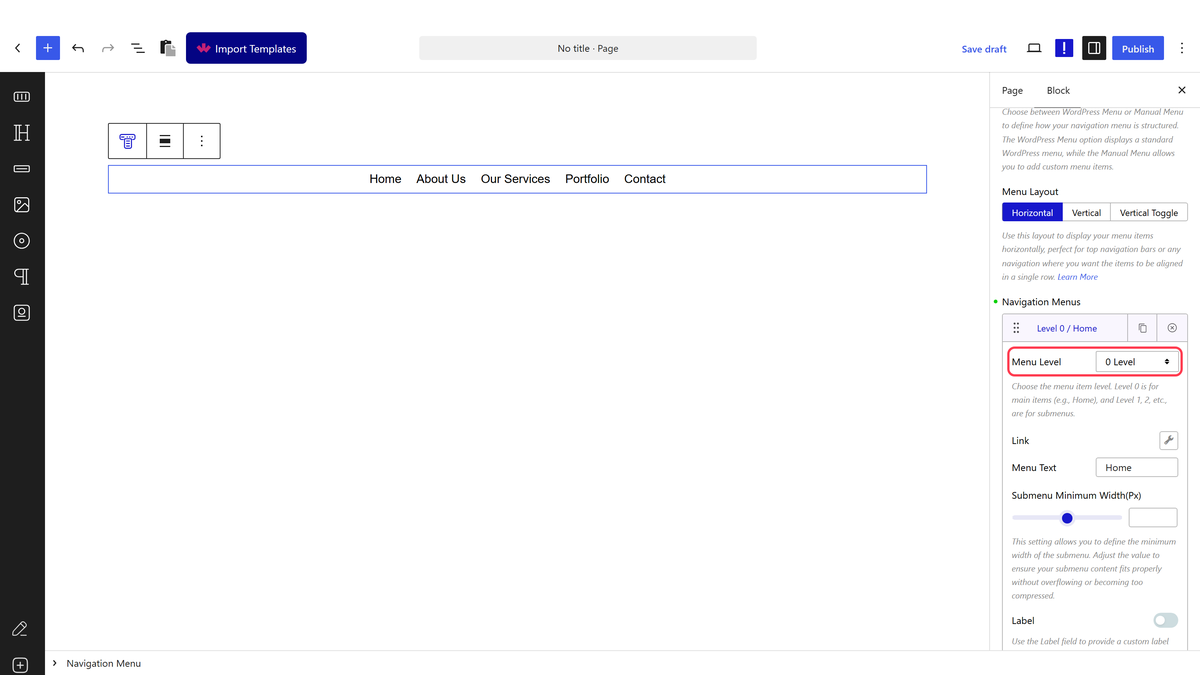
1. Select **Manual Menu** from the **Type** section. 

2. Then select **Horizontal** from the **Menu Layout** section.

3. Now you’ll see an item under the **Navigation Menus** section. Open the item.

![](https://nexterwp.com/wp-content/uploads/2024/12/navigation-menu-manual-menu.gif)

4. From the **Menu Level** dropdown, you have to select the menu level. Here you’ll find 0 Level to 6 Level, 0 Level being the top level menu subsequently followed by other levels.

So to create the top level menu, you have to set the **Menu Level** to **0 Level**.

5. In the **Link** field, you can add the URL of the item.

6. In the **Menu Text** field, you have to add the label name of the menu item.

From the **Submenu Minimum Width (Px)** section, you can set the dropdown content width.

From the **Label** toggle, you can add an additional label to the menu item. You can also manage the label’s color and background from here.

You can add an icon or image to the menu item from the **Menu Icon Type** section.

In the **Custom Class** field, you can add a class name to target the menu item with custom CSS or JS.

7. Then click on the **+ Add Menu** button to add more items.

> *Note: To make top level menu items, make sure you have set ****0 Level**** in the ****Menu Level**** in each item.*

### Add Sub Menu (Mega Menu)

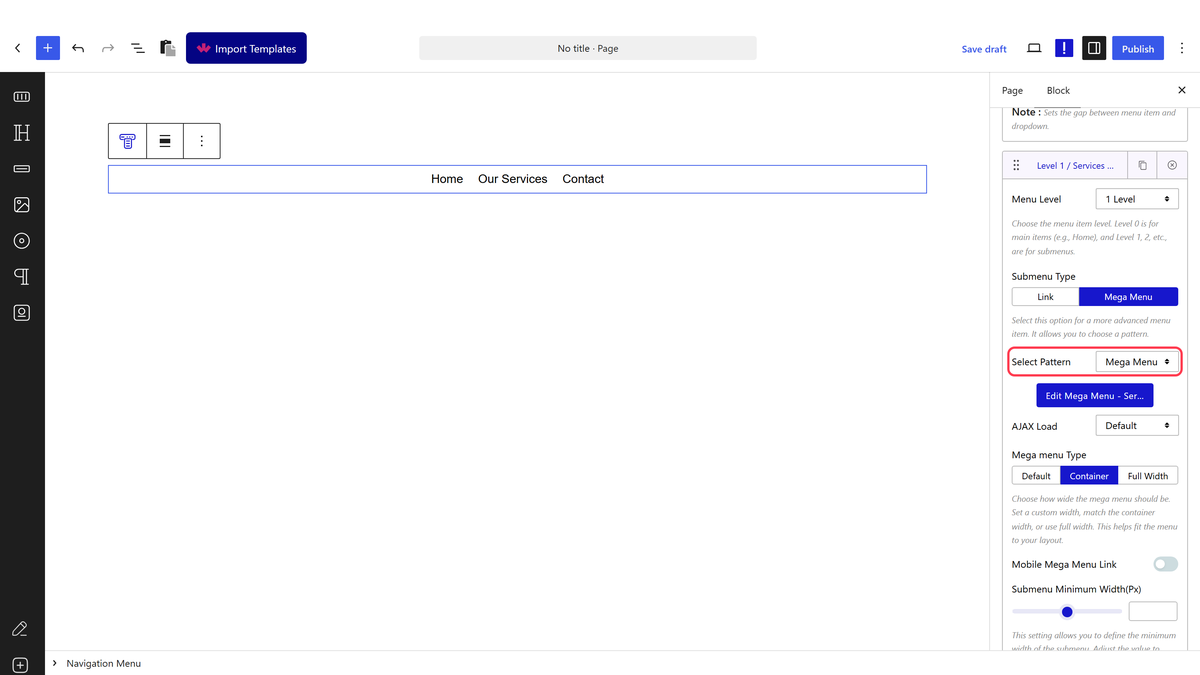
1. To add a submenu, click on the **+ Add Menu** button to add an item.

2. Open the new item, and select **1 Level** from the **Menu Level**.

![](https://nexterwp.com/wp-content/uploads/2024/12/navigation-menu-manual-menu-mega-menu.gif)

> *Note: For sub menu, you have to put the sub menu items below its top level menu item to show them in the dropdown.*

> *Note: Similarly, you can create a multi level dropdown menu by selecting subsequent levels and placement.*

3. From the **SubMenu Type,** you have to select the sub menu type. Here you’ll find two options - 

- **Link** - For creating a normal dropdown menu.

- **Mega Menu** - For creating a mega menu.

For the **Link** option, you’ll get the same options as in the top level menu, additionally you can add a description to the item.

Let’s select the **Mega Menu** option here. 

4. From the **Select Pattern** dropdown, select your pattern.

> *Note: You can also create a Pattern from here by clicking on the ****Create Pattern**** button.*

From the **AJAX Load **section, you can select the content load type. Here you’ll find two options - 

- **Standard AJAX** - This will load the pattern in the viewport.

- **Default** - This will load the pattern normally.

> *Note: To make the Standard AJAX work, make sure to enable the ****Enable Ajax Templates**** toggle from ****Nexter Blocks**** > ****Extra Options**** > ****Settings****.*

From the **Mega menu Type** section, you can set the mega menu container width. You can set the width to default, container, or full width.

When you select the default width, you get options to set a custom width for the mega menu and content alignment.

By enabling the **Mobile** **Mega Menu Link** toggle, you can add a **dynamic link** and **menu text** for the sub menu item instead of the mega menu for mobile.

> *Note: For the ****Mobile*** ***Mega Menu Link**** to work make sure the ****Responsive Mobile Menu**** toggle is enabled in the ****Mobile Menu**** tab and ****Custom**** is selected in the ****Mobile Menu**** section.*

From the **Submenu Minimum Width (Px)** you can set the width of the sub menu when **SubMenu Type** is set to **Link**.

The rest of the options are the same as you’ll find in the top level menu.

Similarly, you can add more sub menu items by clicking on the **+ Add Menu** button.

That’s it now you’ll have a beautiful horizontal mega menu.

![](https://nexterwp.com/wp-content/uploads/2024/12/navigation-menu-manual-menu-mega-menu-demo.gif)