How to Create a Vertical Mega Menu in WordPress?

Key Takeaways

  • Nexter Blocks includes a Navigation Menu block that allows users to create a vertical mega menu in WordPress.
  • The vertical mega menu is particularly beneficial for websites with a large number of pages and categories.
  • Users must install and activate Nexter Blocks to access the Navigation Menu block features.
Table of Contents

Do you want to add a vertical mega menu to your WordPress website? This type of menu provides a more organized and user-friendly navigation experience for visitors. This type of menu is especially useful for websites with a large number of pages and categories.

With the Navigation Menu block from the Nexter Blocks, you can easily create a vertical mega menu in WordPress.

To check the complete feature overview documentation of the Nexter Blocks Navigation Menu block, click here.

Requirement  – This block is a part of the Nexter Blocks, make sure it’s installed & activated to enjoy all its powers.

To do this first, you have to create the patterns like the horizontal mega menu.

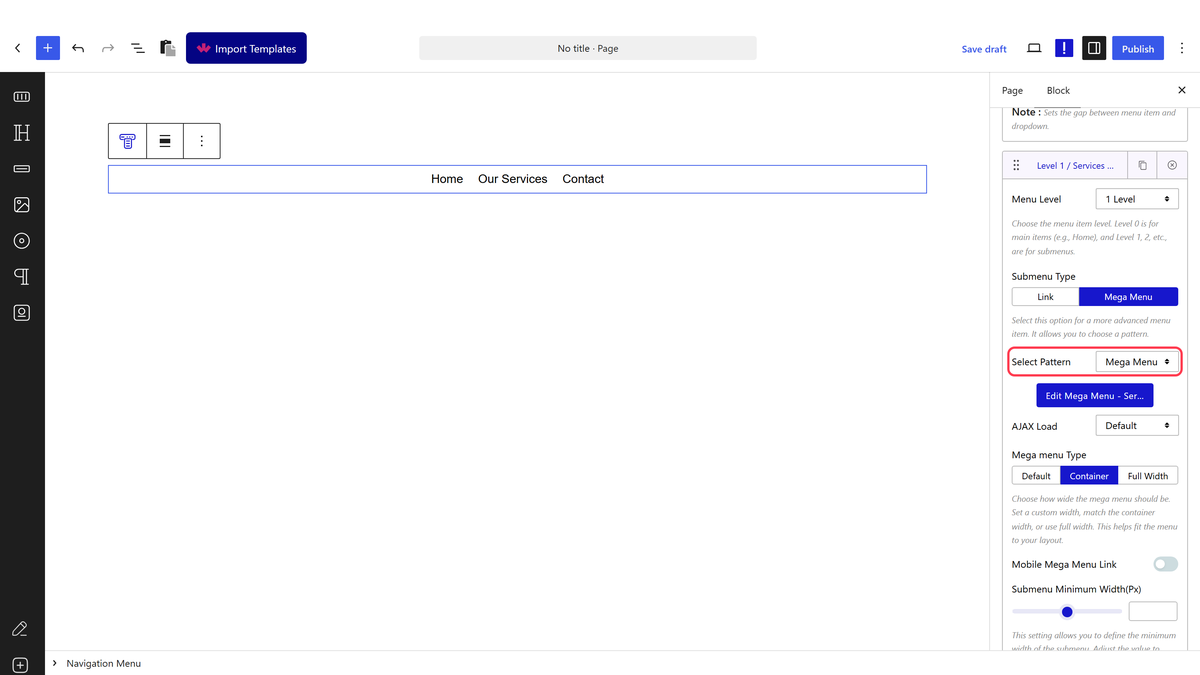
Then, add the Navigation Menu block to the header template and follow the steps –

Note: To create the header template, you can use the free Nexter Builder. 

1. Select Manual Menu from the Type section. 

2. Then select Vertical from the Menu Layout section.

navigation menu vertical ss

3. Then add the top level menu item like in the horizontal mega menu (from step 3).

4. Once done add the sub menu or mega menu items like in the horizontal mega menu.

That’s it now you’ll have a beautiful vertical mega menu.

navigation menu vertical ss demo

About the Author

Photo of Aditya Sharma CMO of NexterWP
CMO at POSIMYTH Innovations · NexterWP · 7 years experience

He has spent years in the WordPress ecosystem building, breaking, and optimizing sites until they actually perform. He works at the intersection of speed, growth, and usability, helping creators ship websites that load fast and convert. An active WordPress community contributor sharing through tools, tutorials, and direct collaboration. Tested practice, not theory.

WordpressThemesElementorn8nAIClaudeAutomationServer

Share your Thoughts

Get Instant Answers to all your questions about Nexter Blocks,
Extensions & Theme trained on 1000+ Docs and Videos

Still in Doubt? Let’s Assist You

Have Feedback or Questions?

Join our WordPress Community on Facebook!

Related Frequently Asked Questions

What if my vertical mega menu isn't displaying correctly?

If your vertical mega menu isn't displaying as expected, ensure that the Navigation Menu block from Nexter Blocks is installed and activated. This block is essential for creating the menu. Additionally, double-check that you've selected 'Vertical' from the Menu Layout section. If issues persist, consider clearing your browser cache or checking for conflicts with other plugins.

Can I use the vertical mega menu for a large e-commerce site?

A vertical mega menu is particularly beneficial for large websites, including e-commerce sites, as it organizes numerous categories and pages effectively. This layout enhances user navigation, allowing visitors to find products quickly. Using the Navigation Menu block from Nexter Blocks can streamline this process, making it easier to manage extensive product categories.

What settings work best for creating a vertical mega menu?

For optimal results when creating a vertical mega menu, start by selecting 'Manual Menu' in the Type section and 'Vertical' in the Menu Layout section. This setup allows for a structured hierarchy, making it easier for users to navigate through top-level and sub-menu items. Consistency in menu item naming can also improve user experience.

How do I add submenu items to my vertical mega menu?

To add submenu items to your vertical mega menu, first create the top-level menu item as you would in a horizontal mega menu. After that, you can add sub-menu or mega menu items directly beneath it. This hierarchical structure is crucial for maintaining organization and ensuring users can easily find related content.

Is there a way to customize the appearance of the vertical mega menu?

While the page does not specify customization options, using CSS can enhance the appearance of your vertical mega menu. You can target the Navigation Menu block with custom styles to adjust colors, fonts, and spacing, ensuring it aligns with your website's branding. This flexibility allows for a unique look that fits your site's design.

Last reviewed: April 14, 2026

Related Docs