A discount code printed as plain text gets skimmed past.
This block makes claiming one an action — a button that reveals the code, or a card the visitor peels, scratches or slides open.
Before You Start
- Edition: Pro — the Coupon Code block is part of Nexter Blocks Pro.
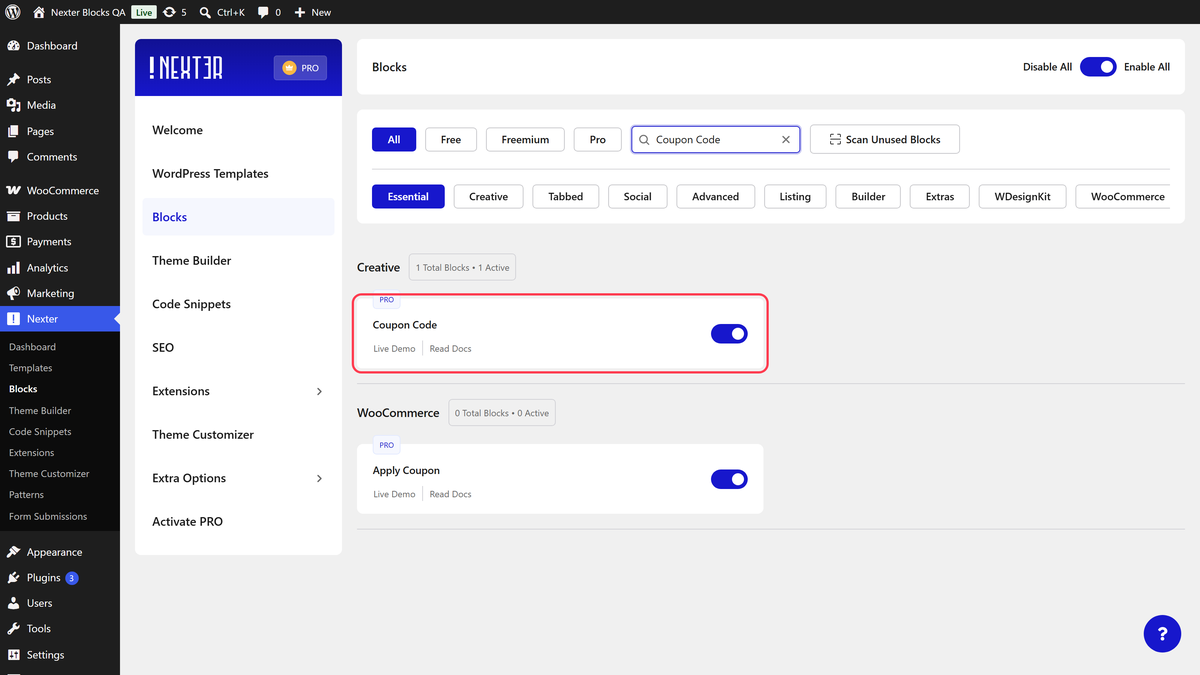
- Block to enable: Coupon Code, switched on under Nexter > Blocks in your WordPress dashboard.
- The code itself, and the page you want people sent to.

Steps
- Add the Coupon Code block and click Design from Scratch.
- Set Coupon Type to Standard.
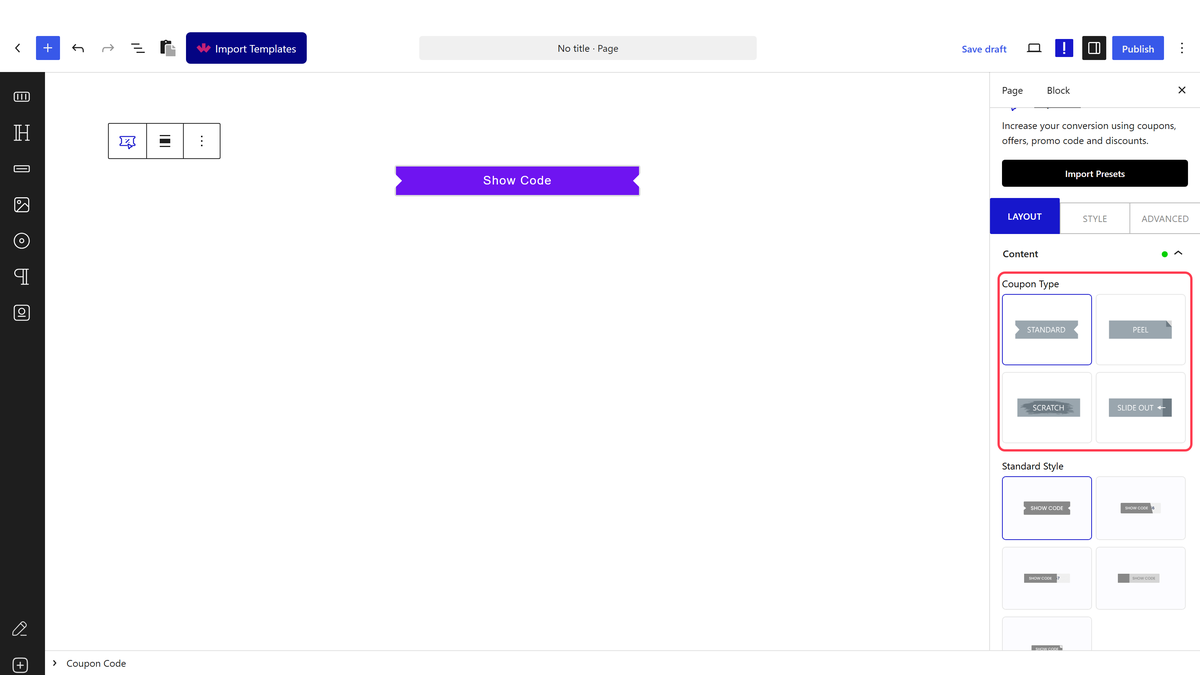
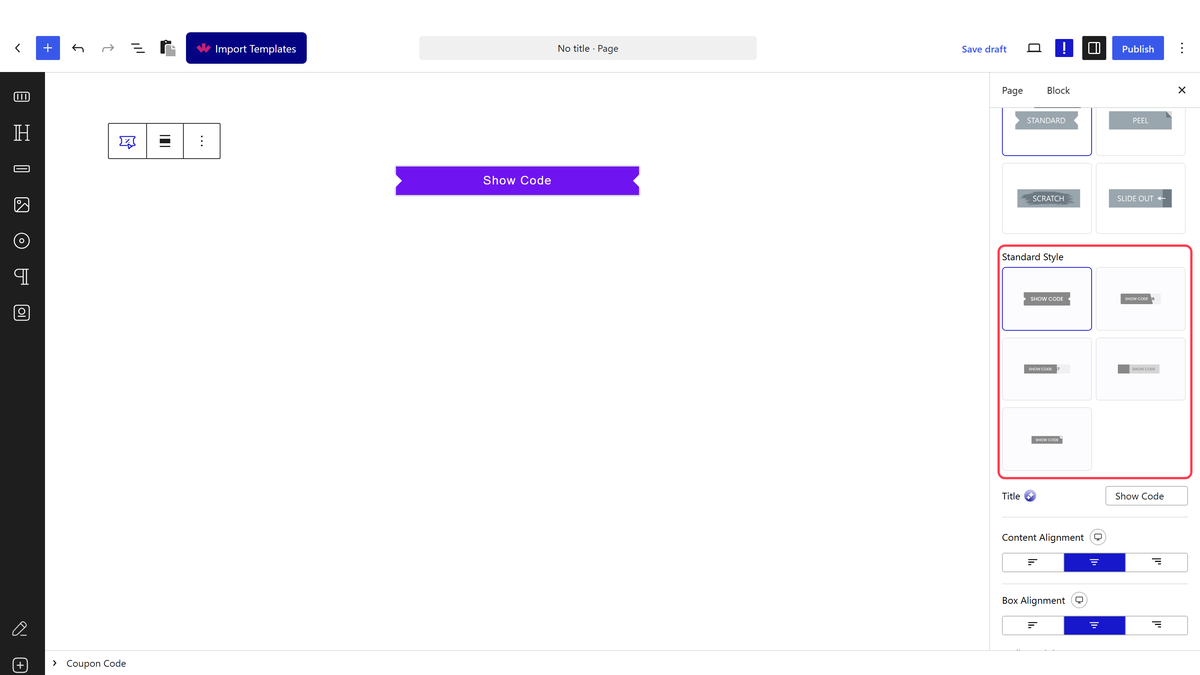
- Pick a Standard Style — there are five.
- Put your discount code in Code and the destination in Redirect Link.
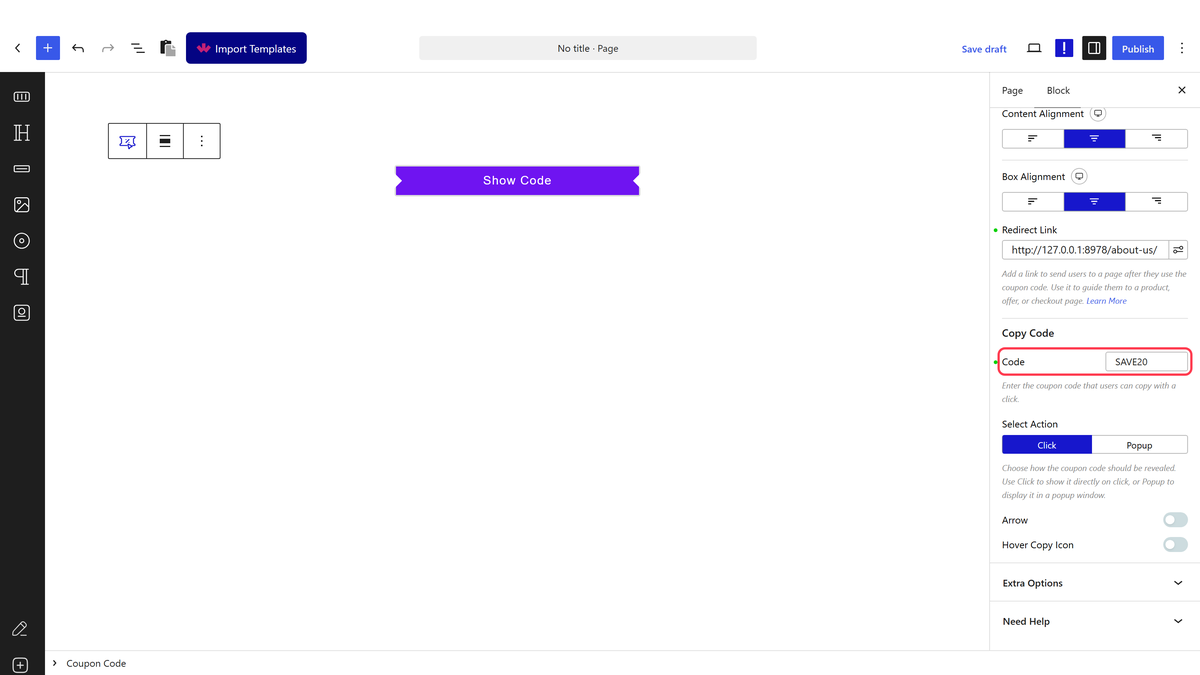
- Choose Select Action — reveal the code in place, or open it in a popup.
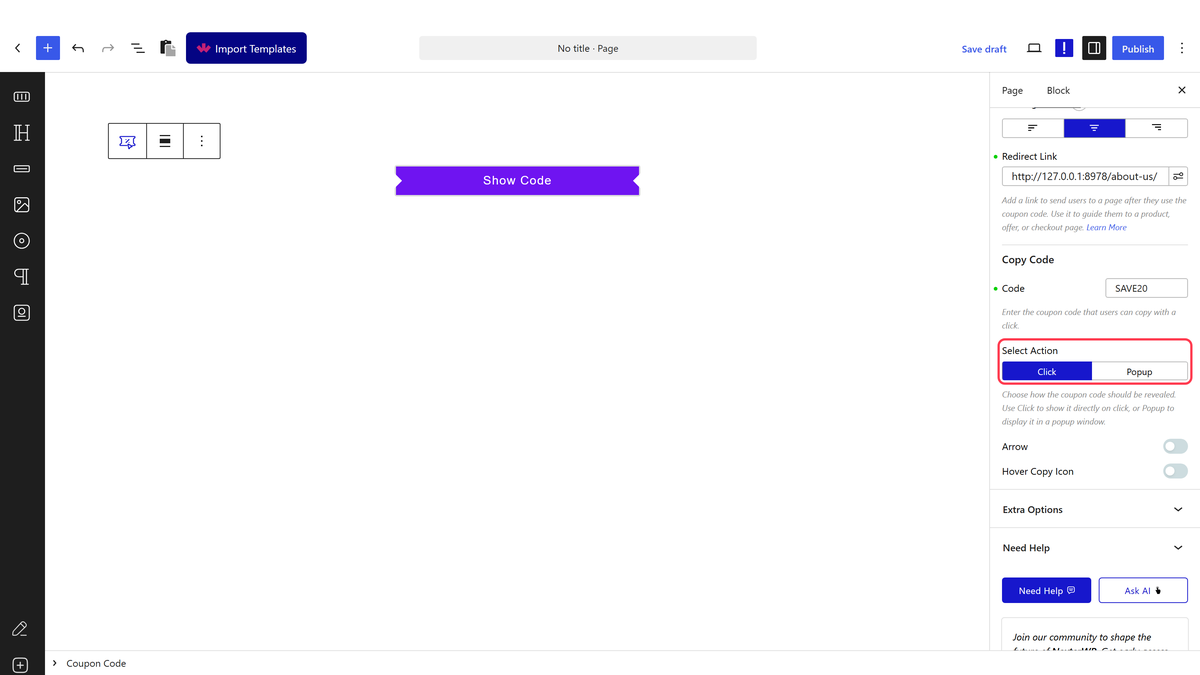
- Publish and click the coupon.
The code is in the page before anyone clicks. Measured on the front end: both the button label and the code are in the markup from the start, just hidden until the reveal. This is a presentation effect, not a way to gate a discount — anyone reading the page source has it.
The Four Coupon Types
| Coupon Type | What the visitor does | Guide |
|---|---|---|
| Standard | Clicks a button and the code appears | — |
| Peel | Peels back a corner to find the code | Peel-off card |
| Scratch | Scratches a surface away | Scratch card |
| Slide Out | Slides a panel aside | Slide-out card |
Where the Code Goes
This trips people up, because the editor does not say so. The Code field is used by the Standard type only. On Peel, Scratch and Slide Out the card has a front and a back, and the discount belongs in Back Description.
| Coupon Type | Put the code in |
|---|---|
| Standard | Code |
| Peel, Scratch, Slide Out | Back Description (or a pattern on the back) |
How It Behaves
- A Standard coupon is a link. The whole thing is an
<a href>pointing at Redirect Link, so clicking it takes the visitor to your site. See the redirection guide for same tab or new tab. - Select Action decides where the code appears — in place, or in a popup with its own title, description, copy button and visit button. See the discount popup guide.
- Scratch draws a real canvas over the card, and Fill Percent sets how much has to be cleared before the code shows.
- Save In Cookies remembers that a visitor already revealed the code, so they are not asked to do it again.
- The front and back of a card can be a pattern instead of plain text — see showing a promo code in a pattern.
Limitations
- Pro only.
- The code is in the page before anyone clicks. Measured on the front end: both the button label and the code are in the markup from the start, just hidden until the reveal. This is a presentation effect, not a way to gate a discount — anyone reading the page source has it.
- The Code field is ignored by three of the four types, as above. A code typed there for a Peel card simply never appears.
- Hide Link (Beta) changes the click. With it on the coupon reveals the code but no longer navigates — see the masked link guide.
- Scratch needs a pointer or a finger to drag. It works on touch, but not for anyone using a keyboard.
Troubleshooting
My code does not appear on the card
You have typed it into Code, which only the Standard type uses. Put it in Back Description instead.
Clicking the coupon takes people away from the page
That is the Redirect Link, and it is how the Standard type is meant to work. Use the popup action if you would rather keep them on the page.
People can see the code without clicking
They can — it is in the page source from the start. Treat the reveal as presentation, not protection.
The block is missing from the inserter
Switch Coupon Code on under Nexter > Blocks.