












Hovering a coupon normally shows the whole destination in the corner of the browser, affiliate tag and all.
Hide Link replaces what the status bar shows with a friendly phrase of your choosing.
For every Coupon Code setting in one place, see the Coupon Code block guide.
Before You Start
- Edition: Pro — the Coupon Code block is part of Nexter Blocks Pro.
- Block to enable: Coupon Code, switched on under Nexter > Blocks in your WordPress dashboard.
- The code itself, and the page you want people sent to.
Steps
- Add the Coupon Code block and click Design from Scratch.
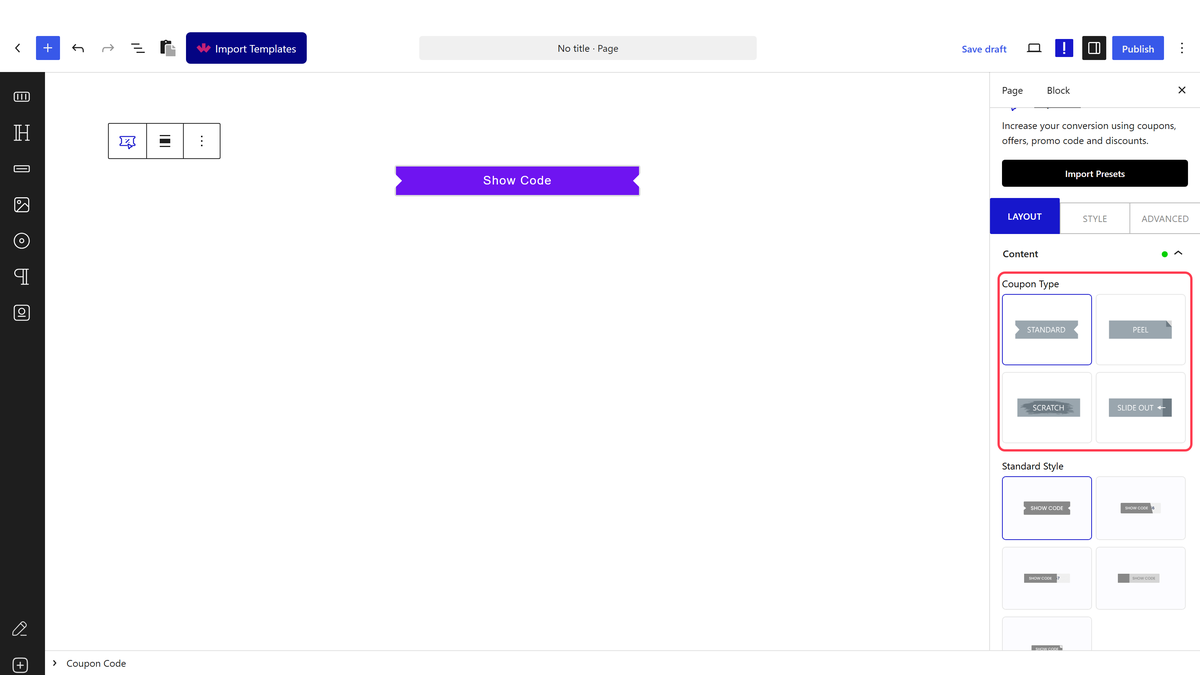
- Set Coupon Type to Standard.
- Open Extra Options and switch Hide Link (Beta) on.
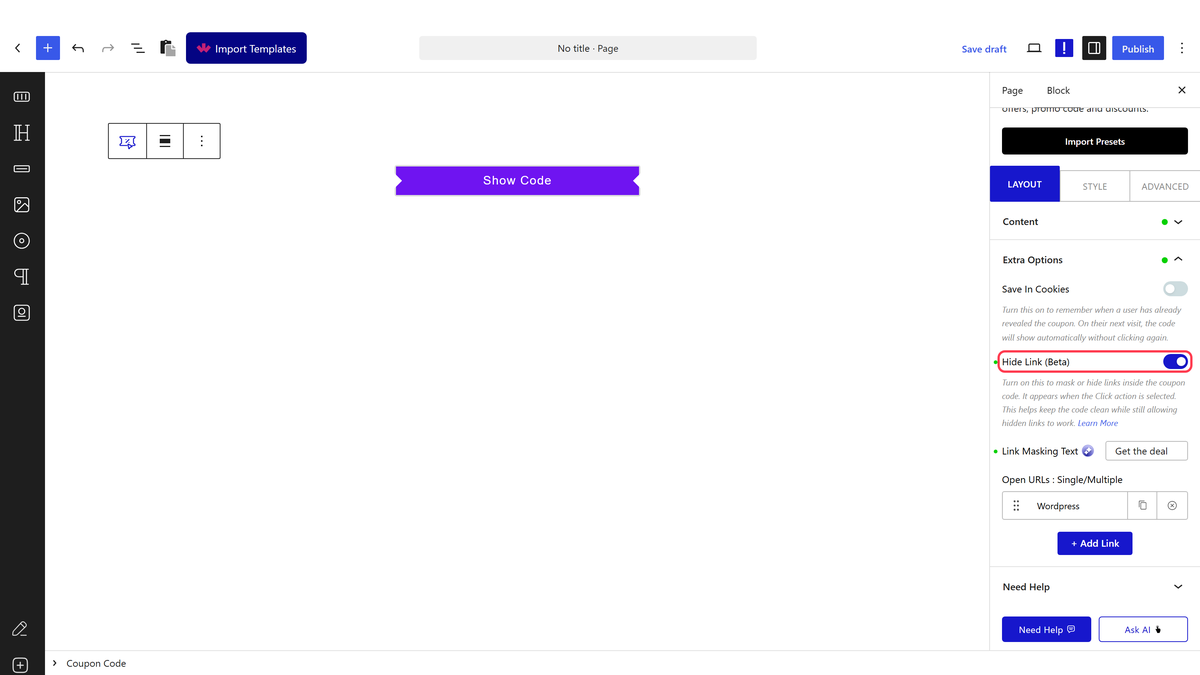
- Write the text you want shown in place of the address.
- Publish and hover the coupon.
How It Behaves
- Your text goes where the address normally sits. Measured: the link rendered as
href="Get the deal", so that is what the status bar shows on hover. - The real destination is still in the page. It is kept in a
data-hlsetattribute in plain sight — this hides the address from a casual hover, not from anyone who looks at the source. - It changes what a click does. Measured: with Hide Link on, clicking revealed the code and the page did not navigate and no tab opened, unlike an ordinary coupon.
- It is marked Beta in the editor, and behaves like it.
Limitations
- Pro only.
- This is not real concealment. Anyone who views the page source has the destination.
- The visitor is no longer taken to your site on click. If sending them there matters, use ” + a(REDIRECT_DOC, “an ordinary redirect”) + ” instead.
- The address written into the link is not a valid URL. If the block’s JavaScript fails to run, a click resolves your text as a page address and lands on a 404.
Troubleshooting
Clicking no longer takes people to my site
That is what this setting does. Switch it off if the visit matters more than the masking.
The address is still visible when I inspect the page
It is, in a data attribute. This hides it from the status bar only.
A click sends people to a broken page
The masked text is being used as an address because the script did not run. Switch Hide Link off.
