












A pale cursor vanishes on a pale section and a dark one vanishes on a dark section.
The Blend style mixes the circle into whatever is beneath it, so it stays visible everywhere and inverts as it crosses your design.
For every Mouse Cursor setting in one place, see the Mouse Cursor block guide.
Before You Start
- Edition: Pro — the Mouse Cursor block is part of Nexter Blocks Pro.
- Block to enable: Mouse Cursor, switched on under Nexter > Blocks in your WordPress dashboard.
- Nothing beyond the block itself.
Steps
- Add the Mouse Cursor block and click Design from Scratch.
- Set Cursor Area to Body.
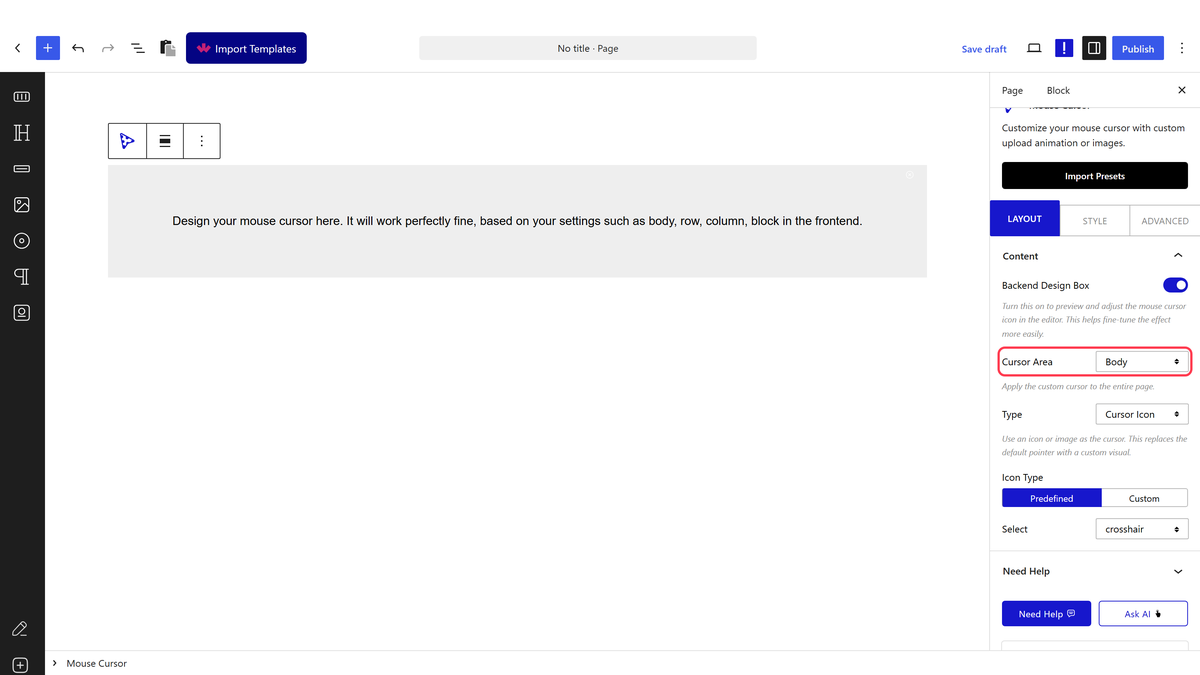
- Set Type to Follow Circle, with Circle Cursor Type on Predefined.
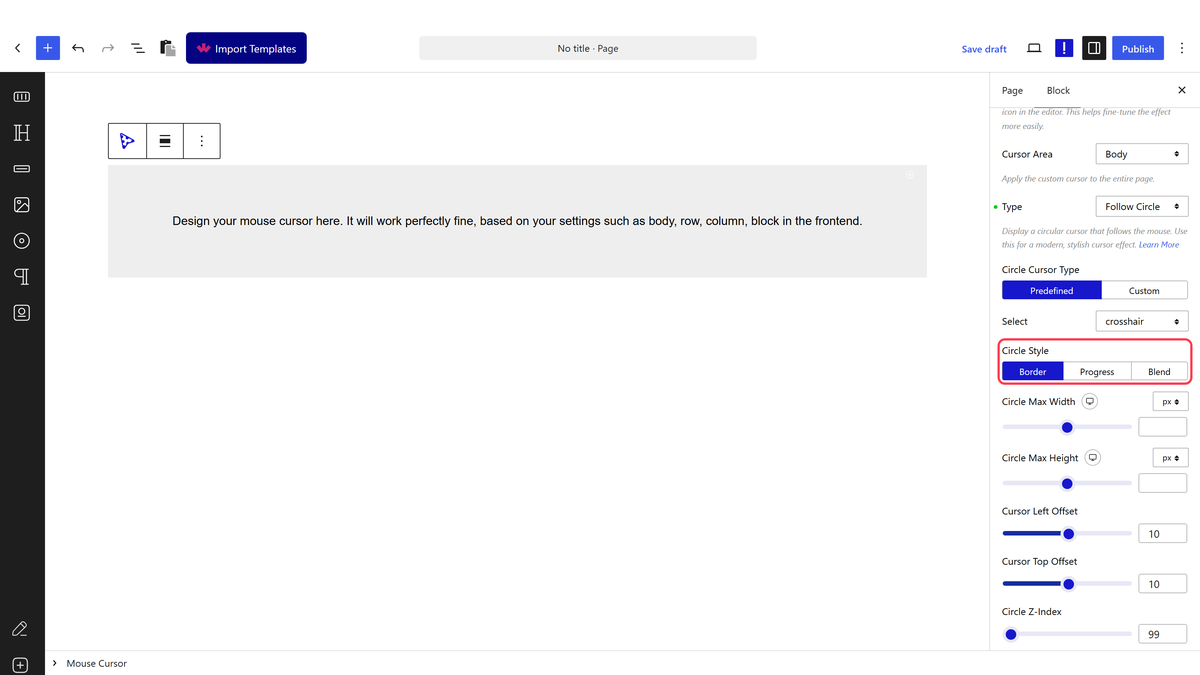
- Set Circle Style to Blend.
- Choose a Mix Blend Mode on the Style tab — difference is the one that inverts.
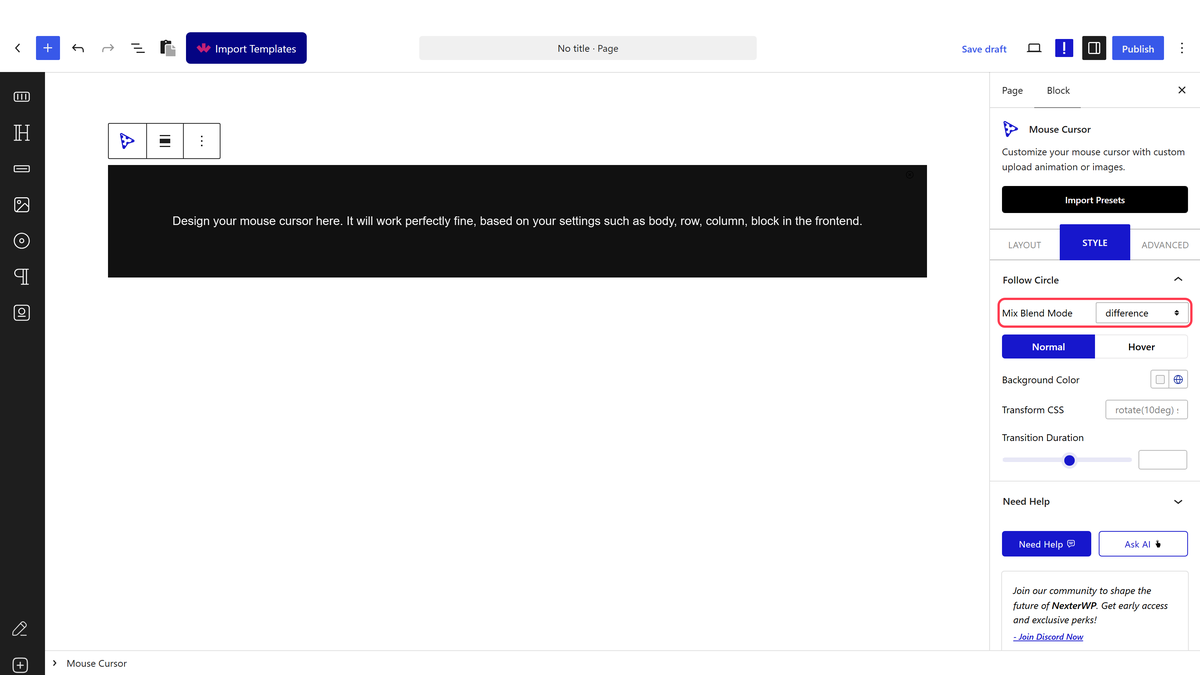
- Set the circle’s Background Color. White with difference gives the classic invert.
- Publish and move the mouse across light and dark parts of the page.
How It Behaves
- The blend really applies. Measured on the front end: the circle computed
mix-blend-mode: differencewith a white background, which is what inverts whatever is beneath it. - It works with Cursor Area set to Body, not just Block — measured on both.
- Sixteen blend modes are offered. difference and exclusion invert; multiply and screen darken and lighten instead.
- Because it takes its colour from the page, it stays visible over photographs as well as flat colour.
Limitations
- Pro only.
- Blending is a browser feature, so the result depends on what is underneath — over a busy photograph it can be hard to make out.
- Blend modes other than difference can make the circle disappear on some backgrounds. Test across the whole page.
- A blended element can force the browser to redraw more, which is worth watching on heavy pages.
- Touch screens have no cursor, so phone and tablet visitors see none of this.
Troubleshooting
The circle looks normal, not blended
Circle Style is still on Border. Set it to Blend and choose a Mix Blend Mode.
It disappears over some sections
That blend mode matches the background there. difference with a white circle is the most reliable.
I wanted a scroll indicator instead
That is the Progress style — see ” + a(PROGRESS_DOC, “the progress cursor”) + “.
