How to Add a Coupon Code with Redirection in WordPress? (New Tab or Same Tab)

Key Takeaways

  • Nexter Blocks includes a Coupon Code block that allows redirection to a URL in a new tab or the same tab.
  • Users can redirect to a specified link by adding the link in the Redirect Link field of the Coupon Code block.
  • Selecting Popup from the Select Action section enables users to show a discount popup while redirecting to a new tab.
Table of Contents

Do you want to redirect users to a URL after they click on a coupon code in WordPress? Redirecting users after they click the coupon can be an effective way to direct them to an affiliate website using your affiliate link, helping to increase your affiliate commissions.

With the Coupon Code block from Nexter Blocks, you can easily redirect users to a URL in a new tab or the same tab.

To check the complete feature overview documentation of the Nexter Blocks Coupon Code block, click here.

Requirement  – This block is a part of the Nexter Blocks, make sure it’s installed & activated to enjoy all its powers.

Open the Link in a New Tab

To do this, add the Coupon Code block to the page and follow the steps – 

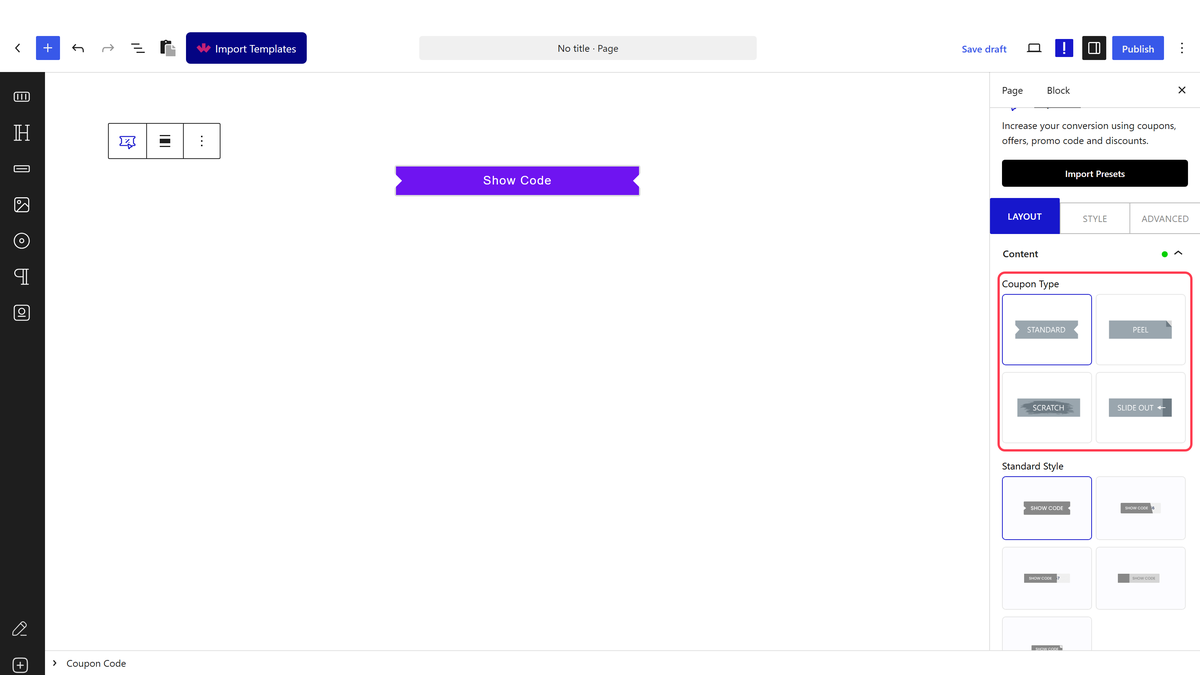
1. Select Standard from the Coupon Type section. 

2. After selecting an appropriate style from the Standard Style section, add a title in the Title field.

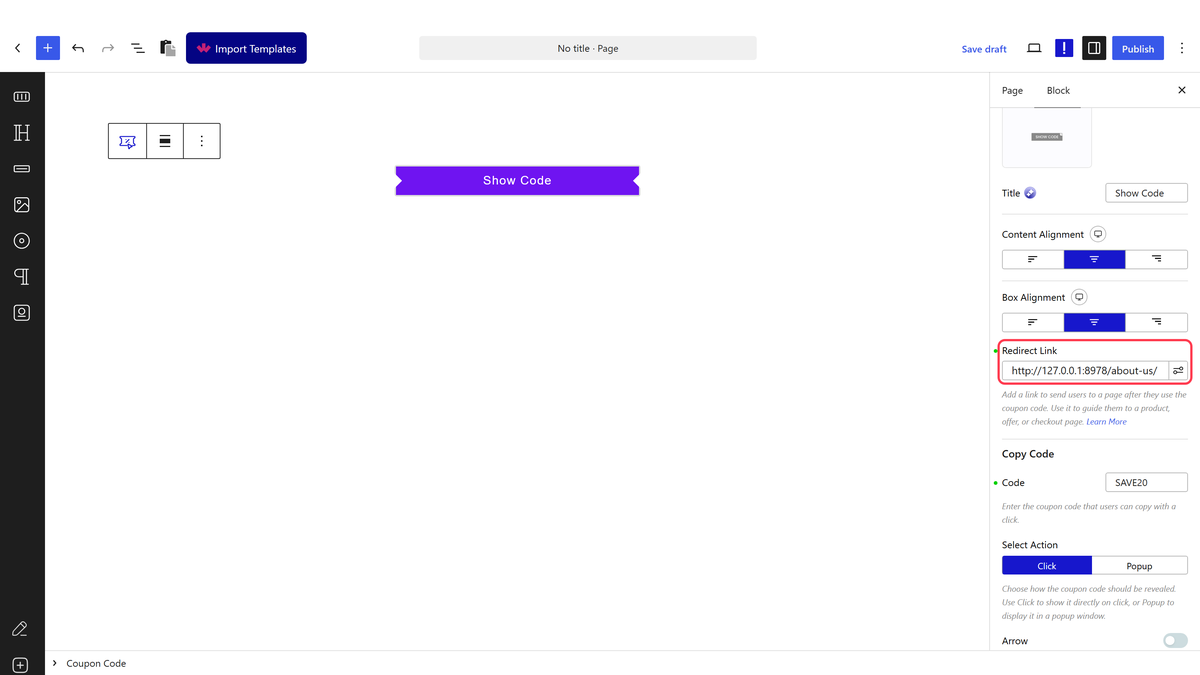
3. Then in the Redirect Link field, you have to add the link where you want to redirect users to.

4. Make sure to add your coupon code in the Code field.

5. Then select the appropriate option from the Select Action section.

Now when a user clicks on the coupon code, it will open and redirect users to your specified link in a new tab while revealing the coupon code in the old tab.

Open the Link in the Same Tab

To do this, add the Coupon Code widget to the page and follow the steps – 

1. Select Standard from the Coupon Type section. 

2. After selecting an appropriate style from the Standard Style section, add a title in the Title field.

3. Then in the Redirect Link field, you have to add the link where you want to redirect users to.

4. Make sure to add your coupon code in the Code field.

5. After that, select Popup from the Select Action section.

Then, do the necessary changes in the popup settings.

6. Finally, enable the Tab Reverse toggle from the Extra Options tab.

Now when a user clicks on the coupon code, it will open and redirect users to a new tab showing the discount popup while opening your specified link in the old tab.

About the Author

Photo of Aditya Sharma CMO of NexterWP
CMO at POSIMYTH Innovations · NexterWP · 7 years experience

He has spent years in the WordPress ecosystem building, breaking, and optimizing sites until they actually perform. He works at the intersection of speed, growth, and usability, helping creators ship websites that load fast and convert. An active WordPress community contributor sharing through tools, tutorials, and direct collaboration. Tested practice, not theory.

WordpressThemesElementorn8nAIClaudeAutomationServer

Share your Thoughts

Get Instant Answers to all your questions about Nexter Blocks,
Extensions & Theme trained on 1000+ Docs and Videos

Still in Doubt? Let’s Assist You

Have Feedback or Questions?

Join our WordPress Community on Facebook!

Related Frequently Asked Questions

What is the best practice for opening links in a new tab versus the same tab?

Opening links in a new tab is generally best when you want to keep users on your site while directing them to an external page, as it minimizes the risk of losing visitors. Use the 'Open the Link in a New Tab' method for affiliate links, while the same tab option is suitable for internal navigation where you want users to stay focused on your content.

How do I ensure the coupon code displays correctly after redirection?

To ensure the coupon code displays correctly after redirection, make sure to enter the coupon code in the Code field of the Coupon Code block. If you're using the 'Open the Link in the Same Tab' method, also check the popup settings to confirm that they are configured to show the discount popup as intended.

What happens if I forget to enable the Tab Reverse toggle?

If you forget to enable the Tab Reverse toggle when using the 'Open the Link in the Same Tab' method, the redirect may not function as expected. Users might not see the discount popup, and the link may not open in the intended tab. Always verify this setting to ensure a smooth user experience.

Last reviewed: April 14, 2026

Related Docs