












A scratch card is the most familiar way there is to hide a prize, and everyone already knows what to do.
The Scratch type draws a surface over your code that the visitor rubs away.
For every Coupon Code setting in one place, see the Coupon Code block guide.
Before You Start
- Edition: Pro — the Coupon Code block is part of Nexter Blocks Pro.
- Block to enable: Coupon Code, switched on under Nexter > Blocks in your WordPress dashboard.
- The code itself, and the page you want people sent to.
Steps
- Add the Coupon Code block and click Design from Scratch.
- Set Coupon Type to Scratch.
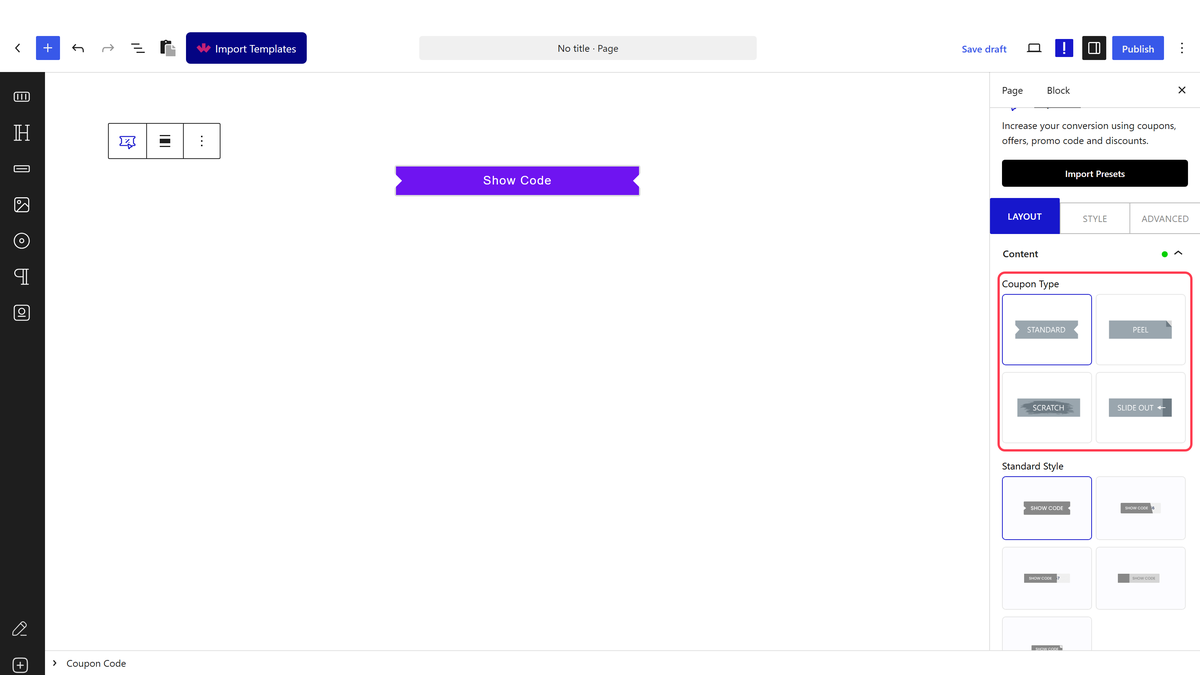
- Put the discount code in Back Description.
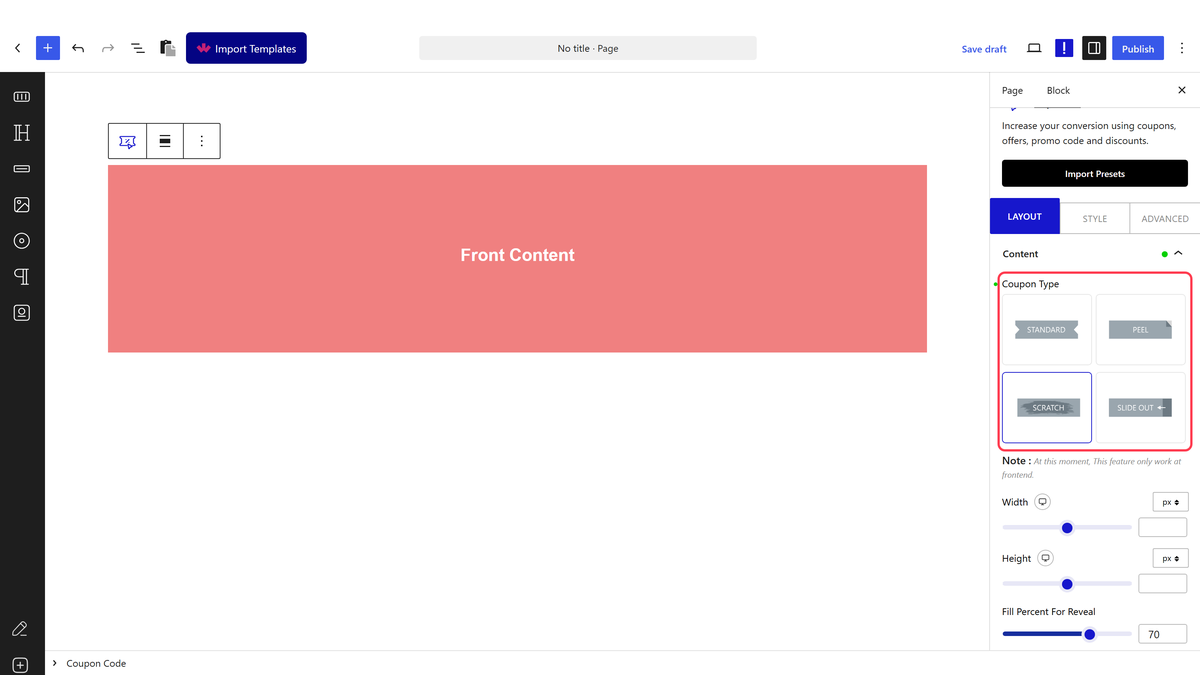
- Set Fill Percent — how much has to be scratched off before the code counts as revealed.
- Set the scratch area’s width and height if the default does not suit.
- Publish and scratch it.

The Code field does not apply here. It is used by the Standard type only. On the card types the discount goes in Back Description — measured: with a code set in the Code field, the rendered card contained no trace of it.
How It Behaves
- The scratch surface is a real canvas. Measured: a
<canvas>element sized to the block sits over the back side. - Fill Percent is the threshold, not the starting state. At 70 the visitor has to clear about seventy per cent before the reveal completes.
- The back holds the code, in Back Title and Back Description.
- The block carries the class
coupon-code-scratch.
Limitations
- Pro only.
- The Code field is not used by this type.
- Scratching cannot be done with a keyboard. Anyone who cannot drag has no way to reach the code, so do not put anything essential behind it.
- A canvas does not scale like text, so check the card on a phone.
Troubleshooting
Nothing is revealed however much I scratch
Fill Percent may be set very high. Lower it.
The code never appears
It is probably in the Code field, which this type ignores. Use Back Description.
The scratch area is the wrong size
Set its width and height explicitly rather than leaving them empty.
