How to Create a Slide Out Discount Code Card in WordPress?

Key Takeaways

  • Nexter Blocks includes a Coupon Code block that allows users to create a slide-out coupon code card on their WordPress website.
  • Users can set the slide direction of the coupon card to Left, Right, Top, or Bottom using the Slide Out Direction section.
  • The Coupon Code block enables users to add content types as Text or Pattern for both the front and back sides of the card.
Table of Contents

Are you looking to create a slide-out discount code card in WordPress? With this design, users slide out the front side to reveal the content on the back, adding an interactive and engaging element to your discount offers.

With the Coupon Code block from Nexter Blocks, you can easily create a slide out coupon code card on your WordPress website.

To check the complete feature overview documentation of the Nexter Blocks Coupon Code block, click here.

Requirement  – This block is a part of the Nexter Blocks, make sure it’s installed & activated to enjoy all its powers.

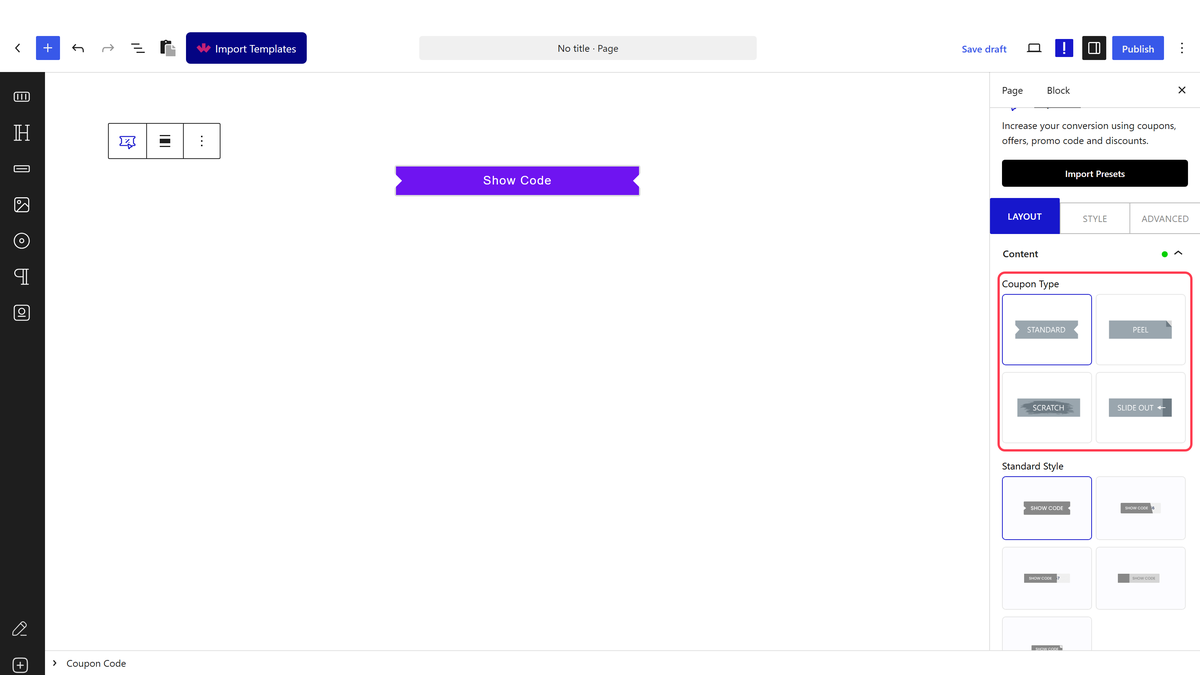
To do this, add the Coupon Code block to the page and follow the steps –

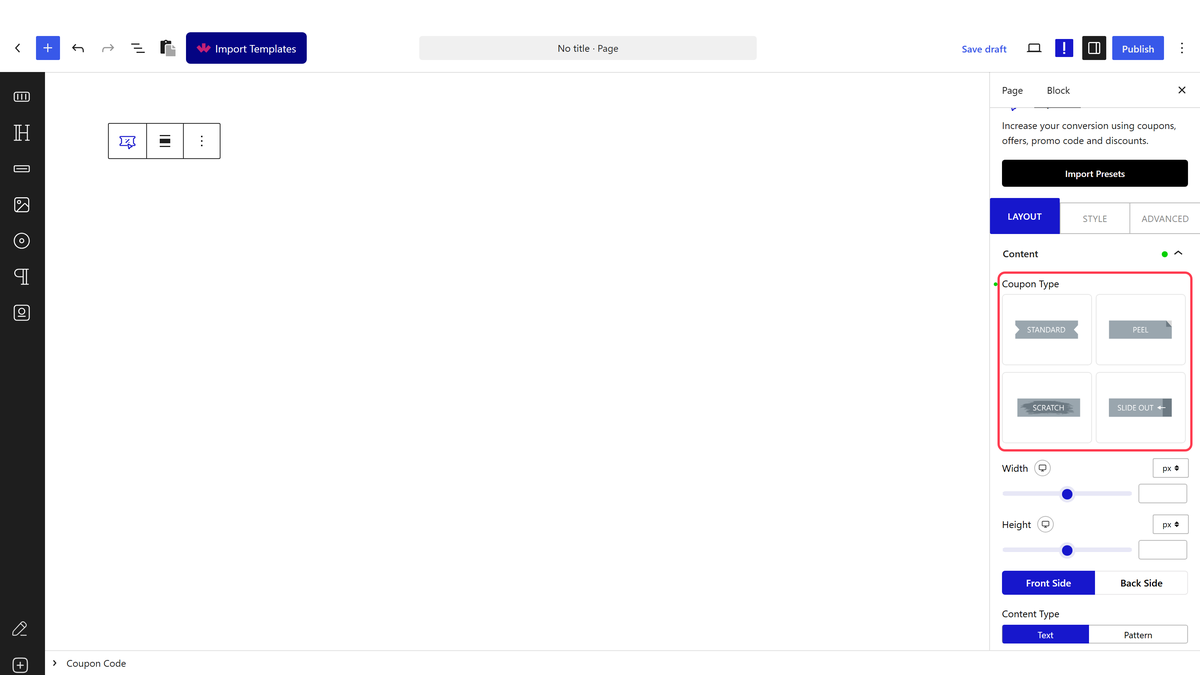
1. Select Slide Out from the Coupon Type section.

You can set the coupon card width and height from the Width and Height sections respectively for responsive devices.

From the Slide Out Direction section, you can set the card slide direction to Left, Right, Top, or Bottom.

By enabling the Direction Hint toggle, you can show an icon indicating the slide direction.

2. You have to add the content of the card’s front side from the Front Side tab. 

From the Content Type section, you have to select the content type. Here you’ll find two options – 

  • Text – To add normal content.
  • Pattern – To add content using a WordPress pattern.

Select the option as per your requirements, let’s select Text here.

In the Content field, you can add the text content. 

3. Then, from the Back Side tab, you have to add the content of the card’s back side.

Similar to the front side tab, you have to select the content type from the Content Type section.

  • Text – To add normal content.
  • Pattern – To add content using a WordPress pattern.

Select the option as per your requirements, let’s select Text here.

In the Title field, you can add the card’s back side title.

Then, from the Description field, you can add the description for the card’s back side.  

Now users will have to scratch the front side content to see the back side content.

About the Author

Photo of Aditya Sharma CMO of NexterWP
CMO at POSIMYTH Innovations · NexterWP · 7 years experience

He has spent years in the WordPress ecosystem building, breaking, and optimizing sites until they actually perform. He works at the intersection of speed, growth, and usability, helping creators ship websites that load fast and convert. An active WordPress community contributor sharing through tools, tutorials, and direct collaboration. Tested practice, not theory.

WordpressThemesElementorn8nAIClaudeAutomationServer

Share your Thoughts

Get Instant Answers to all your questions about Nexter Blocks,
Extensions & Theme trained on 1000+ Docs and Videos

Still in Doubt? Let’s Assist You

Have Feedback or Questions?

Join our WordPress Community on Facebook!

Related Frequently Asked Questions

What should I do if the slide-out feature isn't working?

If the slide-out feature isn't functioning, ensure that the Coupon Code block from Nexter Blocks is properly installed and activated. This block is essential for creating the slide-out discount code card. If everything is set up correctly but the feature still fails, check for any JavaScript errors in your browser's console, as NexterWP uses pure Vanilla JS without jQuery.

Are there any limitations when using the Coupon Code block?

One limitation to be aware of is that the Coupon Code block is part of Nexter Blocks, meaning you must have it installed and activated to use this feature. Additionally, the design is primarily intended for interactive use, so if your audience prefers static content, this may not be the best option.

How can I enhance the visibility of the slide-out direction?

To enhance visibility, you can enable the Direction Hint toggle, which shows an icon indicating the slide direction. This small addition can significantly improve user interaction by guiding visitors on how to access the back side of the coupon card, making it more intuitive.

Last reviewed: April 14, 2026

Related Docs