---
title: "How to Create Discount Popup in WordPress?"
url: https://nexterwp.com/docs/create-discount-popup-in-wordpress/
date: 2024-12-31
modified: 2026-08-18
author: "Aditya Sharma"
description: "Do you want to display discount codes in a WordPress popup? Offering discounts and promotions is a powerful way to attract new customers and retain existing ones. By using a..."
image: https://nexterwp.com/wp-content/uploads/2024/12/How-to-Create-Discount-Popup-in-WordPress_-1024x519.jpg
word_count: 345
---

# How to Create Discount Popup in WordPress?

## Key Takeaways

- Nexter Blocks Coupon Code block creates a discount popup in WordPress by setting Coupon Type to Standard and Select Action to Popup.
- Popup options include Arrow, Title, Description, Copy Button, After Copy, and Visit Button, with Visit Button linking to the URL set in the Redirection Link field.
- Extra Options includes Tab Reverse, which shows the discount popup in a new tab.

Do you want to display discount codes in a WordPress popup? Offering discounts and promotions is a powerful way to attract new customers and retain existing ones. By using a popup, you can showcase the coupon code along with additional content, making your offer more engaging and noticeable.

With the Coupon Code block from Nexter Blocks, you can easily create a discount popup in WordPress.

*To check the complete feature overview documentation of the Nexter Blocks Coupon Code block,* *[click here](https://nexterwp.com/docs/add-a-coupon-code-in-wordpress/).*

***Requirement  - This block is a part of the Nexter Blocks, make sure it's installed & activated to enjoy all its powers.***

[LIVE BLOCK LINK](https://nexterwp.com/nexter-blocks/blocks/wordpress-coupon-code/)

To do this, add the Coupon Code block to the page and follow the steps -

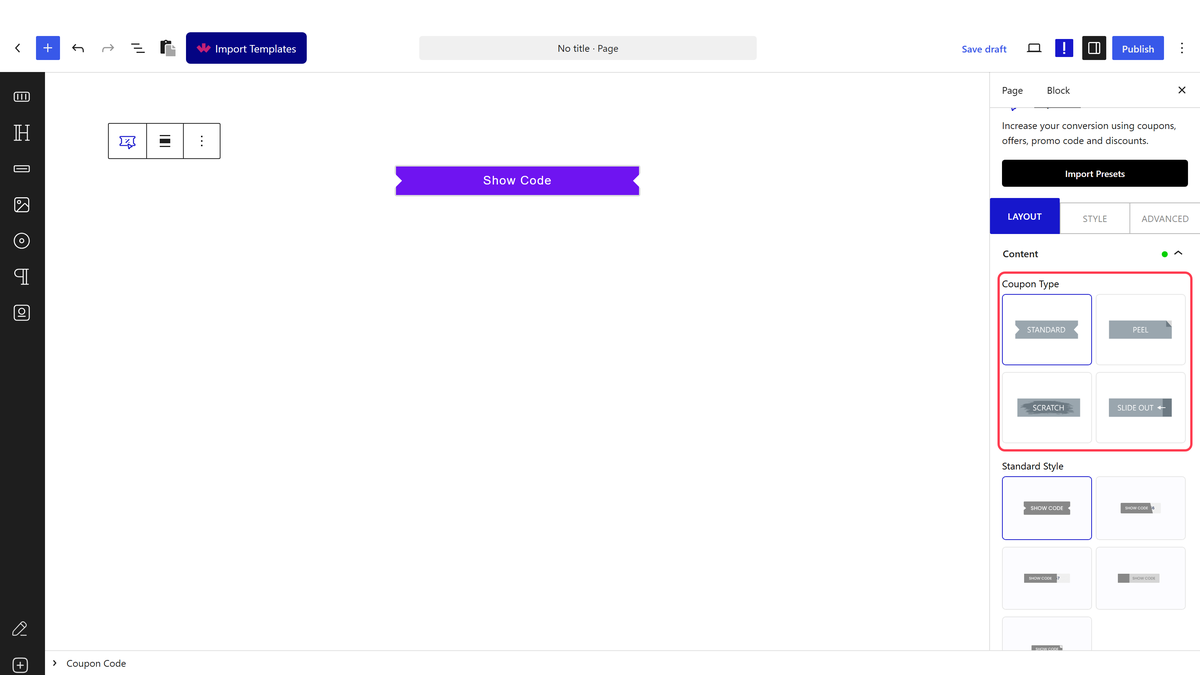
1. Select **Standard** from the **Coupon Type** section.

2. After selecting an appropriate style from the **Standard Style** section, add a title in the **Title** field.

You can add a redirection for the coupon code from the **Redirect Link** field.

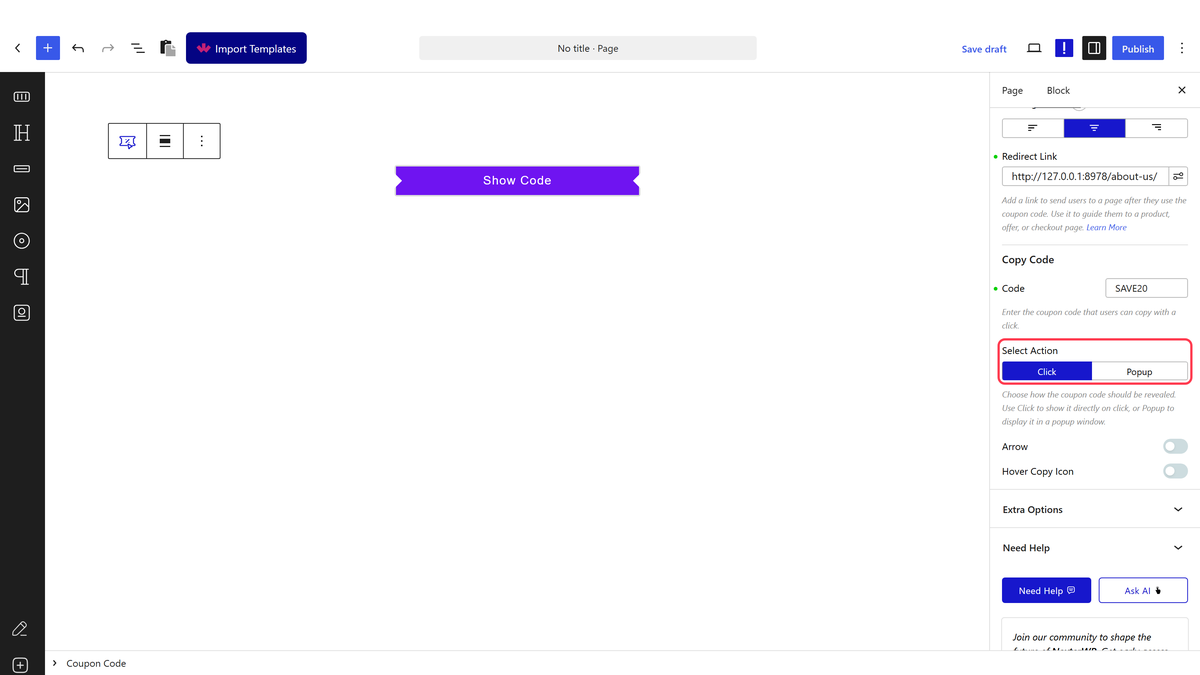
3. Then go to the Copy Code section and add your coupon code in the **Code** field.

4. Finally select **Popup** from the **Select Action** section. Then you’ll see different popup related options - 

**Arrow** - From here, you can add arrows on both sides of the code box.

**Title** - From here, you can add a title to the popup.

**Description** - From here, you can add a description in the popup.

**Copy Button** - From here, you can change the copy button text. Using this button you can easily copy the coupon code with a single click.

**After Copy** - From here, you can set the text that will show after the code is copied.

**Visit Button** - From here, you can change the visit button text.

> *Note: This will link to the URL set in the Redirection Link field.*

In the **Extra Options** tab, you’ll find some additional options - 

**Tab Reverse** - From this toggle, you can show the discount popup in a new tab.

Now when you click on the coupon code it will show in a popup.

## Frequently Asked Questions

**Q: Why is my discount popup not showing in WordPress?**
A: The popup depends on the Coupon Code block from Nexter Blocks, so the first thing to check is whether Nexter Blocks is installed and activated. The tutorial also says the action must be set to Popup, otherwise the coupon behaves like a normal code block instead of opening a popup. If the code still does not appear as expected, the live block example at [LIVE BLOCK LINK](https://nexterwp.com/nexter-blocks/blocks/wordpress-coupon-code/) is the closest reference for how the block is meant to behave.

**Q: What do I need before creating a discount popup in WordPress?**
A: The key requirement is Nexter Blocks, because the Coupon Code block is part of that package. The tutorial also uses a Standard coupon type, a title, a coupon code, and Popup as the selected action. That setup matters because the popup version is built from the same coupon block, not from a separate popup plugin. For the full feature overview, the page points to [click here](https://nexterwp.com/docs/add-a-coupon-code-in-wordpress/).

**Q: How do I make a coupon code open in a popup instead of just showing on the page?**
A: The Popup action is what turns the Coupon Code block into a discount popup. In the tutorial, you first choose Standard, add your title and coupon code, then select Popup from Select Action. That unlocks popup-specific options like Arrow, Title, Description, Copy Button, After Copy, and Visit Button. The practical difference is that visitors get a more noticeable offer instead of a plain inline coupon.

**Q: Can I add a visit button and redirect link in a WordPress discount popup?**
A: The Visit Button works with the Redirect Link field, so this setup is meant for sending people to a specific URL after they see the offer. The tutorial notes that the Visit Button text can be changed, and that it links to whatever URL you set in Redirection Link. That makes it useful when you want the popup to promote an offer but still push traffic to another page.

**Q: What does Tab Reverse do in a discount popup?**
A: Tab Reverse changes how the discount popup opens by showing it in a new tab. In practice, that matters if you want the original page left untouched while the offer opens separately. The option sits under Extra Options, so it is an add-on behavior rather than part of the core coupon setup. If you want users to keep browsing without losing their place, this setting is worth checking.

**Q: What are the best settings for making a WordPress discount popup more noticeable?**
A: Popup mode plus clear copy is what makes this work best. The tutorial specifically lets you add arrows on both sides of the code box, set a title, write a description, change Copy Button text, and define After Copy text. Those details matter because they make the offer easier to understand at a glance and easier to use in one click. For extra context on how Nexter Blocks handles coupon display, see [click here](https://nexterwp.com/docs/add-a-coupon-code-in-wordpress/).