












Say you open a post you have been editing all week and the sidebar tells you it has 84 revisions. Somewhere in a support thread you read that revisions bloat your database and slow your site, so the obvious move looks like deleting the lot and switching the feature off.
That advice gets the mechanism backwards, and the official WordPress documentation says so in plain words. Revisions do add rows to your database. Autosaves, which is what most people actually picture when they imagine the editor writing to the database every minute, do not pile up at all.
The difference matters, because it changes the fix. Below is what WordPress actually stores, where it lives, how to cap it properly, how to clear a backlog you already have, and what changes when WordPress 7.1 arrives on August 19, 2026.
How WordPress Revisions Actually Work
Every time you save a draft or update something already published, WordPress writes a snapshot. The documentation describes the system as one that stores a record of each saved draft or published update, which you can then step through and restore.
Those snapshots are not kept in a separate table. They go into the same posts table as your content, stored as children of the post they belong to. Each one gets a post status of inherit and a post type of revision, with a name built from the parent post ID. Autosaves follow the same pattern but are named after the parent ID plus autosave.
WordPress does not snapshot everything about a post either. By default it tracks changes to the title, author, content and excerpt. Custom fields, taxonomy terms and most metadata are not part of a standard revision, which is why restoring an old revision does not roll back a post’s categories or custom field values.
Where to Find Revision History
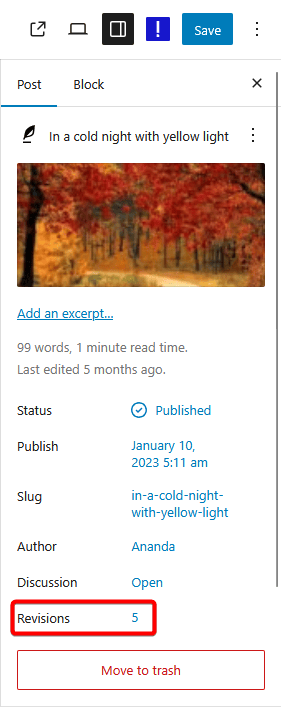
Open the Settings sidebar in the editor, select the Post or Page tab, then click the number next to Revisions. From WordPress 7.0 onward that opens the newer revisions screen. On WordPress 6.9 and earlier, the same click opens the classic screen instead.
Autosaves vs Revisions: The Difference That Kills the Bloat Myth
This is the part almost every article on this topic gets wrong, and the WordPress documentation addresses it directly:
There is only ever a maximum of one autosave per user for any given post. New autosaves overwrite old autosaves. This means that no, your tables do not grow by one row every 60 seconds.
WordPress documentation, Revisions
So the autosave running quietly while you type is not what grows your database. It reuses one row per user per post, forever. In a multi-user setup you get one autosave stored for each user, and that is the ceiling. Autosaves are also stored as a special type of revision and do not overwrite published content, which is why WordPress can offer to restore a backup after a crash without touching what your visitors see.
Manual saves are the ones that accumulate. Every time you hit Update, that is a new row, and by default WordPress keeps all of them with no ceiling at all. A post edited a hundred times carries a hundred revisions. Multiply that across a few thousand posts and the number gets large, which is where the real and much narrower version of the bloat concern lives.
| Autosave | Revision | |
|---|---|---|
| What creates it | The editor, automatically, while you work | You, every time you save or update |
| How many are kept | One per user, per post | Unlimited by default |
| Grows over time? | No, each one overwrites the last | Yes, one row per save |
| Affects published content | No | No, until you restore one |
| Controlled by WP_POST_REVISIONS | No, one autosave survives even at 0 | Yes |
The practical takeaway is that turning revisions off entirely to save space trades a real safety net for a saving you can get almost all of by setting a sensible cap instead.
Also Read: 20+ Tips to Speed Up WordPress Websites covers the wider set of performance wins, of which revision control is one small piece.
What Revision History Looks Like in WordPress 7.0
WordPress 7.0 replaced the revisions screen, so screenshots in older tutorials no longer match what you see. The current screen lets you move through the history with a slider at the top rather than paging through comparisons one at a time.
Beside the scrollbar you get coloured markers showing where changes happened and how big they were. Green marks inserted content, red marks deleted content, and yellow marks changed content. Clicking a marker jumps straight to that spot, and a Show changes control toggles the highlighting on and off.
The old screen has not gone anywhere. In WordPress 7.0 you can still open it through the Open classic revisions screen link in the sidebar, which is worth knowing because the classic view keeps the Compare any two revisions mode. That mode gives the slider two handles so you can diff any two points in the history rather than only consecutive ones.
What WordPress 7.1 Changes for Revisions
WordPress 7.1 entered its release candidate phase on August 5, 2026, with the final release scheduled for August 19, 2026. Revisions get real attention in this one, which is unusual.
The headline addition, listed in the release candidate announcement as new since the first beta, is shareable revisions. The announcement describes it as the ability to share links to specific revisions for faster collaboration. If you have ever tried to tell a colleague which version of a paragraph you meant, that is the problem being solved: a revision becomes something you can point at with a URL rather than a set of instructions for finding it.
The first beta also listed a set of visual revisions improvements: a picker activity layout for browsing history in more detail, autosaves that are clearly labelled in the timeline, and an autosave notice that opens straight into the visual revisions view. Global Styles revisions get a smaller change, swapping the active style’s text label for a badge.
Clearly labelled autosaves are a quiet but useful fix, given how much confusion the autosave and revision distinction causes. Being able to tell them apart at a glance in the timeline removes a lot of guesswork about which entry is the one you want.
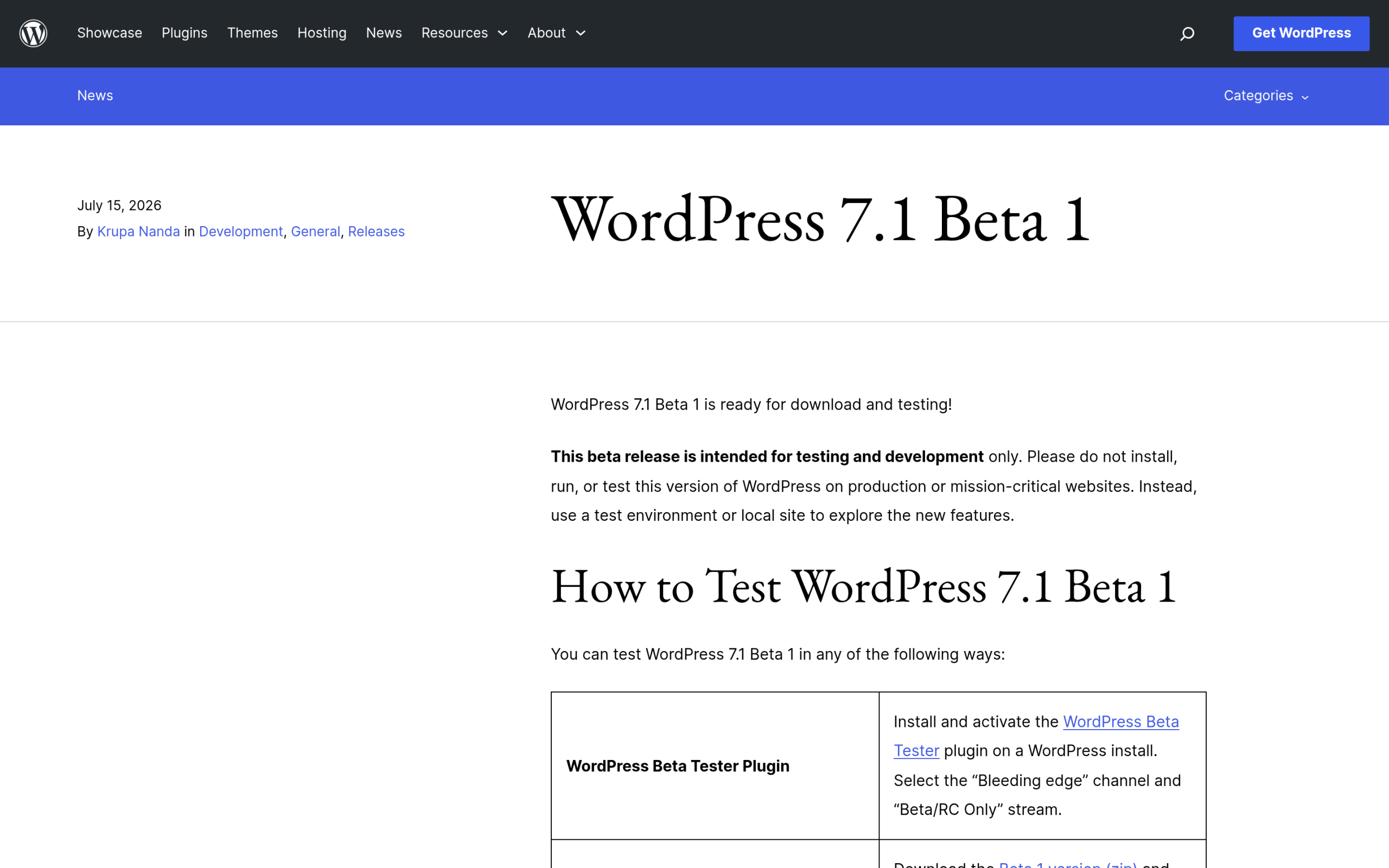
One caution on timing. At the time of writing this is a release candidate, not a finished release. Test it somewhere other than your live site if you want to try the new revision features early.
Also Read: WordPress 7.1: What’s New and What Got Deferred walks through the rest of the release, including the features that slipped again.
How to Limit WordPress Revisions
The supported way to cap revisions is a single constant in wp-config.php. Add it alongside the other define() lines in that file:
define( 'WP_POST_REVISIONS', 3 );That keeps three revisions per post. The constant accepts more than just a number, and the accepted values are worth knowing exactly, because two of them behave in ways people do not expect.
| Value | What WordPress stores |
|---|---|
true (default), -1 | Every revision, with no limit |
false, 0 | No revisions, except the one autosave per post |
| Any integer above 0 | That many revisions per post, plus one autosave per user |
Two Traps in the Usual Advice
Zero does not mean zero. Setting the constant to 0 or false still leaves one autosave per post in place. That is by design, since it is what lets WordPress recover your work after a browser crash, but it does mean you cannot reach a genuinely empty state this way.
A cap does not clean up what you already have. This is the one that catches people out. Old revisions above your new limit are automatically deleted when the post is updated again. Not when you save wp-config.php. So on a site with three thousand posts you have not touched in a year, setting a cap of three changes almost nothing today. Those posts keep their full history until each one is next edited. If you want the backlog gone now, that is a separate job, covered in the next section.
If you need different limits for different content, the wp_revisions_to_keep filter lets developers alter how many revisions are kept for a given post. That is the clean way to keep a long history on editorial posts while capping revisions tightly on, say, a product catalogue.
Also Read: What Is a Custom Post Type in WordPress? is useful background if you plan to set per post type revision limits.
Capping Revisions Without Editing wp-config.php
If you would rather not touch configuration files, Nexter Extension includes a Revisions Control module under its Performance tab, described on the product page as a way to manage the heartbeat API and revisions to reduce database clutter. You set a limit from the WordPress admin instead of over SFTP.
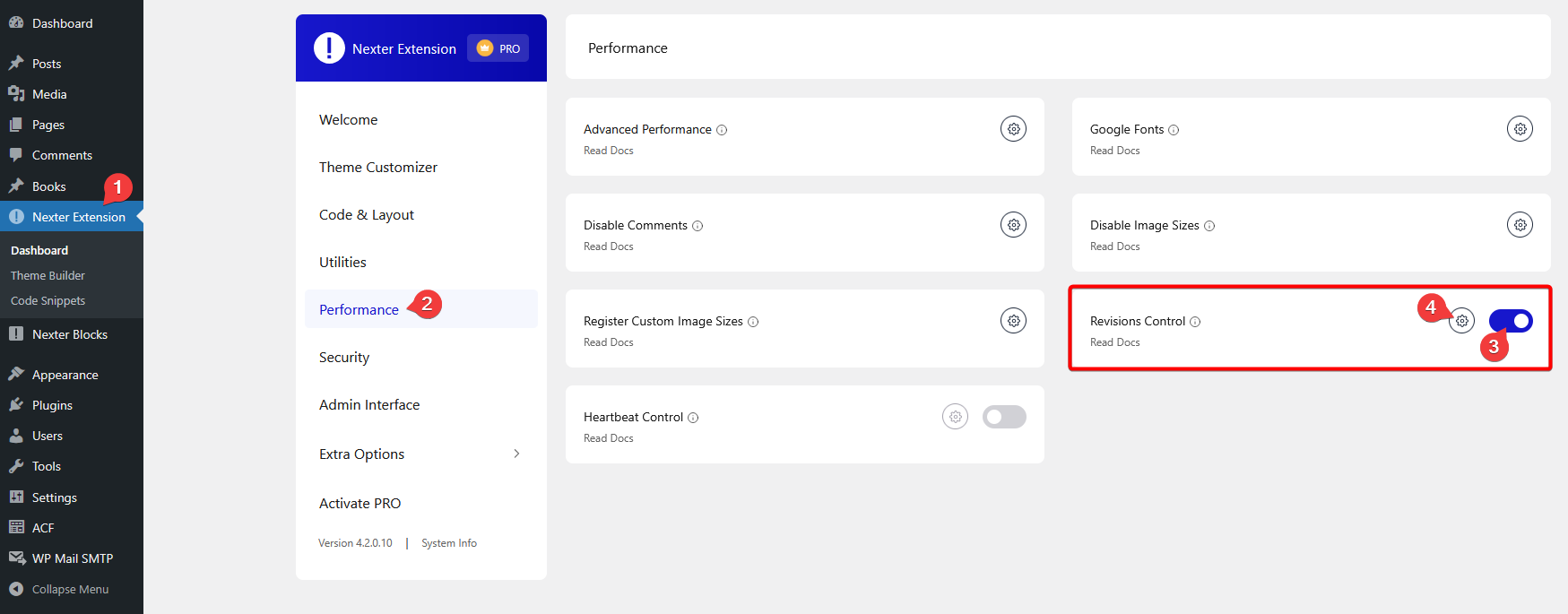
Worth being straight about the scope: that module manages revisions and the heartbeat API. It is not a database optimisation suite and it is not a backup tool, so pair it with a proper backup plugin rather than treating it as one.
How to Delete Revisions You Already Have
Here is the gap in core: WordPress has an API function for deleting revisions, but there is no interface for it. Nothing in the admin lets you clear a revision backlog. So this step needs either WP-CLI or a plugin.
Back up your database first. Deleting revisions is not reversible, and a revision backlog is the only in-core route back to an earlier draft of a paragraph.
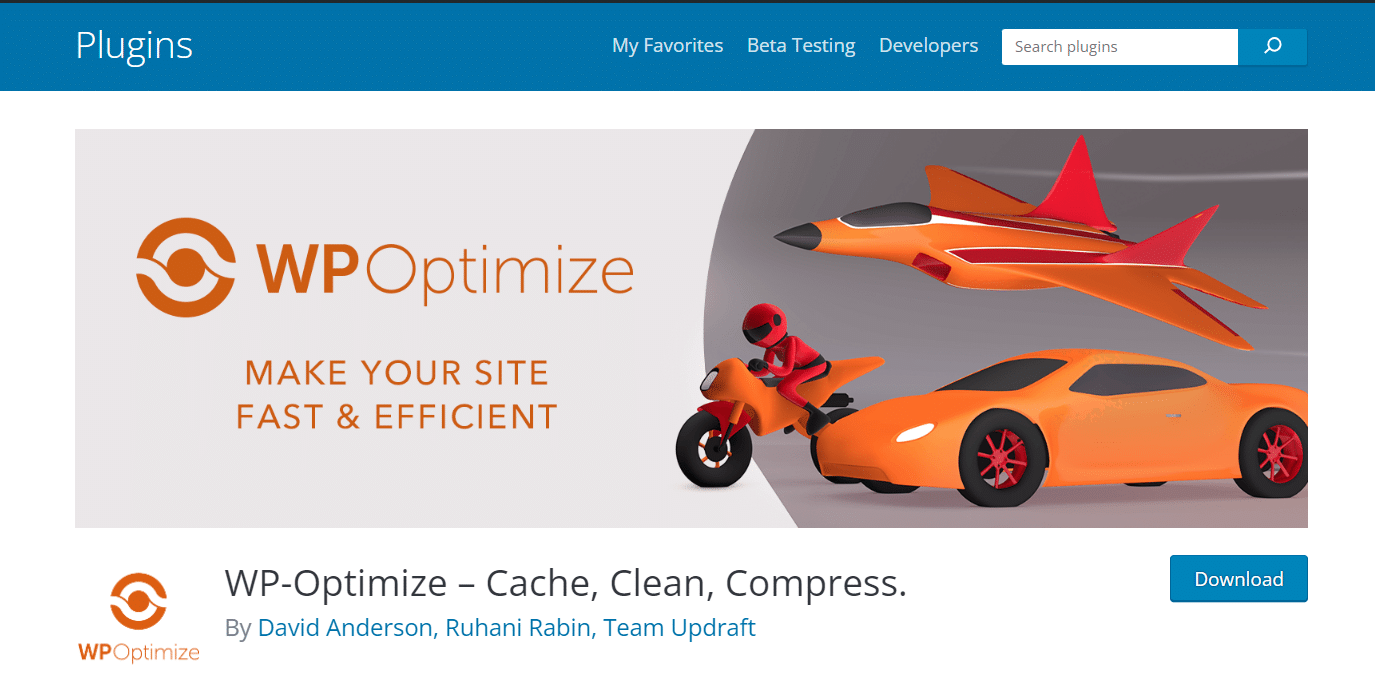
Three options that handle revision cleanup, with their live directory status at the time of writing:
- WP-Optimize is at version 4.6.1, tested up to WordPress 7.0.3, last updated on July 29, 2026, and rated 96 out of 100 across 2,602 ratings. Its database tab clears revisions in bulk alongside other cleanup tasks.
- WP-Sweep is at version 2.0.0 with 100,000 active installs, tested up to WordPress 7.0.3, and was last updated on August 10, 2026. It uses proper WordPress delete functions rather than direct SQL queries.
- WP Revisions Control is at version 1.4.4 with 40,000 active installs and a 94 out of 100 rating, but check compatibility before you install it: its last update was July 3, 2025 and it is only tested up to WordPress 6.8.7, so it has not been verified against WordPress 7.x.
Whichever route you take, set your cap first and then clear the backlog. Doing it the other way round means the backlog starts rebuilding immediately.
Also Read: Best WordPress Backup Plugins is worth reading before you run any bulk database cleanup.
How Many Revisions Should You Actually Keep?
There is no correct number, only a trade-off between recovery options and rows in your database. What follows is a starting point by site type rather than a rule.
| Site type | Suggested limit | Why |
|---|---|---|
| Single author blog | 5 to 10 | You rarely need to go back further than a few saves, and the row count stays small. |
| Multi author editorial site | 20 or unlimited | History is an audit trail. Knowing who changed what is worth the storage. |
| Store or large content site | 3 to 5, plus periodic cleanup | Thousands of posts means the multiplier matters more than the per post depth. |
| Staging or development site | 0 | Nothing here needs a recovery path, and a smaller database copies faster. |
One argument against setting the limit to zero on a live site: a backup restores your whole site to a point in time, which is a blunt instrument when all you wanted was the wording of one paragraph from Tuesday. Revisions are the only tool in core that operates at that resolution. On a content site, a handful of rows per post is cheap insurance.
Wrapping Up
Revisions are worth keeping and worth capping. The bloat story that circulates about them is aimed at the wrong target, since autosaves reuse a single row and never accumulate. Manual saves are what grow, and one constant in wp-config.php handles that.
Remember that a cap only trims a post the next time it is updated, so if you have years of history sitting there, set the limit and then clear the backlog as a separate step. And if you work with other people on the same posts, WordPress 7.1 on August 19, 2026 makes that history considerably easier to talk about.
Suggested Reading
- WordPress Staging Sites: How to Test Changes Safely
- How to Clear Your WordPress Cache
- Core Web Vitals in a Gutenberg Block Theme
- WordPress Automatic Updates: How to Control Them
- Getting to Grips With the WordPress Site Editor
