












A client messaged me in a panic last year. Their store had gone dark in the middle of a plugin update, and every visitor was hitting the same line: “Briefly unavailable for scheduled maintenance.” The update had stalled, WordPress never finished, and the whole site was frozen on that message. Once we knew where to look, the fix took about ninety seconds.
Here is the reassuring part first: WordPress is built to clear maintenance mode on its own, and when it does not, the cause is almost always one small leftover file or a cache serving an old page. This guide walks through every fix in order, from the fastest to the most thorough, including the case where your site looks stuck but the file is already gone.
Let’s get started.
What Maintenance Mode Actually Is (and the .maintenance File)
Maintenance mode is a temporary state WordPress uses while it updates core, a plugin, or a theme. Instead of showing visitors a half-broken page mid-update, it shows a short holding message: “Briefly unavailable for scheduled maintenance. Check back in a minute.”
To do this, WordPress drops a hidden file named .maintenance into your site’s root folder for the few seconds an update runs. While that file exists, every visitor sees the holding message instead of your site.
One detail most guides skip explains almost every “stuck” case: WordPress writes a timestamp into that file. In WordPress core, the wp_is_maintenance_mode() function checks it, and if the timestamp is more than 10 minutes old, WordPress ignores the file and serves your site normally again. So a clean update keeps the site in maintenance mode for only a moment, and even a failed update is designed to clear itself after 10 minutes.
That means if you are still stuck well past that window, either the file was left behind and is being re-read, or a cache is serving the old maintenance page. The rest of this guide fixes both.
Why WordPress Gets Stuck in Maintenance Mode
If the message hangs around for more than a few minutes, the update did not finish cleanly. The usual reasons:
- An interrupted update. You closed the tab, lost your connection, or the request timed out before WordPress could remove the .maintenance file.
- Updating too much at once. Bulk-updating many plugins or themes together raises the odds that one stalls and leaves the file behind.
- A plugin or theme conflict. An incompatible update can error out partway through.
- Server resource limits. Low PHP memory or a short max execution time can cause the update to time out, especially on shared hosting.
- Caching. Sometimes the update finished fine, but a page cache is still serving the saved maintenance screen.
Also Read: Best Maintenance & Coming Soon Mode WordPress Plugins for when you want to plan downtime on purpose.
How to Fix a WordPress Site Stuck in Maintenance Mode
Work through these in order. The first two solve the large majority of cases, and you rarely need to reach the last one.
Method 1: Give It 10 Minutes, Then Confirm It Is Really Stuck
Because WordPress clears the file on its own after 10 minutes, the quickest move is to wait it out. After 10 minutes, hard refresh the page (Ctrl+F5 on Windows, Cmd+Shift+R on Mac) and load the site in a private or incognito window to rule out your own browser cache. If the maintenance message is gone, you are done. If it is still there across a fresh browser, the site is genuinely stuck, so move on to Method 2.
Method 2: Delete the .maintenance File
This is the fix for almost every stuck site. Connect to your server with an FTP client like FileZilla, or open File Manager in your hosting control panel (cPanel, Plesk, or your host’s dashboard).
Open your site’s root folder. It is usually called public_html and contains wp-config.php and the wp-content folder. Because .maintenance starts with a dot, it is hidden by default, so turn on “Show hidden files” (in FileZilla: Server > Force showing hidden files).
Find the .maintenance file, right-click it, and choose Delete. Then reload your site.
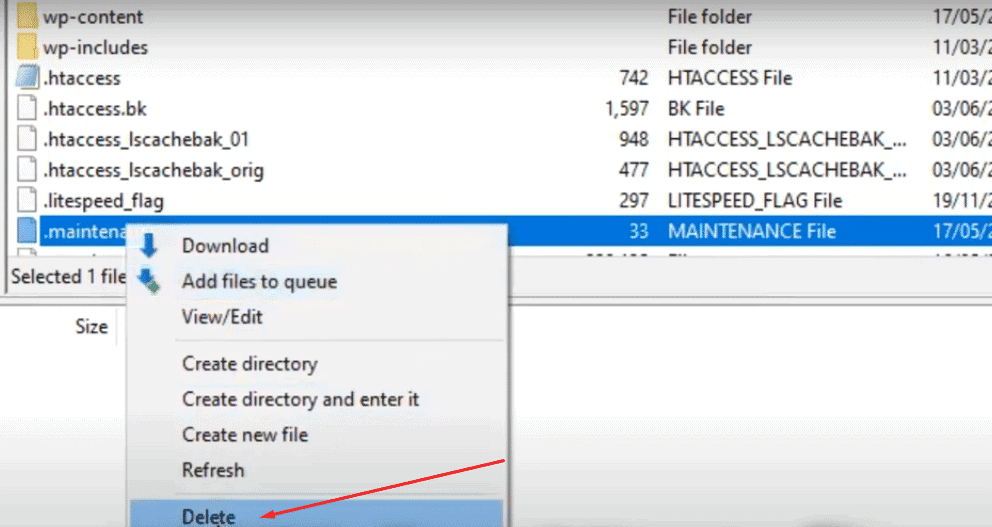
If the site loads normally, maintenance mode is over. If the file reappears or the message stays, a plugin or a failed update is re-triggering it, so keep going.
Method 3: Turn It Off With WP-CLI
If your host gives you SSH access with WP-CLI installed (most managed WordPress hosts do), you can switch maintenance mode off with a single command, without touching files:
wp maintenance-mode deactivateWordPress replies with Success: Deactivated Maintenance mode. You can check the current state first with wp maintenance-mode status. This is the cleanest fix when you are comfortable on the command line.
Method 4: Disable Plugins to Rule Out a Conflict
If deleting the file did not hold, a broken plugin update is the likely cause. Using FTP or File Manager, open the wp-content folder and rename the plugins folder to something like plugins-old. That deactivates every plugin at once. Reload your site.
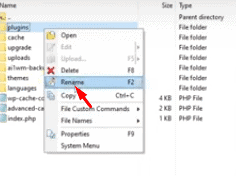
If the site comes back, rename the folder back to plugins, then rename each plugin folder one at a time until the maintenance message returns. The last one you renamed is the culprit. Update, replace, or remove it.
Method 5: Increase Server Resources
If updates keep stalling, your server may be running out of room mid-update. Low PHP memory or a short max execution time causes timeouts that leave the .maintenance file behind. Raising your WordPress memory limit and asking your host about execution-time limits usually fixes the pattern.
It also helps to trim plugin bloat and add a caching layer so updates have more headroom to finish. With enough resources, updates complete cleanly and the file is removed the way it should be.
Also Read: How to Fix the WordPress White Screen of Death, another scary-looking error with a calm, step-by-step fix.
Stuck in Maintenance Mode but There Is No .maintenance File?
You checked the root folder, the .maintenance file is not there, and visitors still see the maintenance page. That usually means WordPress itself is fine and a cache is serving a saved copy of the old screen. Clear caches in this order:
- Browser cache: hard refresh and open the site in an incognito window to confirm the page is actually cached on your end.
- Caching plugin: clear all cache in WP Rocket, W3 Total Cache, LiteSpeed Cache, or whichever plugin you run.
- Host and CDN cache: many managed hosts and Cloudflare cache the full page. Purge from your host dashboard and from Cloudflare if you use it.
- Object cache and OPcache: if you run Redis or Memcached object caching, or PHP OPcache, flush it from your host dashboard or restart PHP.
- A coming-soon or security plugin: a dedicated maintenance, coming-soon, or security plugin may be holding the page deliberately. Check its settings and turn the mode off there.
Once the right cache is cleared, the live site returns immediately.
Bonus: How to Put Your Site in Maintenance Mode the Right Way
Sometimes you want maintenance mode on purpose, for a redesign, a risky update, or while you patch a security issue, so visitors see a tidy notice instead of a half-finished page.
With the Nexter theme, you can switch on a custom maintenance message without a separate plugin. Install and activate Nexter, then go to Appearance > Customize.

In the Customizer, go to General > Maintenance Mode.
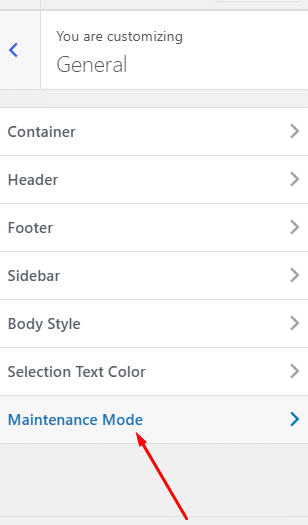
Toggle on the Enable Maintenance Mode option.

You can also set access rules so specific roles, such as admins or editors, still see the live site while everyone else sees the maintenance message. When you are done, switch the toggle off and your site is back. Because this is a clean toggle rather than a half-finished update, it will not leave you stuck.
How to Prevent WordPress From Getting Stuck Again
A few habits keep this from happening in the first place:
Update One Thing at a Time
Update plugins and themes one by one instead of in a single bulk action, and let your connection stay open until each finishes. If one stalls, you know exactly which one to look at.
Test on a Staging Site First
Run major updates on a staging copy before touching the live site. If an update breaks there, your visitors never see it.
Keep Recent Backups
Always have a fresh backup before you update. If something goes wrong, restoring is far faster than debugging a frozen site under pressure.
Choose Reliable Plugins and Hosting
Stick to well-reviewed, actively maintained plugins and keep the count lean to reduce conflicts. Managed WordPress hosting also helps, since those plans handle updates carefully and give you more server headroom.
Also Read: How to Increase the WordPress Memory Limit to stop updates from timing out.
Suggested Reading
- Best WordPress Cache Plugins
- Best Maintenance & Coming Soon Mode WordPress Plugins
- Gutenberg Core Web Vitals: Speed Up a Block-Theme Site
- What Is a WordPress Block Theme?
- Ways to Protect Content in WordPress
Wrapping Up
A site stuck in maintenance mode looks alarming, but it is one of the easier WordPress problems to solve. Most of the time, waiting out the 10-minute window or deleting the .maintenance file puts you back online in minutes. If the file is already gone, a quick cache clear does it. And a little prevention, updating one at a time and keeping backups, means you rarely see that screen again.
If you want a lightweight, fast theme that keeps updates smooth and downtime short, Nexter is worth a look. Nexter Theme and Nexter Extension add real control over speed, security, and customization, including the built-in maintenance mode shown above.
And Nexter Blocks gives you 90+ Gutenberg blocks, from Advanced Heading to Google Maps and Social Icons, to build out your site without extra plugins. Check out Nexter’s pricing plans to find the right fit.
FAQs on WordPress Stuck in Maintenance Mode
Why is WordPress in maintenance mode even after updates?
WordPress may remain in maintenance mode if an update is not completed properly. This often happens if the process is interrupted or if there is an error during the installation of plugins or themes.
What should I do if there’s no maintenance file but my WordPress site is still in maintenance mode?
If there is no maintenance file, you can try clearing your browser cache and refreshing the page. You might also want to disable any caching plugins that could cause this issue.
What steps should I take if Elementor has caused my site to enter maintenance mode?
If Elementor is causing maintenance mode, first check for an incomplete update. Delete the .maintenance file. You may also need to deactivate the Elementor plugin via FTP and reactivate it afterward.
Why can’t I log in to my WordPress site during maintenance mode?
When your site is in maintenance mode, it may prevent you from logging in. This happens because the site temporarily disables access to ensure updates are applied correctly. Deleting the .maintenance file will allow you to log back in.
