












Key Takeaways
- The WordPress Site Editor is the tool that replaced the old Customizer. It lets you design your whole site, header, footer, templates and everything between, using blocks.
- “Full site editing” and “the Site Editor” describe the same thing. WordPress settled on the “Site Editor” name, which is why you hear the older phrase less often.
- The Site Editor only appears once you activate a block theme. On a classic theme it will not show up at all.
- It is organised into five areas: Navigation, Styles, Pages, Templates and Patterns.
- Core blocks handle structure and basic layout. A lightweight block theme like Nexter, paired with a library like Nexter Blocks, covers the advanced pieces the editor leaves out.
You update WordPress, head to Appearance expecting the Customize link you have clicked for years, and it is not there. In its place is one word: Editor. You click it, and the entire screen changes. Your header, your footer, your homepage, your blog layout, all of it turns into blocks you can edit on a single canvas. That is the WordPress Site Editor, and if it caught you off guard, you are in good company.
Here is the strange part of the story. A few years ago the WordPress community talked about nothing but “full site editing.” Search interest in that exact phrase has since fallen off a cliff, and not because the feature flopped. It grew up and picked up a simpler name: the Site Editor. The concept is identical, the tools are far more polished, and it now ships with every fresh WordPress install. This guide covers what the Site Editor is, what each part of it does, the one thing you need before it will even appear, and whether it is the right way to build your WordPress site in 2026.
What the WordPress Site Editor actually is
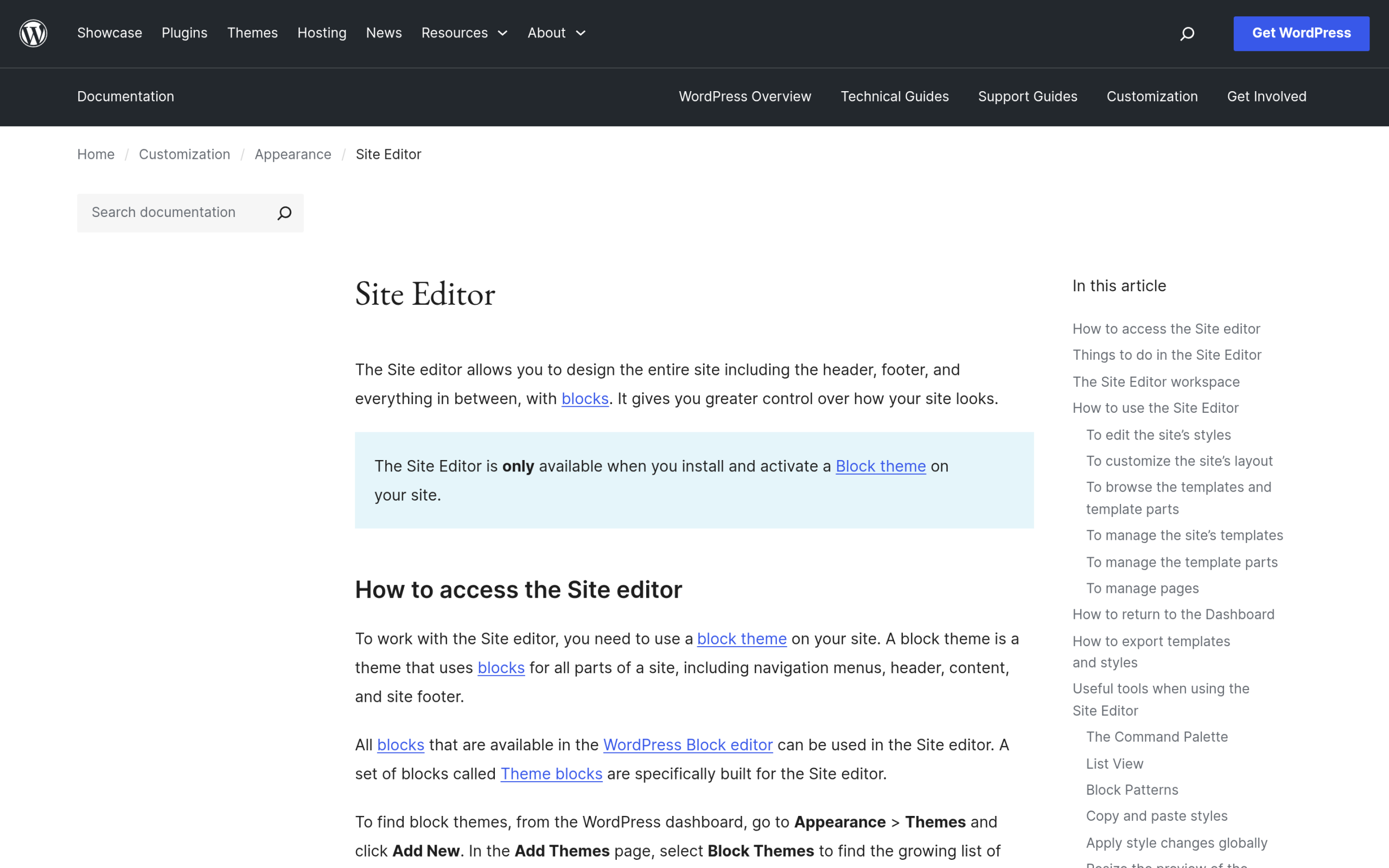
The Site Editor is the part of WordPress where you design your whole site visually, using the same blocks you already use to write posts. In the words of the official documentation, it “allows you to design the entire site including the header, footer, and everything in between, with blocks.”
Before it existed, your theme controlled the header, footer, and overall structure, and you were left adjusting whatever options the theme author chose to expose in the Customizer. The Site Editor flips that around. The layout of every part of your site becomes editable content, not locked theme code.
This is what people used to call full site editing, or FSE. The name faded because it described a transition that is now simply how WordPress works. You do not need the label any more, you just open the editor and build.
Site Editor vs the Customizer vs page builders
It helps to place the Site Editor next to the two things it sits between.
The old Customizer gave you a narrow set of theme options, a live preview panel, and separate screens for menus and widgets. It was safe, but limited to whatever the theme allowed.
Page builders like Elementor go the other way. They add a powerful visual layer on top of WordPress, with plenty of design freedom, but also extra scripts, a learning curve, and a degree of lock-in to that builder.
The Site Editor lands in the middle. It gives you real design control over the entire site, it is built into WordPress with no extra plugin, and it outputs clean block markup rather than a builder’s own format. For teams who want native, lightweight, and future-proof, that trade is attractive.
Also Read: Already on a builder and weighing the switch? See How to Migrate from Elementor to Gutenberg.
The one thing you need first: a block theme
Here is the detail that trips people up. The Site Editor is not available on every site. The documentation is blunt about it: the Site Editor is “only available when you install and activate a Block theme on your site.”
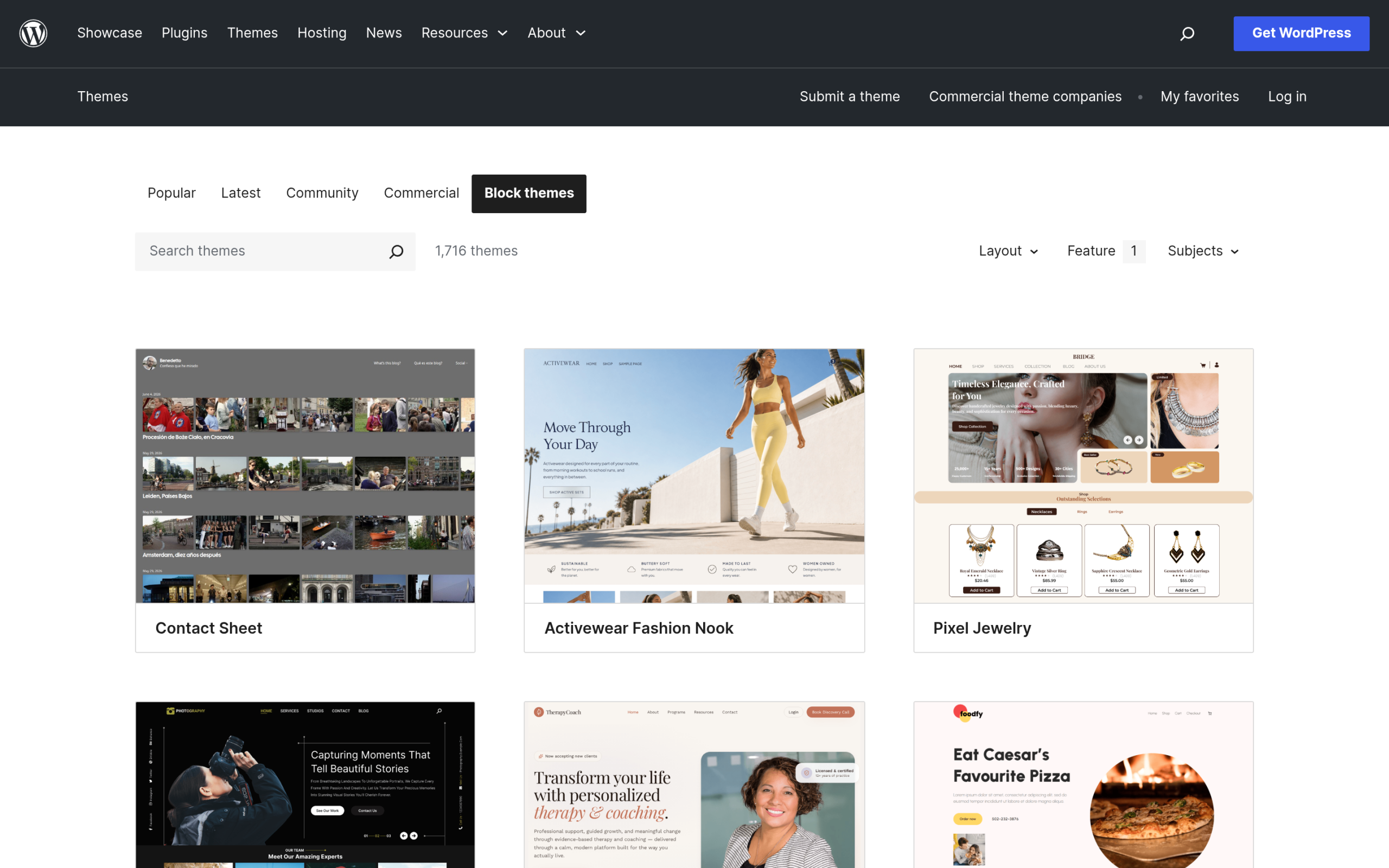
A block theme is a theme built entirely from blocks, including the header, footer, and templates, rather than from PHP template files. If you are running a classic theme, the Appearance menu will show Customize, not Editor, and none of this applies until you switch. To find one, go to Appearance > Themes > Add New and filter by Block Themes, or browse the full site editing tag in the WordPress theme directory.
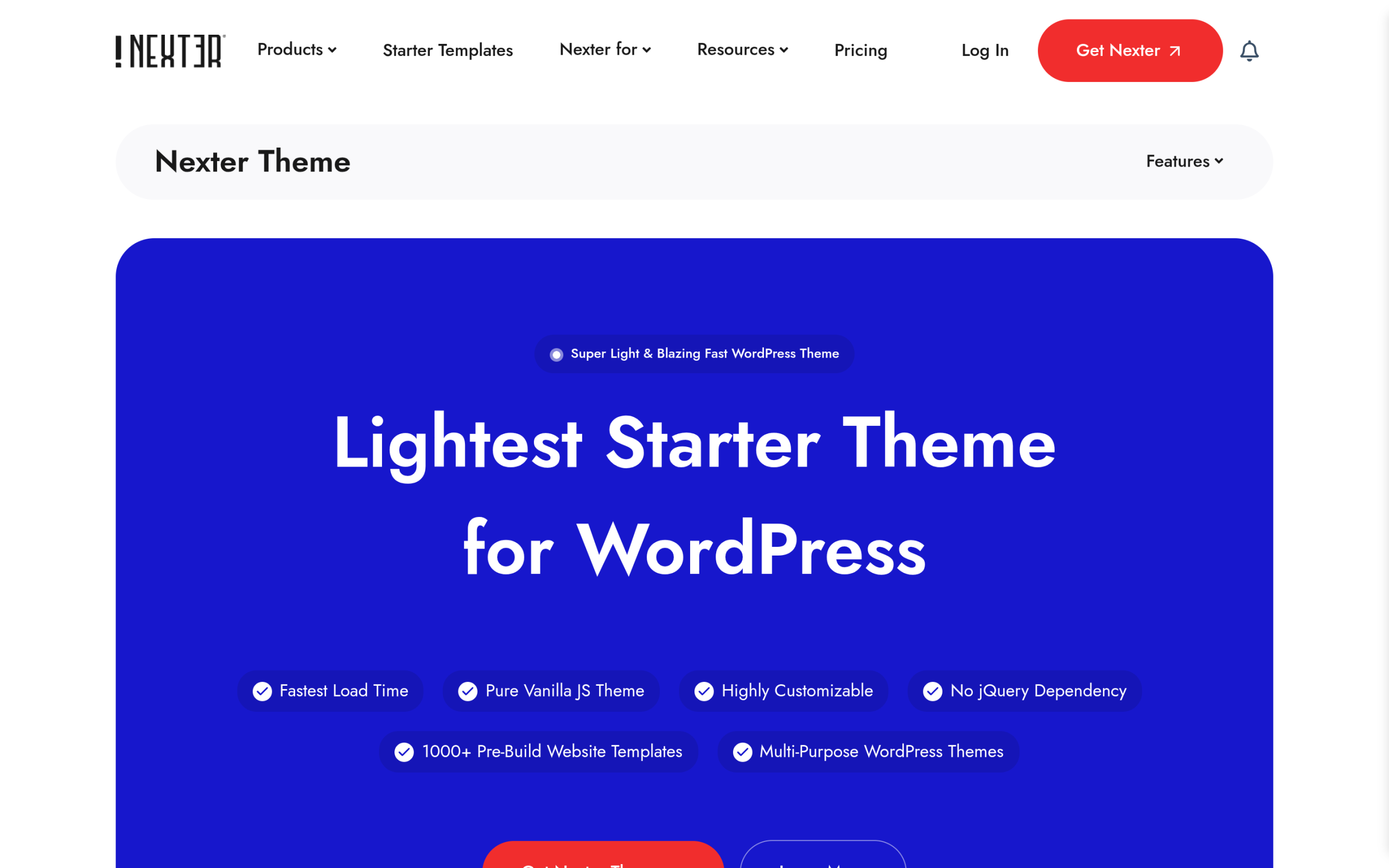
The catch with block themes has always been weight. Many of them load more than you need. This is where Nexter Theme fits: it ships as both a classic and an FSE block theme, weighs “Less than 20Kb,” and is built in “Pure Vanilla JS” with no jQuery, so the Site Editor sits on a fast foundation instead of a heavy one. It also bundles more than 1,000 pre-designed templates to start from.
Also Read: A block theme is only as fast as what you build on it. See Gutenberg Core Web Vitals: How to Speed Up a Block-Theme WordPress Site.
The five areas of the Site Editor
Open the Site Editor and you land on five sections. Knowing what each one is for makes the whole tool click.
- Navigation is where you browse and edit your menus.
- Styles controls the look of the entire site: color palettes, typography, and layout, plus ready-made style variations your theme provides.
- Pages lets you create and edit pages from inside the editor, a capability added in WordPress 6.3.
- Templates holds the layouts for each type of content: your single post, your archive, your 404 page, and more.
- Patterns manages reusable groups of blocks and your template parts, such as the header and footer.
Editing your header, footer, and templates
Templates and template parts are the heart of full site editing. A template part is a reusable region like a header or footer. Edit it once and the change flows everywhere it is used.
That power comes with a warning worth repeating. As the documentation notes, changes to the Header and Footer templates “will apply to all pages of your site that use those templates, and not just the page you were working on.” Edit with that in mind.
Templates themselves cover page types rather than single pages. You can redesign how every blog post looks, style your search results, or give your custom post types their own layout, all without touching code. Building a one-off marketing page works the same way; here is how to create a landing page in WordPress.
Global Styles: design the whole site once
The Styles panel is where the Site Editor saves the most time. Instead of restyling block after block, you set your colors, fonts, and spacing once and they cascade across the site.
Most block themes ship several style variations, full palettes and type combinations you can swap with a click. Since WordPress 6.2 you can also copy styles from one block and paste them onto another, or take a change made to a single block and apply it to every block of that type at once.
Speed tools: Patterns and the Command Palette
Two features make day-to-day editing quicker.
Patterns are predefined groups of blocks you drop in and adjust, from hero sections to pricing tables. WordPress includes a standard set, and block themes bundle their own.
The Command Palette is a search box for the whole editor. Press Cmd+K on Mac or Ctrl+K on Windows and you can jump to any template, page, or pattern, or trigger actions like creating a new page, without hunting through menus. List View, a tidy outline of every block on the page, rounds out the trio. If you have ever wanted to add a table of contents that mirrors that structure, the block-native approach fits the Site Editor cleanly.
Where the Site Editor stops, and how blocks fill the gap
For all its reach, the Site Editor is honest about its scope. Core blocks handle structure, text, images, and straightforward layout very well. What they do not include are the richer components a real site often needs: sliders, tabbed content, advanced forms, popups, dynamic post listings, mega menus, and the like.
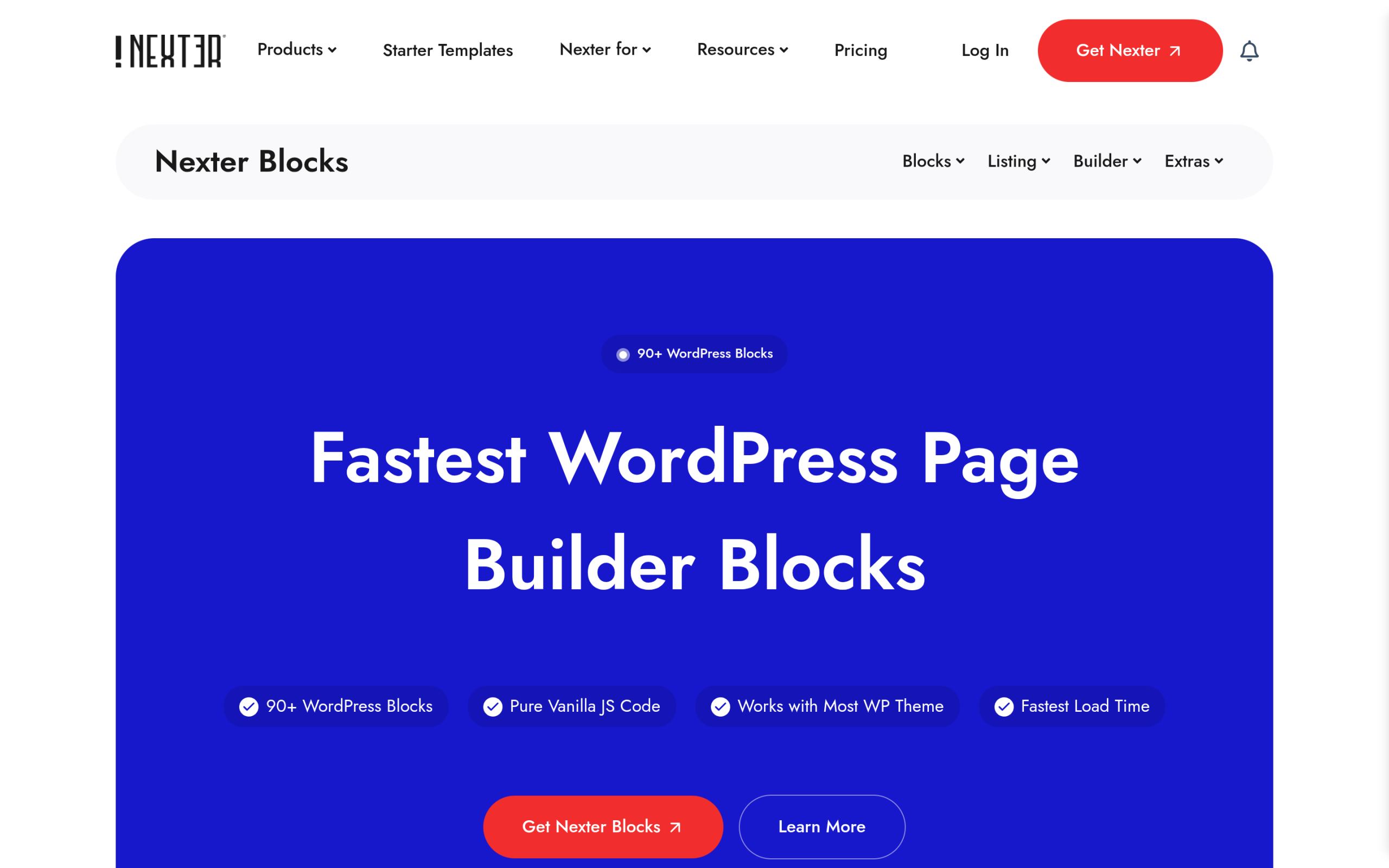
That gap is filled by block libraries. Nexter Blocks adds “120+ WordPress Gutenberg Blocks” that work inside the same editor, with a mix of free and pro blocks covering listings, galleries, forms, popups, and WooCommerce layouts. Because they are native blocks, they behave like part of the editor rather than a separate builder bolted on top, which keeps the output clean and the site fast. It is also part of why block themes read so well to machines, something that matters more as AI agents start consuming WordPress content.
Should you switch to the Site Editor?
If you are starting a new WordPress site in 2026, the Site Editor is the natural default. It is native, it is where WordPress is investing, and paired with a light block theme it gives you full design control without a heavy builder.
If you are mid-project on a classic theme and a page builder your team knows well, there is no need to rush. The Site Editor will still be there, and more capable, whenever you are ready. The cleanest path for most people is a fast block theme like Nexter Theme, the core Site Editor for structure and styling, and Nexter Blocks for the advanced pieces. That combination keeps you on WordPress standards while covering the gaps.
Suggested Reading
- How to Migrate from Elementor to Gutenberg
- Gutenberg Core Web Vitals: How to Speed Up a Block-Theme WordPress Site
- How to Add a Table of Contents in WordPress
- What Is a Custom Post Type in WordPress?
- How to Create a Landing Page in WordPress
