












Numbered callouts are how diagrams have labelled themselves for centuries, and a numbered pin still beats an icon when the order matters.
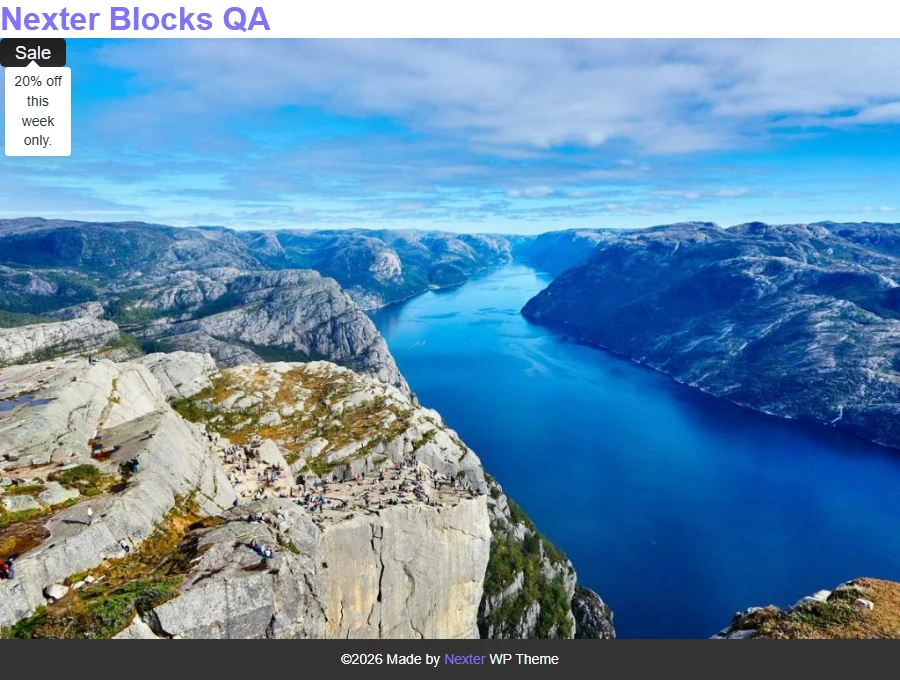
A hotspot pin can carry a short piece of text — a number, a price, a single word — instead of an icon or an image.
For every Hotspot setting in one place, see the Hotspot feature guide.
Before You Start
- Edition: Pro — the Hotspot block needs Nexter Blocks Pro.
- Block to enable: Hotspot, switched on under Nexter > Blocks in your WordPress dashboard.
Steps
- Add the Hotspot block and choose the background image.
- Open a pin in the pin list and set Pin type to Text.
- Type the label into the pin’s text field — a number, a price or one short word.
- Place the pin with Left ( % ) and Top ( % ), then add its Tooltip Text.

How It Behaves
- The text renders inside the pin itself — measured on a published page, the label read back exactly as typed.
- The text is real text on the page, so it can be selected and read by assistive technology, unlike a label baked into the background image.
- Everything else works as with any pin: positioning, tooltip, trigger and links are unchanged.
- Keep the label short. The pin is sized around its content, so a long phrase makes a wide pin that covers the image.
Each pin is placed with Left ( % ) and Top ( % ), measured from the top-left of the image. Measured on a published page, pins set to 10/10, 50/50 and 85/80 landed at exactly those points, so the numbers behave as plain percentages and the pins stay put as the image scales.
Limitations
- Text pins are for labels, not sentences — put the detail in the tooltip instead.
- There is no automatic numbering: each pin’s text is typed in by hand, so renumbering after inserting a pin in the middle is a manual job.
- Long text widens the pin and can cover the part of the image it points at.
- Clear the Tooltip Text rather than relying on the Tooltip toggle — measured, the toggle alone does not stop the tooltip appearing.
Troubleshooting
My text pin is too wide and covers the image
Shorten the label — the pin sizes itself around its text. Move the longer wording into the tooltip, which only appears on demand.
Nothing shows on the pin
Check Pin type is set to Text and that the pin’s text field is not empty — an empty text pin renders nothing visible.
I want numbers that renumber themselves
They do not renumber automatically. If you expect the order to change often, leave a gap in your numbering or label the pins by name instead.
