












A photograph of a product, a floor plan or a diagram often needs labels — and a caption underneath makes the reader match words to places on their own.
The Hotspot block puts the labels on the image itself: small pins you position by percentage, each opening its own tooltip.
Before You Start
- Edition: Pro — the Hotspot block needs Nexter Blocks Pro.
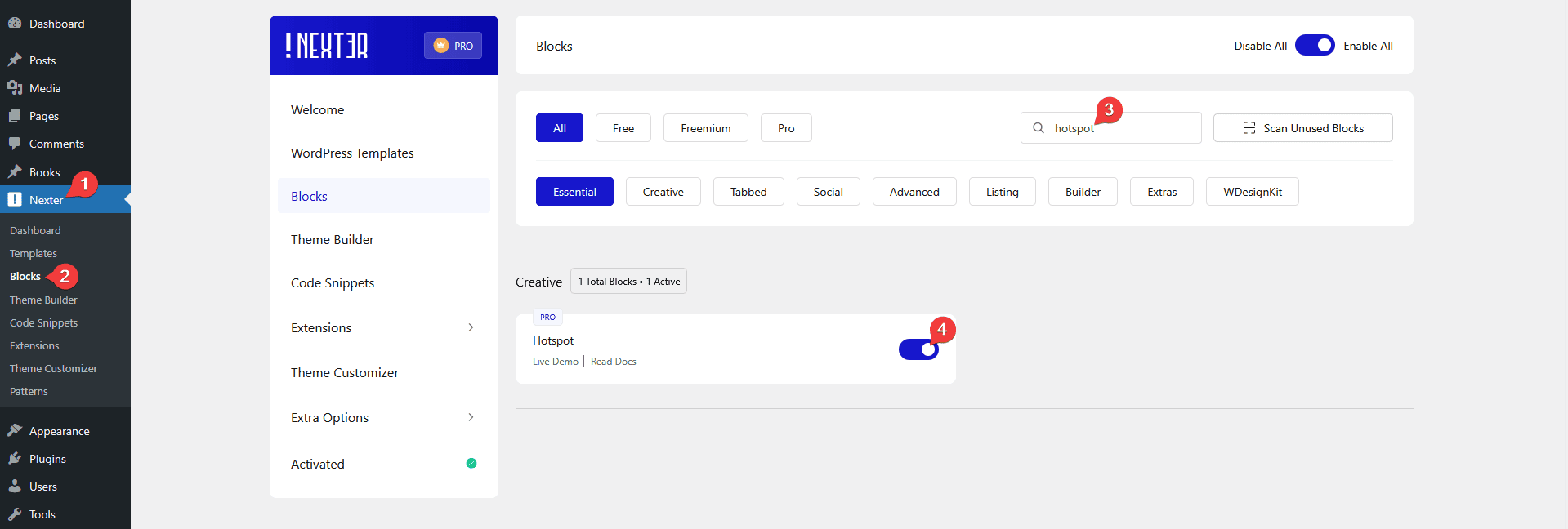
- Block to enable: Hotspot, switched on under Nexter > Blocks in your WordPress dashboard.
Video Tutorial

Steps
- Add the Hotspot block to your page.
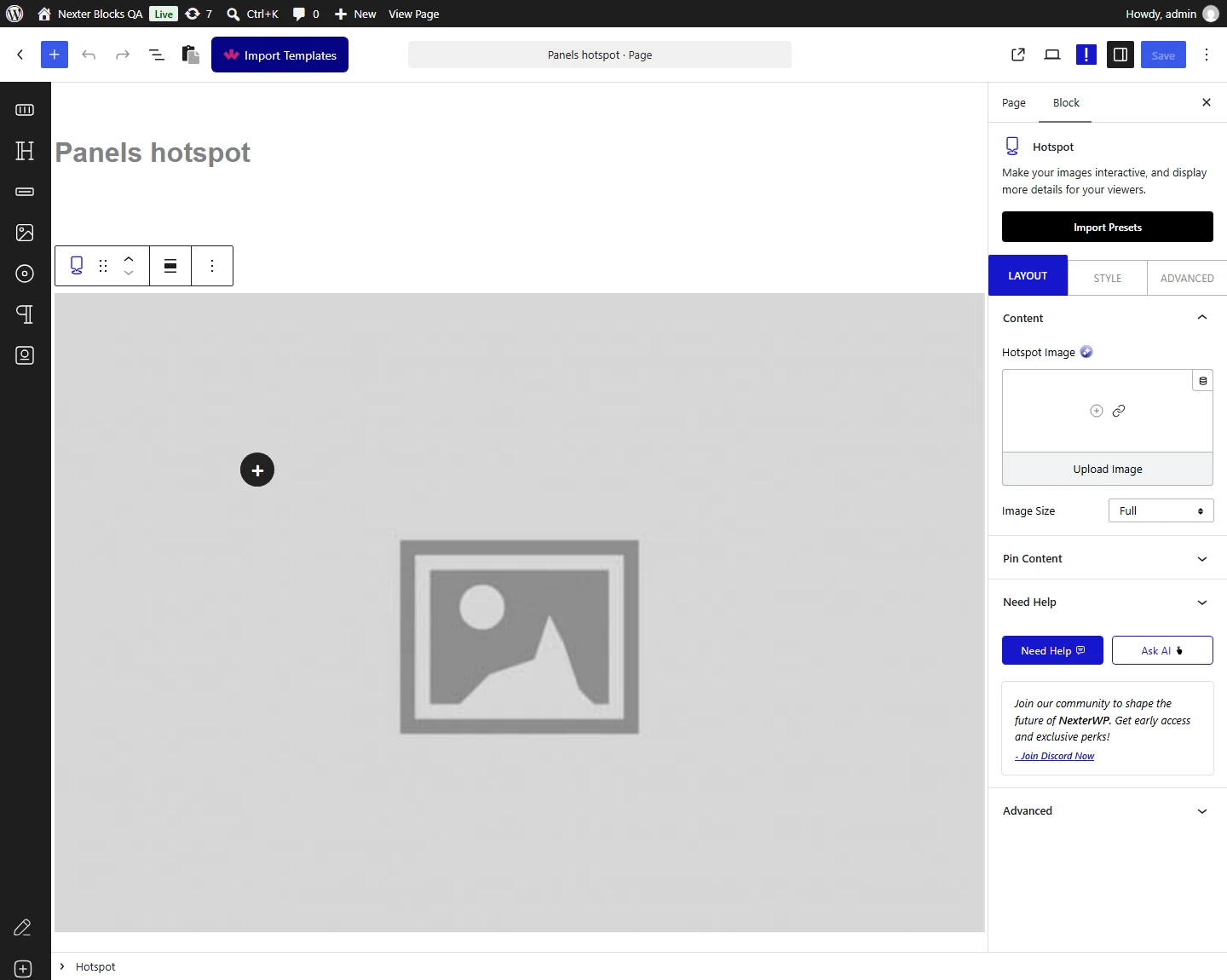
- Choose the image the pins will sit on, and set its Image Size.

- Open the pin list and use Add Pins to create as many pins as you need.
- For each pin, pick a Pin type — Icon, Image, Text or None.
- Place the pin with Left ( % ) and Top ( % ).
- Switch Tooltip on and write the Tooltip Text that should appear.
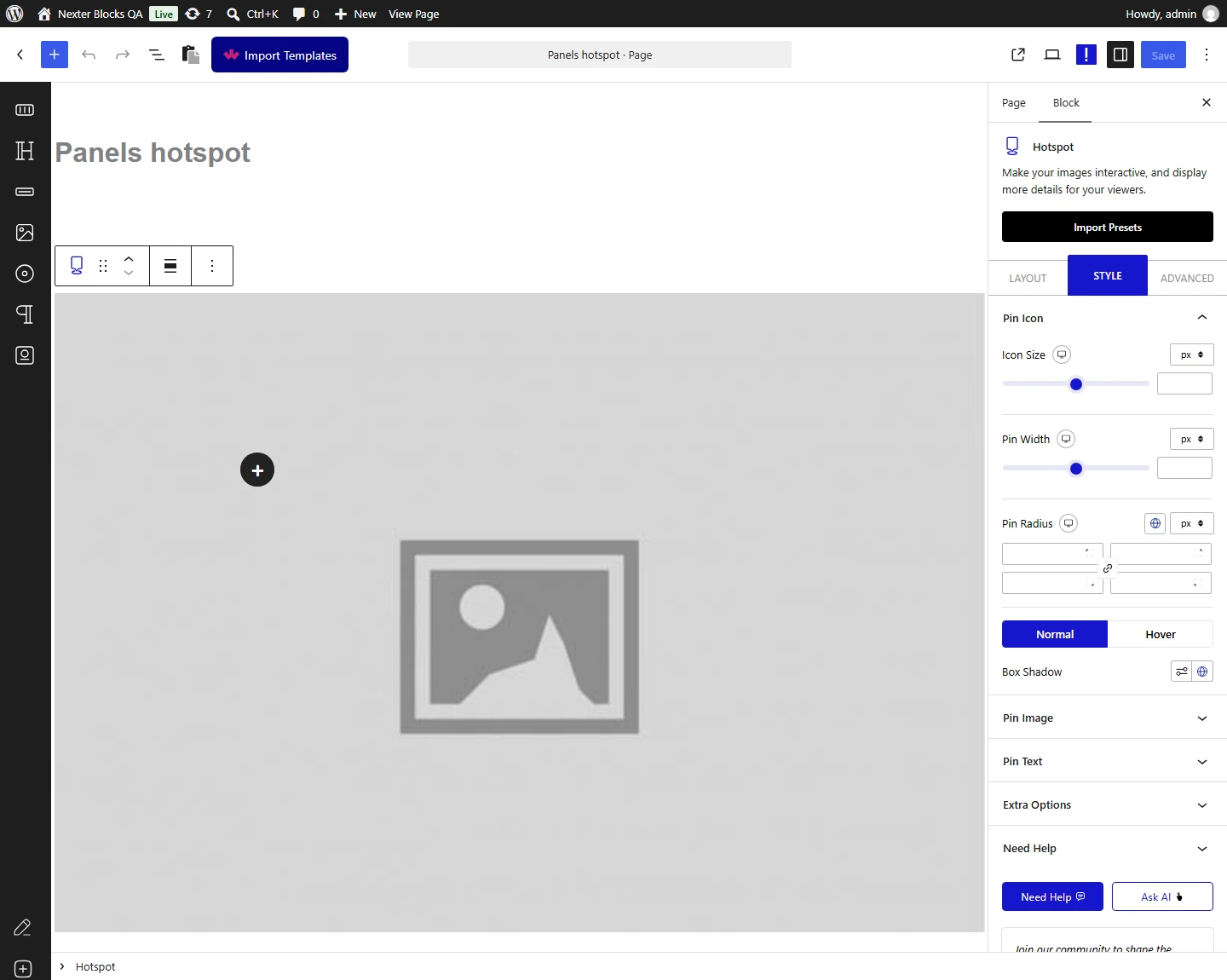
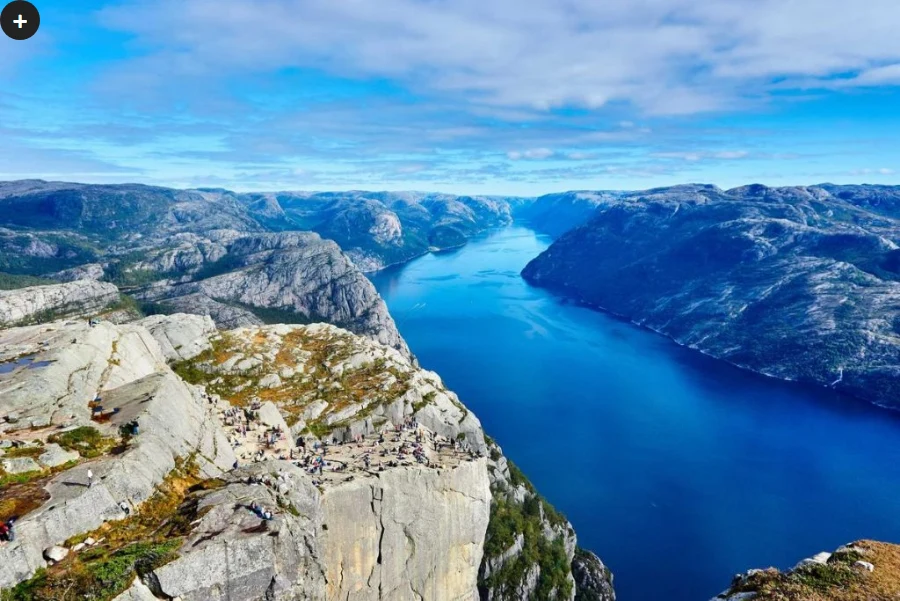
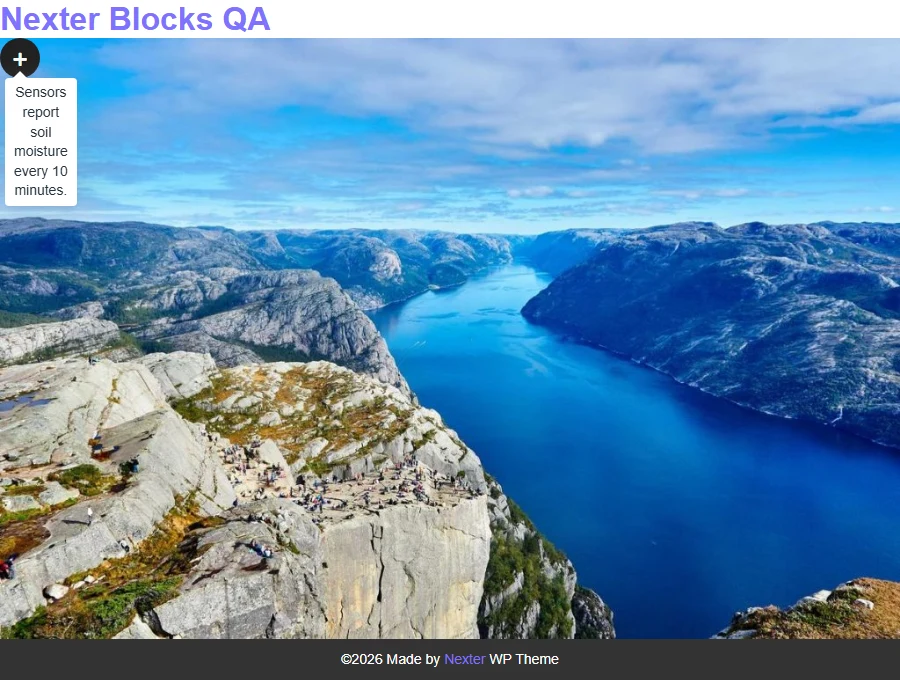
Each pin is placed with Left ( % ) and Top ( % ), measured from the top-left of the image. Measured on a published page, pins set to 10/10, 50/50 and 85/80 landed at exactly those points, so the numbers behave as plain percentages and the pins stay put as the image scales.
How It Behaves
| Pin type | What appears on the image |
|---|---|
| Icon | An icon from the icon library — the default, a plus sign. |
| Image | Your own image as the pin. See the image pin doc. |
| Text | A short word or number instead of a symbol. See the text pin doc. |
| None | Nothing visible at all — but the pin is still there and its tooltip still opens. Measured: an invisible hover region, useful for labelling an area without drawing on the image. |
- Tooltips open on hover by default, and can open on click instead — see opening a tooltip on click.
- Each pin has its own tooltip settings, so one pin can sit above its tooltip and another below it.
- Pins can be links. Measured: with a URL set, the whole pin becomes a link.
- Pins animate into place as the image scrolls into view, one shortly after another.
Limitations
- The Tooltip toggle does not remove an existing tooltip — clear the Tooltip Text instead. See the note below.
- Pins are positioned by percentage, so a heavily cropped responsive image can move a pin away from the detail it points at — check your placements at phone width.
- A pin’s tooltip is plain text or simple markup; it is not a full block-editor canvas.
- Pin type None leaves nothing visible, so tell readers the area is interactive some other way.
Switching the Tooltip toggle off does not remove an existing tooltip. Measured on a published page: a pin with the toggle off still opened its tooltip on hover, showing the text typed earlier. Worse, the editor hides the Tooltip Text field once the toggle is off, so that text is no longer visible to edit. To remove a tooltip, switch the toggle on, clear the Tooltip Text, then switch it off. This is a known bug and has been reported to the development team.
Troubleshooting
My tooltip still appears after turning the Tooltip toggle off
That is the known bug described above. Switch the toggle back on, clear the Tooltip Text, then switch it off — measured as the reliable way to remove it.
My pin is in the wrong place on phones
Left and Top are percentages of the image. Set the responsive values for tablet and mobile so the pin tracks the part of the image it belongs to at every width.
I can see the pin but no tooltip opens
Check the pin has Tooltip Text. An empty tooltip is never shown — and check whether the trigger is set to Click rather than Hover.
Nothing is visible where I placed a pin
Its Pin type is probably set to None, which renders an invisible hover region by design. Choose Icon, Image or Text to draw something.
