












Display conditions decide where each schema entry loads. They are how you keep the right structured data on the right pages — and how you stop two schema types from colliding on the same page.
Nexter → SEO → On-Page → Schema → the Edit button in a schema entry's Condition column.
How To Set Schema Display Conditions?
- On the Schema screen, find the entry you want to target.
- In its row, click Edit in the Condition column to open the Set Display Conditions modal.
- Under Include In, add the places the schema should load.
- Under Exclude From, add any places it should not load, even if they match the include rule.
- Click Save.
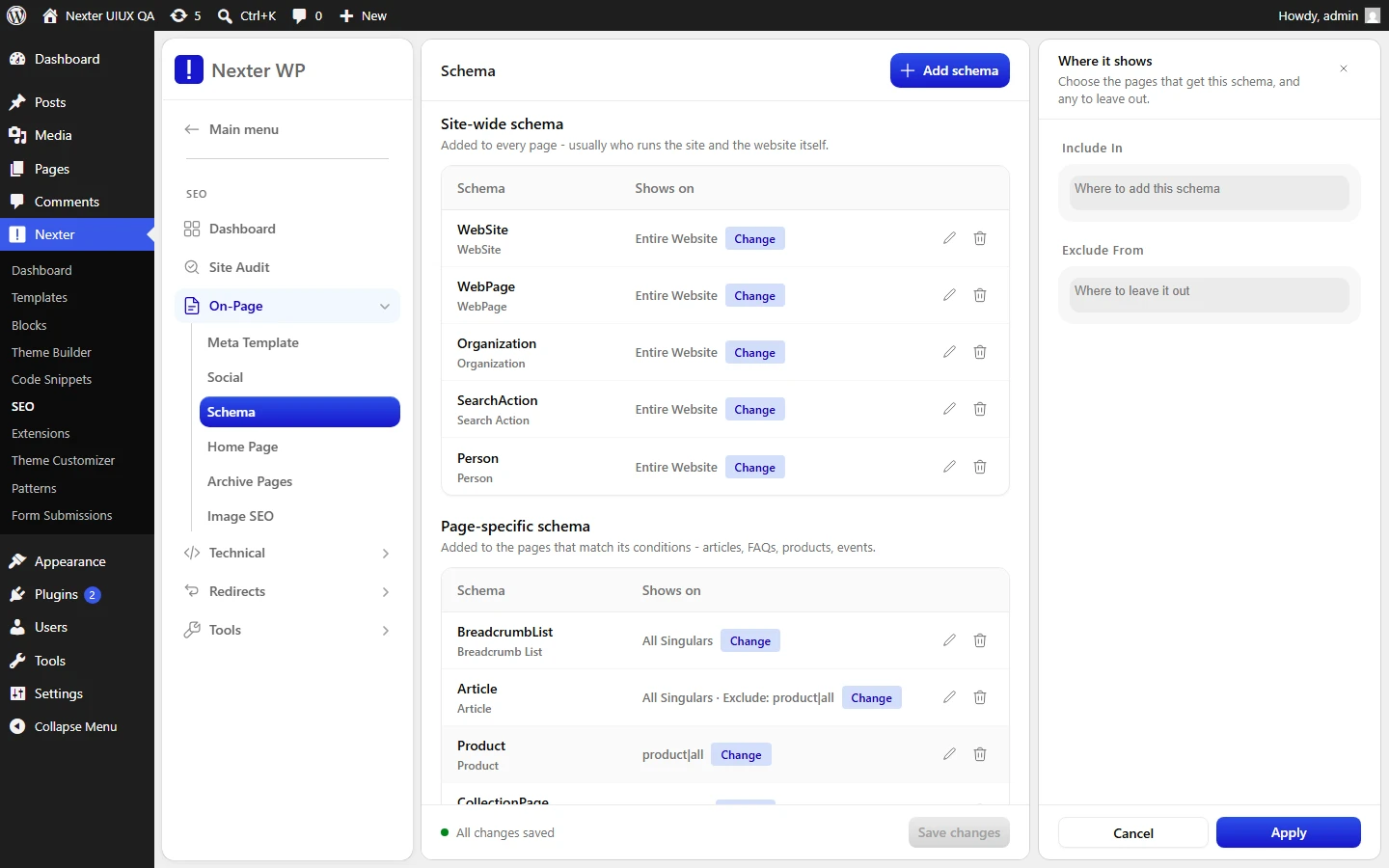
The modal is titled Set Display Conditions — "Select where you want to load the schema."
- Include In — a multiselect of targets where the schema loads. Options include broad scopes like Entire Website and All Singulars, plus specific post types (for example All Products) and taxonomies.
- Exclude From — a multiselect of targets to remove from the include set. Exclusions always win over inclusions.
- Save — applies the conditions to that entry.
How The Defaults Use Conditions
The schemas that ship out of the box are a working example of include/exclude discipline:
- WebSite, WebPage, Organization, Search Action, Person — Include In: Entire Website (site-wide entities).
- Breadcrumb List — Include In: All Singulars.
- Article — Include In: All Singulars, Exclude From: All Products. This keeps Article schema off product pages so it does not fight Product schema.
- Product — Include In: All Products only.
Good To Know
- Exclusions override inclusions. If a page matches both, the schema does not load there.
- The classic collision is Article and Product on the same product page. The default Exclude From: All Products on Article prevents it — copy that pattern for any custom entries that could overlap.
- Start broad with Include In, then trim with Exclude From, rather than adding dozens of narrow include rules.
Troubleshooting
- A schema is missing on a page. Check Include In covers that page and that Exclude From is not removing it.
- Two schemas of different types appear where you want only one. Add the unwanted type's target to its Exclude From, the way Article excludes All Products.
Related: Structured Data (Schema) In Nexter SEO · Add & Configure A Schema Entry · Supported Schema Types & Variables Reference
This is how you can control where each schema loads with Nexter SEO.
