












Set your SEO configuration up once, then move it between sites. The Import/Export tool saves your Nexter SEO settings to a JSON file you can load on another site — handy for migrating from staging to live, cloning a baseline across client sites, or keeping a backup.
Nexter → SEO → Tools → Import / Export.
How To Import & Export SEO Settings?
Export
- Open Tools in the left-hand nav and click Import / Export.
- In the Export section, turn on the setting groups you want to include.
- Click Export to download a
.jsonfile.
Import
- On the destination site, open the same Import / Export screen.
- Drag your
.jsonfile onto the drop area, or click Choose File. - Click Import.
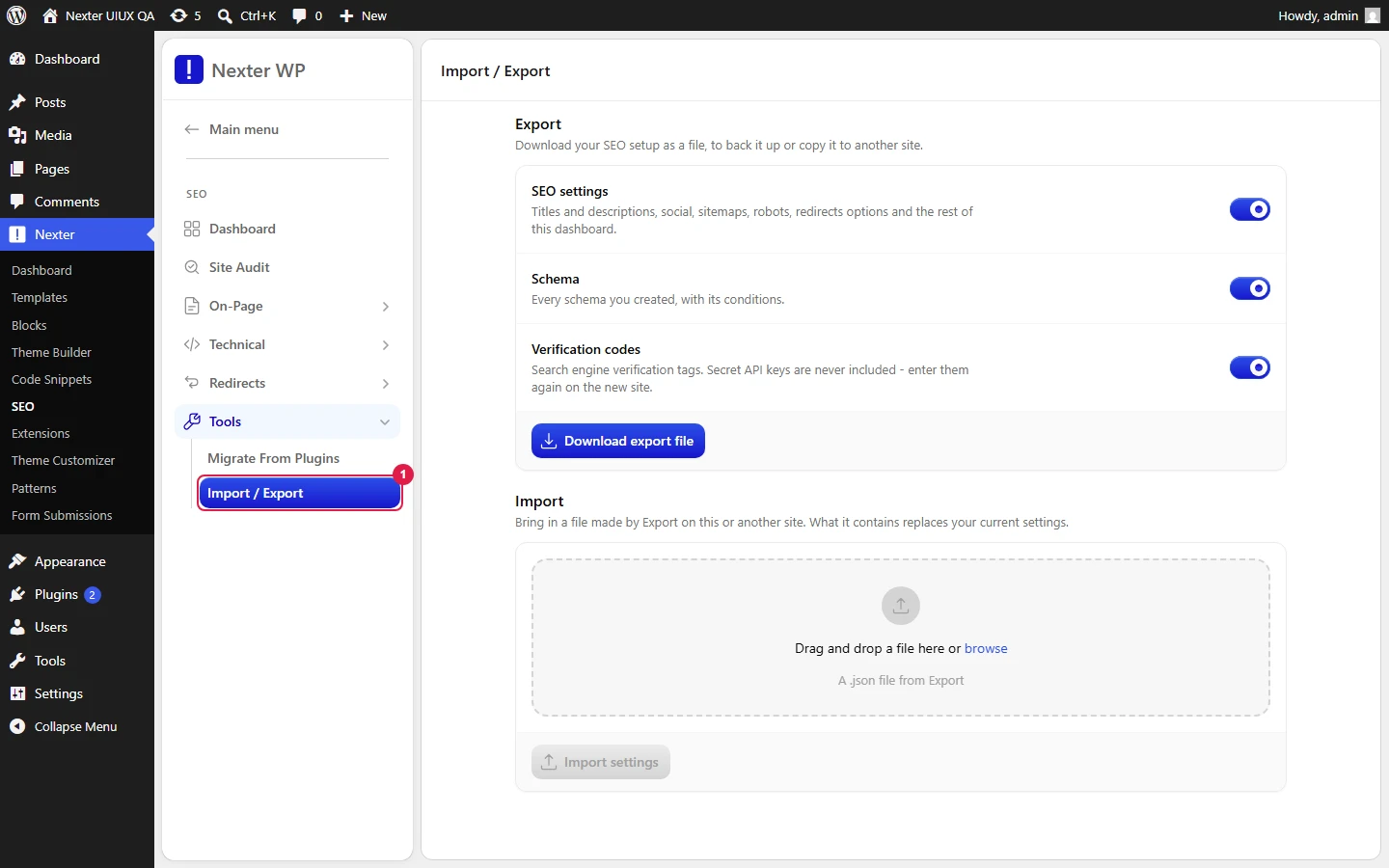
Import
- Drop area / Choose File — accepts a
.jsonsettings file exported from another site. Only.jsonfiles are accepted. - Import — applies the settings from the uploaded file.
Export
- Global Settings — your general Nexter SEO configuration.
- Schema Settings — your structured-data setup (schema entries and their conditions).
- Required Resources — supporting resources needed for the settings to apply on the destination site.
- Export — downloads the selected groups as a single
.jsonfile.
Good To Know
- This is a settings transfer, not a migration importer. It moves your Nexter SEO configuration between sites — it does not import meta data from Rank Math, Yoast, or other SEO plugins.
- Export Schema Settings together with Global Settings when cloning a full setup, so schema and conditions arrive intact.
- Keep an exported file as a backup before making large changes, so you can roll back by re-importing.
Troubleshooting
- Import does nothing or errors. Confirm the file is a
.jsonexported from Nexter SEO (not another plugin) and that it is not truncated. - Some settings did not carry over. Re-export with all relevant groups enabled (Global, Schema, Required Resources) and import again.
Related: Structured Data (Schema) Overview · Nexter SEO Dashboard Overview
This is how you can move your Nexter SEO settings between sites.
